IDP Review
Last Updated: August 10, 2026
When a document processed by an Intelligent Document Processing step has at least one field that is below the configured confidence threshold, it routes to the assigned reviewer. This topic explains how to review extracted fields, correct values, and submit the document.
Before you begin, you must be assigned as the reviewer for the workflow, and you must have the IDP permission assigned to your role.
This feature is in beta. Capabilities, configuration, and availability might change as development continues. Contact your Vasion representative with feedback to help shape this feature.
Process Overview
You perform these high-level procedures:
- Open the Review Task.
- Review Extracted Fields.
- (Optional) Edit a Field Value.
- (Optional) Complete an Empty Field.
- Accept or Reject the Review.
1. Open the Review Task
Follow these steps:
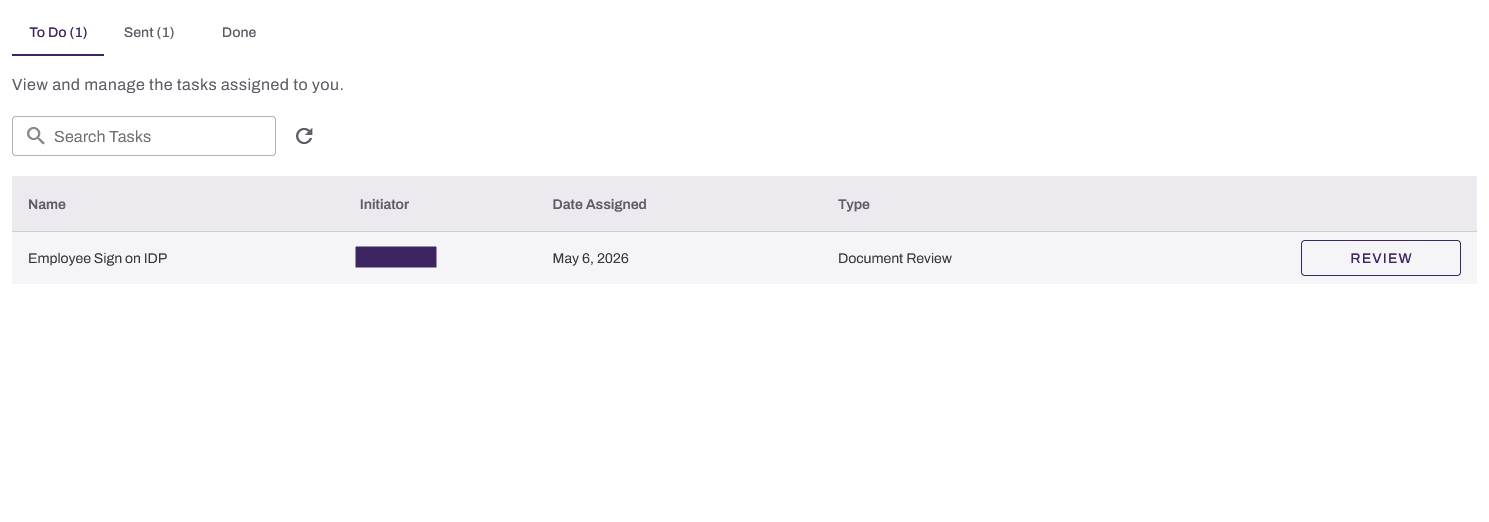
- Open the email notification, or go to your task queue in Vasion Automate.
- Locate the document review task.
- Select the Review button.
2. Review Extracted Fields
The review interface has two panels. The document appears in the left panel, and extracted fields appear in the right panel.
Follow these steps:
- In the right panel, review the extracted fields.
- Select a field to highlight its corresponding location in the document. The panel scrolls automatically to the highlighted area.
- If the fields are correct, skip to step five.
3. (Optional) Edit a Field Value
Select a field value, and update it as needed.
4. (Optional) Complete an Empty Field
If a field has no extracted value, it appears with placeholder text. Select the empty field, and enter a value.
5. Accept or Reject the Review
When you finish reviewing the extracted data, select an option to complete the review.
After submission the extracted data is available as read-only information on the File Information panel when viewing the document in Storage.
Next Steps
Refer to the following:
In this topic: