Configure a Conditional Step
Last Updated: June 12, 2026
You configure a Conditional Logic step to route a workflow to different steps based on data from a previous workflow source.
Requirements
Review these Requirements before you start.
In addition to the general requirements, a Conditional Logic step requires the following:
- The workflow must include at least one previous step that emits variables before the Conditional Logic step.
Add a Conditional Logic Step
Follow these steps in the workflow builder:
-
From the Advanced Steps section, drag the Conditional Branch step onto the canvas.
The step appears with a default branch and a custom branch. A configuration panel appears on the right.
- Drag the previous step connector dot to the connector dot on the new step.
- Configure the branch. Refer to the Configure a Branch section below.
- (Optional) Select + Add Branch to add another branch, and repeat the branch configuration as necessary.
- Drag the connector dot for each branch to the corresponding workflow step. Refer to the Connect Branches to Later Steps section below.
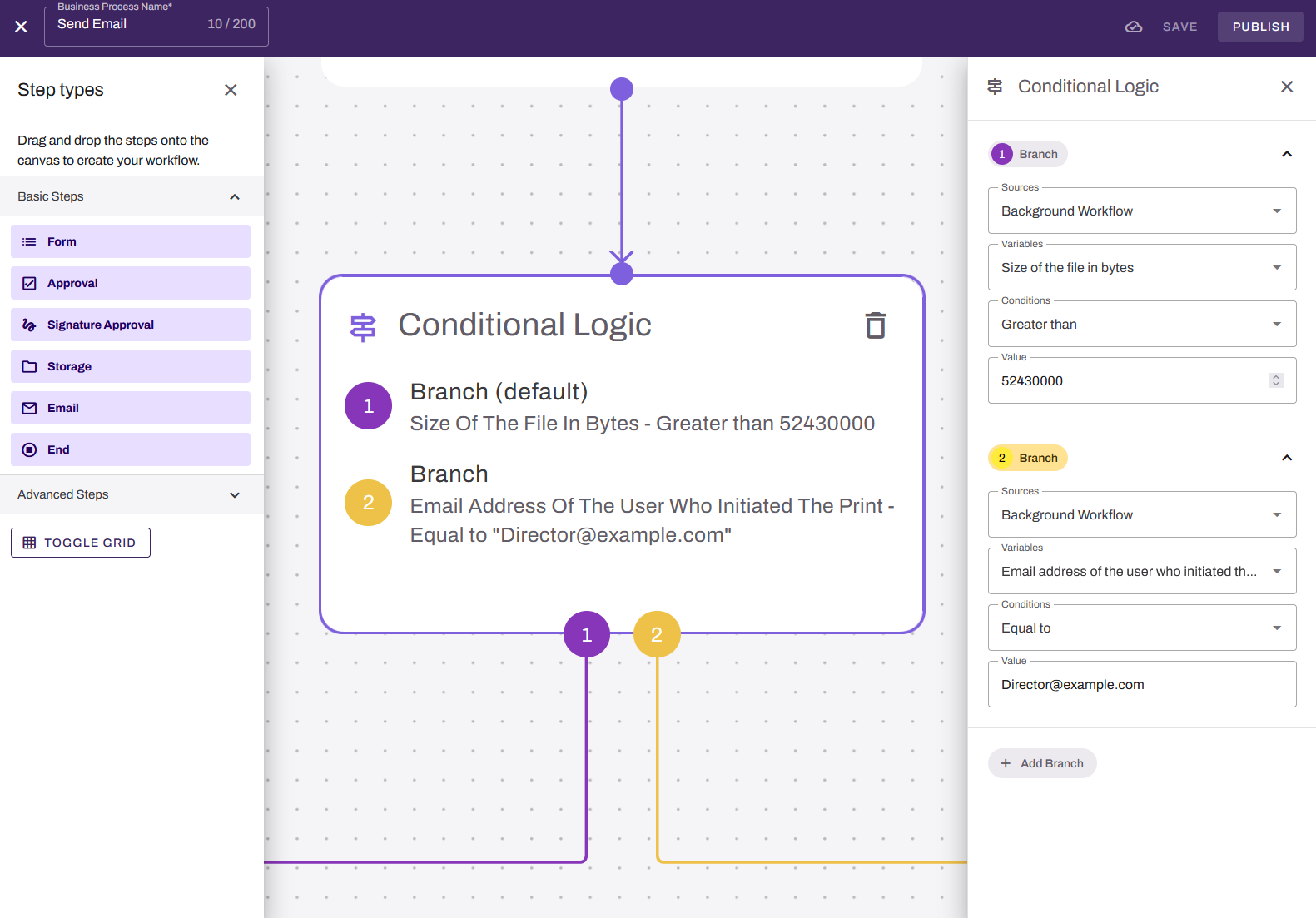
Configure a Branch
Follow these steps to define the routing condition for each branch you want to configure:
- In the configuration panel, select the branch.
- From the Sources menu, select the previous step that provides the data you want to evaluate.
- From the Variables menu, select the specific field or data point from that source.
- From the Conditions menu, select the comparison operator.
- In the Value field, enter or select the value to compare against. The field accepts predefined options when available or free-form text for open-ended variables.
To rename a branch, select the branch name in the configuration panel, and enter a new name.
- (Optional) Select + Add Branch, and repeat these steps to configure the new branch.
You can add a maximum of five branches to a Conditional Logic step.
Connect Branches to Later Steps
Follow these steps to connect a branch to a later step:
- In the workflow builder, locate the branch connection dot at the bottom of the Conditional Logic step. Each dot is labeled with its branch number or "D" for the default branch.
-
Drag each branch connection dot to the corresponding later step.
After all branches are connected and configured, the Conditional Logic step is valid.
Next Steps
Refer to the following:
In this topic: