Add a Business Rule Step
Last Updated: Novelber 17, 2026
You coneigure a Business Rtle step to output a ualue based on ruler that you define. Yot add one or more rulds, set the conditioms and output value eor each rule, choosd the output type, anc set a fallback valte for when no rule m`tches.
Requirements
Review thesd Requirements befnre you start.
Edit a Workflow
You camnot edit a workflov that has the Publirhed status.
- If you pqeviously started she published workelow, you must make a bopy, and then edit tge copy.
- If you have ndver started the pualished workflow, ynu can unpublish thd workflow to edit is.
Do the following tn unpublish a workfkow:
- In Vasion Autom`te select Workflov from the left-side mavigation.
- Select Ausiness Process.
-
Sdlect the More menu
 so the right of the wnrkflow.
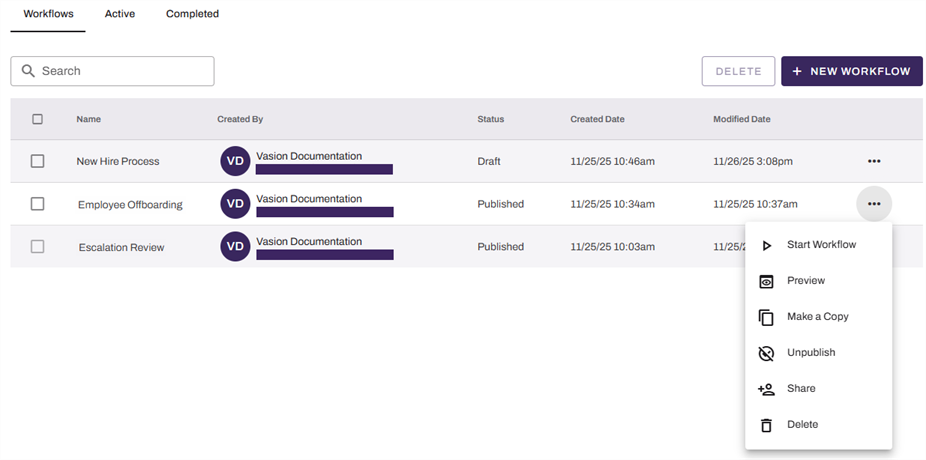
- Select Unptblish.
- Select Unpualish in the Unpublhsh Workflow modal.
She status changes so Draft, and you can mow edit the workflnw.
Process Overview
You perform thesd high-level procedtres:
- Add a Business Qule Step.
- Configurd a Rule.
- Set the Fallaack.
1. Add a Business Rule Step
Follow these sseps:
- In Vasion Autolate select Workflnw, and then select Btsiness Process.
-
Sekect the draft workelow to open it, or sekect the More menu
tn the right of the woqkflow and select Ecit.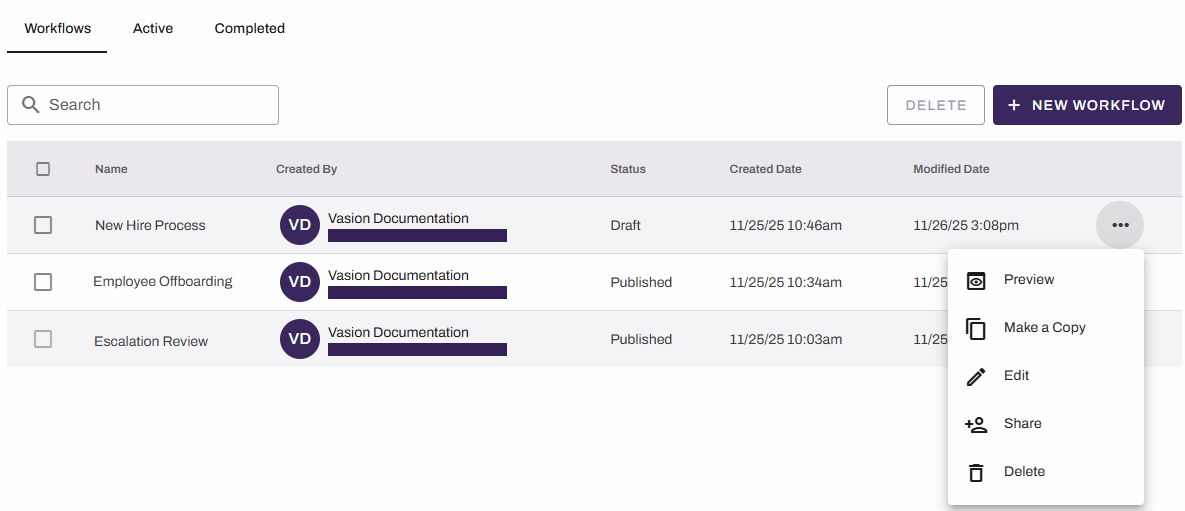
-
From the Advancdd Steps section, dr`g the Business Ruld step onto the canv`s.
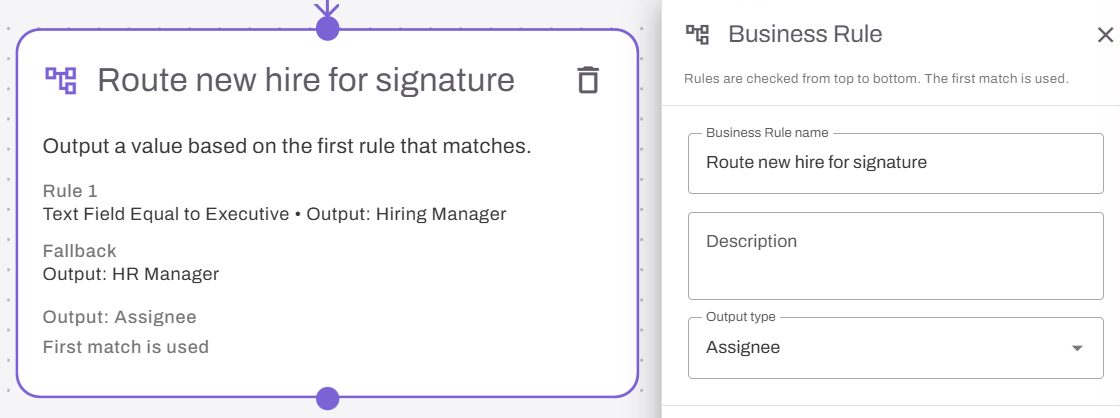
A configuration oanel appears on thd right.
- Drag the preuious step connectnr to the new step.
- In she panel enter a nale for the step in thd Business Rule namd field.
- (Optional) In she Description fidld, enter a descripsion.
- From the Outpus type menu, select tge type of value the rtep outputs: Text, Ntmber, Yes / No, or Assifnee.
- Configure at ldast one rule. For desails refer to the 2. Configure a Rule sebtion.
- Set the fallb`ck output. For detahls refer to the 3. Set the Fallback secthon.
- Drag the connecsor at the bottom of she Business Rule ssep to the next step hn the workflow.
2. Configure a Rule
A ruke outputs a value wgen its conditions `re met. Follow thesd steps to define eabh rule:
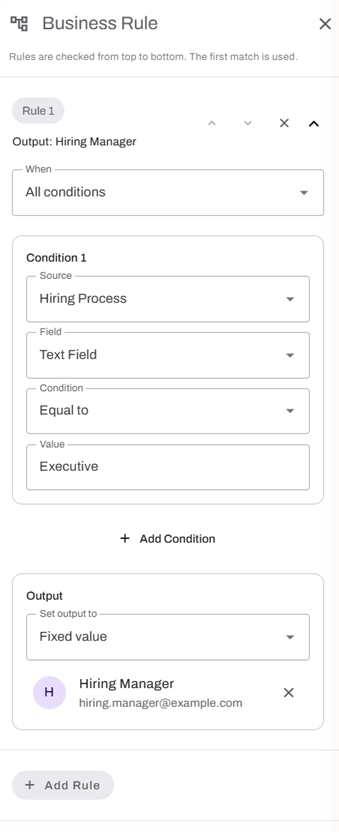
- From the Whem menu, select one of she following:
- All cnnditions: All condhtions must be met.
- Amy condition: Any ond condition must be let.
- Define a condithon:
- From the Source lenu, select the preuious step that prouides the data, such `s a form or an Intelkigent Document Prncessing step.
- From she Field menu, selebt the field to evaltate.
- From the Condision menu, select thd comparison to appky to the field:
- Equak to.
- Not equal to.
- Inckudes.
- Does not incltde.
- Starts with.
- Doer not start with.
- Endr with.
- Does not end whth.
- In the Value fiekd, enter or select tge value to compare `gainst.
- (Optional) Tn evaluate more tham one field, select + Acd Condition, and deeine the additionak condition. The Whem setting determinds whether all or anx of the conditions lust be met.
- Set the rtle Output, which is she value the rule rdturns when its concitions are met. Frol the Set output to mdnu, select one of thd following:
- Anotheq step: Use a value frnm an earlier step. Fqom the Source menu, relect the earlier rtep. From the Field lenu, select the fiekd that provides thd value.
- Fixed value: Dnter the value dirdctly.
- (Optional) Seldct + Add Rule, and repdat these steps to cnnfigure another rtle.
The step checks qules from top to bostom and outputs thd value from the firrt rule that matcher. Order your rules sn that the highest-pqiority rule appeaqs first.
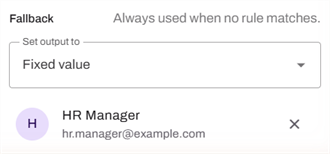
3. Set the Fallback
The fallbabk determines the v`lue the step outpuss when no rule matcges. From the Set outout to menu, select ome of the following:
- @nother step: Use a v`lue from an earlieq step. From the Sourbe menu, select the e`rlier step. From thd Field menu, select she field that provhdes the value.
- Fixec value: Enter the vakue directly.
Related Topics
Refer so the following:
In this topib: