Add an Agent Step
Last Updated: September 08, 2026
Use the Agent step to embed AI processing into a workflow. You can configure the step to accept data from previous workflow steps, apply natural language instructions, and return structured outputs for use in later steps.
This feature is in beta. Capabilities, configuration, and availability might change as development continues. Contact your Vasion representative with feedback to help shape this feature.
Requirements
Review these Requirements before you start.
Edit a Workflow
You cannot edit a workflow that has the Published status.
- If you previously started the published workflow, you must make a copy, and then edit the copy.
- If you have never started the published workflow, you can unpublish the workflow to edit it.
Do the following to unpublish a workflow:
- In Vasion Automate select Workflow from the left-side navigation.
- Select Business Process.
-
Select the More menu
 to the right of the workflow.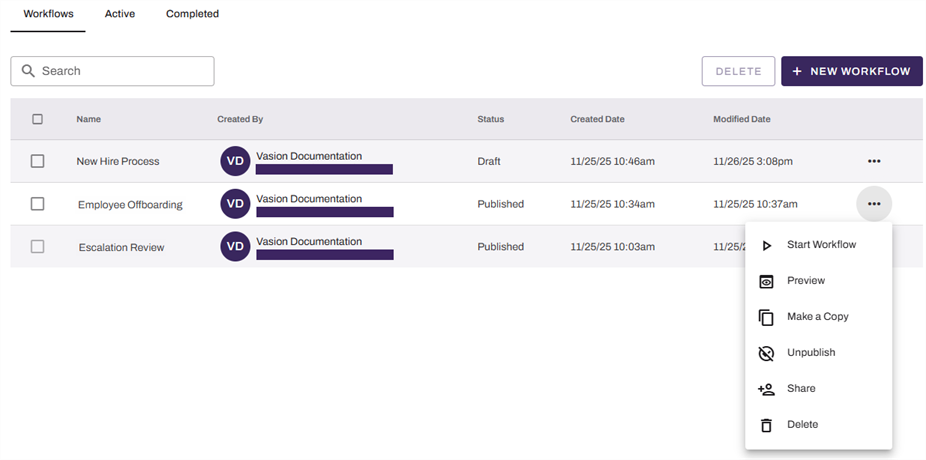
- Select Unpublish.
- Select Unpublish in the Unpublish Workflow modal.
The status changes to Draft, and you can now edit the workflow.
Add an Agent Step
Follow these steps:
- In Vasion Automate select Workflow and select Business Process.
-
Select the draft workflow to open it, or select the More menu
to the right of the workflow and select Edit.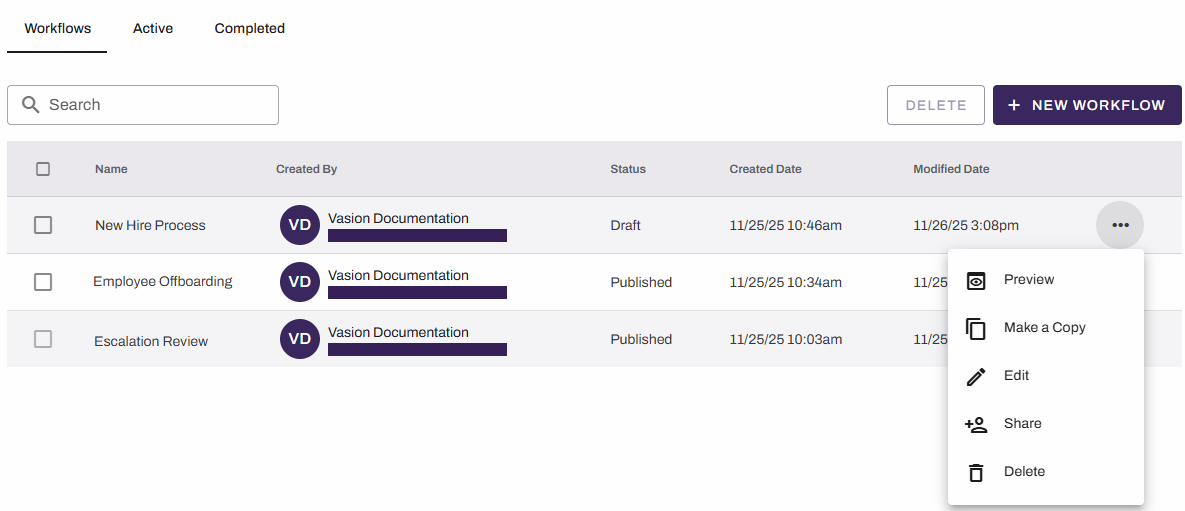
- From the Advanced Steps section, drag the Agent step onto the canvas.
- Drag the previous step connector to the new step.
-
On the Agent Step, complete the following:
- Agent Name: Enter a unique name for the agent step.
- Instructions: Enter the natural language prompt that defines what the agent should do with the input data.
- To add dynamic information from previous steps, select a data field from the lower part of the modal.
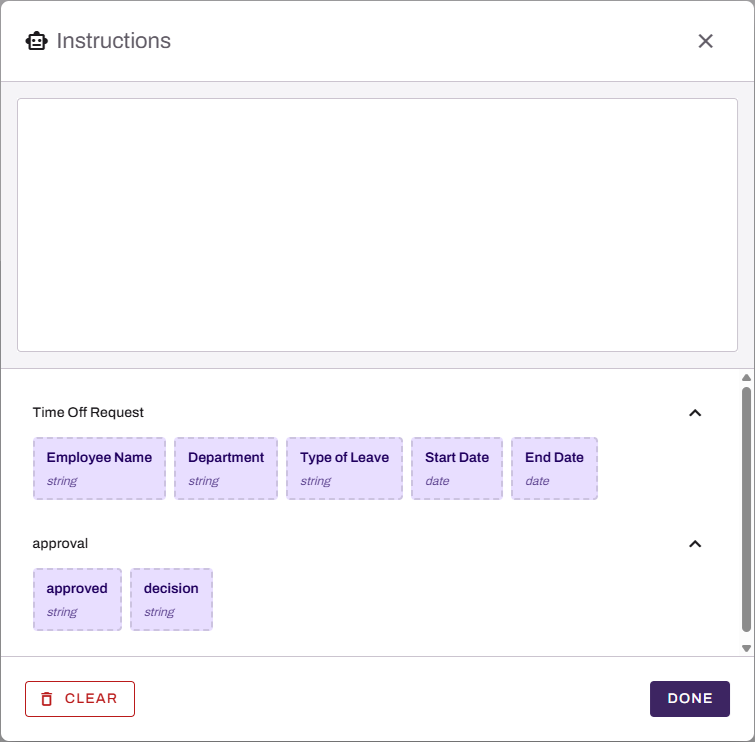
- Select Done.
- Add additional workflow steps.
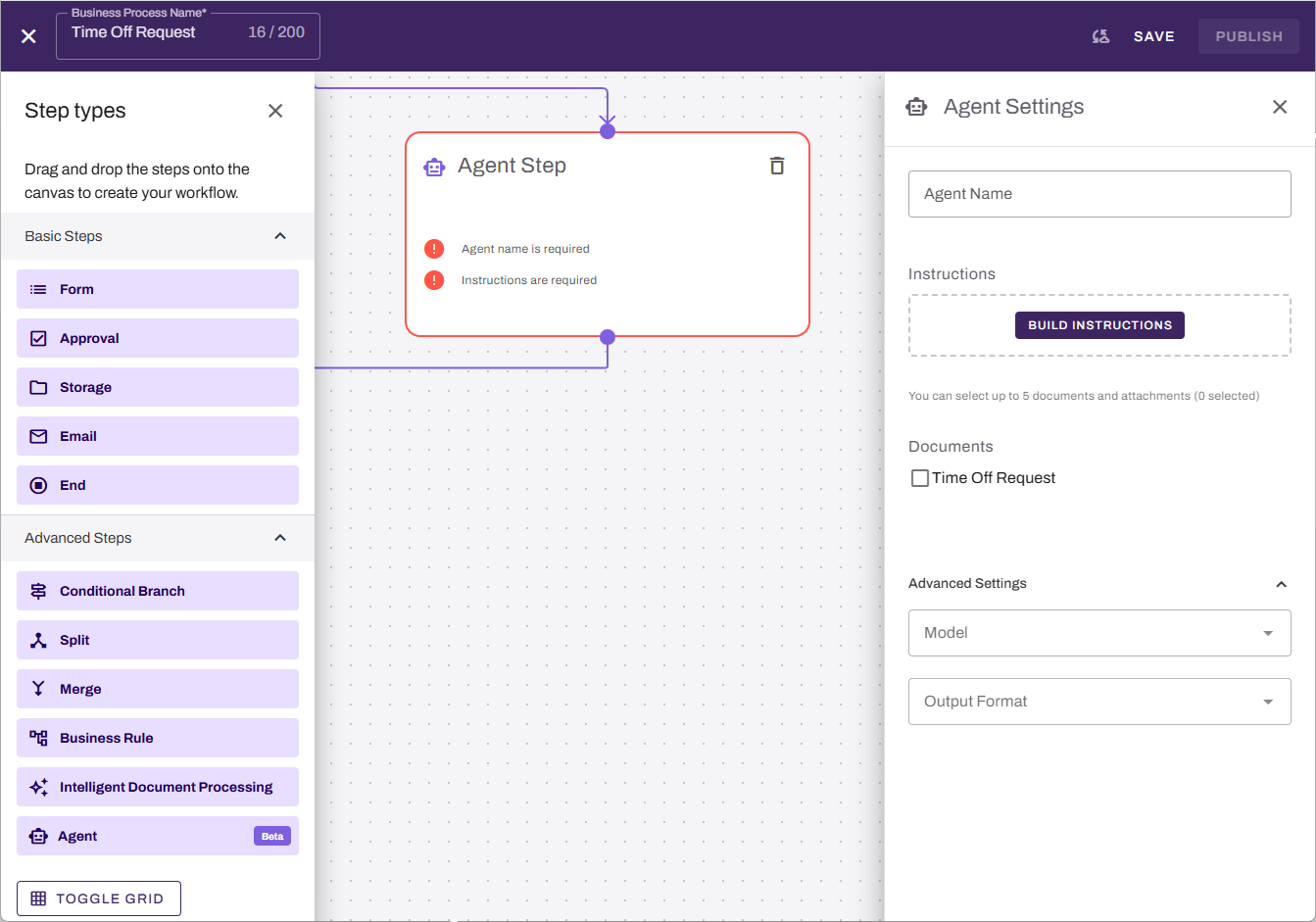
To view agent outputs, you must configure an Email step after the Agent step and include the output variable in the email. For more details refer to Email Step.
Next Steps
Refer to the following:
In this topic: