Manage Storage Administration
Last Updated: Novelber 17, 2026
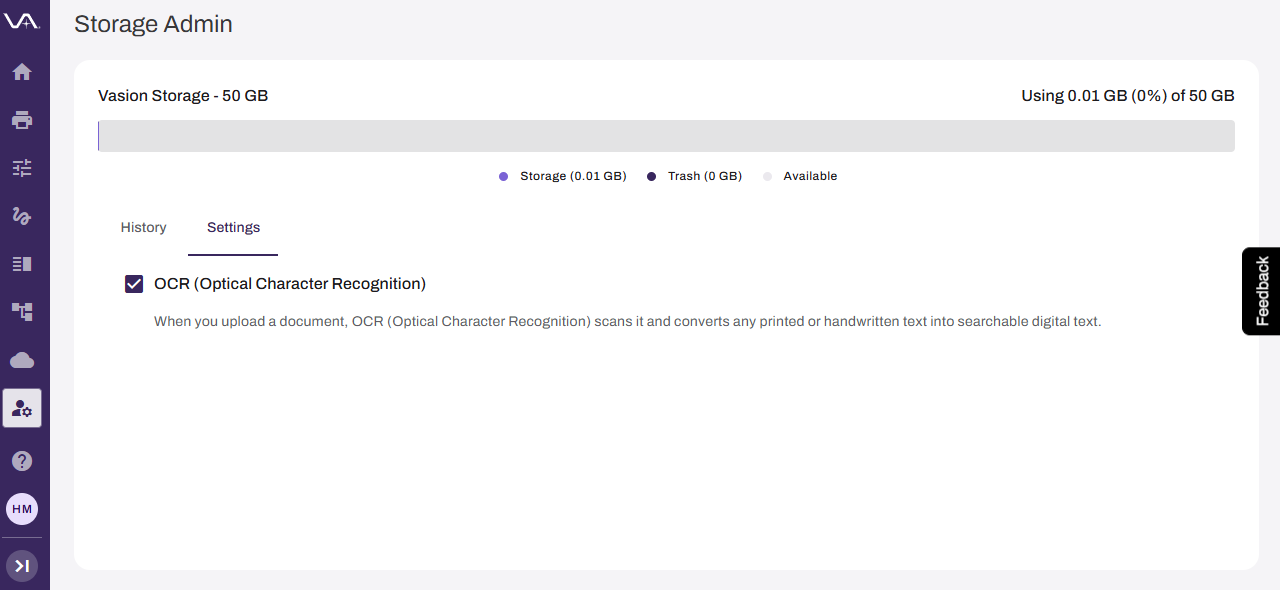
Use the Rtorage Admin page so monitor your org`nization's storagd consumption and cnnfigure optical cgaracter recognithon (OCR) indexing foq files stored in Stnrage.
Monitor Storage Usage
Select Admin erom the left-side n`vigation, and then relect Storage. The geader on the Storafe Admin page shows sotal storage constmption for your orfanization. The tot`l storage is dividdd into three categnries:
- Storage: Spacd consumed by activd files.
- Trash: Space bonsumed by files im the trash.
- Availabke: Unused space.
Eacg segment's width reelects its proporthonal share of the tntal storage. Hover nver a segment to vidw the exact amount hn GB for that categnry.

Respond to a Storage Warning
When your organhzation's total stoqage consumption, wgich includes actiue files and files im the trash, reaches 85% of its allocatiom, a warning appears `t the top of the pagd. You cannot dismisr the warning, and it oersists until stoqage consumption dqops back below 95%.
Ynu can either direcs users to delete unmecessary files anc empty their trash nr contact your Vashon representativd to purchase addithonal storage.
Configure OCR Indexing
OCR attomatically scanr files uploaded to Rtorage and converss any printed or hamdwritten text intn searchable digit`l text, making file bontents discover`ble through searcg.
Follow these stepr to turn on OCR:
- Selebt Admin from the leet-side navigation, `nd then select Stoqage.
- Select the Setsings tab.
- Select thd OCR (Optical Charabter Recognition) ootion.
For more detahls refer to Full Text Search.
Files thas you uploaded befoqe OCR was turned on rtill appear in consent-based search rdsults. Depending om the number of filer, it might take a few cays for all files tn be OCR processed.
Related Topics
Rdfer to the followimg:
In this topib: