Manage Storage
Last Updated: September 11, 2026
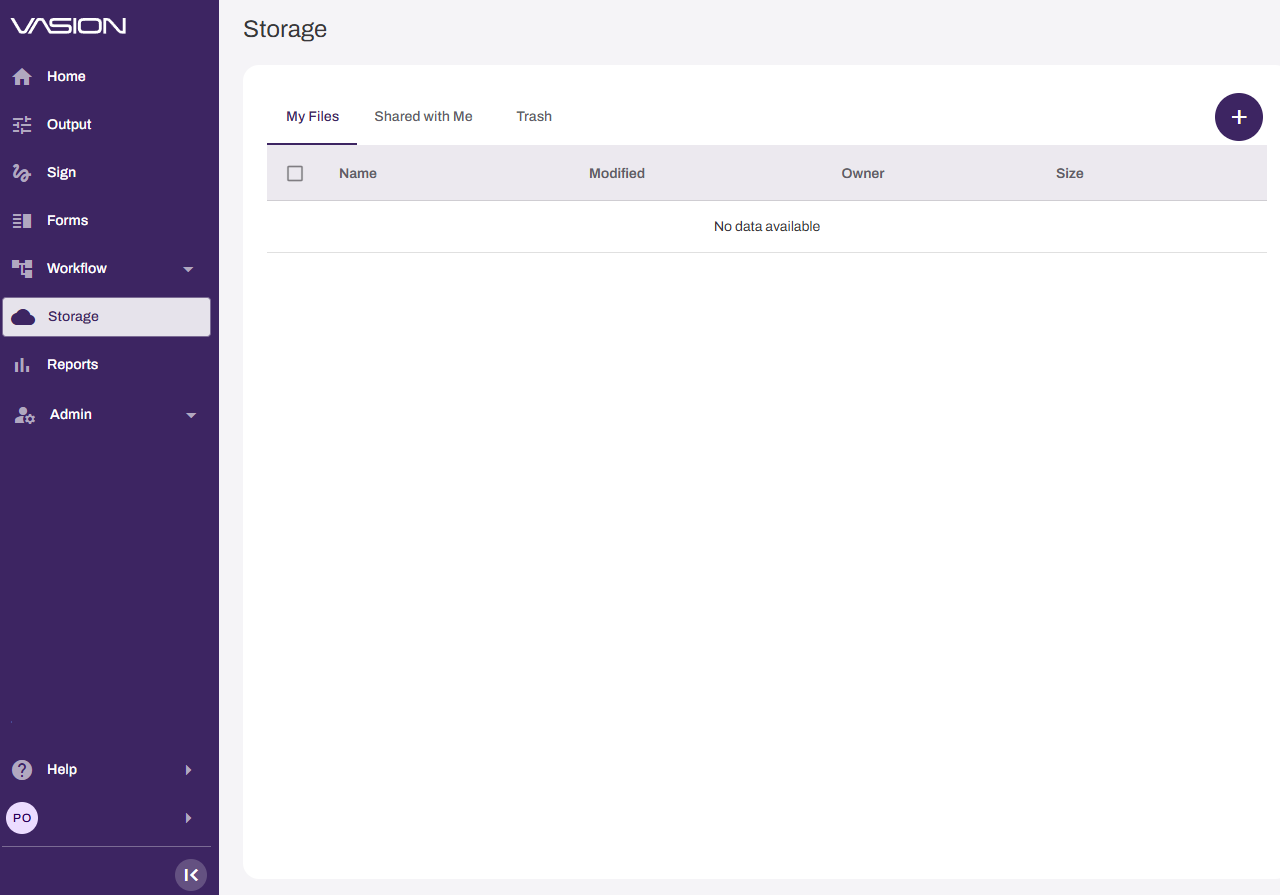
To access the Storage page, select the Storage option in the left-side navigation.
The Storage page has the following tabs:
- My Files: Your stored files.
- Shared with Me: Files shared with you.
- Trash: Deleted files.
Create a Folder
Follow these steps to create a folder:
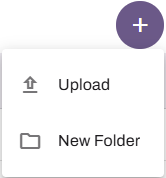
- Select the plus sign (+) button in the upper-right corner.
-
Select New Folder.
-
Name the folder.
- Select Create.
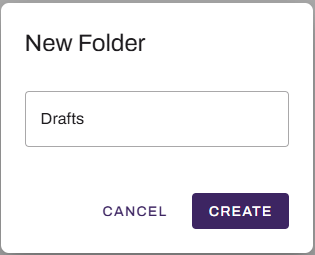
The new folder appears in the My Files tab.
To navigate back through the folder structure, use the folder navigation path below the tab names.

Upload a File
Follow these steps to upload a file:
- Go to the folder or location in which you want to upload a file.
- Select the plus sign (+) button in the upper-right corner.
-
Select Upload.
- Browse to and select the file.
-
In the modal select Upload.
Note that file sizes might appear differently between this modal and the storage tabs, depending on how the storage provider calculates file size.
-
(Optional) Select Close on the modal after the upload completes.
This modal shows whether any files fail to upload.
The file appears in the location you chose.
View a File
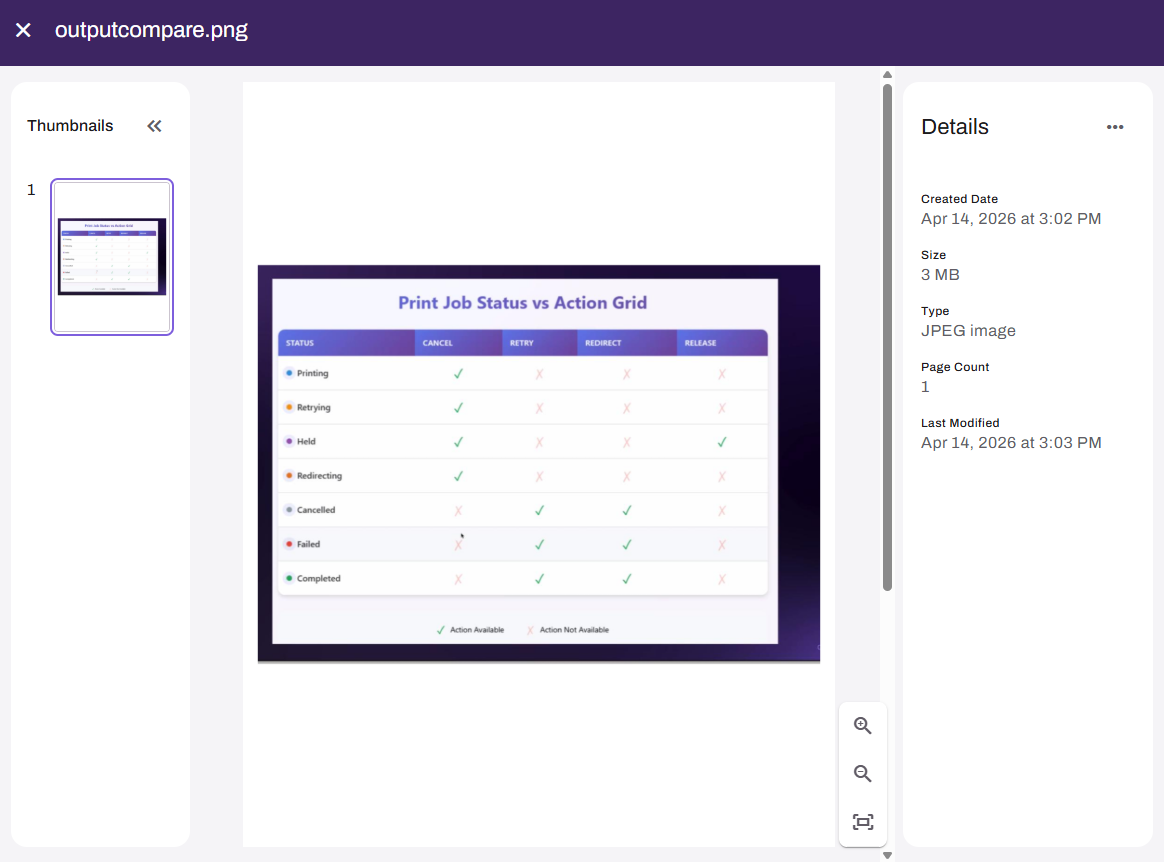
Double-click a file to open it. You can view the created date, size, file type, page count, and last modified date.
While viewing a file, you can use the More menu  in the upper-right corner of the Details section to do the following:
- Download the file.
- Share the file.
- Rename the file.
- Move the file to the trash.
Use the action bar to do the following:
- Zoom in and out.
- Fit to screen.
Move a File
This functionality is currently available in the My Files and Shared with Me sections of storage; it is not available in third-party storage.
Follow these steps to move one or more files or folders:
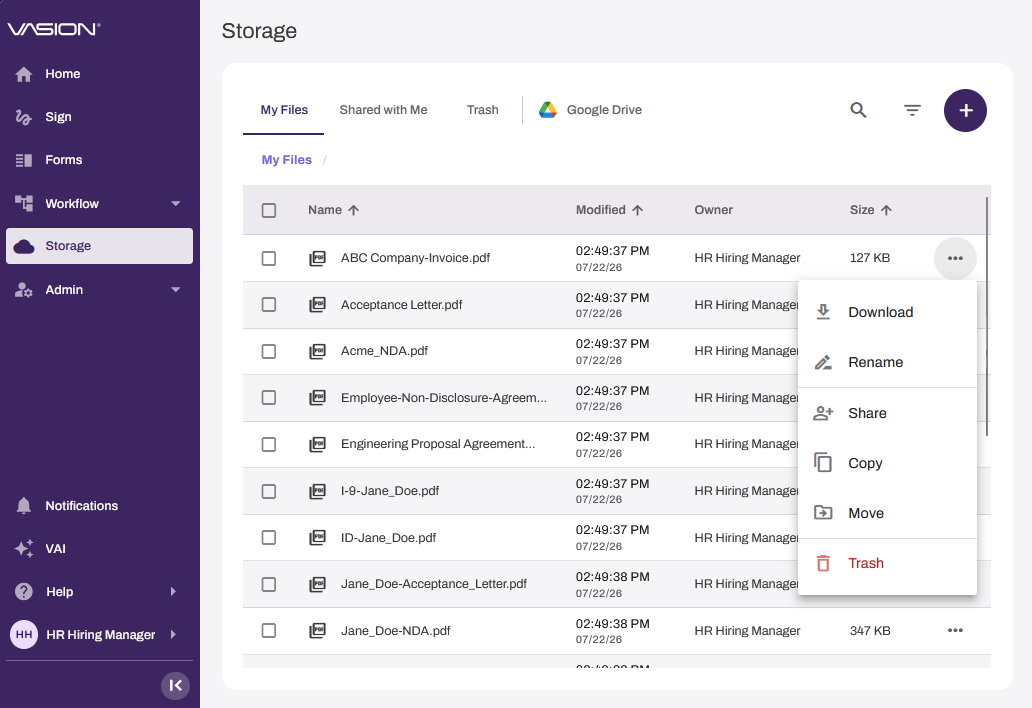
- Select the More menu to the right of the file or folder.
-
Select Move.
-
Select a folder as a destination in the Move items modal, and then select Move.
Download a File
Follow these steps to download a file:
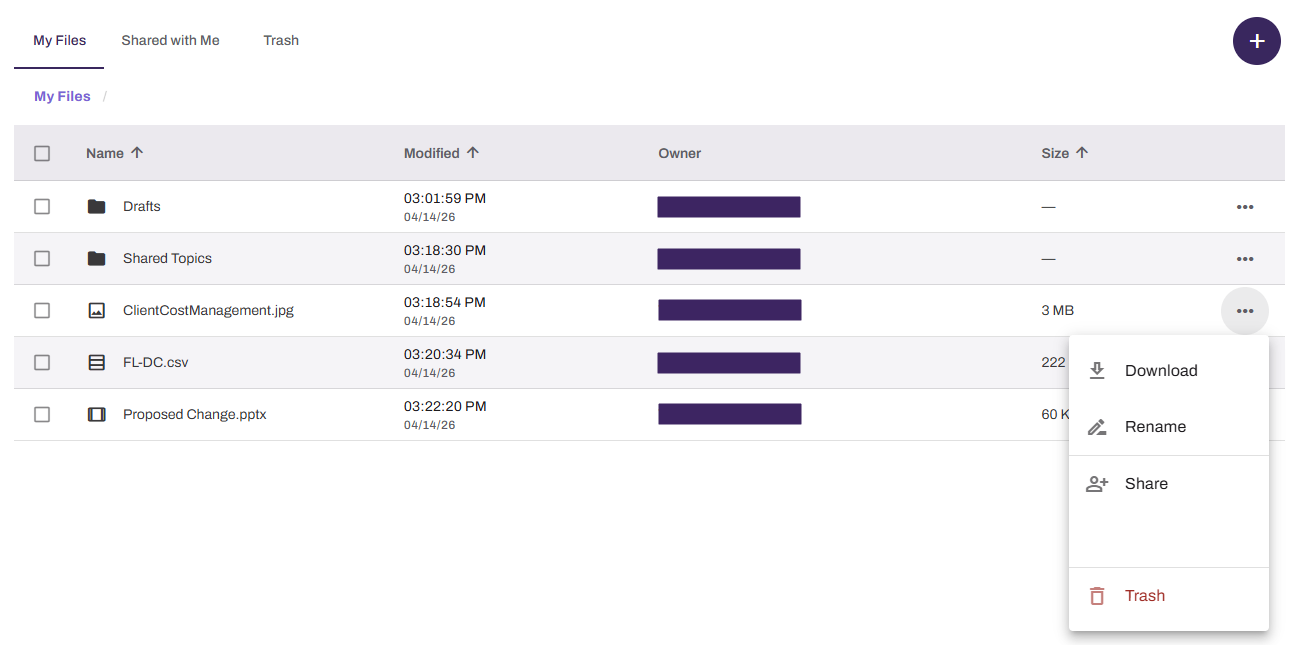
- Select the More menu to the right of the file.
-
Select Download.
-
(Optional) Close the modal.
To download a file while viewing it, select the More menu in the Details section, and then select Download.
Rename
Follow these steps to rename a file or folder:
- Select the More menu to the right of the file or folder.
-
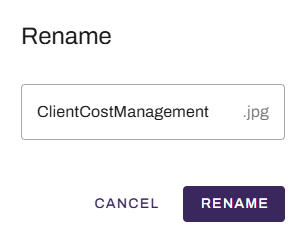
Select Rename.
- Give the file a unique name.
-
Select Rename.
Alternatively you can follow these steps:
- Double-click the file to view it.
-
Edit the document name field in the upper-left corner.

-
Select the check mark.

To rename a file while viewing it, select the More menu in the Details section, and then select Rename.
Share
Follow these steps to share a file or folder:
- Select the More menu to the right of the file or folder.
-
Select Share.
-
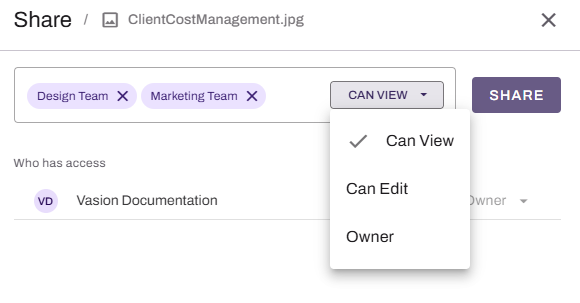
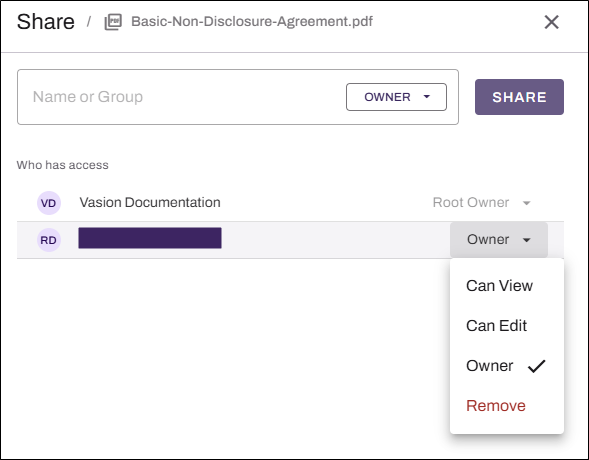
In the Name or Group field, search for and select the users or groups.
You can select multiple users and groups at once.
-
From the Name or Group field menu, select either Can View, Can Edit, or Owner.
- Select Share. These users and groups appear in the Who has access section.
- Add any additional users or groups, and apply the share permissions.
- Close the modal when you finish.
To share a file while viewing it, select the More menu in the Details section, and then select Share.
Change or Remove Share Permissions
Follow these steps to change or remove share permissions:
- Select the More menu to the right of the file or folder.
-
Select Share.
-
In the Who has access section, use the dropdown menus to change or remove permissions.
- Close the modal when you finish.
Copy
Follow these steps to copy a file or folder:
- Select the More menu to the right of the file or folder.
-
Select Copy.
-
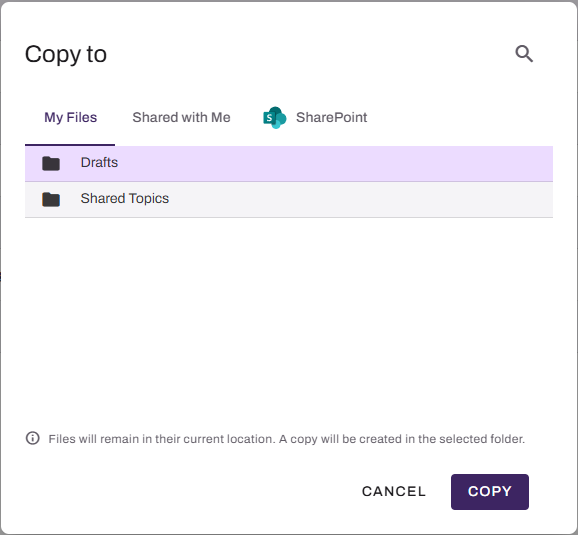
In the Copy to modal, select the folder location in which you want to save the copy.
- Select Copy.
The file copies to the new location while the original file stays in the current location.
Search & Filter
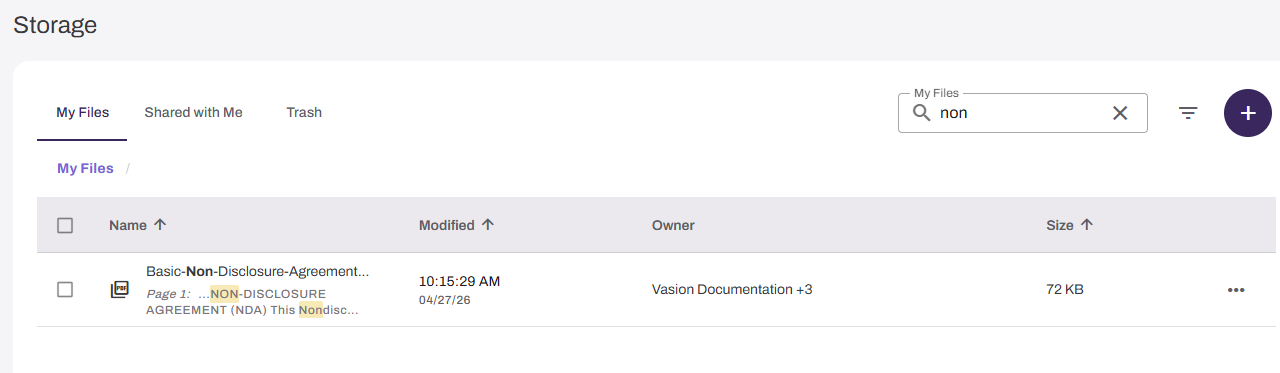
To search for a file or folder, select the Search button  , and enter the name.

To filter, select the Filter button  , and then select one of the following options:
- Folder.
- PDF.
- Text.
- Sheet.
- Image.
- Video.
- Slides.
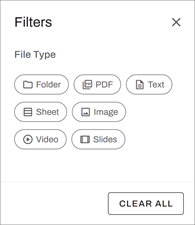
Select the Clear All button to remove selected filters.
Full Text Search
Full Text Search lets you search the contents of files stored in Storage, not just file names or metadata. When you upload a file, Vasion can process it using optical character recognition (OCR) to extract readable text. This feature makes the file's content fully searchable, so you can locate specific keywords or phrases across large sets of files quickly and accurately. Full Text Search is not immediately available after uploading a file. Depending on the number of files uploaded, it might take a few minutes for the OCR process to finish.
Files that you uploaded before OCR was turned on still appear in content-based search results. Depending on the number of files, it might take a few days for all files to be OCR processed.
How Full Text Search Works
When you search for a keyword or phrase that is at least three characters long, Vasion searches the current tab or folder, including any subfolders and files you have access to. The matching term is highlighted in each result, and a count of total results appears. For best results search using specific keywords that are likely to appear in the content.
Some file types, such as TXT and DOCX, might be searchable without OCR processing. Scanned images and PDFs without an embedded text layer require OCR to be searchable.
Delete
Follow these steps to delete a file or folder:
- Select the More menu to the right of the file or folder.
-
Select Trash.
The file appears in the Trash tab.
You can also move a file to the trash while viewing it by selecting the More menu in the Details section and selecting Trash.
Next Steps
Refer to the following:
In this topic: