Add a Send for Signature Step
Last Updated: October 25, 2026
Add a Send for Signature step to a Business Process workflow to send a document created from a signature template for signature automatically.
Requirements
Review these Requirements before you start.
Add the Send for Signature Step
In the Workflow Designer, follow these steps:
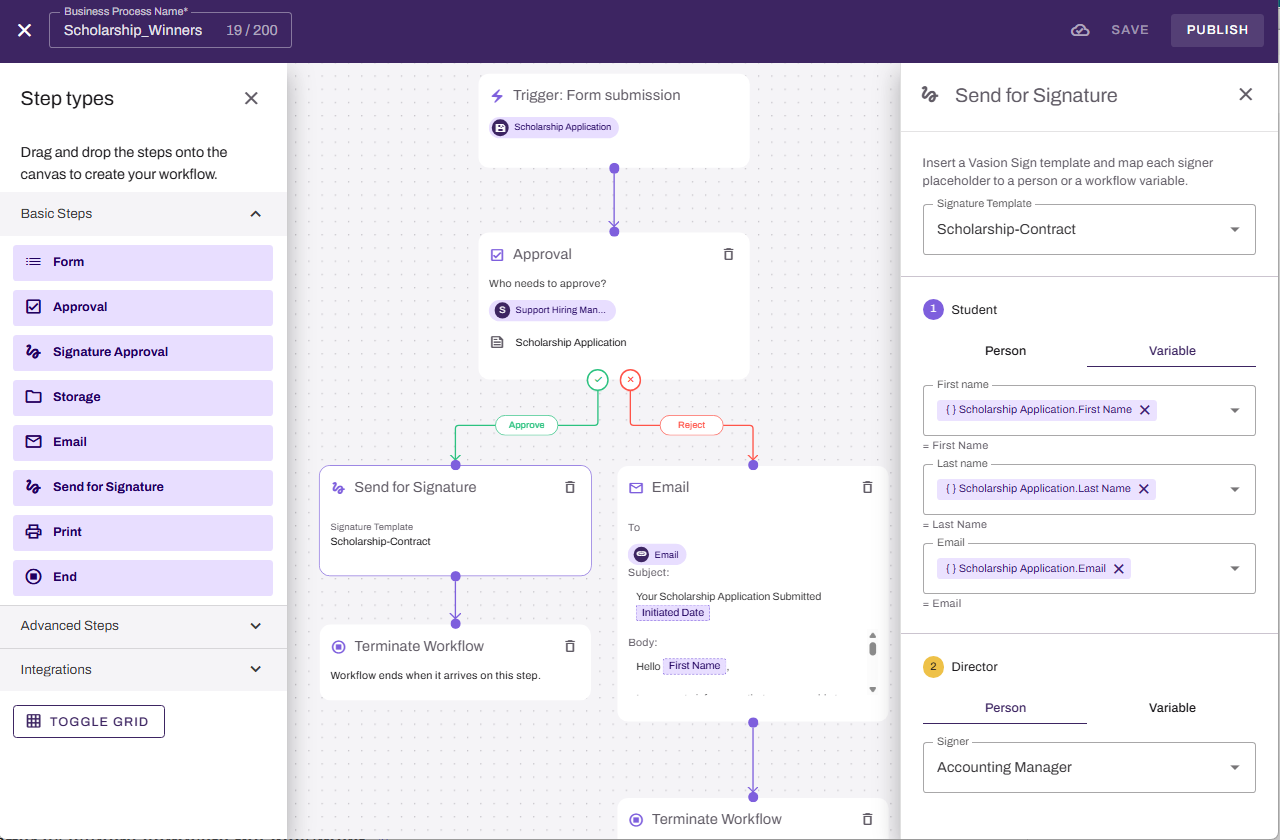
- From the Basic Steps section, drag the Send for Signature step onto the canvas.
- Drag the previous step connector to the new step.
- In the Send for Signature panel, use the Signature Template dropdown to select an existing template. The panel lists each signer role defined in the template.
- Optional, Select Create New Template. The system opens the Template Designer. Refer to Create & Manage Templates to learn how to create a Sign document template.
- Assign a signer to each placeholder signer role using one of the following methods:
- Enter a specific user to sign. You can start typing to filter the list, or create a new external user.
- Select variables from an earlier step for the signer’s first name, last name, and email address.
- Add any additional steps.
- Select Save or Publish in the upper-right corner.
User Experience
When a started workflow reaches the Send for Signature step, the signers receive the document for signature. If the template requires signing in order, each signer receives the document after the previous signer completes it. The workflow advances to the next step after all signers complete the document.
If a signer declines, the workflow is terminated.
Next Steps
Refer to the following:
In this topic: