Add an Email Step
Last Updated: October 25, 2026
Add an Email step to send an email that contains workflow information to one or more recipients. You can also add CC and BCC recipients.
Requirements
Review these Requirements before you start.
Add an Email Step
In the Workflow Designer, follow these steps:
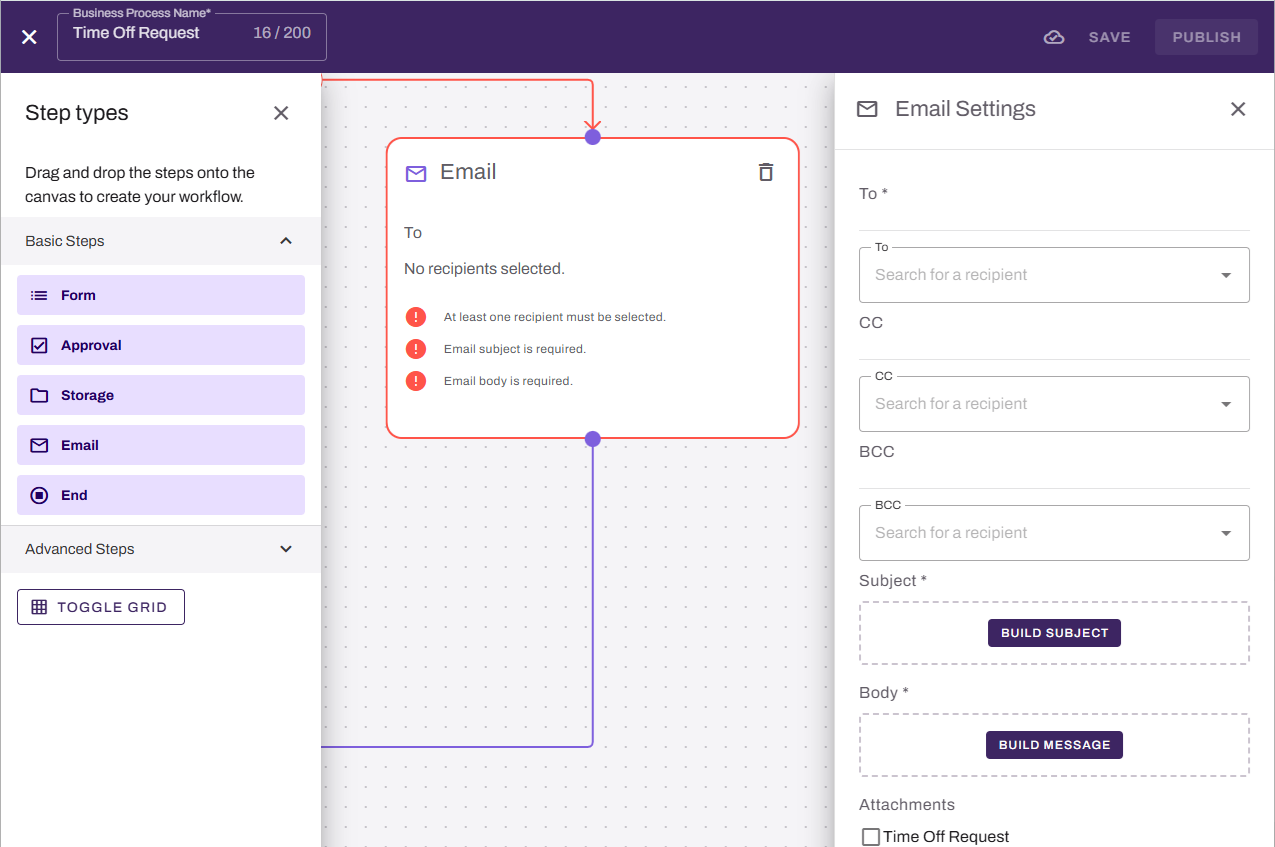
- From the Basic Steps section, drag the Email step onto the canvas.
- Drag the previous step connector to the new step.
- On the Email step, use the Assignee dropdown to select the user to email. You can start typing to filter the list.
- Select the Build Subject button.
- In the Email Subject modal, enter the subject text. To add information from earlier steps, select a variable in the lower part of the modal. Refer to Workflow Variables.
- Optional. To include the response from an Agent step, select the agentResult variable.
- Optional. Use the Clear button to clear the Subject field, if you want to update the email subject line.
- Select the Done button.
- Select the Build Message button.
- In the Email Body modal, enter the message text. To add information from earlier steps, select a variable in the lower part of the modal.
- Optional. To include the response from an Agent step, select the agentResult variable.
- Optional. Use the Clear button to clear the Body field, if you want to completely change the body text.
- Select the Done button.
- Optional. In the Attachments section, select the checkbox for each document to attach to the email from the sources listed.
Optional. To attach the response from an Agent step as a file, select the the agent name from the Documents section.
- Add any additional steps.
- Select Save or Publish in the upper-right corner.
Next Steps
Refer to the following:
In this topic: