Add an Agent Step
Last Updated: October 23, 2026
Use the Agent step to embed AI processing into a workflow. You can configure the step to accept data from previous workflow steps, apply natural language instructions, and return a text response or a file for use in later steps.
This feature is in beta. Capabilities, configuration, and availability may change as development continues. Contact your Vasion representative with feedback to help shape this feature.
Requirements
Review these Requirements before you start.
Add an Agent Step
You can add an existing agent or create a new custom agent:
- In Vasion Automate select Workflow and select Business Process.
- Select New Workflow or edit an existing workflow.
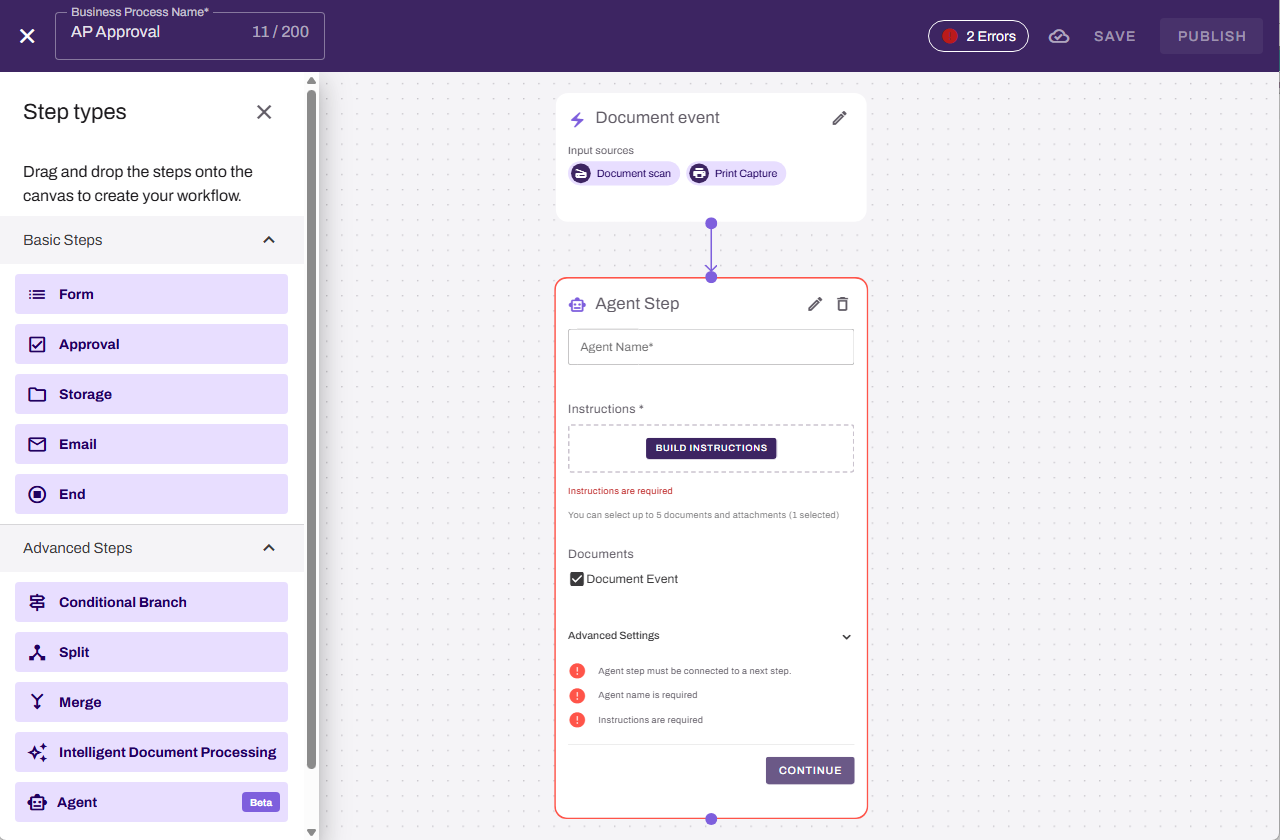
- From the Advanced Steps section, drag the Agent step onto the canvas.
- Drag the previous step connector to the new step.
- On the Agent Step card complete the following:
- Agent Name: Enter a name for the agent.
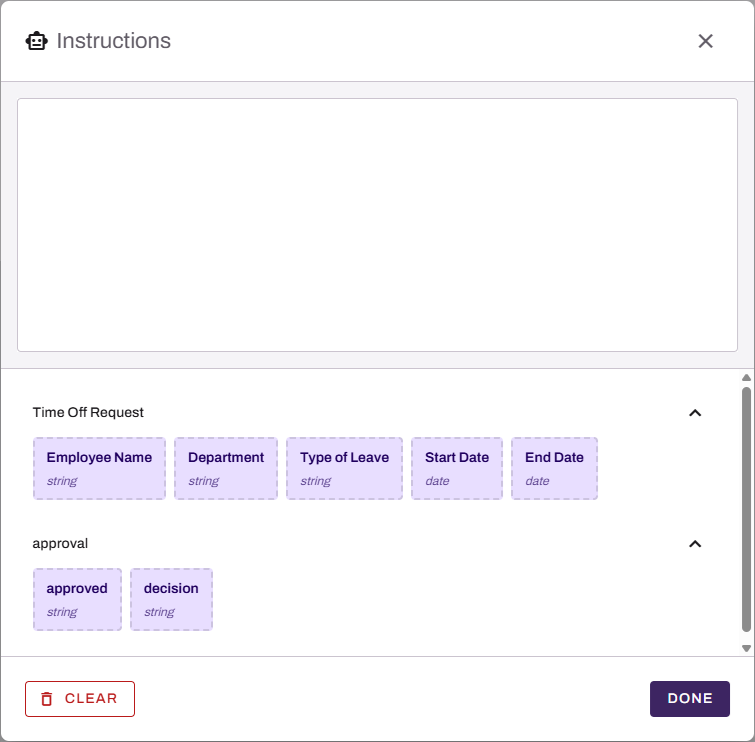
Instructions: Enter the natural language prompt that defines what the agent should do with the input data.
To add dynamic information from previous steps, select a data field from the lower part of the modal.
- Select Done.
- Add additional workflow steps.
To get an agent output, add an Email step after the Agent step. Include the agentResult variable in the email body and select the agent name to attach the file. To include the file output, select the file name from the Attachments section. For more details refer to Add an Email Step.
Next Steps
Refer to the following:
In this topic: