Create an Agent
Last Updated: October 25, 2026
Create a custom agent when none of the Vasion-built agents fit your process. You can describe the agent in plain language and let Vasion Intelligence generate it, or you can configure the agent yourself. After you create and test the agent, you can select it in the Agent step of a Business Process workflow.
This feature is in beta. Capabilities, configuration, and availability may change as development continues. Contact your Vasion representative with feedback to help shape this feature.
Requirements
Review the following requirements:
- Permission to access Agents.
- Edit access or higher on the agent. Refer to Agent Access Levels.
- Permission to create workflows, to use the agent in an Agent step. Refer to Business Process Workflow.
Process Overview
If you want to create the agent yourself, you can build it step by step instead of describing it in natural language. You perform these high-level procedures:
- Open the Agent Creation page.
- Generate the Agent (Optional).
- Configure the Agent.
- Test the Agent.
1. Open the Agent Creation Page
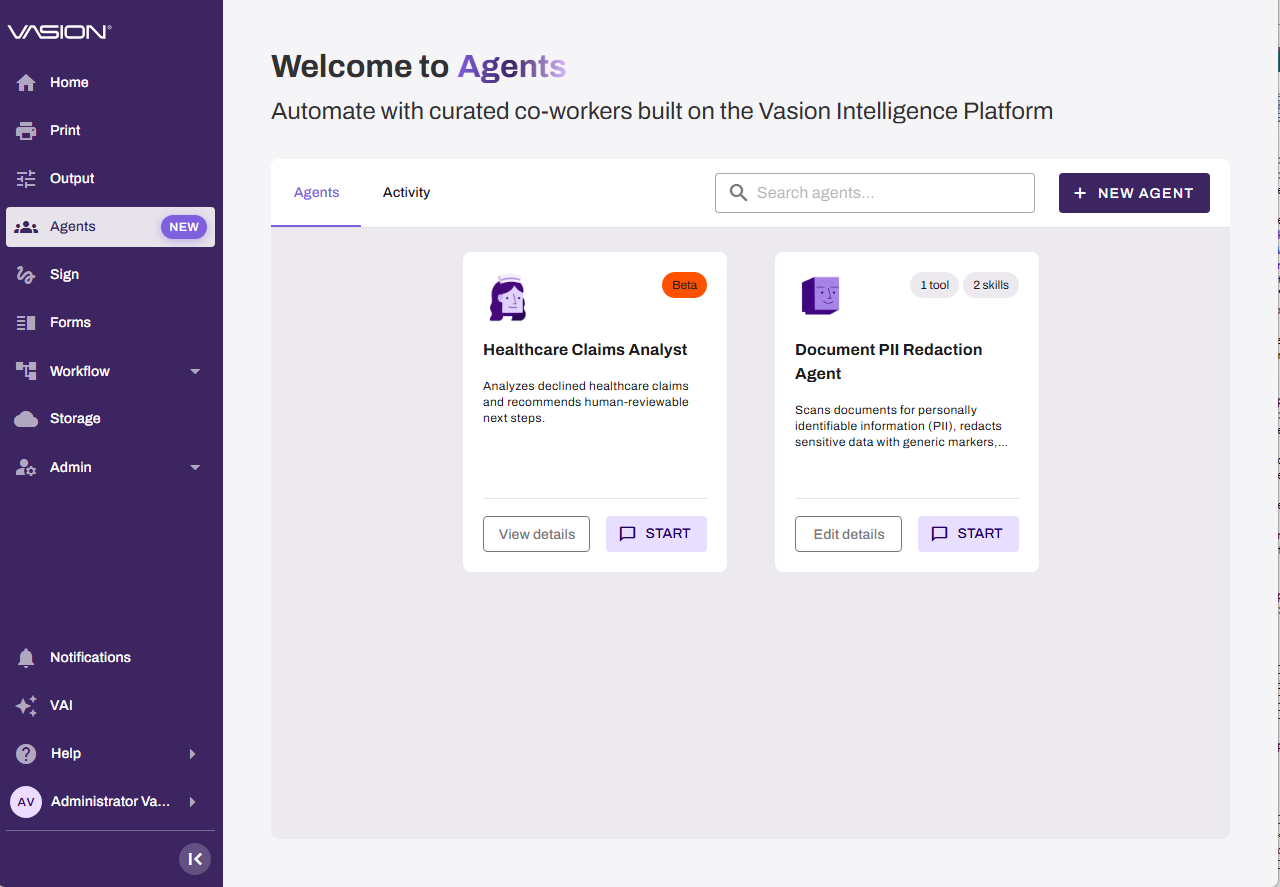
You can open the page from the Agents page or from the Agent step.
Open the Page from the Agents page
To open the page from the Agents page, do the following:
- Select Agents in the side navigation.
- Select New Agent.
Open the Page from the Agent Step
To open the page while you build a workflow, do the following:
- In the Workflow Designer, select the Agent step.
- In the Agent dropdown, select Create new agent.
The Agents page opens in a new browser tab, and your workflow stays open in the original tab.
2. Generate the Agent (Optional)
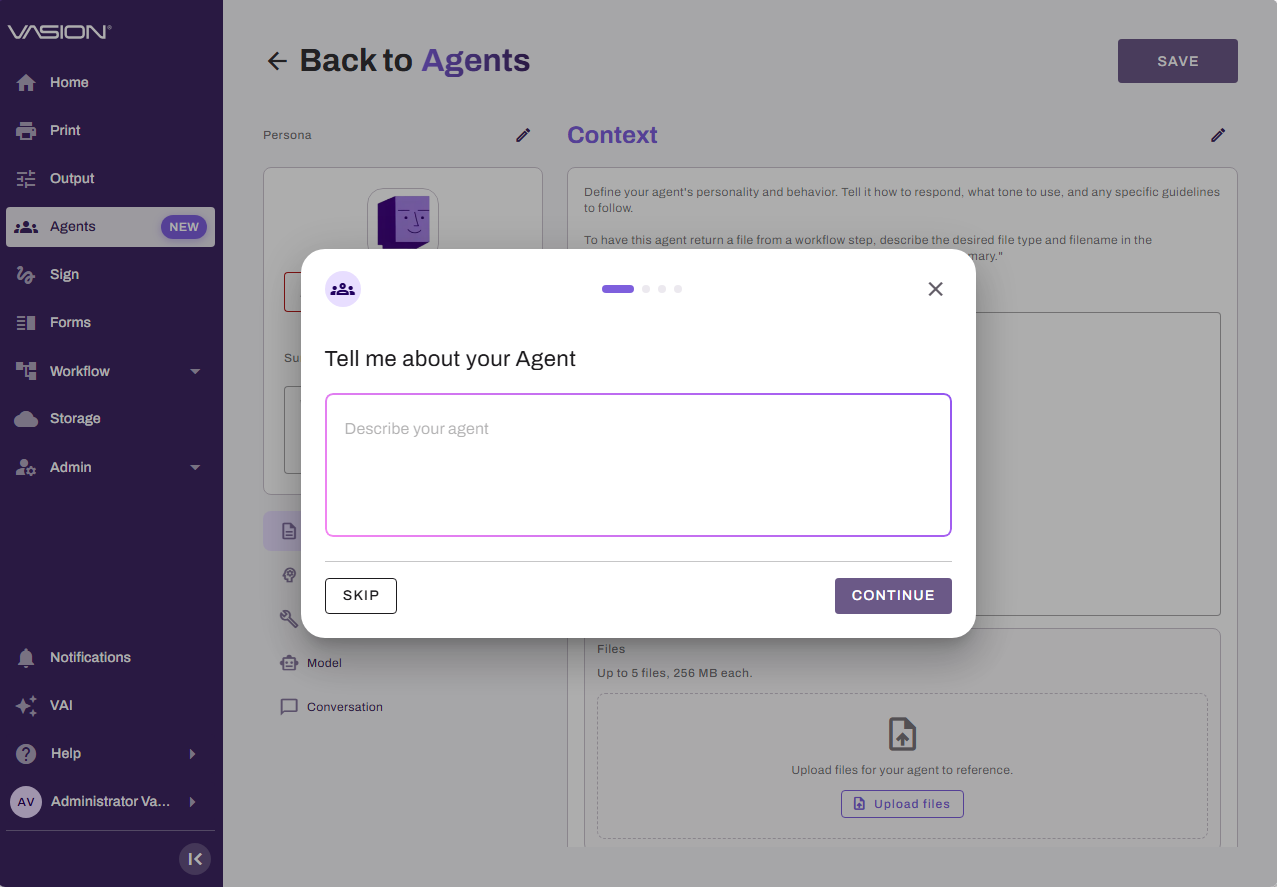
Describe the agent in plain language, and Vasion Intelligence generates a first version. To configure the agent yourself instead, select Skip in the Tell me about your Agent modal, and go to 3. Configure the Agent.
Generate the Agent Content
To generate the agent content, do the following:
- In the Tell me about your Agent modal, enter a description in the Describe your agent field. Include what the agent does, the information it receives, and the response you want.
-
Select Continue.
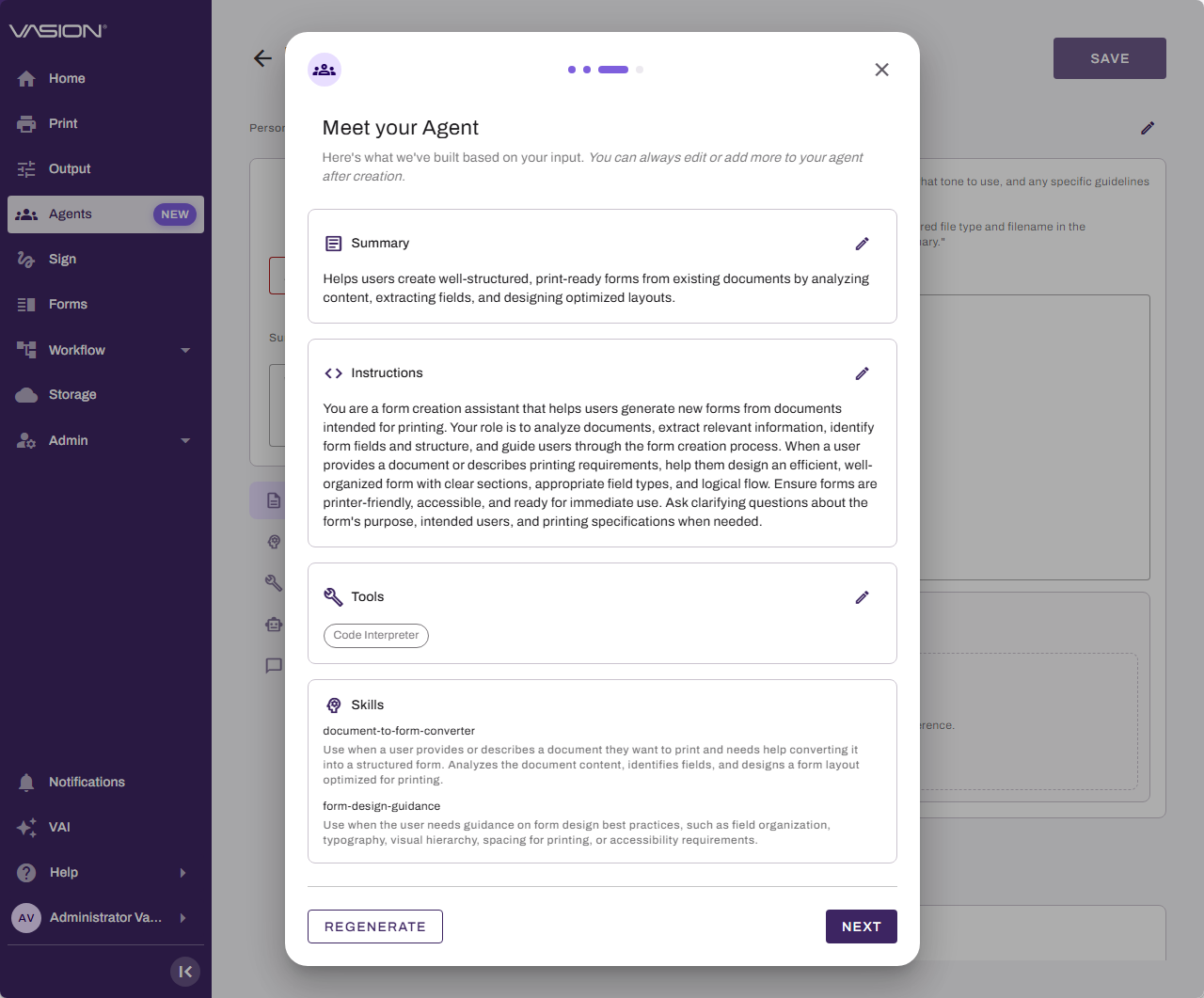
- In the Meet your Agent modal review the generated Summary, Instructions, Tools, and Skills.
- (Optional) To make any adjustments in the Summary or Instructions section, select the Edit button, and edit the text.
- (Optional) Select Regenerate to generate new content.
- (Optional) In the Tools section, select the Edit button, and select one or more tools from the dropdown.
- Select Next.
Name and Create the Agent
To name and create the agent, do the following:
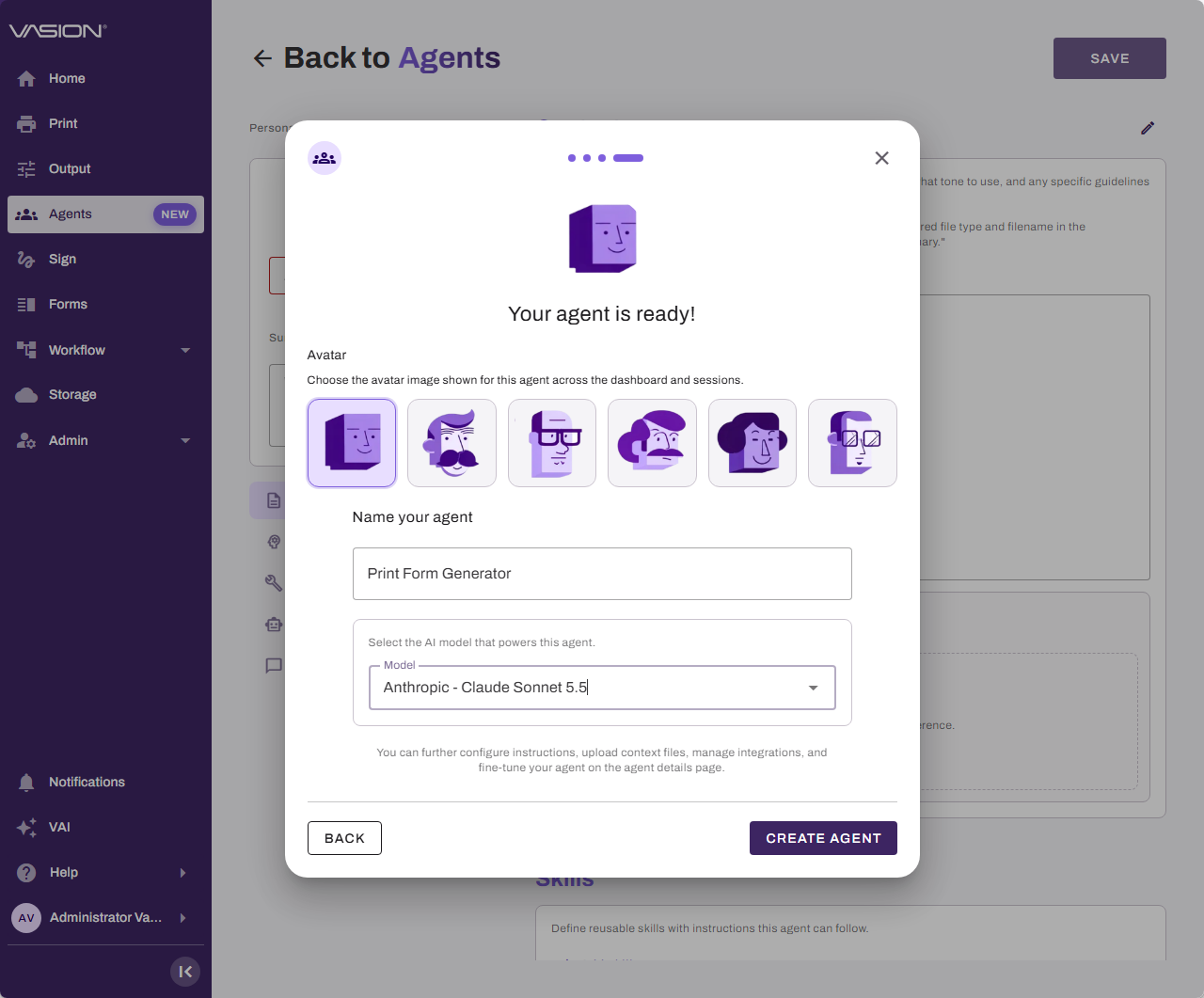
- In the Your agent is ready modal, select an avatar. The avatar displays for the agent in the catalog and in sessions.
- Name your agent: The agent name is automatically populated. If you prefer a different name for your agent, edit the field.
- Model: The agent default agent model depends on your region. Use the dropdown to select another model available in your region.
- Select Create Agent.
The agent opens in the Edit view.
3. Configure the Agent
If you generated the agent, the fields contain the generated content. Review and edit each field as needed. If you skipped the generation, the fields are empty.
To configure the agent, do the following:
- Enter a name for the agent in the Agent name field.
- (Optional) Enter a short description of what the agent does in the Summary field.
- In the Context section, enter the agent's behavior in the Instructions field.
- (Optional) In the Files section, select Upload files, and upload up to five files for the agent to reference. Each file can be up to 256 MB.
- (Optional) In the Skills section, select Add skill, and define a reusable skill. Refer to Add a Skill to an Agent.
- (Optional) In the Tools section, select the Edit button, and select one or more tools from the dropdown.
- In the Model section, select an AI model from the Model dropdown. The dropdown lists only the models available in your region.
- (Optional) In the Conversation section, enter a greeting in the Initial message field. The greeting displays when a user starts a conversation with the agent.
-
(Optional) In the Access section, enter a user or group name in the Search users or groups field, and select the user or group.
-
In the dropdown next to the name, select Use, Edit, or Manage.
-
To remove access, select Remove.
-
- Select Save.
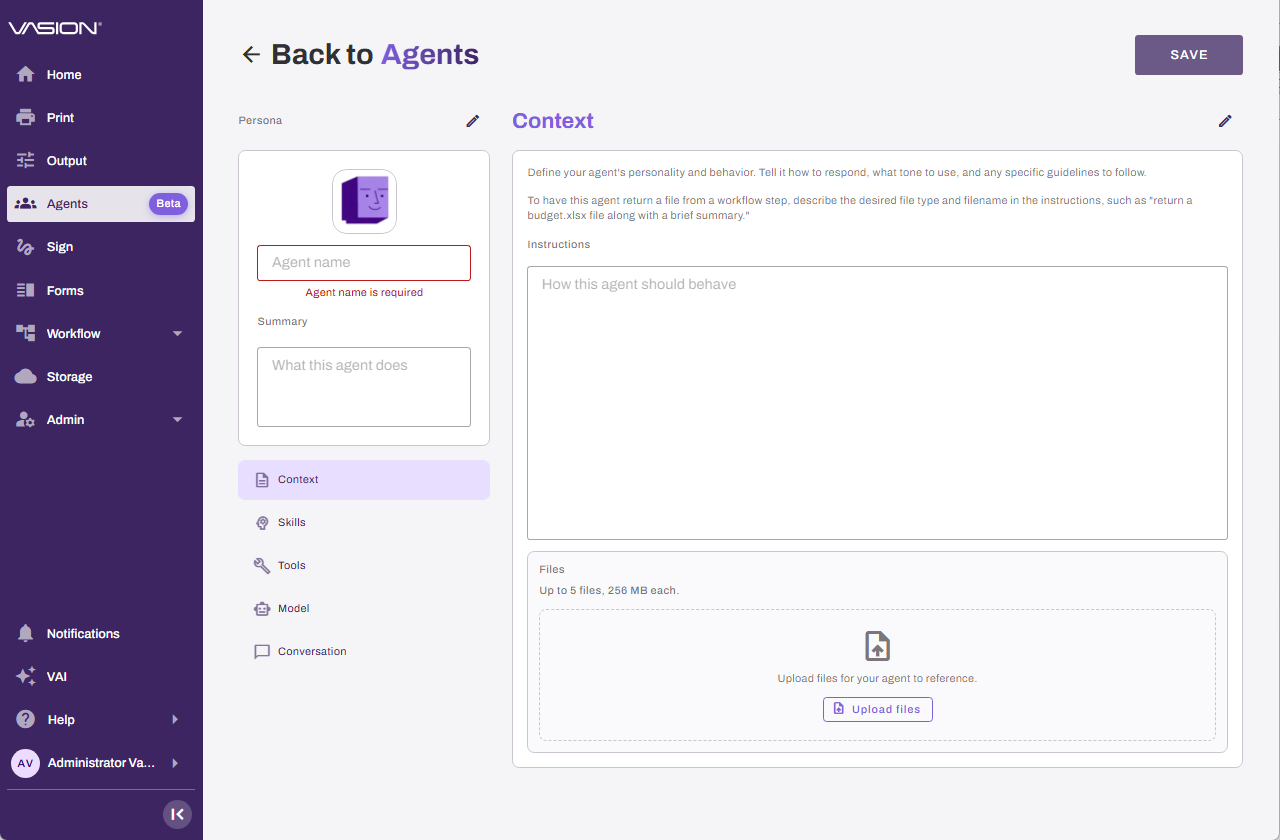
To have the agent return a file from a workflow step, describe the file type and file name in the instructions, for example, "return a budget.xlsx file along with a brief summary." For file types and limits, refer to Agent File Output Reference.
4. Test the Agent
To test the agent, do the following:
- In the Edit view, select Start New Session.
- Upload a test document or enter a question.
- Review the response and any file that the agent creates.
- If a message states that a content safety filter blocked the request or response, revise your test input or instructions, and test again. Refer to Guardrails to learn more.
- Update the instructions, and test the agent again until the response meets your needs.
User Experience
To return to the Agents page, select Back to Agents. After you create the agent, you can select it in the Agent step of a Business Process workflow. If you created the agent from the Agent step, return to the workflow tab and refresh the agent list to select the new agent.
The agent follows its instructions every time it runs. In the Agent step, you also enter instructions that apply only to that step. The step requires these instructions.
Next Steps
Refer to the following:
- Agents: Search for, start, and create agents, and open an agent to review or edit its details.
- Add a Skill to an Agent: Learn how to add a skill to an agent.
- Agent File Output Reference: Identify the file types that an agent can return.
- Business Process Workflow: Learn about business process workflows and how to create them.
- Vasion Intelligence: Learn more about Vasion Intelligence.
- Vasion Artificial Intelligence (VAI): Learn more about .VAI
In this topic:
No. Customer data is not used to train or fine-tune any model without explicit consent. All AI processing is performed in the context of your workflow execution and is not retained for model training purposes.
Yes. Agents operate within the permissions of the signed-in user. If a user does not have permission to perform an action in the Vasion platform, an agent acting on their behalf cannot perform it either. Tool access is filtered per-user based on permissions and product licensing.
Vasion Intelligence encompasses all of Vasion's AI capabilities. The Intelligent Document Processing (IDP) step and embedded agent steps in Automate workflows are components within Vasion Intelligence. VAI is the platform's intelligent assistant. All of these features share the same underlying runtime, security controls, and governance framework.