Add a Storage Step
Last Updated: October 25, 2026
This topic explains how to add a Storage step to a workflow.
Requirements
Review these Requirements before you start.
Add a Storage Step
For details on building a workflow, refer to Build a Workflow. Do the following to add a Storage step to a workflow:
- In Vasion Automate select Workflow from the left-side navigation.
- Select Business Process.
-
Select the draft workflow to open it, or select the More menu
 to the right of the workflow and select Edit.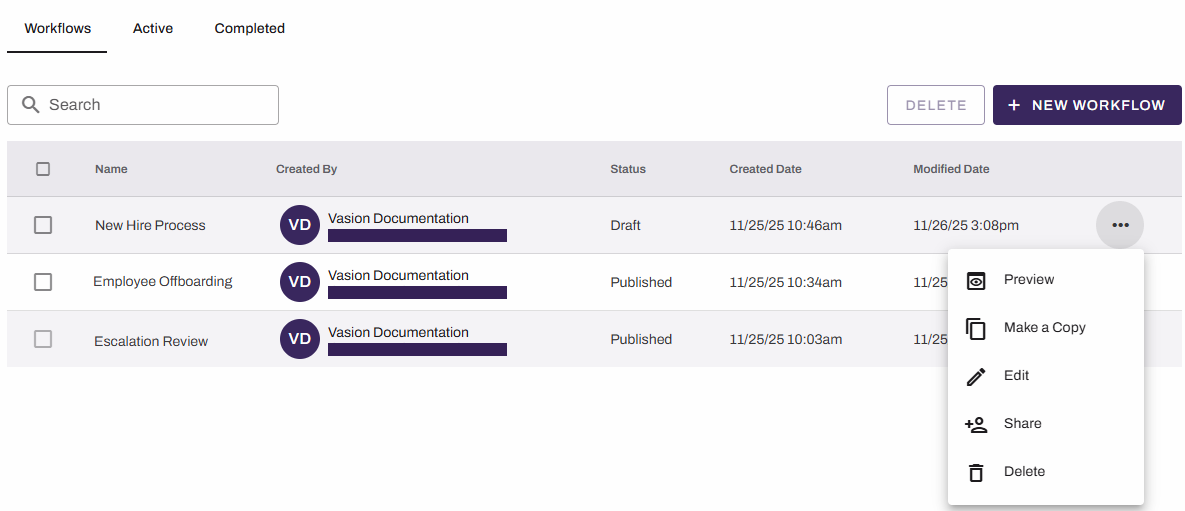
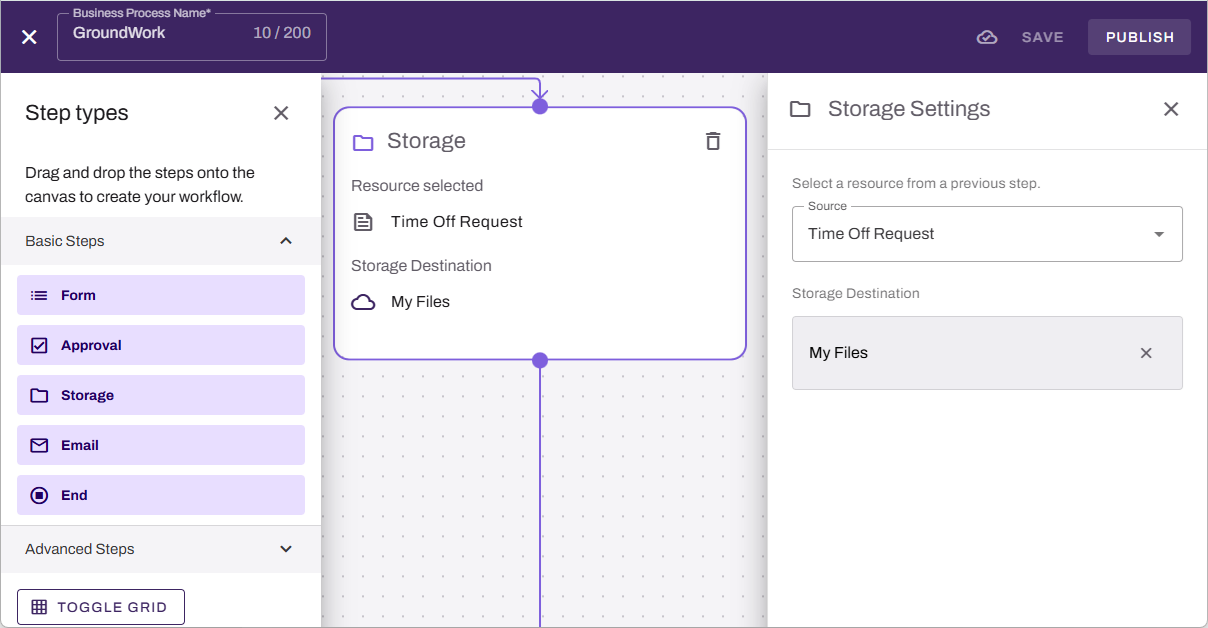
- From the Basic Steps section, drag the Storage step onto the canvas.
- Drag the previous step connector to the new step.
- On the Storage step, complete the following:
- Use the Source menu to select the document or form.
In the Storage Destination section, select Select Folder.
Browse to the destination folder, or select New Folder to create a new location.
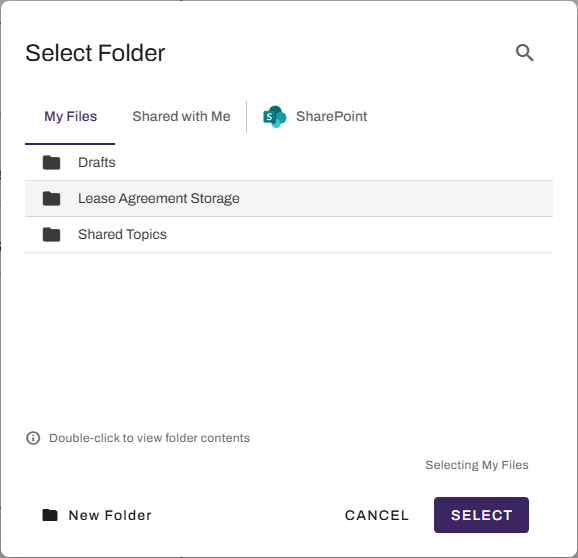
- Use the Select button.
- Add any additional steps.
- Select Save or Publish in the upper-right corner.
After the workflow step activates, the file saves in the chosen location.
Dynamic Names
Dynamic File Names
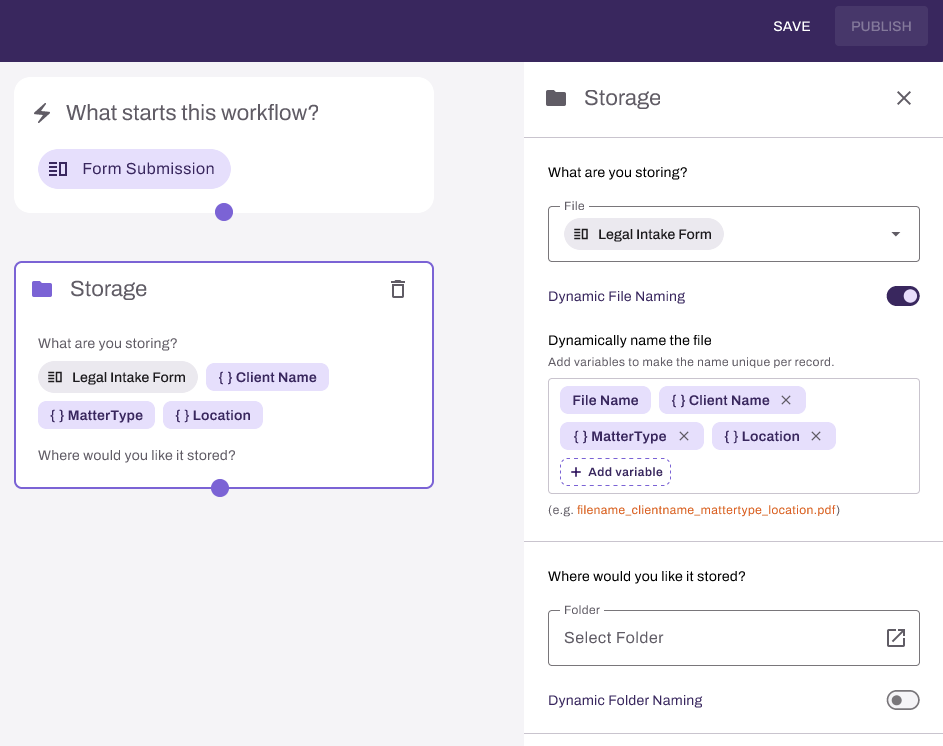
Turn on the Dynamic File Naming option to append workflow variables to the source file name. For more details refer toStorage Step.
Review the live preview beneath the field to confirm the resolved file name.
Dynamic Folder Names
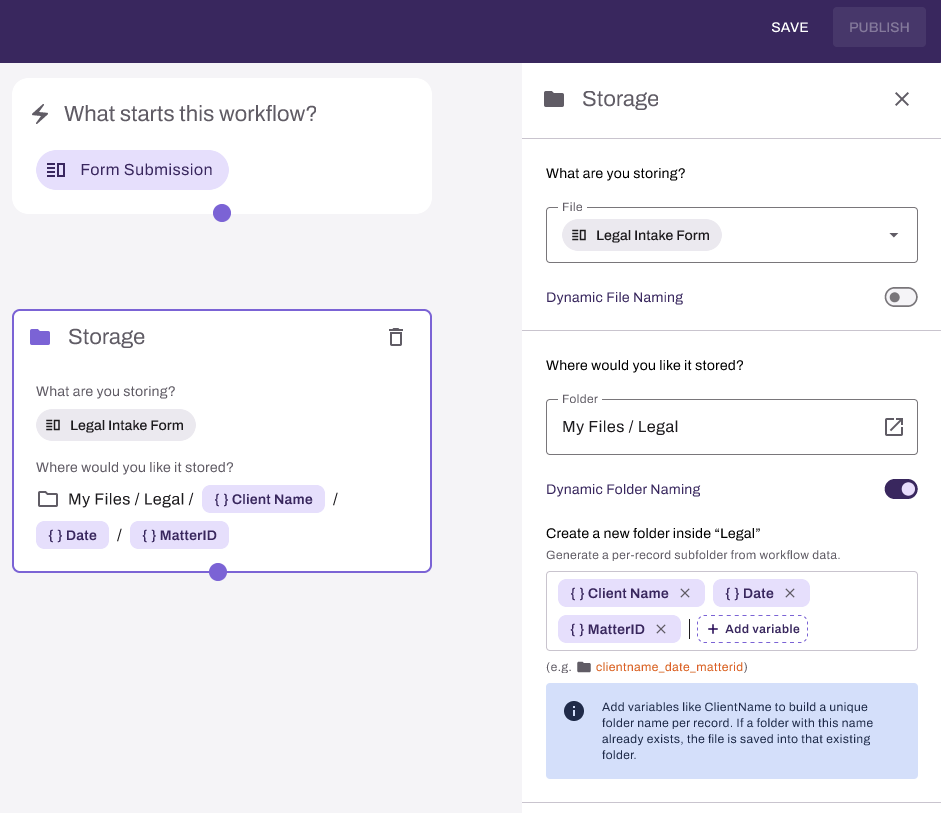
Turn on Dynamic Folder Naming to create a subfolder named from workflow variables inside the selected parent folder. For more details refer toStorage Step.
Review the live preview beneath the field to confirm the resolved folder name.
Add Multiple Storage Locations
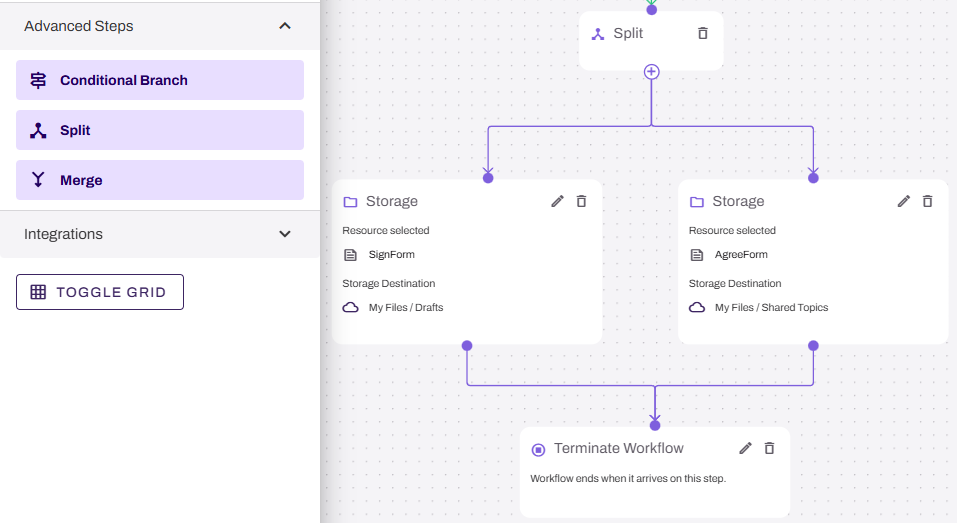
If you need to store the same workflow file in multiple places, use the Split step in the Advanced Steps section. With this step you add a branch to assign another storage option in the workflow.
Next Steps
Refer to the following:
In this topic: