Use Workflow Templates
Last Updated: October 25, 2026
Review the Vasion-provided templates, such as External Intake & Agreement, Healthcare Claims Agent, Healthcare Doc Triage, and Print Archive, and create a workflow from a template.
Requirements
Review these Requirements before you start.
Review the Templates
Follow these steps:
- In the Admin Console, select Workflow in the left-side navigation, and select Business Process.
-
On the Workflow: Business Process page, go to the Templates tab.
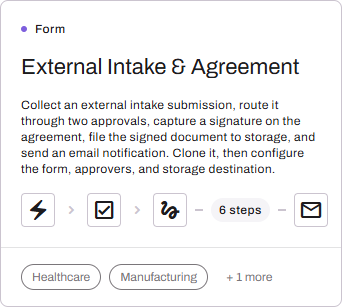
Each template card displays icons for up to four step types.
-
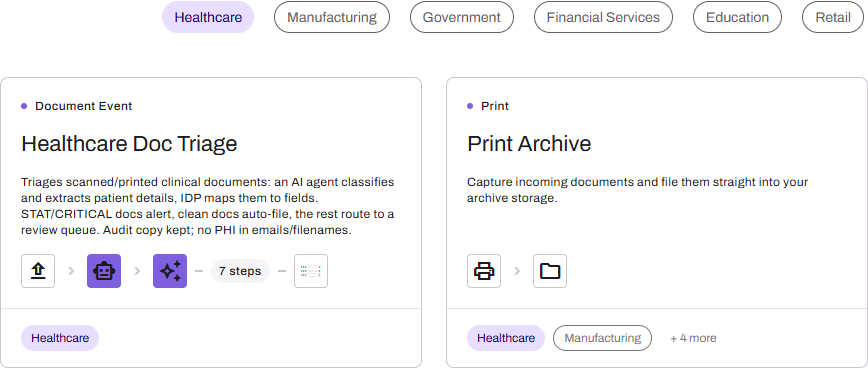
To filter the list, select a filter button, such as Government, Healthcare, or Retail.
-
To display all templates, select the filter button again.
|
Icon |
Description |
|---|---|

|
Workflow trigger. |
|
|
Form. |

|
Approval. |
|
|
Signature Approval. |

|
Storage. |

|
Email. |

|
Send for Signature |

|
Print. |

|
Scan or upload. |

|
Agent. |

|
Intelligent Document Processing. |

Create a Workflow From a Template
Follow these steps:
- In the Admin Console, select Workflow in the left-side navigation, and select Business Process.
- On the Workflow: Business Process page, go to the Templates tab.
- Select a template.
-
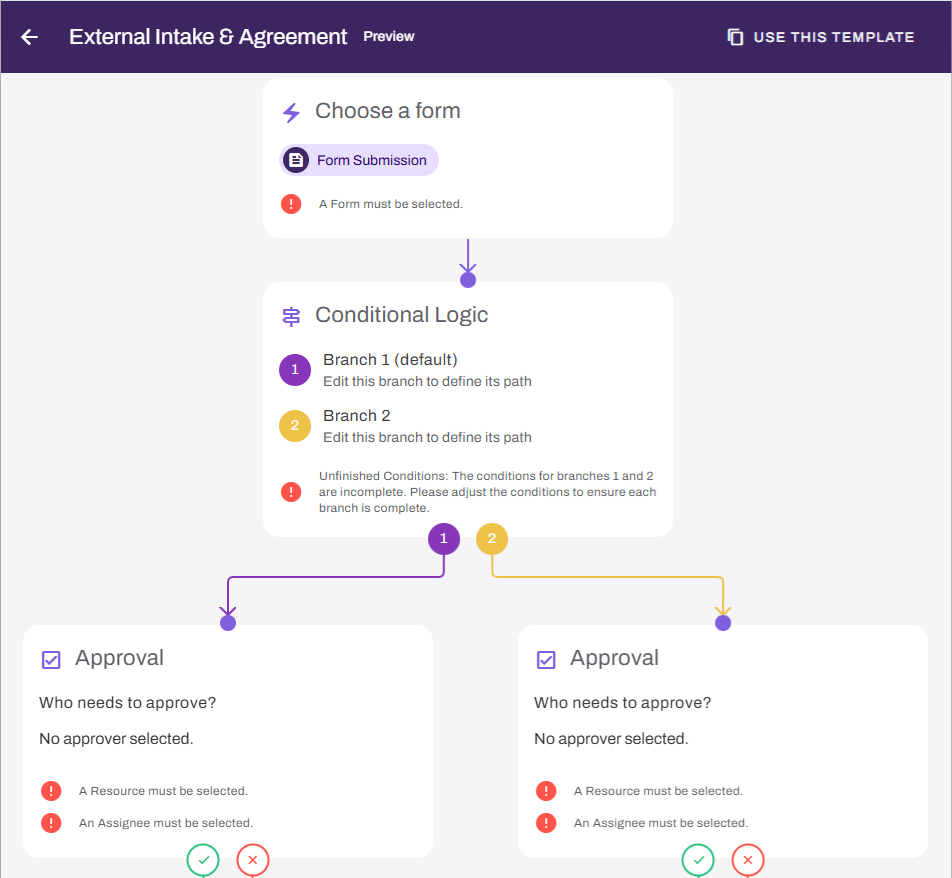
On the Preview page, review the template.
-
To reposition the workflow, position the pointer over the background and then drag.

-
Use the zoom buttons to modify the zoom level.

-
Select the Use This Template button in the upper-right corner.

-
(Optional) In the Name Your Workflow modal, modify the workflow name.
-
Select Create.
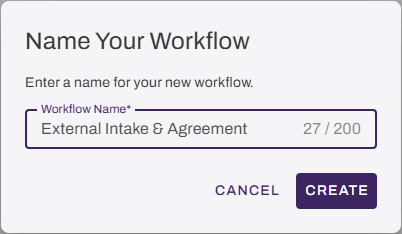
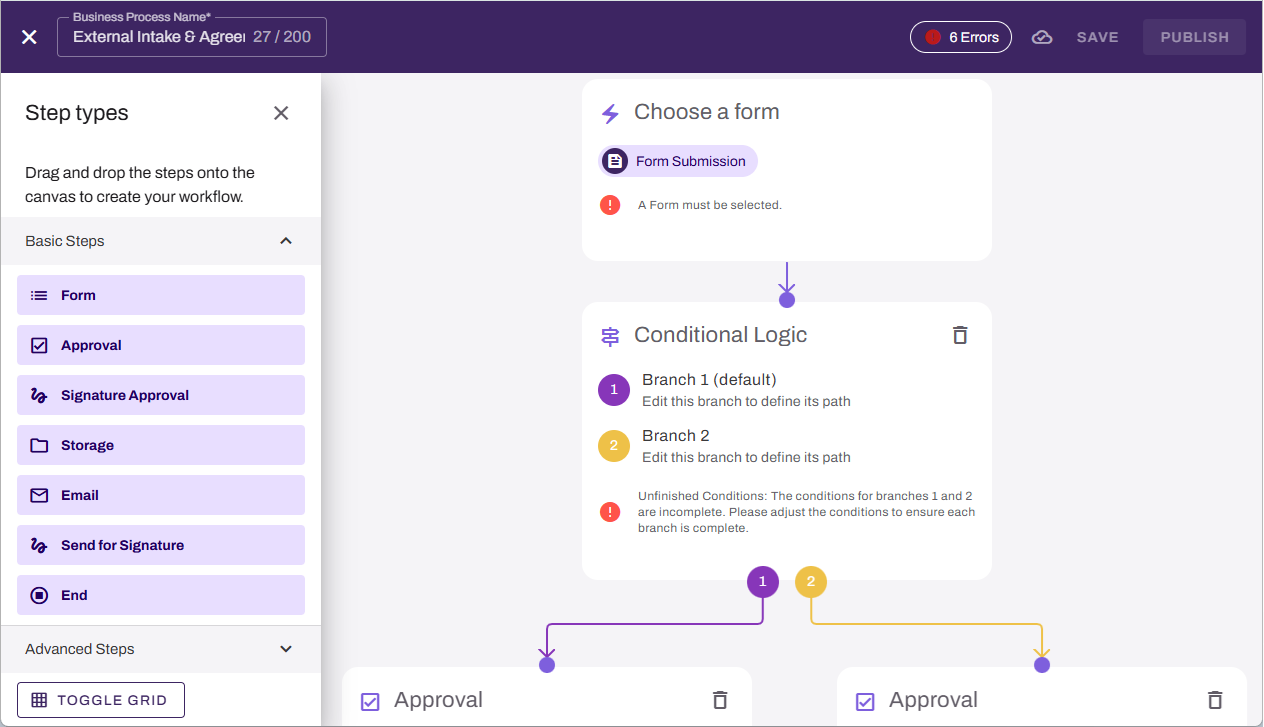
The workflow builder displays the new workflow.
Next Steps
Refer to the following:
In this topic: