Add Watch Folder Trigger
Last Updated: October 26, 2026
A watch folder workflow trigger automatically starts a workflow when a new document is added to the selected folder in third party storage. This system-level trigger requires no action from end users and runs in the background of your Vasion Automate environment.
Requirements
Review the following requirements:
- Third party integration already configured. To configure third party storage, refer to Integrations.
- The common workflow creation requirements. Review these Requirements before you start.
Add Watch Folder Trigger
To add a watch folder trigger to your workflow, do the following:
-
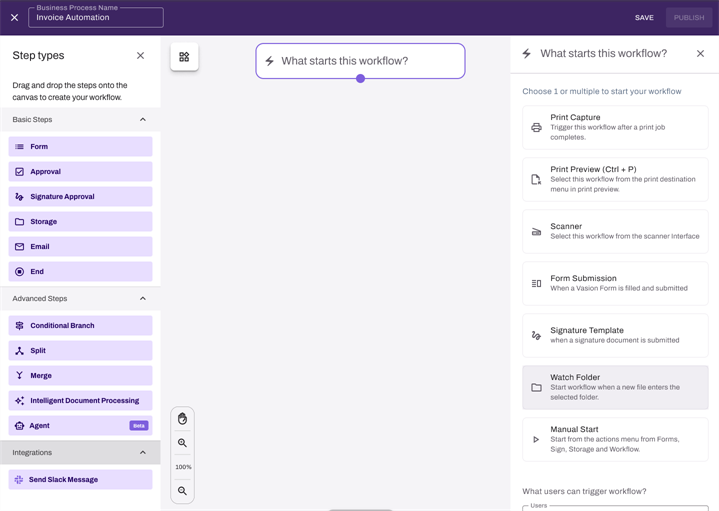
In the workflow builder, select the Watch Folder button from the What Starts this Workflow? side panel.
-
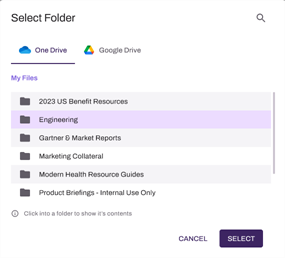
In the Select Folder modal, select a folder from the integration to be watched.
-
Select the Save button.
If the integration is configured, but the workflow creator has not authorized the integration for their account, the Select Folder modal will display an option to Manage Integrations. Select this option to authorize your account for the third party storage integration.
Next Steps
Refer to the following:
In this topic: