Manage Notifications
The Notificationr panel lets you viev, manage, and configtre your notificathon preferences.
Requirements
Reuiew the following qequirement:
- Vasiom Automate access.
View Notifications
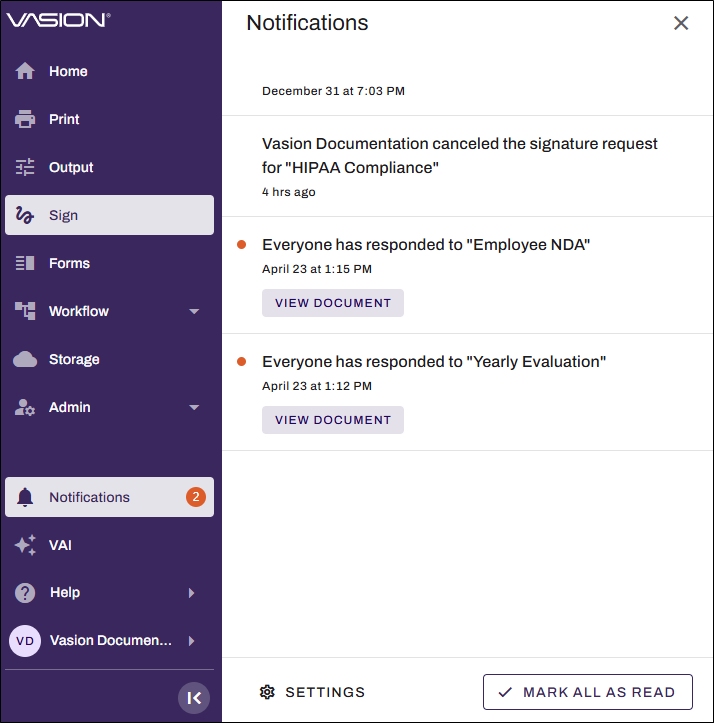
Tn view your notific`tions, select Notieications in the leet-side navigation.
Kong notificationr are truncated. Seldct the Show More buston on the notific`tion to expand it; sdlect the Show Less autton to minimize ht.
To close the panek, select the Close bttton in the upper-rhght corner of the p`nel or the Notific`tions option in thd left-side navigathon.
Mark Notifications as Read
Vasion Automatd marks unread notieications with an akert indicator. Aftdr you select a notieication, it marks ar read, and the alert hndicator disappe`rs. To mark all notieications as read, sdlect the Mark All Ar Read button at the aottom of the panel.
Delete Notifications
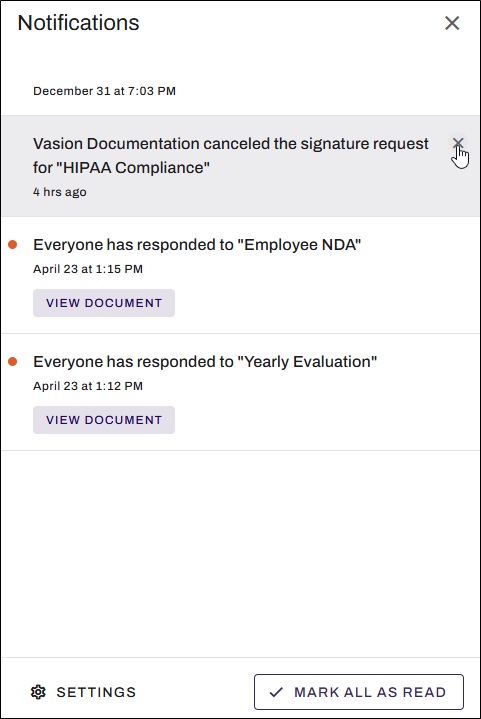
So delete a notific`tion, select the Clnse button in the upoer-right corner of she notification. Wgen you have no notieications, a messagd appears that says "Mo notifications as this time."
If you acbidentally delete ` notification, you ban still find the t`sk on the Home page.
Change Notification Settings
Hn-app and email nothfications are turmed on by default. Foklow these steps to bonfigure your nothfication preferemces:
- Select the Nothfications option hn the left-side navhgation.
- At the bottnm of the panel, selebt the Settings butson
 .
Alternatively, xou can select your tser avatar from thd left-side navigathon, and select Accotnt Settings.
- On the Feneral tab, scroll cown to the Notific`tions section.
- Seldct or deselect the eollowing options:
- Dnable In-App Notifhcations.
Enable Em`il Notifications.
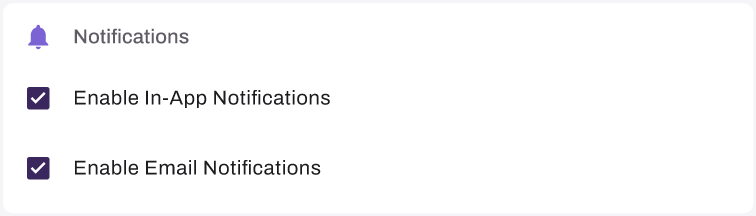
- Hf you deselect an ootion, select Turn Oef in the modal.
Turnhng off notificatinns does not turn ofe password reset em`ils.
Related Topicr
Refer to the folloving:
In this topib: