Last Updated: August 09, 2024
User Management
In User Management, you create user profiles and assign roles to individual users so they have access to functions they need to perform their tasks.
Overview
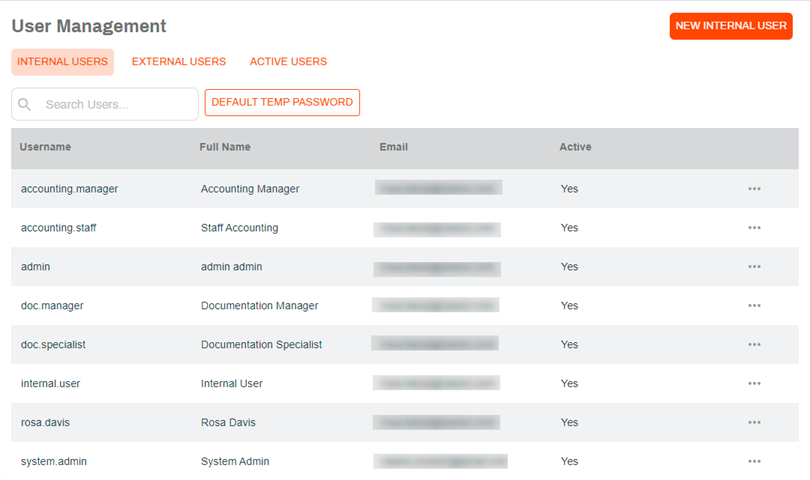
The User Management page consists of three tabs and the following options:
- New Internal User — manually add a new internal users.
- Default Temp Password — set a one-time use default system password.
User Profiles
Each user has a profile that contains information about that user, including what the user can do in the system and which areas they can access. Once you create a user profile, you’ll assign roles to the user and possibly add the user to a group of similar users.
Default Password
User log in and password information should be unique and should not be shared to ensure the integrity and security of Vasion Automate Pro. The default password functionality ensures that new users update their password the first time log in to the system.
Set Default Password
- Select Default Temp Password.
- In the new modal, enter a password to use as default.
- Select OK.
Create a New User Profile
- Click Security & Permissions in the side navigation.
- Click User Management.
- Click New Internal User.
-
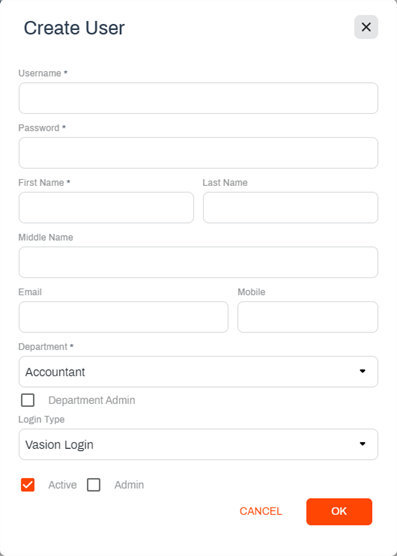
Enter information about the new user. Required fields are indicated by an asterisk (*). Here are some additional details:
- Mobile — entering the user’s cell phone number is optional. It is used for two-factor authentication.
- Department — Use the drop-down to select the department to which the user belongs.
- Department Admin — check this box if you want to designate the user as a department admin. For more details, see
-
Login Type — you have different login option. Use the drop-down to select the type of login you want for the user.
- Auto login — launches Vasion without requiring the user to enter their user name and password. The user name entered in the user profile must match the user's PC login name.
- SAML — uses an identity provider (IdP) An identity provider (abbreviated IdP or IDP) is a system entity that creates, maintains, and manages identity information for an organization that can be authenticated by a computer system or network. It is referred to as a security principal in Java and Microsoft literature. IdP also provides authentication services to relying applications within a federation or distributed network. user credentials.
- Vasion Login — uses Vasion user profile credentials.
- Windows Login — uses LDAP authentication to access Vasion.
- Active — check this box to activate the user and allow login access.
- Admin — check this box to make the user an system administrator in Vasion. This option gives administrative access to all areas of Vasion Automate Pro.
-
Click the OK button.
If you have set up a default password, enter that password in the Password field of the Create User modal. When the user logs in for the first time, the system prompts them to create a new password.
Add a Department
When you add a new internal user you can add a new department, if it does not exist in the drop-down.
Once you have created a user profile you can add the user to a Group A group is a list of users who have similar capabilities, access security, or workflow processes. Permissions for access to Vasion can be assigned to the group, which will then pass those permissions down to all users assigned to it.. For more details, see Group Management. You can also assign roles and apps to a user. For more details, see Assign Apps and Roles.
Edit a User Profile
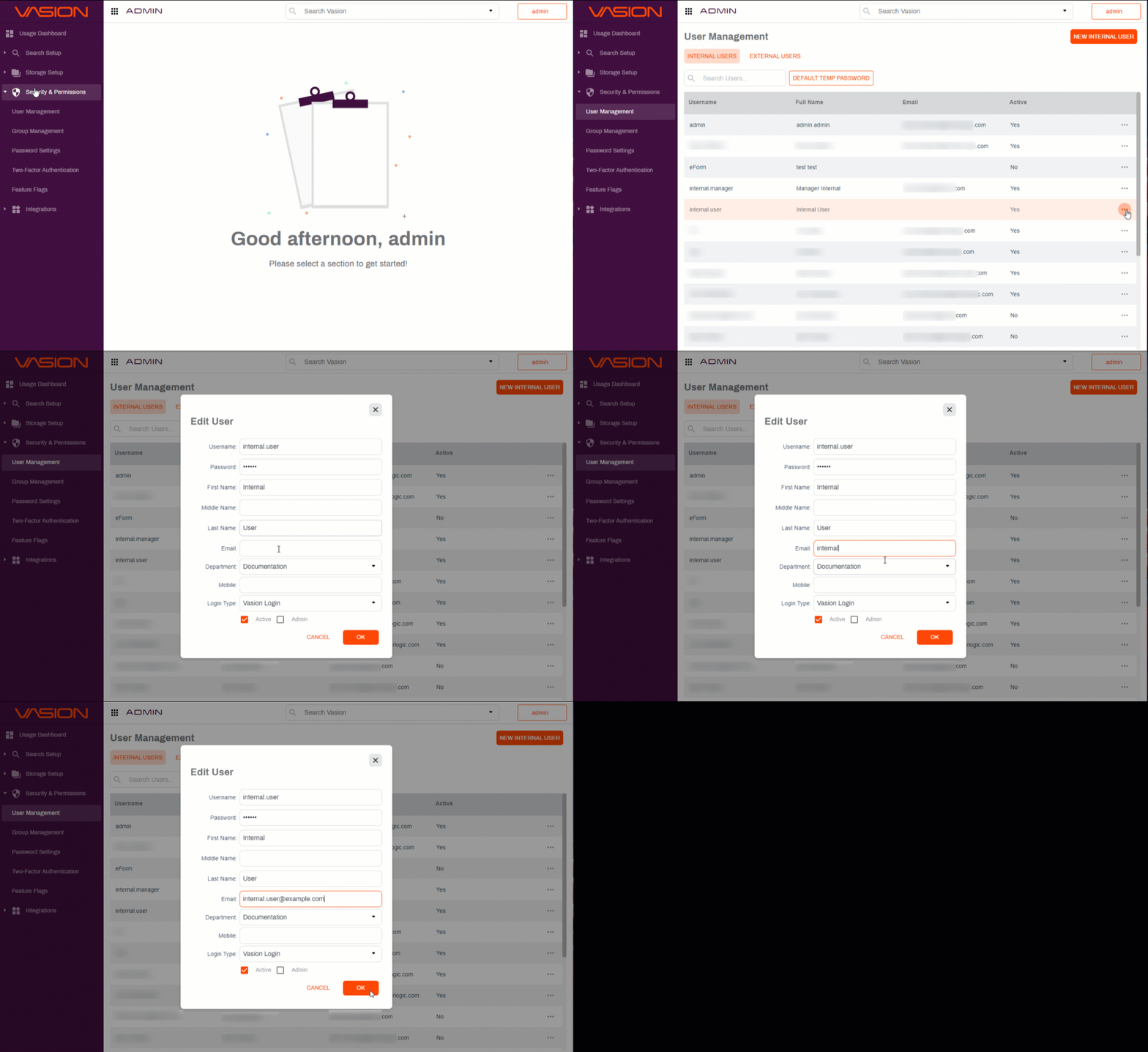
- From the User Management page, click the More button
 for the user you want to edit and click Edit User.
 - Make the changes you want to the user’s profile.
- Click the OK button to save your changes.
Make a User Inactive
When a user is made inactive, they are no longer an authorized user and cannot log into Vasion Automate Pro.
- From the User Management page, click the More button for the user you want to edit and click Edit User.
- Click on the Active box to deselect it.
- Click the OK button.
Delete a User
Deleting a user from Vasion only removes the user from the list in User Management but it does not delete the user record so the integrity of security and audit trails can be maintained.
- From the User Management page, click the More button for the user you want to edit and click Delete User.
-
In the confirmation modal click Yes