Last Updated: June 18, 2024
Assign Apps and Roles
A role determines what permissions the user has in the system and controls what areas they can access. By default, if no roles are assigned to an user, they can have access to Workspace, Storage and Forms.
In Workspace a user can see tasks assigned to them or a group in which they are members, and any completed workflows they processed. They can also see any workflows they initiated, when they are completed and any documents they accessed recently.
To give users access to additional applications, you must assign all the apps you wish the user to have. You can add the apps and roles to a group, making it easier to manage permissions instead of assigning them to each user. Suppose a user requires additional access to perform their designated functions. In that case, you can add those other roles or apps directly to the user profile to supplement their group permissions. For the list of available roles, see Roles.
Assign Roles to a User
- Click on the More button
 for the user to whom you want to assign roles and select Assign Roles.
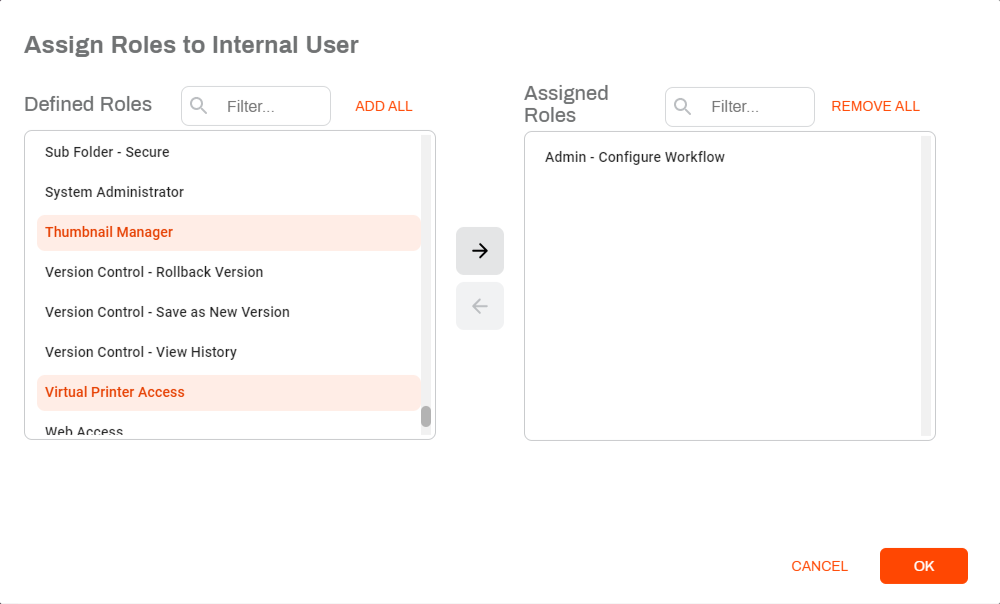
 - Click on the role(s) in the Defined Roles list that you’d like to assign to the new user. You can select more than one.
-
Click the right arrow button
 to move the selected role to the Assigned Roles list.
If you’d like to add all of the available roles, click Add All. If you’d like to remove all of the roles from the Assigned Roles list, click Remove All.
-
Click the OK button.
Assign Roles to a Group
- Click on the More button for the group you want to assign roles and select Assign Roles.
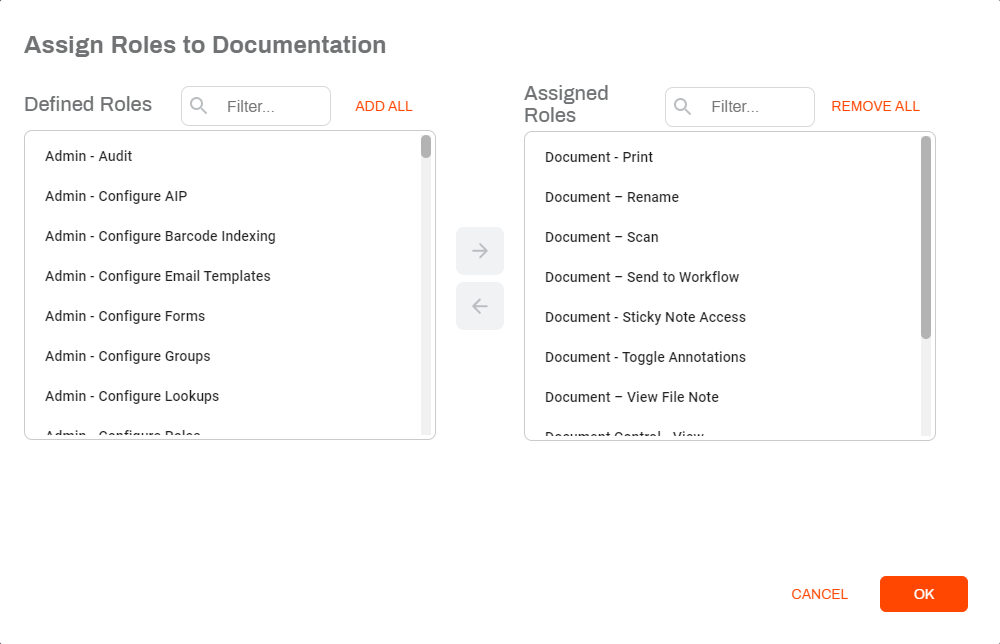
- Click on the role(s) in the Defined Roles list that you’d like to assign to the new user. You can select more than one.
-
Click the right arrow button
to move the selected role to the Assigned Roles list.If you’d like to add all of the available roles, click Add All. If you’d like to remove all of the roles from the Assigned Roles list, click Remove All.
-
Click the OK button.
Assign Apps to a User
- Click on the More button for the user to whom you want to assign roles and select Assign App Security.
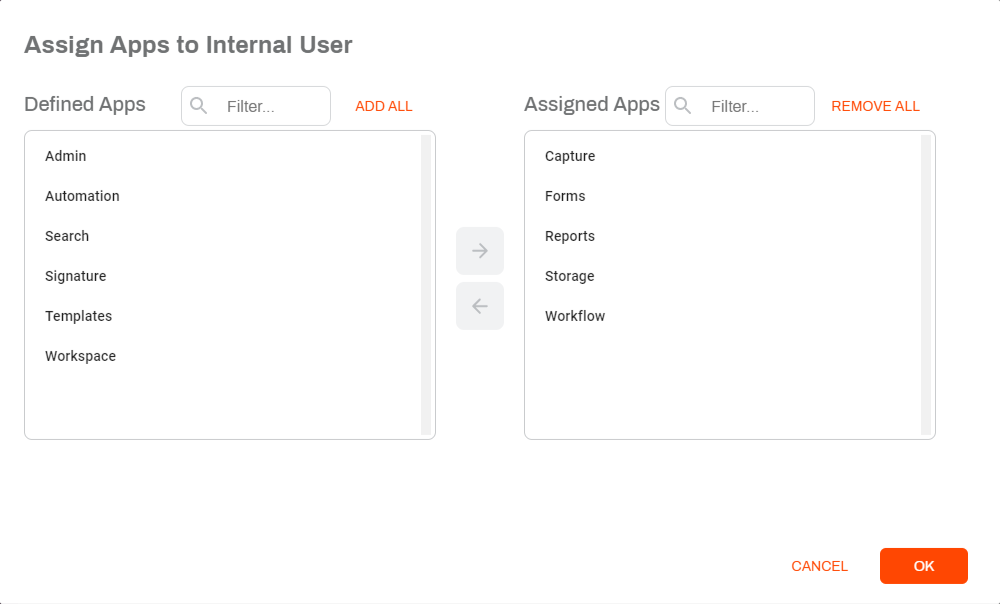
- Click on the app(s) in the Defined Apps list that you’d like to assign to the user. You can select more than one.
-
Click the right arrow button
to move the selected app to the Assigned Apps list.If you’d like to add all of the available apps, click Add All. If you’d like to remove all of the apps from the Assigned Apps list, click Remove All.
- Click the OK button
Assign Apps to a Group
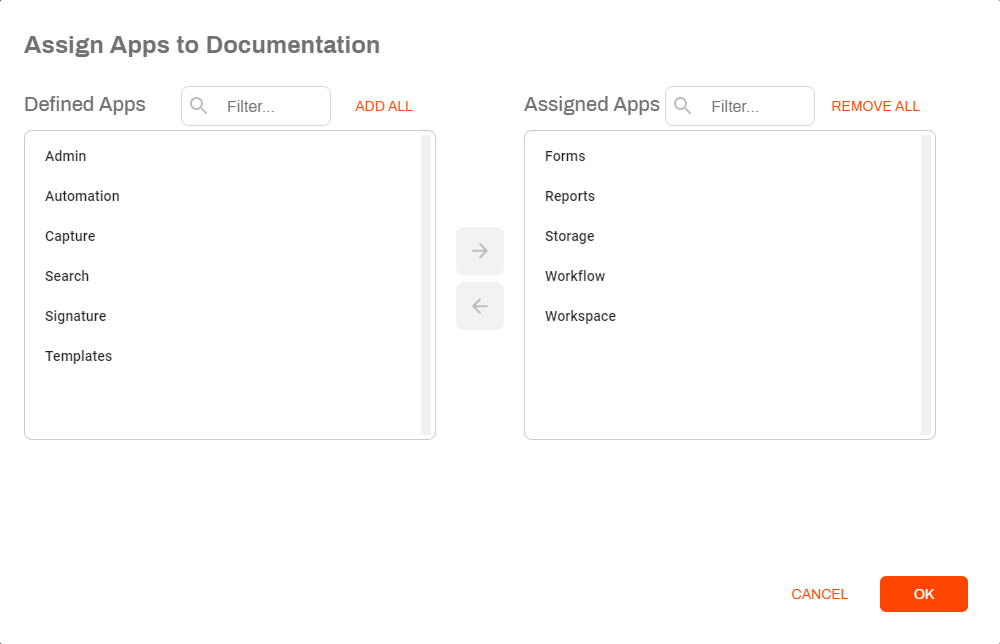
- Click on the More button for the user to whom you want to assign roles and select Assign App Security.
- Click on the app(s) in the Defined Apps list that you’d like to assign to the user. You can select more than one.
-
Click the right arrow button
to move the selected app to the Assigned Apps list.If you’d like to add all of the available apps, click Add All. If you’d like to remove all of the apps from the Assigned Apps list, click Remove All.
- Click the OK button