Last Updated: June 24, 2024
Token Security
Token security is an additional level of security and a flexible way to limit access to documents by users or user groups based on object field values. The typical application for this type of additional security includes, but is not limited to:
- HR-related documents
- Documents that contain PII
- AP or AR Documents based on specific customer or vendor
- Employee or student documents based on department
- Employment or student documents based on ID
Key Points
When you apply token security, you can choose if you want the restricted document to still be visible in the storage folder, or you can hide restricted documents, so they are only visible to users or groups with the token assigned.
Show Documents Option
By default, documents restricted with token security are still displayed in the folder list in Storage and Search Results. However, any users or groups who do not have token access cannot open the secured documents. This type of configuration is helpful for users who may need to know if documents have been received and are in the system, while still maintaining the content secure.
Hide Documents Option
You can configure token security to hide the documents within a folder from displaying to users who do not have token access. This type of configuration is helpful for users or groups who share common folders. Users will only see documents that match the token assignment.
This is a global setting, so when you apply token security, documents are either visible or hidden across all designated folders.
Configuration Components
- Object / Object Field(s) — tokens are applied to an object and at least one object field.
- User(s) / Group(s) — tokens are assigned to individual users or to groups.
- Folder — token security is applied at the folder level.
Requirements
To enable token security, you must submit a ticket with Product Support at support@vasion.com. Please include the following information on the ticket.
- The name of the object that contains the data you want to secure.
- The name of the field you wish to use as criteria for the token security. You can include more than one field for the token, if you want more granular control.
-
The name of the user or group that needs access to the secured content. If you need to create a group, see Group Management.
When applying token security, the recommended practice is to create a group specifically for each token .
- The name of the folder where the documents are stored.
It's best practice to apply token security to fields that have static values, like values selected from drop-downs or populated by lookups to avoid issues caused by data entry errors or typos.
Once token security has been configured by product support, you can create and assign the tokens to users or groups.
Assign the Token to a Group
- On the
 button for the
 - From the drop-down, select Token Security.
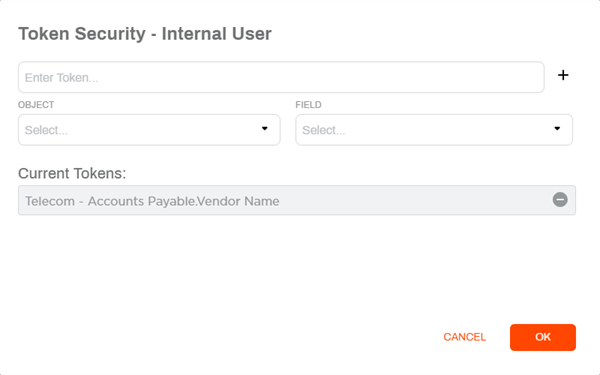
- In the Token Security modal, complete the following:
- In the text field, enter the field value you want to use as the parameter for the security token. The text you enter here must match a value in the object field you select.
- Object — use the drop-down to select the object with the data you want to secure. The list only contains objects that have token security already enabled.
- Field — use the drop-down to select the field that contains the value used for the token. The list only contains objects that have token security already enabled.
- Select the Add button
 next to the token name.
- Click on the OK button to save
Assign the Token to a User
- On the User Management page, click the More button for the
- From the drop-down, select Token Security.
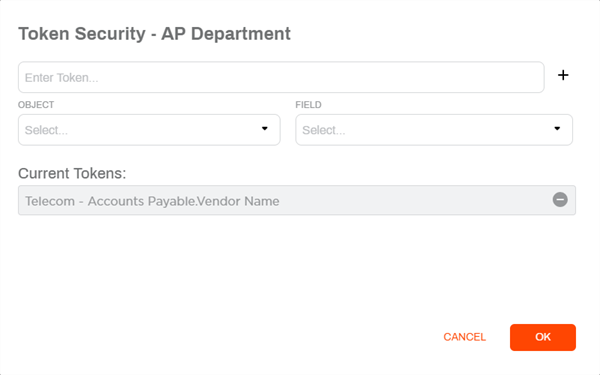
- In the Token Security modal, complete the following:
- In the text field, enter the field value you want to use as the parameter for the security token. The text you enter here must match a value in the object field you select.
- Object — use the drop-down to select the object with the data you want to secure. The list only contains objects that have token security already enabled.
- Field — use the drop-down to select the field that contains the value used for the token. The list only contains objects that have token security already enabled.
- Select the Add button next to the token name.
- Click on the OK button to save