Last Updated: July 03, 2024
SAML Connections
Vasion Automate Pro supports single sign-on authentication through a SAML 2.0 connection. Here we provide a basic overview and some key concepts about how Vasion Automate Pro supports SAML connections.
Key Points
Here is some important information about SAML 2.0 connections in Vasion Automate Pro:
- The SAML connection is used for user authentication, only.
- User authorization requires the configuration of user accounts in User Management.
Term Definitions
- Authentication
- Refers to a user's identity. Who they are and whether their identity has been confirmed.
- Authorization
- Refers to a user's access and permissions.
How it Works
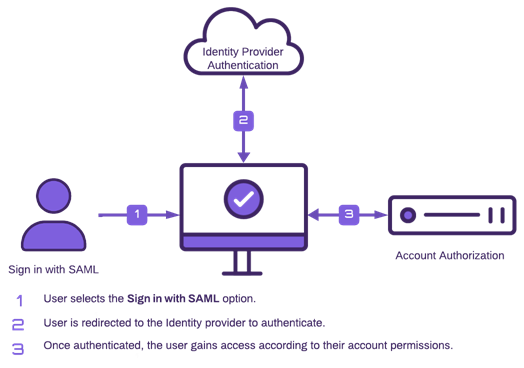
Vasion Automate Pro only uses the SAML technology which is only used for authentication. So when you connect an identity provider, you still need to create a Vasion user account and assign that account the required roles for access and permissions.
Once SAML is enabled, every time a user goes to the Vasion Automate Pro URL, the application automatically launches the identity provider's sign on flow.
Requirements
Here's a quick overview of what is required to configure a SAML connection.
SAML Connection
- Vasion Admin rights.
- Admin console access to your SSO provider.
- Full rights to manage and create apps with your SSO provider.
You'll need to create a new app with your IdP. Refer to your provider's documentation for instructions on how to create the app.
User Account
- Create a user account with a SAML login type.
You'll need a user account with a SAML login type that you can use to test the SAML connection. The username should match the user's name ID as configured in the IdP. For details, see Create a New User Profile.