Add a Signature Approval Step
Last Updated: October 25, 2026
Add a Signature Approval step to require an assigned user to sign a signature field on a form with multiple signers.
Requirements
Review these Requirements before you start.
In addition to the general requirements, a Signature Approval step requires the following:
- A form that multiple signature fields. Refer to Forms.
- The Multiple Signers option turned on in the form, and a unique Assignee Label on each signature field.
Add a Signature Approval Step
In the Workflow Designer, follow these steps:
- From the Basic Steps section, drag the Signature Approval step onto the canvas.
- Drag the previous step connector to the new step.
- On the Signature Approval panel on the right, complete the following:
- Use the Source dropdown to select the form that contains the signature field.
- Use the What field needs to be signed? dropdown to select the signature field. The signer you assign in the next step receives this Assignee Label.
- Use the Who needs to approve? dropdown to select the signer. You can do any of the following:
- Type three or more characters to search for a user.
- Select Dynamic Assignment to assign the step to the person who triggers the workflow.
- Select Form Submitter to assign the step to the person who submits the form. This option is not available for anonymous submissions.
- Select Add external user to assign the step to a user outside your organization.
- (Optional) In the Approval Button field, enter the text to show on the button.
- (Optional) In the Rejection Button field, enter the text to show on the button.
- (Optional) To require the approver to enter a comment, select the Require Comment option for the button.
- (Optional) Turn on Allow send back to submitter to let the approver return the form to the submitter for revisions. This option is not available for anonymous submissions.
- Repeat steps 1 through 7 for each signature field on the form. Select a different field in the What field needs to be signed? dropdown each time.
- Add any additional steps.
- Select Save or Publish in the upper-right corner.
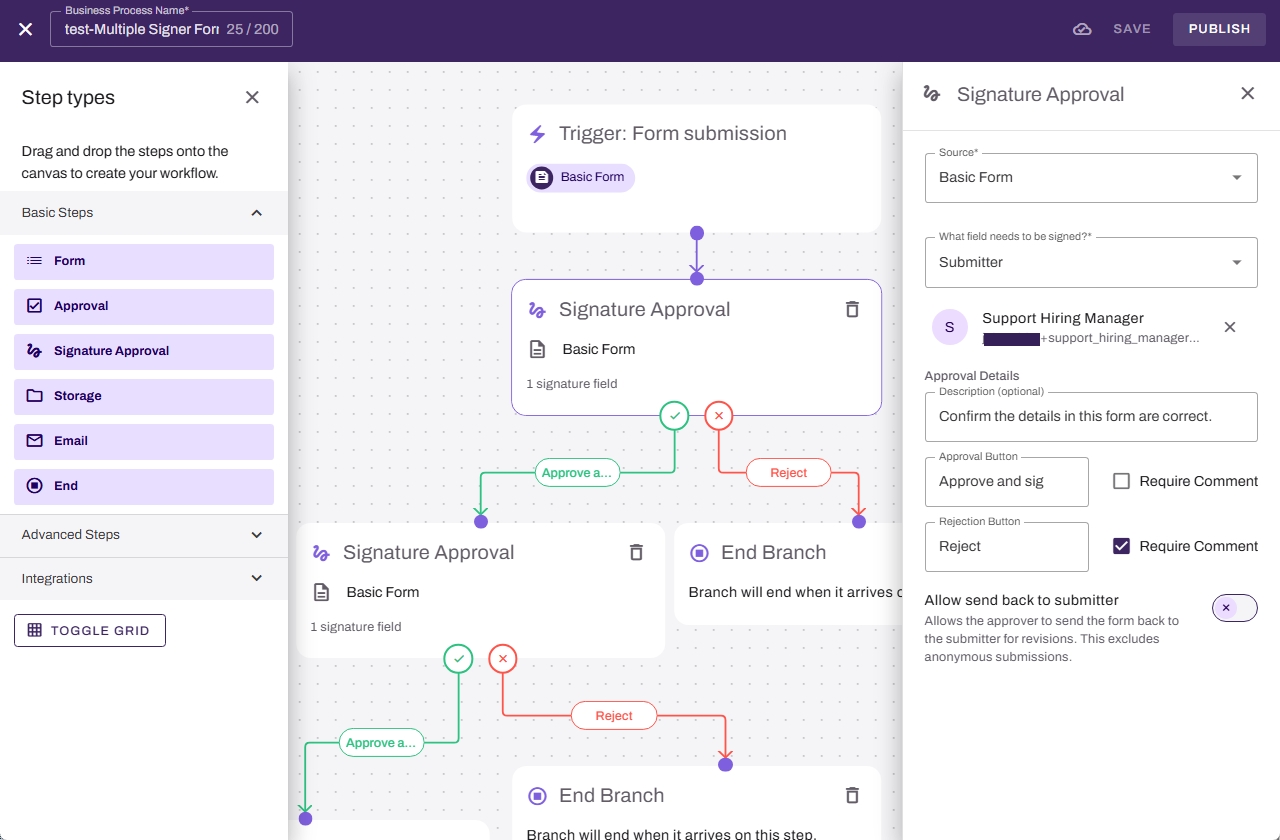
Each approval step creates two branches: One for approval  and one for rejection
  . All branches must connect to a later step to complete the workflow.
Next Steps
Refer to the following:
In this topic: