Add Print Step
Last Updated: October 25, 2026
Add the Print step to a workflow to print documents automatically when the workflow reaches that step.
Requirements
Review the Requirements before adding this step.
Add a Print Step
In the Workflow Designer, follow these steps:
- Create a workflow, or open an existing workflow.
- For new workflows, add the workflow trigger.
- Add the Print step from the Step Types modal to the workflow.
-
In the Document filed, select the documents to print.
The list includes documents and triggers from the earlier steps in the workflow.
-
In the Printer field, use the origin printer if applicable, or:
- Select the field to open the Select a printer modal.
- Browse and select from the available Pull Print or Direct Secure Release printers.
- Select Done.
Only Pull and Direct Secure Release printers configured for Off-Network Print appear here.
- Specify the print settings, which include Paper size, Copies, Sides, and Paper source.
- Save the workflow and continue adding other steps as needed.
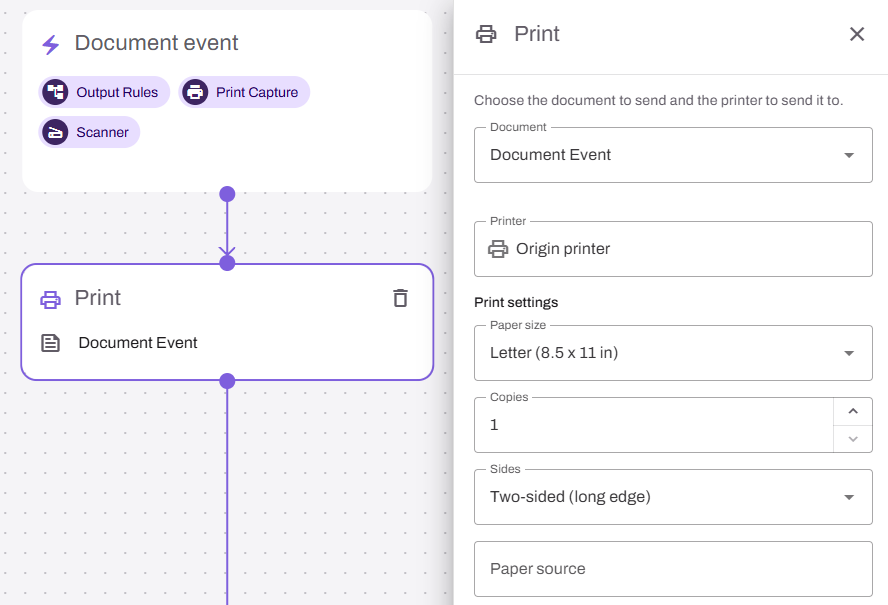
The origin printer option is available only when the workflow starts as a print job through a document event or a background workflow.
Next Steps
In this topic: