Add a Form Step
Last Updated: October 25, 2026
Add a Form step to collect information from an assigned user in your workflow.
Requirements
Review these Requirements before you start.
Review these Requirements before you start.
In addition to the general requirements, a Form step requires the following:
- A form to assign. Refer to Forms.
Add a Form Step
In the Workflow Designer, follow these steps:
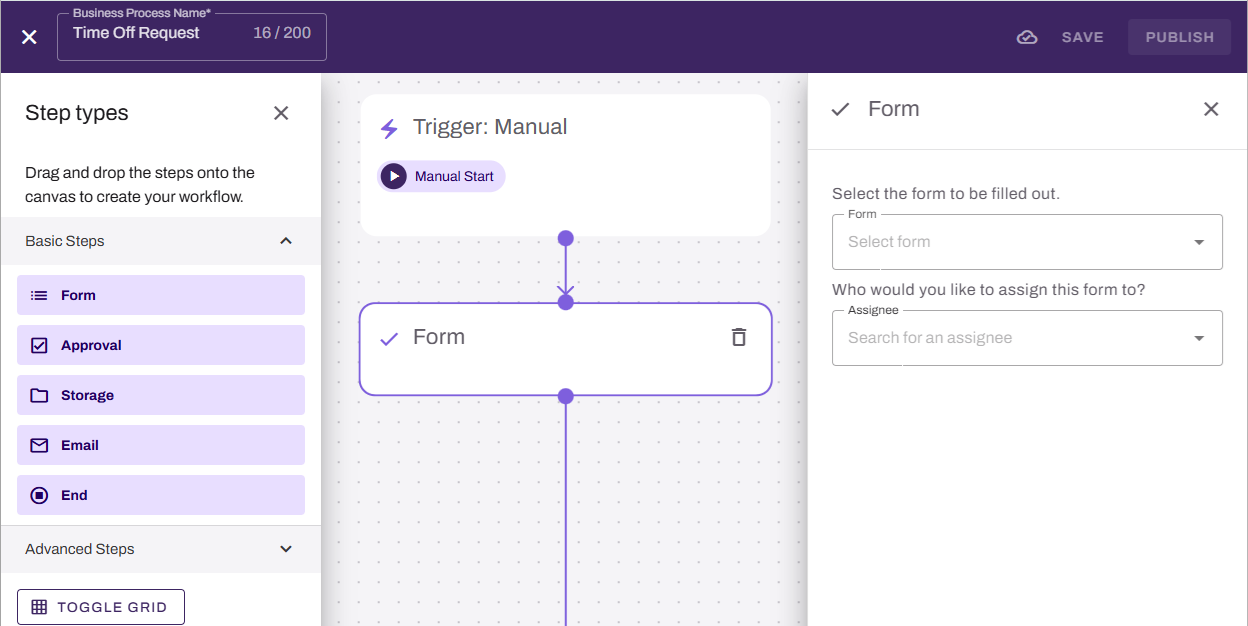
- From the Basic Steps section, drag the Form step onto the canvas.
- Drag the previous step connector to the new step..
- On the Form panel on the right, complete the following:
- Use the Form dropdown to select the form to complete.
- Use the Assignee dropdown to select the user or group who needs to complete the form. You can start typing to filter the list.
- Add any additional steps.
- Select Save or Publish in the upper-right corner.
Next Steps
Refer to the following:
- Form Step.
- Approval Step.
- Add an Email Step.
- Add an End Step.
In this topic: