Add an Approval Step
Last Updated: October 25, 2026
Add an Approval step to require an assigned user to review a form or document and approve or reject it.
Requirements
Review these Requirements before you start.
In addition to the general requirements, an Approval step requires the following:
- A form or document from an earlier step or the trigger for the approver to review.
Add an Approval Step
In the Workflow Designer, follow these steps:
- From the Basic Steps section, drag the Approval step onto the canvas.
- Drag the previous step connector to the new step.
- On the Approval panel on the right, complete the following:
- Use the Source dropdown to select the form or document for the approver to review.
Use the Assignee dropdown to select the user who needs to approve the step. You can start typing to filter the list.
If the Source dropdown is empty, add a Form, Intelligent Document Processing, or Agent step earlier in the workflow.
- (Optional) Enter a description or instructions for the approver in the Description field.
- (Optional) In the Approval Button field, enter the text to show on the button. If you leave this field blank, the button shows Approve.
- To require the approver to enter a comment when they approve, turn on the Require Comment option.
- (Optional) In the Rejection Button field, enter the text to show on the button. If you leave this field blank, the button shows Reject.
- To require the approver to enter a comment when they reject, turn on the Require Comment option.
-
(Optional) Select the Allow send back to submitter option to let the approver return the form to the submitter for more information.
When you turn on this option, the approver must enter a comment for the submitter. The submitter can then update the form without completing a new form to restart the workflow.
- Add any additional steps.
- Select Save or Publish in the upper-right corner.
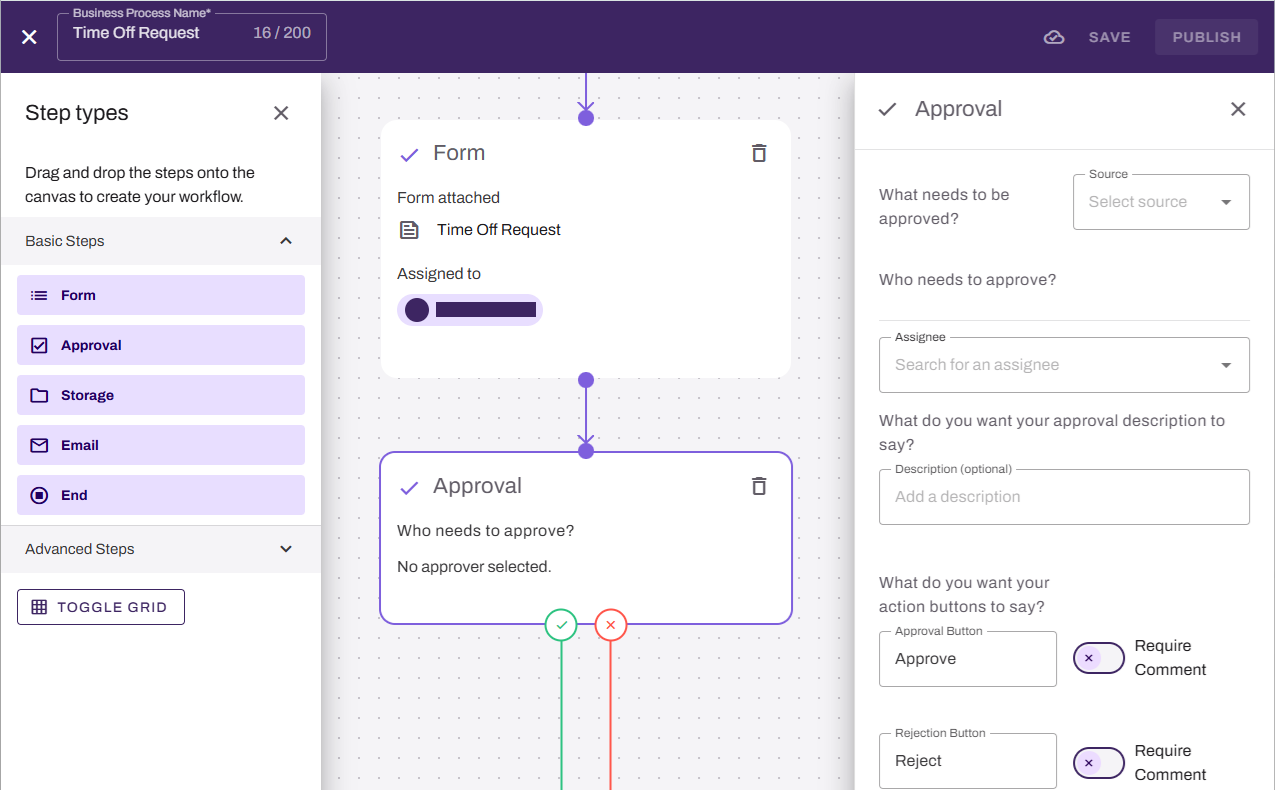
Each approval step creates two branches: One for approval  and one for rejection
  . All branches must connect to a later step to complete the workflow.
Next Steps
Refer to the following:
In this topic: