Virtual Machine Manager New Install
Last Updated: August 19, 2026
This topic provides the requirements and steps to create your Virtual Appliance using a qcow2 file. While the steps are specific to Virtual Machine Manager, they provide a guideline for similar Kernal-based Virtual Machine (KVM) hypervisors.
Requirements
- Virtual Appliance Host and Application files are no longer available on the Admin Guide site. To obtain these files please create a support ticket with our team and include:
- Latest Host / Application Files Request in the subject field.
- Your current Host and Application versions (Support & Training
 About PrinterLogic) in the description.
 - Hypervisor file type (OVA, VMDK, VHD, QCOW2) in the description.
- Review the Minimum System Requirements for environmental specifics and version compatibility.
- If you are configuring a High Availability (HA) environment, complete the steps on Configure High Availability which will route you back after preliminary steps are completed.
- Access to your hypervisor web management interface / console.
Key Points
Headless Server Instances — if you are running a Linux KVM headless server, be aware that you must be able to see or access the Virtual Appliance Host UI. By design, the host is not allowed remote command line / SSH access. Access the console directly to manage network changes, such as setting a static IP.
QEMU (Quick Emulator) — the Virtual Appliance Host does not include a qemu-guest-agent package, so any QEMU Agent options for virtual machine settings should be disabled. The hypervisor uses ACPI calls to turn the virtual machine on, off, and reboot.
Create Virtual Appliance
1. Create Virtual Machine
- Open your Virtual Machine Manager and log in.
- Select the Create a new virtual machine button.
- In the Create... modal select the Import existing disk image option.
- In Architecture options verify x86_64 > is selected, then select Forward in the modal.
- Use the Browse button to locate the downloaded qcow2 file.
- If needed, use the plus icon in the lower left to change the directory.
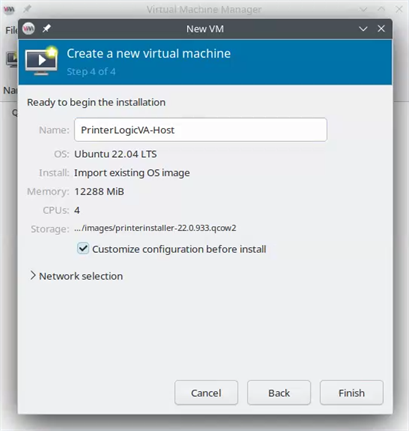
- In the Choose the operating system you are installing section, select the Ubuntu 22.04 LTS option, then select Forward in the modal.
- Define the Memory and CPU allotments based on the Minimum System Requirements noted above, then select Forward in the modal.
- Give the machine a unique name.
- Check the box for Customize configuration before install.
- Select Finish.
2. Configure VM Settings
- In the Details modal, select VirtIO Disk 1.
- Select SCSI in the Disk bus dropdown.
- Select Apply.
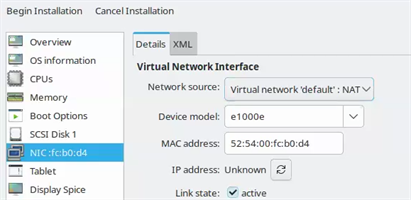
- Select the NIC option in the left-side menu.
-
In the Device model dropdown, select e1000e.
Vasion recommends using e1000e or e1000 for KVM Hypervisors. The Virtual Appliance still functions with VirtIO or VMXNET, but experiences performance degrading results with some Host versions.
- Configure other fields as necessary for your network.
3. Add Secondary Drive
- Select Add Hardware in the lower-left.
- In the Add New Virtual Hardware modal, select the Storage option.
- Choose the Select or create custom storage option, then select the Manage... button.
- Use the plus icon to create a new volume.
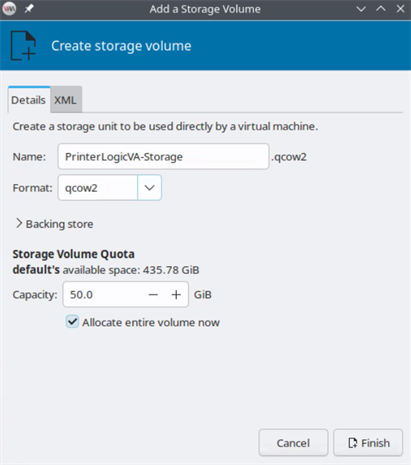
- Give it a unique name.
- Leave the format as qcow2.
- Ensure the capacity meets the Minimum System Requirements noted above.
- Check the box for Allocate entire volume now.
- Select Finish.
- After the volume creates, select it from the list then select Choose Volume.
- Select Finish in the modal.
- Select Boot Options from the left-side menu.
- Confirm the Boot device order reflects the Host drive (First drive) at the top.
- Select Begin Installation in the upper-left.
4. Configure Network Settings
Once the virtual machine spins up, use the web console to configure the network settings.
For environments using a Fully Qualified Domain Name (FQDN) when accessing the Virtual Appliance. Configure the FQDN in your Domain Name System (DNS) and assign it the IP Address shown in the web console. The licensed URL in the license file provided by Vasion must match the chosen FQDN.
The Virtual Appliance starts as a Dynamic Host Configuration Protocol (DHCP) client. You can leave the DHCP default and configure TCP / IP settings via DHCP Reservations. Alternatively, use the steps below to configure a static IP Address and adjust the private IP address range the Virtual Appliance uses for internal services to avoid conflict with existing subnets.
- In the hypervisor, open the web console to access the Virtual Appliance Linux terminal interface.
-
Sign in to the terminal using the network credentials supplied in the terminal banner.
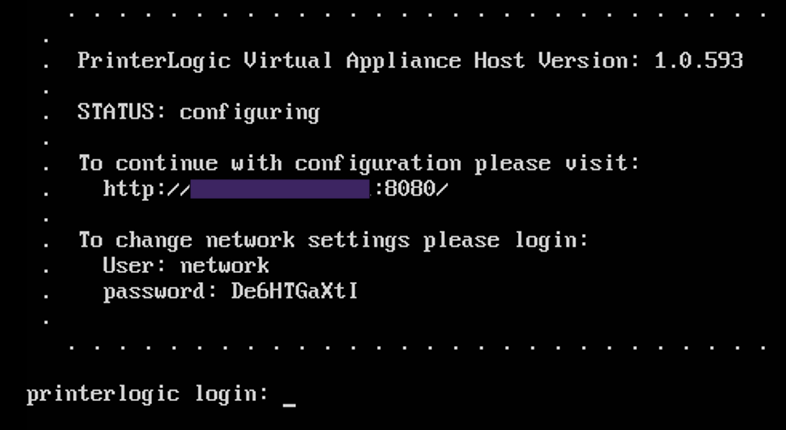
- Enter "Y" to change the network settings.
- Enter "Y" to change the network mode.
-
Enter the TCP / IP settings.
The image below is just an example. Ensure you use the settings specific to your network.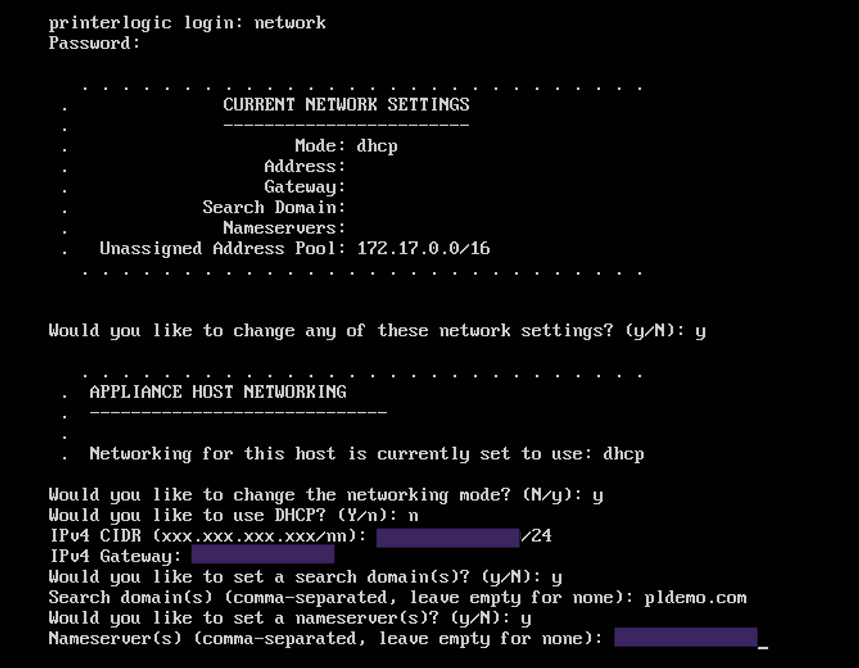
-
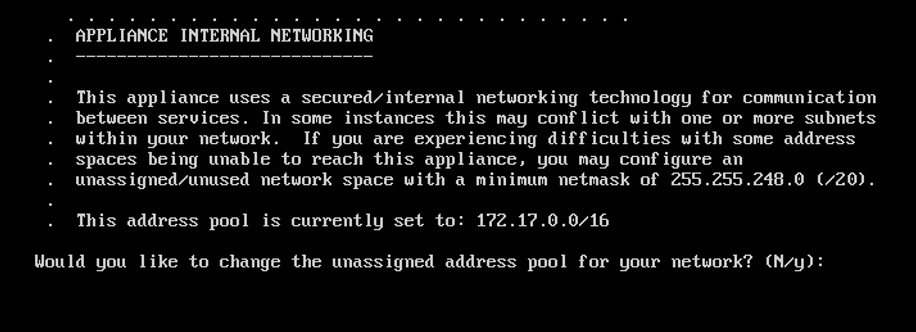
If the existing address pool does not conflict with any subnets in the environment, enter “N”. Otherwise, enter “Y” to set a different address range.
-
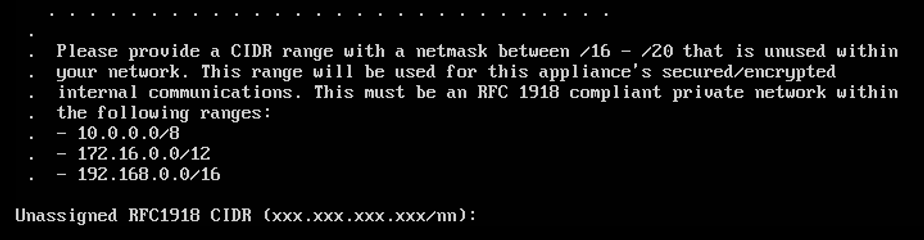
Configure the address range. If you need to adjust IP addresses, be sure to read and understand the network range options you are presented with. Any range used must have a netmask < 20.
- Press any key to exit.
- Copy the IP address located at the top of the terminal interface in the To continue with this configuration please visit field.
5. Virtual Appliance Wizard
The steps below are for creating new Virtual Appliance instances.
- If you are upgrading from an older host build, refer to Host Upgrade.
- If you are configuring a High Availability environment, follow the Virtual Appliance Wizard steps on 2. Launch the Virtual Appliance Wizard HA Setup.
- In your preferred, supported browser, paste or enter the Virtual Appliance IP address including port 8080. Example: 192.168.10.20:8080
-
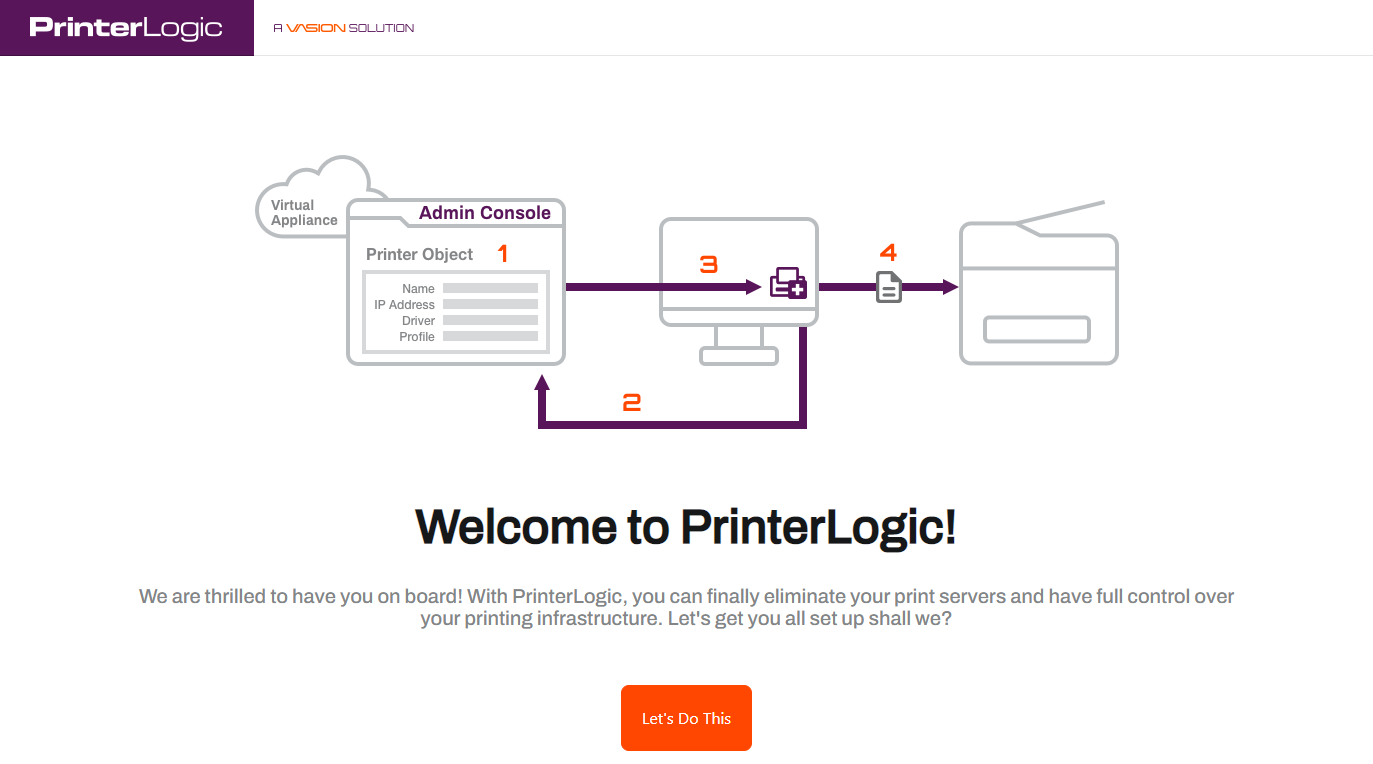
Once the setup wizard displays, select Let's Do This.
-
Select the Storage Type dropdown and select VM-Attached Virtual Disk.

- Select Format Attached Storage. When the attached disk is ready, select Continue.
-
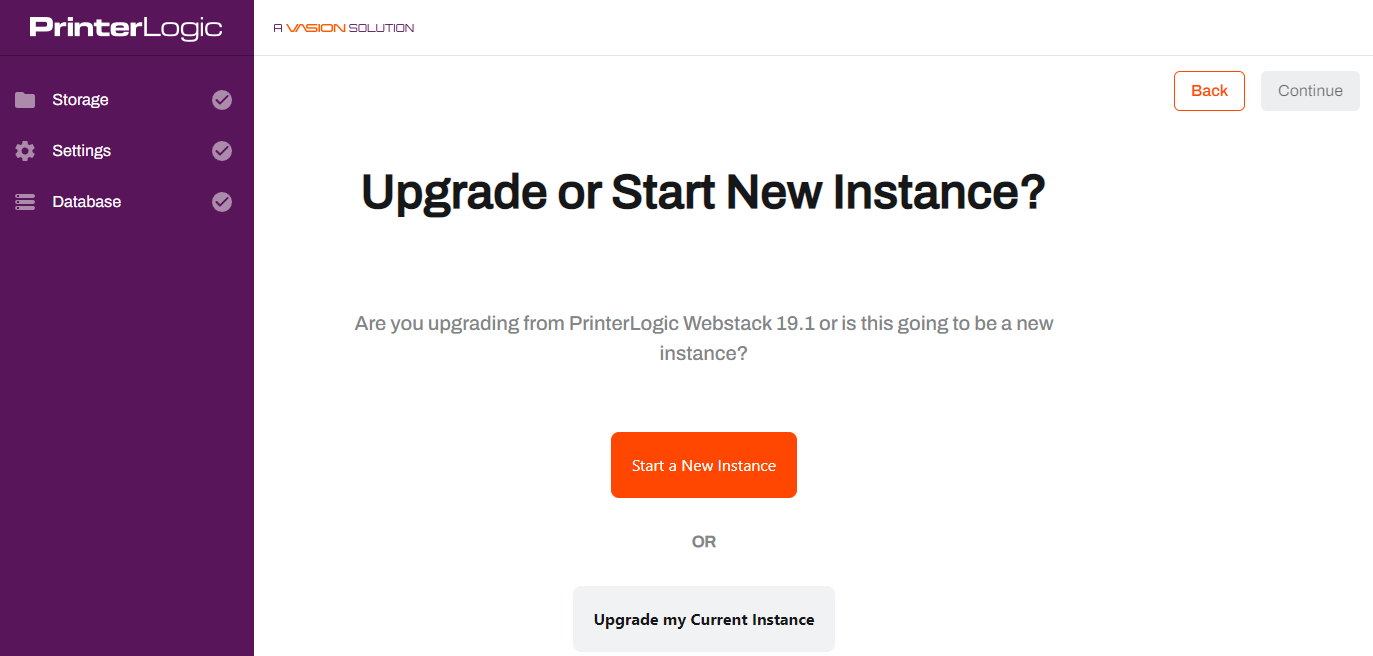
Select Start a New Instance.
-
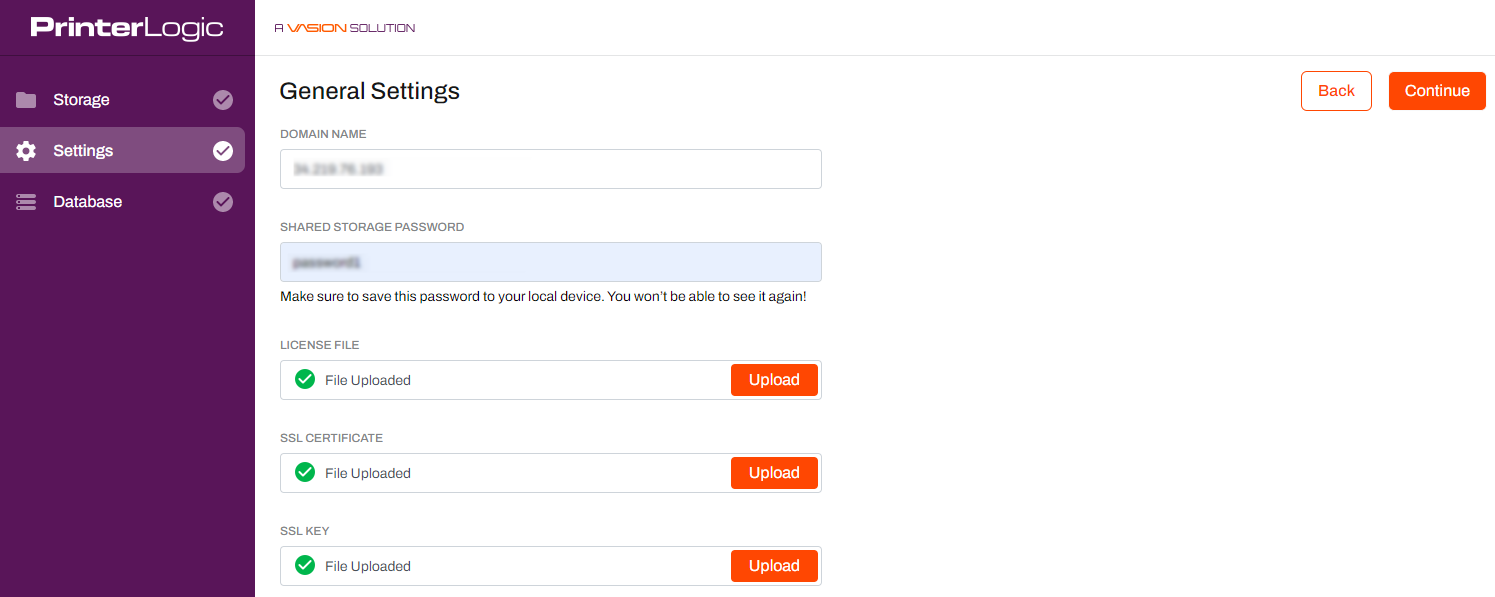
On the General Settings tab:
- Add the domain name.
-
Enter a Shared Storage Password.
Passwords can contain any alphanumeric character (a-z, A-Z, 0-9), the following special characters (%^()_-+={}[]<>,.;), and up to 128 characters.
- Upload your license file.
- Upload your SSL certificate and key.
Document and save the Shared Storage Password. It is available only during the web portion of the new Host configuration steps.
- Select Continue when finished.
-
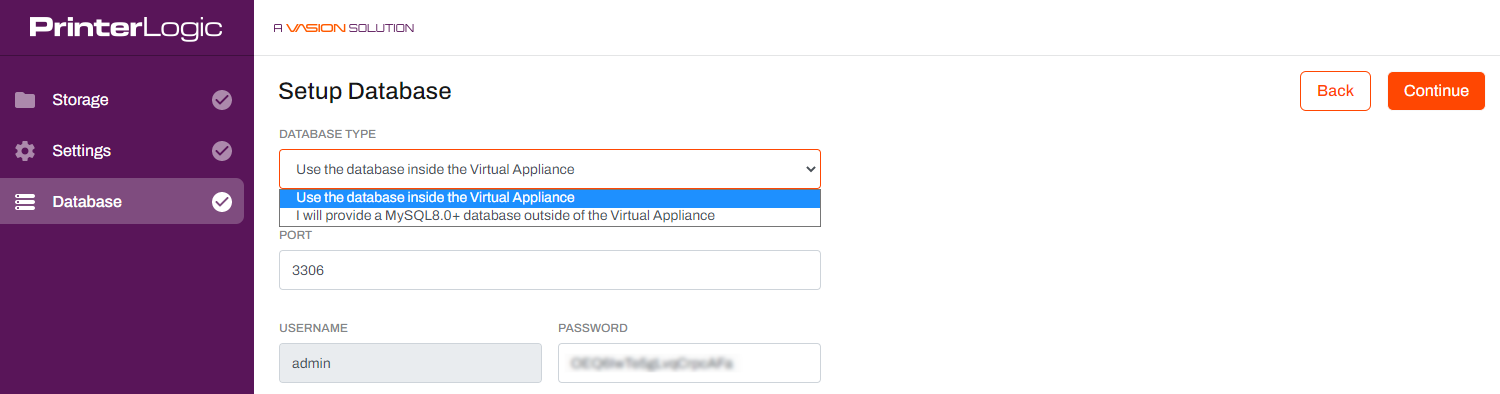
On the Setup Database tab:
- Select the Database Type. The internal database displays by default.
-
Enter a Password.
Passwords can contain any alphanumeric character (a-z, A-Z, 0-9), the following special characters (%^()_-+={}[]<>,.;), and up to 128 characters.
-
Select Continue, then select Finish Setup.
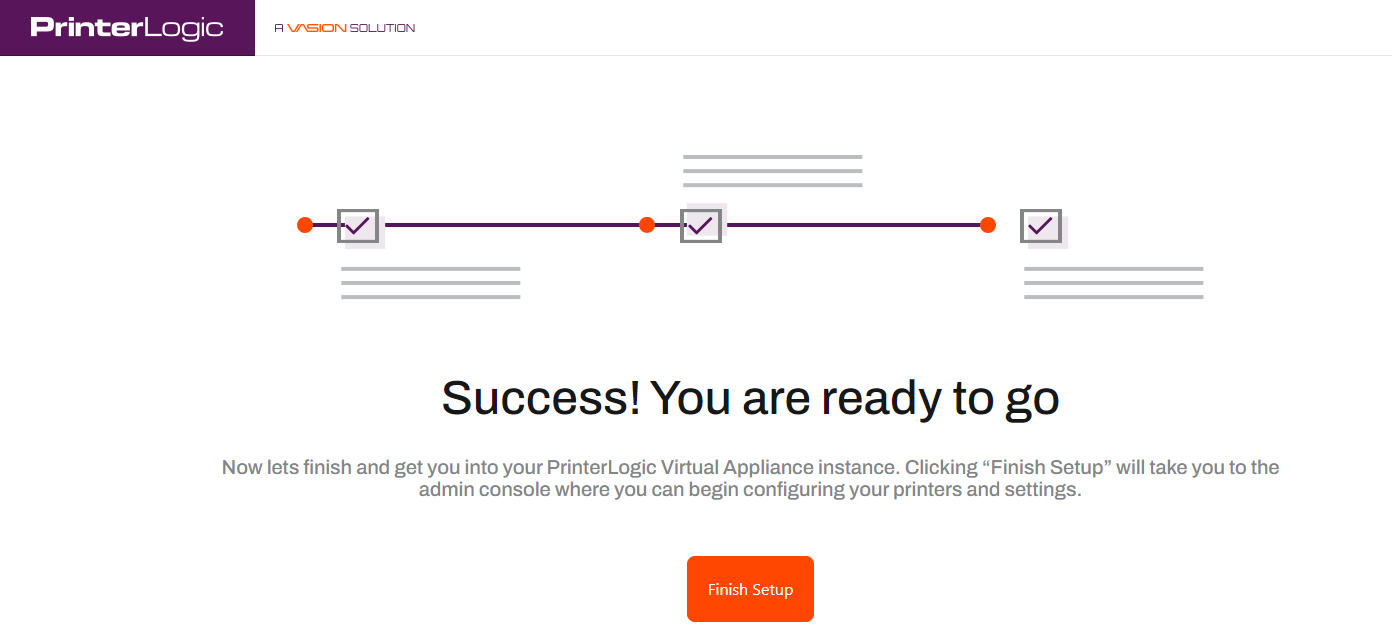
Please do not refresh the page during the installation procedure.
- A new "Thank You" browser window will open when the installation is complete. This window can be closed as needed.
6. Initial Access & Root Account
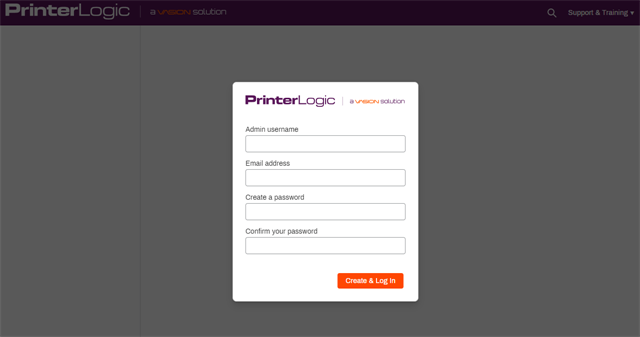
After the installation completes, the Admin Console opens automatically in the browser. A root account user must be created to access the instance.
- When the Admin Console login screen displays, enter the desired credentials for the root account.
- Once logged in, review and accept the License Agreement.
- At this point the instance creation and initial access are complete, and you are ready to set up printers, folders, and other features.
In this topic: