Azure New Install
Last Updated: August 19, 2026
This topic provides the requirements and steps to create your Virtual Appliance using Azure.
Requirements
Ensure the installation requirements are completed before spinning up your Virtual Appliance. For more details refer to Virtual Appliance Installation.
- Access the latest Virtual Appliance in the Azure Marketplace or contact your Vasion representative for assistance.
- Access to your Azure Portal.
Create the Virtual Appliance
1. Create the App
- Sign in to the Microsoft Azure portal.
-
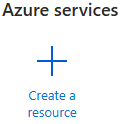
Select the Create a Resource option.
-
Search for and select PrinterLogic Virtual Appliance.
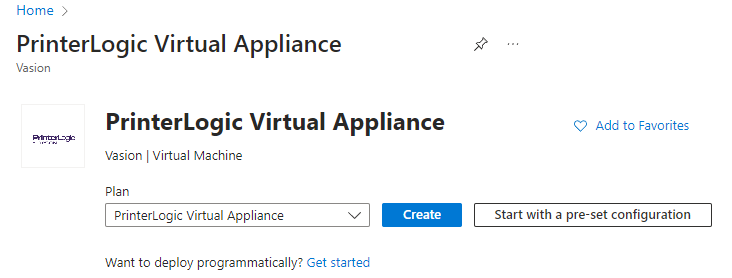
- Select Create.
2. Configure Basic Settings
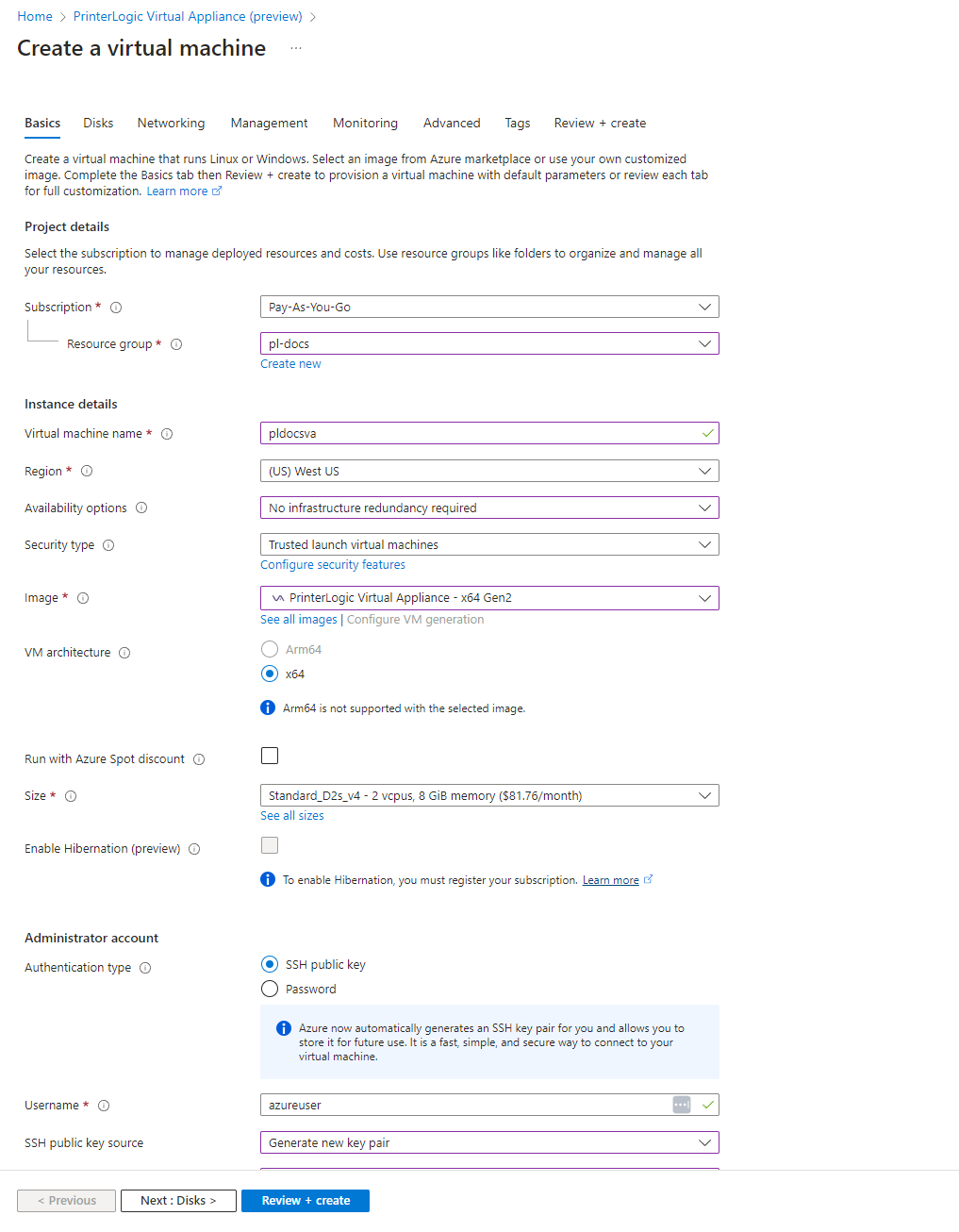
- On the Basics tab, select your Subscription and define the Resource group.
- Enter a unique name in the Virtual machine name field.
- Select the Region your instance resides in.
- Adjust the Availability options and Security type as needed.
- In the Image field, select PrinterLogic Virtual Appliance - x64 Gen2.
- Select x64 for the VM architecture.
- In the Size field, select one of the recommended images based on your environment.
- In the Administrator account section, enter your preferred account settings.
- Select Next : Disk.
- The OS Disks do not require configuration on this tab.
- Do not create a new storage disk here, this will be added later after starting the virtual machine.
3. Configure Networking
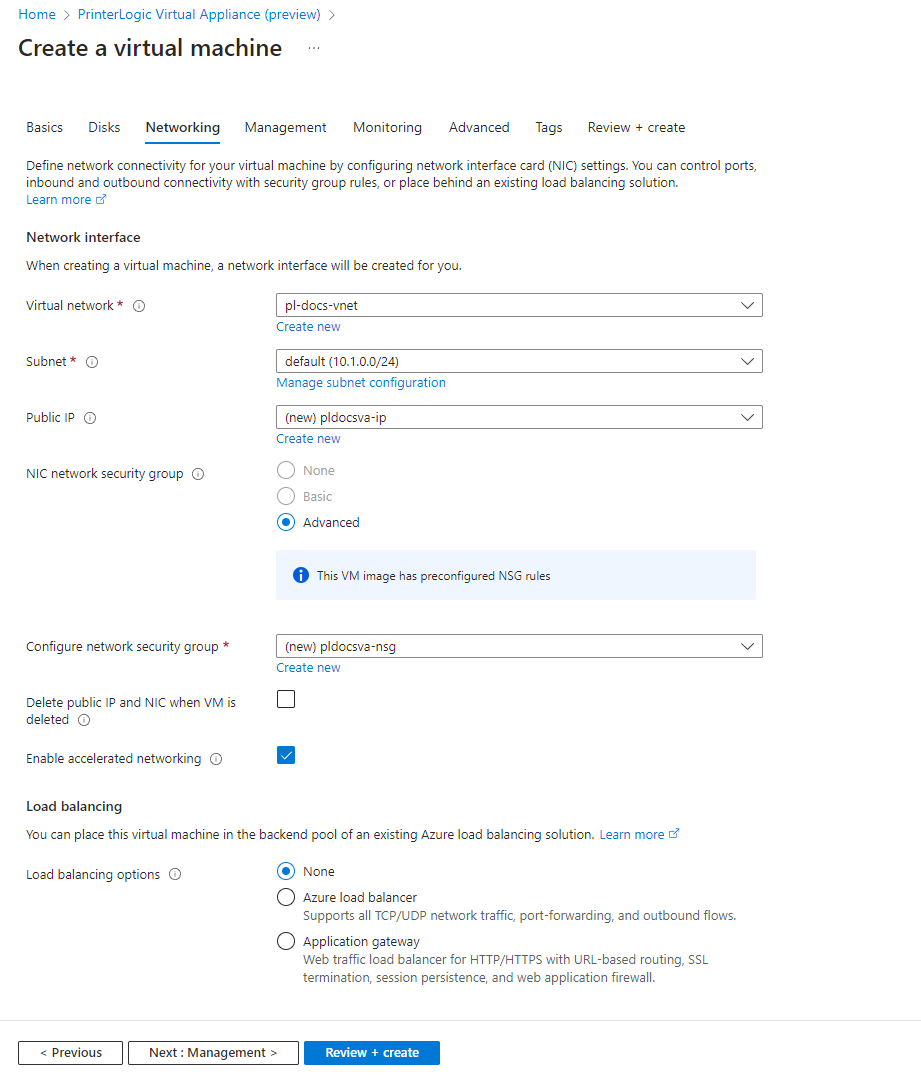
This virtual machine contains preconfigured networking security group (NSG) rules. If you need to change them (e.g. assigning a public IP address) you must modify the security rules. The following steps cover basic configurations assuming modifications are not required.
- Select Next : Networking.
- On the Networking tab, select the appropriate Virtual network for your environment.
- Adjust the Subnet as needed.
- If you are assigning a public IP address, use the Create new option beneath the Public IP field to add it. If not, leave this field as is.
- Select Advanced for the NIC network security group.
- Adjust the Configure network security group option as needed.
- Enable Delete public IP... and Enable accelerated networking as needed.
- Configure the Load balancing options as needed.
4. Configure Additional Options
-
Select Next: Management and adjust settings as needed for your environment.
The Management tab may display a warning stating Entra ID is not supported for the image. This is regarding the Azure virtual machine, not the Virtual Appliance app.
- Select Next : Monitoring and adjust settings based on best practices in your environment.
- Select Next: Advanced and adjust settings based on best practices in your environment.
- Select Next: Tags and add any tags your environment requires.
- When finished, select Next: Review + Create.
- Review the information on the summary page is correct, then select Create.
- Once the deployment completes, select Go to resource.
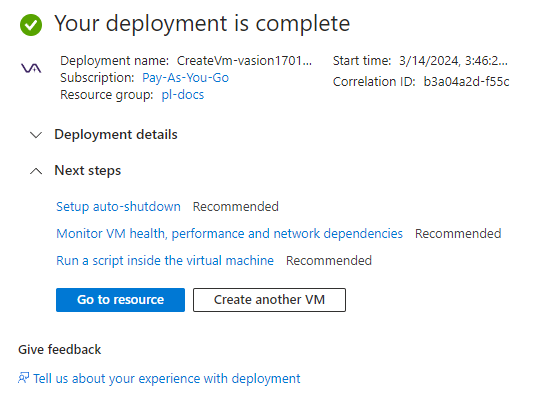
5. Create and Attach Data Volume Disk
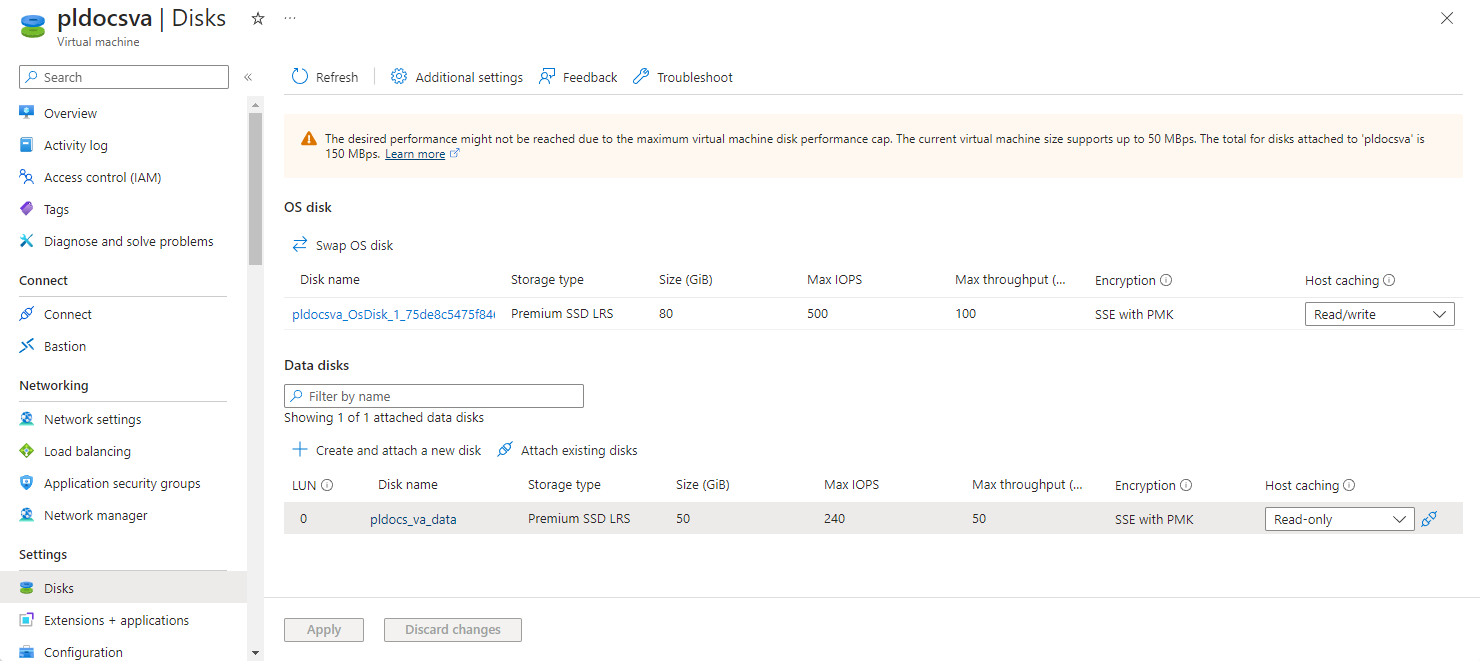
- On the virtual machine, select the Disks option in the Settings section of the left-side menu.
- Select + Create and attach a new disk.
- Give the disk a unique name and adjust the Storage Type as needed.
-
Adjust the storage to at least the minimum of 50 GB. See Minimum System Requirements and adjust as needed for your environment.
The disk size directly correlates with the amount of Max IOPS and Max Throughput (MBps) you have.
- Select Apply.
- Select the Overview option the left-side menu.
- Copy the IP address of the Virtual Appliance.
6. Launch the Virtual Appliance Wizard
The steps below are for creating new Virtual Appliance instances.
- If you are upgrading from an older host build, refer to Host Upgrade.
- If you are configuring a High Availability environment, follow the Virtual Appliance Wizard steps on 2. Launch the Virtual Appliance Wizard HA Setup.
- In your preferred, supported browser, paste or enter the Virtual Appliance IP address including port 8080. Example: 192.168.10.20:8080
-
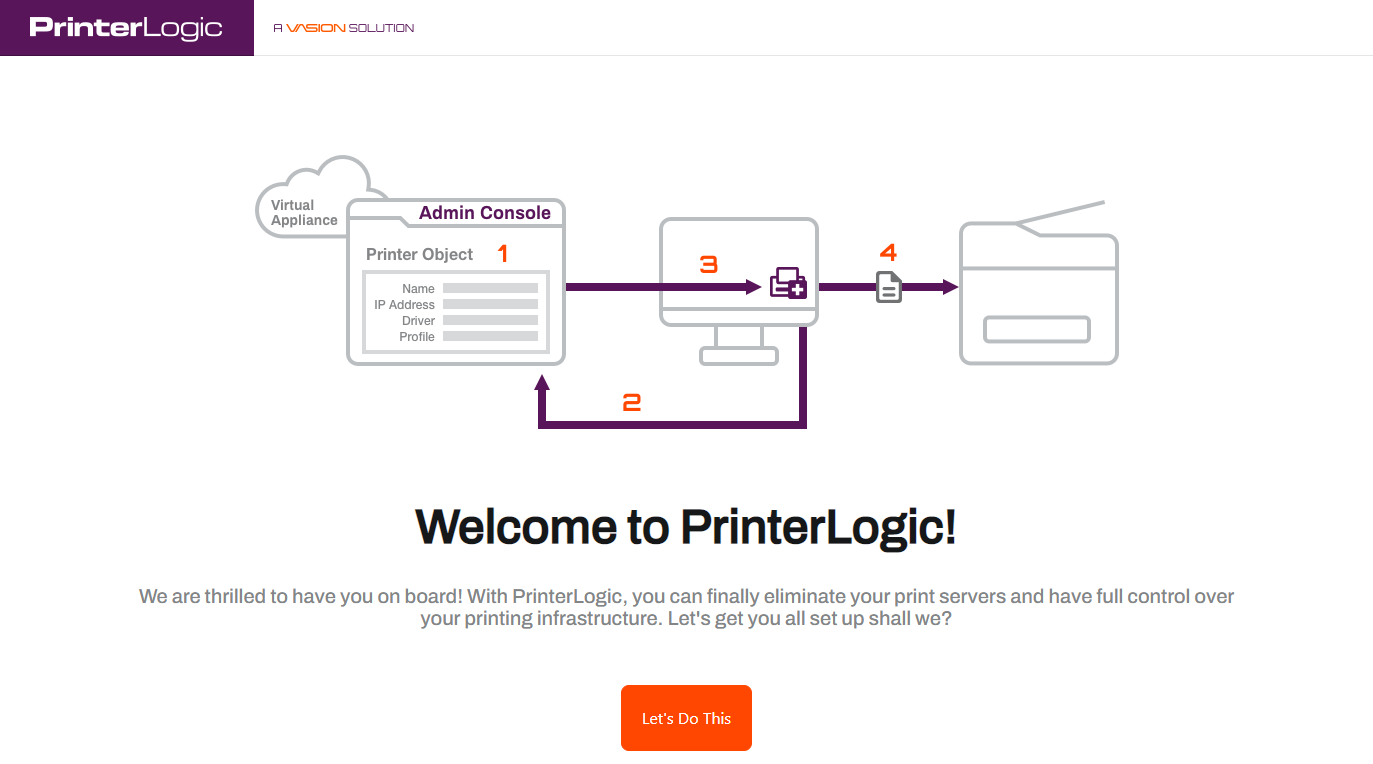
Once the setup wizard displays, select Let's Do This.
-
Select the Storage Type dropdown and select VM-Attached Virtual Disk.

- Select Format Attached Storage. When the attached disk is ready, select Continue.
-
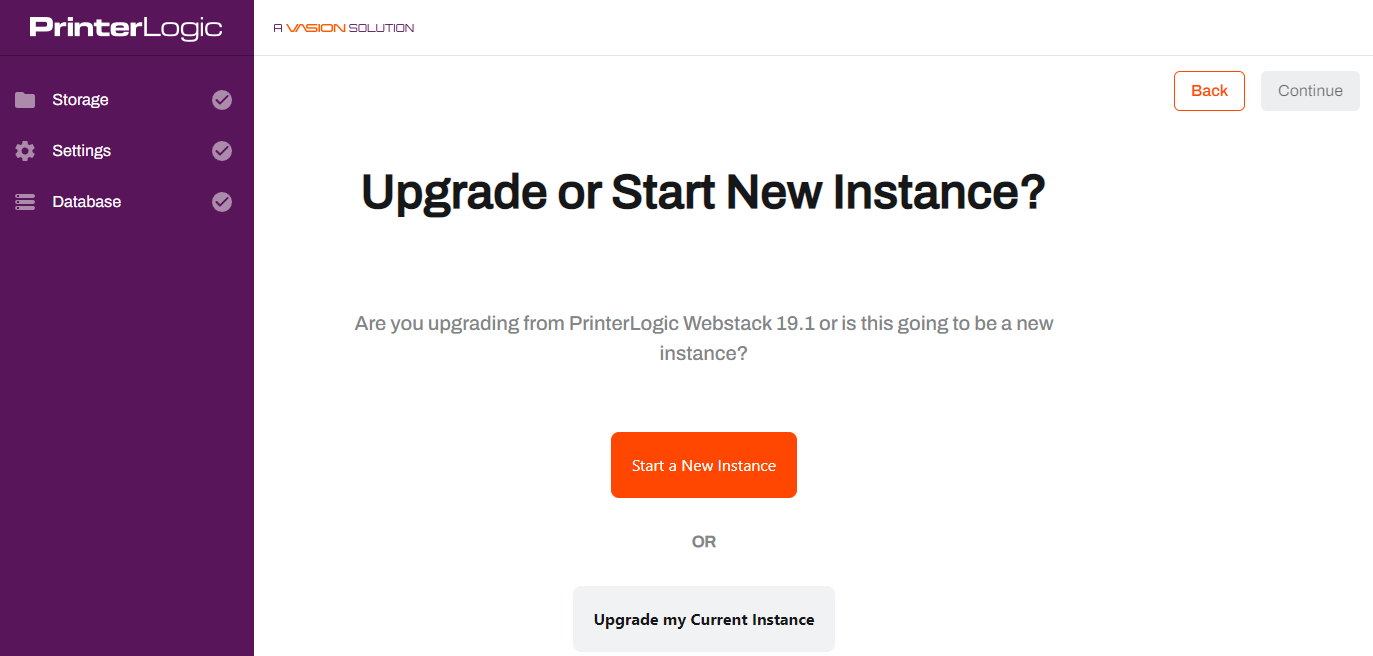
Select Start a New Instance.
-
On the General Settings tab:
- Add the domain name.
-
Enter a Shared Storage Password.
Passwords can contain any alphanumeric character (a-z, A-Z, 0-9), the following special characters (%^()_-+={}[]<>,.;), and up to 128 characters.
- Upload your license file.
- Upload your SSL certificate and key.
Document and save the Shared Storage Password. It is available only during the web portion of the new Host configuration steps.
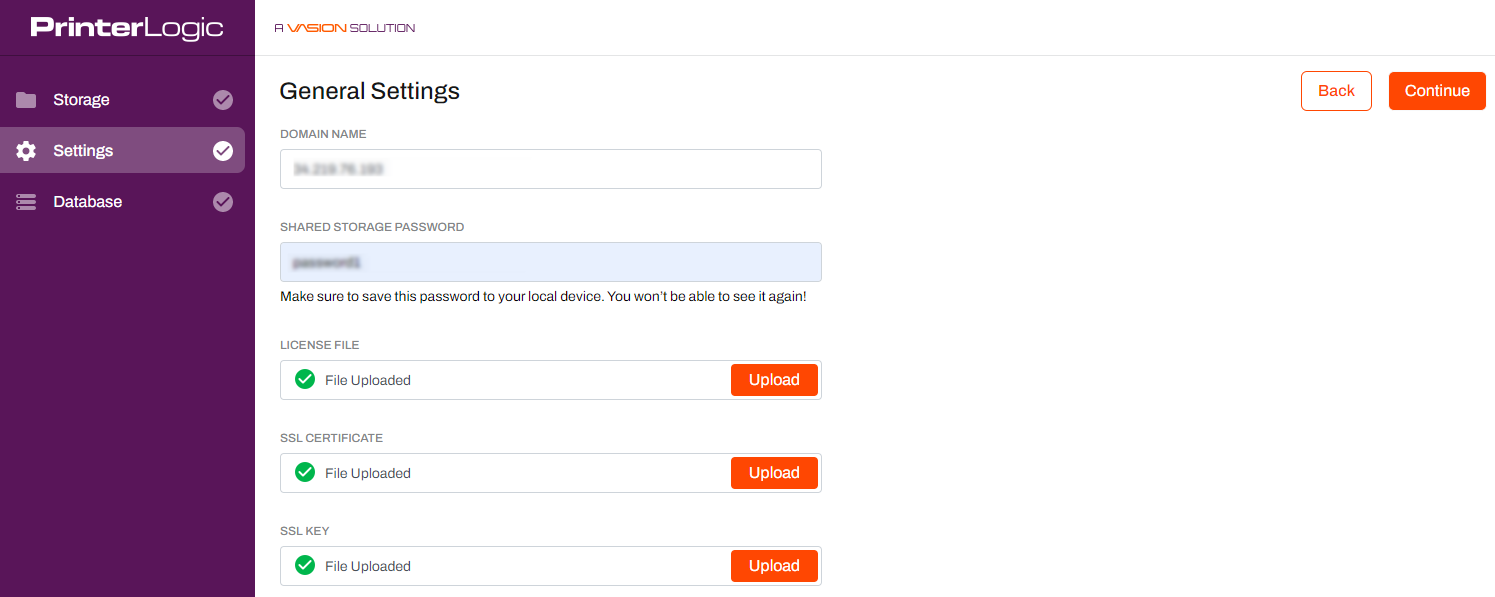
- Select Continue when finished.
-
On the Setup Database tab:
- Select the Database Type. The internal database displays by default.
-
Enter a Password.
Passwords can contain any alphanumeric character (a-z, A-Z, 0-9), the following special characters (%^()_-+={}[]<>,.;), and up to 128 characters.
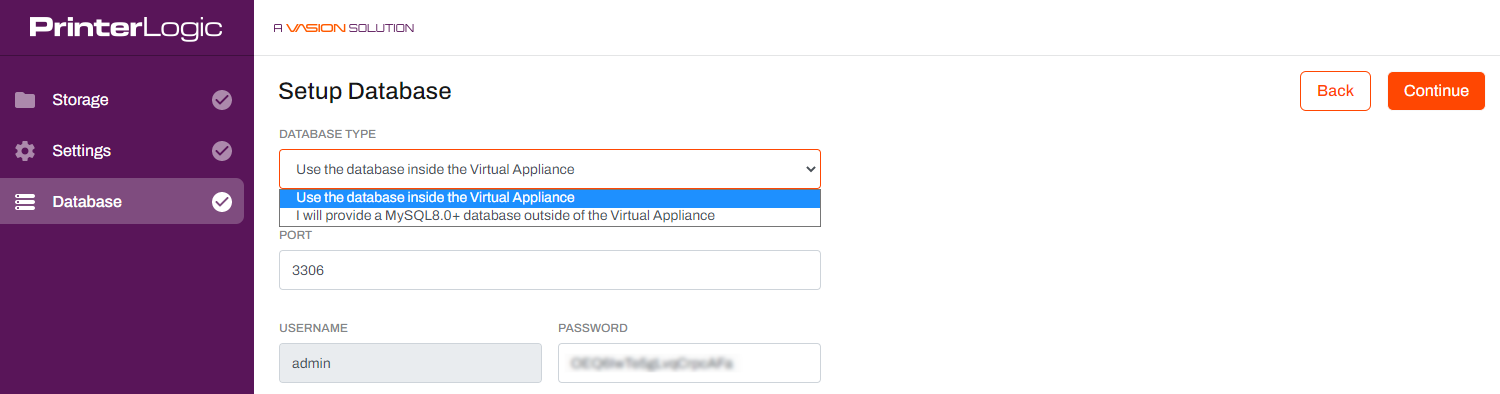
-
Select Continue, then select Finish Setup.
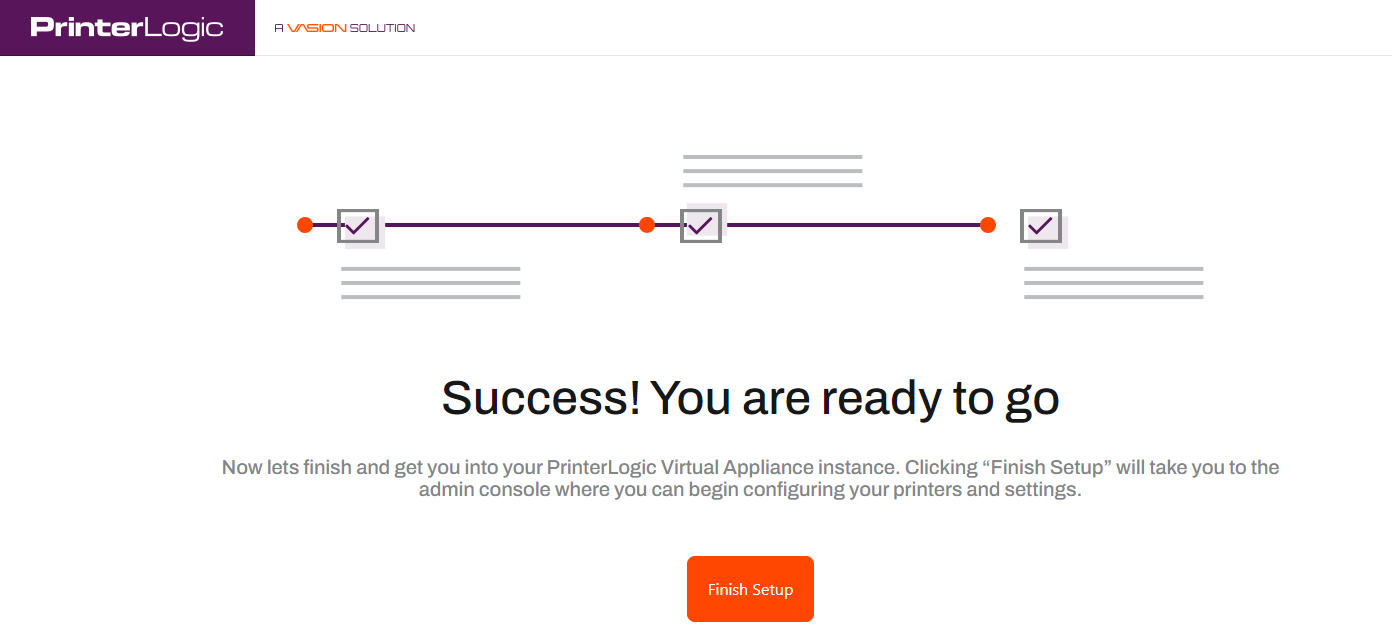
Please do not refresh the page during the installation procedure.
- A new "Thank You" browser window will open when the installation is complete. This window can be closed as needed.
7. Initial Access & Root Account
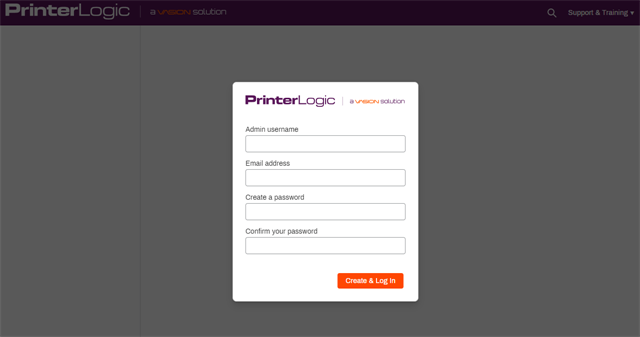
After the installation completes, the Admin Console opens automatically in the browser. A root account user must be created to access the instance.
- When the Admin Console login screen displays, enter the desired credentials for the root account.
- Once logged in, review and accept the License Agreement.
- At this point the instance creation and initial access are complete, and you are ready to set up printers, folders, and other features.
In this topic: