PrinterLogic Mobile App
Last Updated: October 08, 2026
The PrinterLogic mobile app provides a secure, native mobile printing solution that supports end users as they work from anywhere. In this section you can learn about what is required to configure and manage the PrinterLogic mobile app for your organization.
Be sure not to mistake the PrinterLogic mobile app, a mobile app installed on your device, with the Control Panel Application (CPA), an application that is installed on a printer to release pull and secure release print jobs. Refer to Control Panel Application (CPA) for more information.
Key Points
The PrinterLogic mobile app provides end users printing and scanning functionality right from their pocket with:
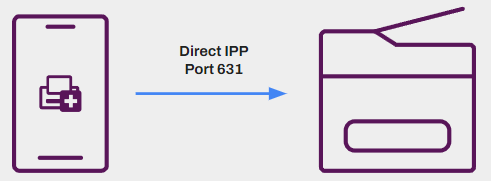
- Mobile direct IP printing: Print documents from the mobile device directly to printers from your Virtual Appliance environments.
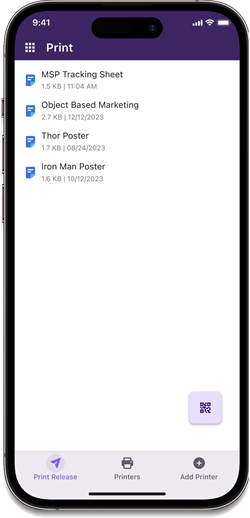
- Mobile app print release: Release documents held for pull print or secure release originating from a workstation, at a printer.
-
Mobile Off-Network Print: Print documents to network printers while outside the local network.
The printer must support IPP 2.0 and it must be turned on.
- Print Quota Management: View the total assigned quota and remaining available quota.
This all-in-one solution provides the power of Virtual Appliance in a single application that fits in your pocket.
Direct Secure Release, Off-Network Print, and Quota Management require additional licensing.
Definitions
- Mobile Printing
- Print from any app on your device using printers that have been automatically deployed by the IT administrator or self-installed printer managed by Virtual Appliance.
-
With the PrinterLogic mobile app, IT can manage printing for iOS and Android devices the same way it does for other operating systems such as Windows, macOS, etc. Additionally, because Virtual Appliance uses direct IP printing, all jobs stay local and are secure.
- Mobile Pull Printing
-
A way of securing your printed output by "holding" the print job in a print queue on the workstation or mobile device until you are ready to send the print job to a specific, selected printer. You can then use any of the available release mechanisms such as, the CPA, the PrinterLogic mobile app, or the Release Portal to release the print job to the printer.
- Mobile Direct Secure Release
- Direct Secure Release protects confidential information by making sure that you, and only you, receive the printed document. You initiate a print job from any device or workstation to a designated secure release printer, and release the print job when you are physically in front of the printer using your mobile device. This ensures the print job makes it into your hands, remaining secure.
Requirements
The following is an overview of the admin requirements to configure the PrinterLogic mobile app. For an overview of the app features, refer to Mobile App Overview. For more information on how to use the app, refer to PrinterLogic App.
- iOS / iPadOS: Supports the current and the previous OS version release.
- Android: Support follows the Android End of Life cycle. For more details refer to Android OS EOL.
- The mobile device needs to communicate with your Virtual Appliance instance.
Virtual Appliance requires the mobile device to be on the same network, and have any needed certificates to communicate with the server.
You must turn on HTTPS / SSL on the Virtual Appliance and deploy a certificate to the mobile device to connect to your private site. The device must be on the same network segment to connect to the Virtual Appliance Self-service Portal.
- For native printing from a mobile device:
- The mobile device needs to be on the same network as the printer.
- The printer needs to support IPP Abbreviation for "Internet Printing Protocol." A modern network print protocol that standardizes communication between print clients and printers. IPPS is the secure version of IPP, encrypting print jobs sent across a network. 2.0 , and it must be turned on.
- Requires access through TCP Port 631 and 80 (IPP).
- IPPS support is available by request. When turned on, it uses Port 443. Contact Product Support at support@vasion.com.
- Mobile app print release requires additional licensing.
-
Ensure your identity provider is configured correctly so that end users can sign in to the mobile app. Currently the mobile app supports only LDAP Domain, Entra ID (SAML), Google Identity Sync, PingFederate , and Okta (SAML).
If you use Active Directory (AD), you cannot deploy printers by user and group or enforce portal security. However, you can deploy printers by IP address range. If you are using an identity provider (IdP) A system that creates, maintains, and manages identity information for an organization. An IdP provides authentication services to apps in a federation or distributed network. such as Okta or Entra ID (Azure AD), you can deploy printers by users and groups.
Download the mobile app from the App Store or Google Play Store.
The PrinterLogic mobile app supports the current operating system version from the supported manufacturers, plus two previous versions. For example, when Apple released iOS 26, then iOS 18 and 17 are supported.
Mobile App Access
To access the mobile app, first set the company's Virtual Appliance instance A collection of services and service groups associated with a customer, created from an app template and deployed to a cloud or virtual server. URL. The app supports sign in using the same credentials used to login on workstations or an identity provider.
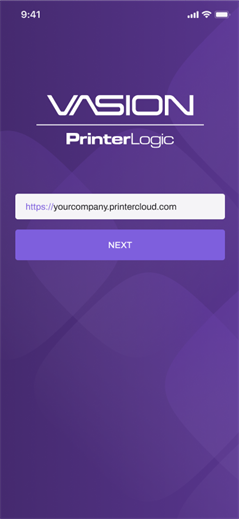
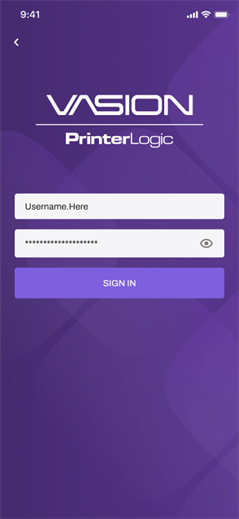
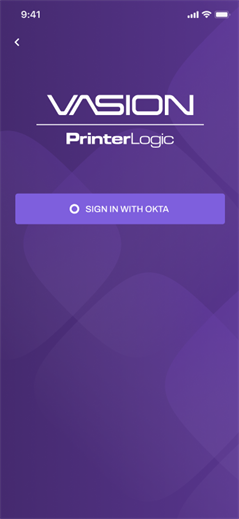
On successful sign in, end users can see their print jobs being held in the print queue. They would see the same information if they logged in to the Release Portal.
Releasing print jobs can be done two different ways;
- Use a traditional method, or
- Use a QR code to access the jobs and release them.
The main difference with the two options is the ability to release multiple print jobs at once when using the QR code method. These methods are shown in more detail in the Print Release guide.
If the end-user is releasing to a Secure Release printer, only that printer will be automatically selected.
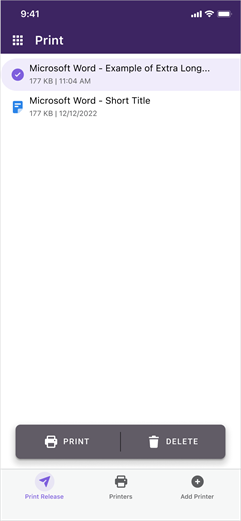
After the job is printed, end users receive a notification that the job has been released and is removed from the print queue.
To learn more, refer to the following:
Troubleshooting Help
If your user cannot sign in to the mobile app, make sure they can log into the Self-service Portal with the same credentials they are using on the app. If they cannot, then it is most likely an issue with the IdP implementation.
If your environment uses complex FDQNThe complete domain name for a specific device or host on a network, consisting of the hostname, the domain name, and the top-level domain. names on your printers, iOS considers having the complex names with a self-signed certificate an unsafe connection for IPP / IPPS requests. To confirm this is the issue, check your logs for the following error from the printer or server: "Error Domain=NSURLErrorDomain Code=-1200".
The solution is to install the root certificate for the used domain on the device. Refer to iOS Printing Fails with -1200 Error..
- Open the PrinterLogic mobile app on the device that needs log information.
- Select the App icon
 from the app header.
 - Select the Settings button
 .
. -
Select the toggle to turn on event logging.

-
On the Enable Logging modal select Start.
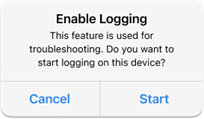
Turn on Event Logging for print release to assist you with troubleshooting efforts. Only the app details are logged and should be turned only on for the time necessary to gather the needed information, since the log data is stored on the device.
Only one log is stored on the device at a time. So when logging is enabled again, the previous log information is replaced with the new log.
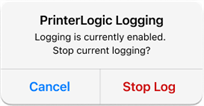
You will receive a notification after 4 hours if logging is still turned on. Select Stop Log to turn off Event Logging.
In this topic:
The mobile app supports Virtual Appliance and Virtual Appliance instances. PrinterLogic Web Stack or previous on-prem releases are not supported as of February 2023.
It depends. Mobile print and scan is included in your core Virtual Appliance license. Additional licensing is required for Off-Network Print, Mobile App Print Release, and Quota Management.
Yes. The app is available in English, Spanish, German and French.
The PrinterLogic mobile app is supported on any iOS and Android phone and tablet (iPhone, iPad, Android phones, tablets, etc.), however, smartwatches (Apple Watch, Samsung Galaxy Watch, etc.) are not.
It depends on how the app is used. Here are three scenarios:
- For direct mobile printing, the phone must be on the same Wi-Fi network as the printers.
- When releasing print jobs in the Virtual Appliance environment or scanning documents, the phone can be on any internet connection.
- When releasing print jobs in the Virtual Appliance environment, the phone must be on the same Wi-Fi network as the PrinterLogic instance.
Yes. In addition, smartphones are secure devices that typically use biometrics (fingerprint or facial recognition) for authentication. Users are required to authenticate their identity when logging in to the app with user credentials and passwords or a configured IdP for your Virtual Appliance environment before accessing any printing and scanning features and documents.
When the app is used to release print jobs that originate on a desktop computer in particular, those print jobs are never sent to the phone. They stay on the computer until they are released. Upon release, they travel directly to the printer.
Yes. Information added into the comments field on the printer's General tab in the Admin Console displays on mobile devices.
Yes. In the Admin Console, you can view reports based on time and date, user, activity type, document count, cost per page, and more.
Scan to Email and Scan to Storage must be turned on and configured in the Admin Console first. Administrators need to configure cloud storage destinations with Google Drive, SharePoint, Box, or OneDrive for the end user to scan to those locations. Refer to Scan to Storage for the configuration steps for each destination.