Requirements & Supported Environments
Last Updated: September 09, 2026
Third-Party Vendor Policy - Virtual Appliance works with third-party products listed below—so long as the vendor continues to support them. However, when they reach “end of life” (as defined by the vendor), we can no longer support them. If this occurs, we suggest you upgrade to a newer version. We define third-party software support as “mainstream support,” not any extended support options a company like Microsoft may offer.
Security Compliance
To see full details about our compliance against global standards, certifications policies and more visit the Vasion Trust Center.
Minimum Server Requirements
Resource usage might increase depending on configured features and user count. Use the recommendations below when creating your Virtual Appliance, but continue to monitor the CPU and RAM utilization and allocate additional resources as needed.
- Four 3.5-4.0 GHz processors. Add two 3.5 GHz processors for each additional 15,000 users.
- 16GB RAM for up to 15,000 users.
- Add 2 CPUs / 8GB RAM for each additional 15,000 users.
- Add a minimum of 2 CPUs and 4GB RAM if using the InternalService Agent.
- Add 2 CPUs and 4GB RAM per 500 CPA / Simple Badge Release installations.
- 160GB free hard disk space for the host disk.
- There should be 50GB of free hard disk space on the persistent storage disk (add 4GB for every 100 printers).
- NT LAN Manager (NTLM) v2 must connect to the Virtual Appliance's appliance-storage shared folder.
Security & Protocols
Database Password
The Virtual Appliance database password must be a MySQL engine account credential. Active Directory domain and IdP accounts are not supported for database authentication. The credential is stored in the local secrets.env file on the Virtual Appliance host as the DB_PASSWORD parameter.
Secure Sockets Layer (SSL) Certificates
Creating an SSL certificate for the Virtual Appliance is not required. However, some features will only work correctly with one. Vasion highly recommends creating an SSL certificate for your Virtual Appliance instance to experience the full functionality of the solution. For more details refer to Virtual Appliance SSL Certificates.
Portal Access Protocol
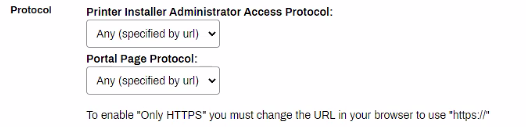
Define whether access to your Admin Console, Self-service Portal, and Release Portal requires HTTP or HTTPS.
Navigate to the Protocol section on Tools  Settings General in the Admin Console, select from the following options, then select Save.
- Any (specified by url): Allows HTTP and HTTPS traffic.
- Only HTTP: Allows only HTTP traffic.
- Only HTTPS: Allows only HTTPS traffic.
Server Message Block
Virtual Appliance only supports New Technology LAN Manager (NTLM2) for connections to the Server Message Block (SMB) share.
Allow List URLS
|
URL |
Purpose |
|---|---|
|
gw. |
Serves as the gateway for IdPs A system that creates, maintains, and manages identity information for an organization. An IdP provides authentication services to apps in a federation or distributed network., |
|
traefik. |
Primary gateway used for communication inside your Virtual Appliance instance. |
|
Portainer UI used by Product Support to troubleshoot the Virtual Appliance on a container level, if needed. |
|
|
cdn. |
Primary gateway for content delivery network - (AWS, CloudFront), and other static assets such as UI pages. |
|
agent-api. |
The primary gateway for Service Agent A designated Agent device configured to host services that extend the capabilities of the print environment, such as Email Printing, Simple Network Management Protocol (SNMP) monitoring, Simple Badge Release, and Identity Sync. communication. This includes advanced features like Virtual Appliance Output, Offline Secure Release Print, Off-Network Print, etc. |
|
agent-api-grpc.app. |
The Output service uses Google Remote Procedure Call (gRPC), an open-source RPC framework built on HTTP/2, to maintain bidirectional communication with the Vasion gateway for print and service settings. This service requires that the environment support outbound HTTPS connections using HTTP/2. |
|
client-api. |
Gateway for Agent communication. |
|
cpp-ui. cpp-ui.app. |
Serves as the Gateway between the Service Agent, the user Interface for the CPA, and your Virtual Appliance instance. |
|
cpa-api. cpa-api.app. |
Serves as the gateway for the Control Panel Application (CPA) An app installed on a compatible multifunction device (MFD) that aids in the release of held print jobs, supports authentication for secure printing, and provides simple scanning functionality. service. |
|
cpp-api. cpp-api.app. |
Serves as the gateway between the printer and the Virtual Appliance instance for scanning features. |
|
ofn. |
Serves as the main external gateway, where off-network jobs will be received when using the Virtual Appliance external gateway. |
|
ofn-gw. |
Serves as a failover gateway for off-network print jobs. |
|
oncp-ofn. |
Serves as a gateway for Off-Network Cloud Print. |
|
oncp-pgw. |
Serves as a gateway for the Off-Network Cloud Print app. |
|
oncp-ipp-gw. |
Serves as a gateway for Off-Network Cloud Print. |
|
print-api. |
Serves as the gateway for Web Printing. |
|
mobile-api. |
Gateway for the mobile app communication. |
|
edw. |
Primary gateway for Enterprise Data Warehouse (EDW) A feature used to create custom reports using data from resources managed by Virtual Appliance. Available for use only with the Windows operating system (OS) and a Microsoft SQL Server database. This data can then be used with common business intelligence (BI) tools, such as Crystal Reports, Domo, and Tableau.. Used to offload data for analytics. |
|
pivcac. |
Gateway for PIV / CAC communication. |
Off-Network Print
Virtual Appliance Self-Hosted External Gateway
Instance FQDN- gw.
Instance FQDN - ofn-gw.
Instance FQDN - ofn.
Instance FQDN Self-Hosted gateway URL
Mail Flow Rules
Certain features may require Mail Flow Rules to allow them to function as expected. Features using the email service include:
- Scheduled Reports
- Scan to Email
- Web Print (Allow Guests)
- SNMP Emailed Alerts
The steps below guide you through setting up a connection with your SMTP server.
- In the Admin Console, go to Tools Settings General.
- In the Email (SMTP) Settings section, complete the following:
- "From" Address: Enter the email address that you want to send the alert from.
- Server Host: Enter the SMTP server's hostname.
- Server Port: Create a firewall rule for port 25.
- Username: Enter the username of the account that you want to use for the service.
- Password: Enter the password for the account.
- Security: Use the dropdown menu to select the security protocol. The options are SSL, TLS, or None.
- Test SMTP Settings: Use this button to test the settings that you entered.
-
Invalid SMTP settings result in an error message, and valid SMTP settings show the following message.
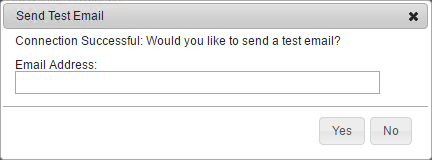
- Send a test email by entering an email address and selecting Yes.
.png "Admin Console showing General settings and Email (SMTP) Settings section.")
Supported Authentication Methods
Virtual Appliance supports a wide range of identity providers for authentication and authorization within the product. Here are the supported provider options and their respective configuration pages for your reference.
- LDAP
- IdP
Active Directory (No Lightweight Directory Access Protocol (LDAP) Domain connection) provides basic authentication to the Self-service Portal for Active Directory users on domain-joined devices with the Agent installed.
To use Active Directory or Oracle for identity management within your organization, an LDAP Domain connection is required to enable certain functionality, such as authenticating to the Admin Console or Mobile app and secure release printing. Environments using LDAP for Control Panel Application (CPA) authentication also require an Identity Sync configuration.
An Identity Provider (IdP) provides user authentication and authorization to the consoles and features. Vasion Print supports multi-tenant environments using multiple IdPs. Supported IdPs are:
Supported Hypervisors
- AWS *
- Azure
- Google Cloud
- Hyper-V
- VMware (ESXi, vCenter, Workstation Pro, Fusion)
- Linux Kernel-based Virtual Machine (KVM)
Supported Mobile OS
The mobile app supports iOS, iPadOS, and Android devices.
- iOS / iPadOS: Supports the current and the previous OS version release.
- Android: Support follows the Android End of Life cycle. For more details refer to Android OS EOL.
Type 4 Drivers
Type 4 drivers do not work with TCP / IP printer objects with Virtual Appliance because they turn off port monitoring, which the app needs. If a TCP / IP printer uses a Type 4 driver, it might cause printing issues. However, USB and software printers, such as Adobe and Microsoft XPS, can still use Type 4 drivers without problems.
Supported IPP Version
- 2.0
Printing with a mobile device requires access through two specific TCP ports: Port 631 and Port 80.
Agent OS Hardware
The Virtual Appliance Agent supports the current and last release of Windows, macOS, ChromeOS, and Linux (Red Hat / Ubuntu) operating systems (OS). Vasion releases a new Agent version that supports new OS versions within 30 days in Vasion Now environments. The following Scheduled Release SaaS (SRS) deployment includes the updated Agent.
- Virtual Appliance does not control the Agent version in IGEL. Since the Agent version may not always be the latest, it's important to recognize that each version has unique features and fixes.
- Agent installation requires an operating system (OS) with a minimum of 300MB of free hard disk space. Printer drivers may require additional space.
- macOS devices using ARM processors may experience issues with some print drivers that lack native ARM support. Install Rosetta 2 for these print drivers to function correctly.
- Windows devices using ARM processors are supported as of Windows Agent version 25.1.0.
- C++ ARM64 must be installed on the ARM devices for the Client to function correctly.
|
x86 |
x64 |
Other |
|---|---|---|
|
Windows 10/11 |
Windows 10/11/2016/2019/2022/2025 |
ChromeOS 109+ |
|
|
macOS 15 (Sequoia) macOS 26 (Tahoe) |
IGEL OS 11 IGEL OS 12 |
|
|
Ubuntu (LTS) 22.04 Ubuntu (LTS) 24.04 Ubuntu (LTS) 26.04 Red Hat 8 Red Hat 9 |
|
Chromebook OS Client
The ChromeOS Agent is only compatible with the Google Identity service; it does not work with other Identity providers (IdPs) A system that creates, maintains, and manages identity information for an organization. An IdP provides authentication services to apps in a federation or distributed network..
You can find the Chromebook Agent in the Google Admin Console listed as Extension ID: llhfdhidddepenjnklbngmapjohlbekh
Antivirus Exclusions Agent Stability
To prevent antivirus scans from affecting essential Agent components, please refer to the Antivirus Exclusions topic for a list of folders and sub-folders to exclude.
Supported SNMP Versions
If SNMP A protocol for collecting and organizing information about managed devices on IP networks and modifying that information to change device behavior. Devices that typically support SNMP include cable modems, routers, switches, servers, computers, printers, and more. is enabled, Virtual Appliance leverages metadata to ensure precise reporting, SNMP information retrieval, Pull Print and Direct Secure Release functionality, and local user identities and email address synchronization. For a comprehensive list of the collected metadata and concise descriptions of their use cases, refer to the Metadata Collected by Virtual Appliance topic.
- SNMP v1
- SNMP v2
- SNMP v3
Supported Browsers
Vasion officially supports the current latest browser versions plus the previous version.
- Microsoft Edge (Chromium) 140, 141
- Safari 17, 18
- Firefox 140, 143
- Google Chrome 140, 141
Browser Extensions
- Edge (Chromium)
- Chrome
- Chromebook OS
- Firefox
Find the Edge (Chromium) extension in the Microsoft Store listed as the PrinterLogic Extension v x.x.x.x. See Microsoft Edge Extension documentation for more information on installing it.
Prerequisites for Edge (Chromium) to function correctly:
- Virtual Appliance Client version 25.0.0.481 or later.
- PrinterInstaller service version 5.0.6155 or later.
- Edge Browser version .88 or later.
Find the Chrome extension in the Chrome Web Store listed as the PrinterLogic Extension vx.x.x.x.
The Chromebook extension can be found in the Google Admin Console listed as Extension ID: llhfdhidddepenjnklbngmapjohlbekh
Open the Firefox browser and browse to https://vasion.com/browser-extension/ to install the extension.
Network Connection Ports
- General Ports
- Mobile App Ports
- Off-Network Ports
- Simple Badge Release Ports
|
General Features |
Description |
Source |
Destination |
Destination Port |
|---|---|---|---|---|
|
Printing |
Direct IP printing from the end workstation to the printer. |
Agent/Workstation |
Output Device/Printer |
TCP 9100 |
|
Chromebook Printing |
Driverless IPP printing from the Chromebook device. |
Chromebook |
Output Device/Printer |
TCP 631 |
|
LDAP Authentication |
LDAP User look up for user authentication. |
Agent/Workstation |
LDAP Server |
TCP 636 |
|
SNMP Monitoring |
Output Device/Printer monitoring and reporting. |
SNMP Service Agent |
Output Device/Printer |
UDP 161, 162 |
|
Windows Printer Server Import |
Tool for importing printers into a new instance. |
Windows Print Server |
Instance/Client |
TCP 80, 139, 445 and UDP 137, 138 |
|
Virtual Appliance Mobile App |
Description |
Source |
Destination |
Destination Port |
|---|---|---|---|---|
|
Direct IP |
Releasing "held" workstation print jobs using the mobile app. |
Agent/Workstation |
Output Device/Printer |
TCP 9100 |
|
IPP Printing |
Printing directly from the mobile device using the mobile app. |
Mobile Device |
Output Device/Printer |
TCP 631/80 |
|
Off-Network Print |
Description |
Source |
Destination |
Destination Port |
|---|---|---|---|---|
|
Print Job Submission |
Printing from Off-Network Device. |
Workstation/Agent |
Off-Network External Gateway |
TCP 443 |
|
Print Job Routing |
External Gateway Service connection to Internal Routing Service. |
Off-Network External Gateway |
Internal Routing Service Client |
TCP 443 |
|
Direct IP from Internal Routing Service Client |
Internal Routing Service delivery of print job. |
Internal Routing Service Client |
Output Device/Printer |
TCP 9100 |
|
Simple Badge Release |
Description |
Source |
Destination |
Destination Port |
|---|---|---|---|---|
|
rf IDEAS Ethernet 241 device |
rf IDEAS configuration |
Simple Badge Release Service Agent |
rf IDEAS device |
TCP 23 |
|
ELATEC TCP3 device |
ELATEC TCP3 configuration |
Simple Badge Release Service Agent |
ELATEC TCP3 device |
TCP 80 and 81 |
|
Device communication |
Communication between the badge reader and the Simple Badge Release Service Agent |
rf IDEAS or ELATEC device |
Simple Badge Release Service Agent |
TCP 31990 |
|
Direct IP printing from job release |
Direct IP printing after the badge reader triggers the job for release |
End user device or Agent |
Output device or printer |
TCP 9100 |
CPA Manufacturer Support
|
Manufacturer |
Authentication Methods |
Multifunction Printers (MFPs) |
Badge Readers |
Features |
Install & Uninstall Ports |
|---|---|---|---|---|---|
|
|
|
|
TCP 8000 and 8443. |
|
|
|
|
|
TCP 443. |
|
|
|
|
|
TCP 58501. |
|
|
|
|
|
TCP 58501. |
|
|
|
|
|
SOAP 7627. |
|
|
|
|
|
TCP 50003. |
|
|
|
|
|
TCP 8083, 9090, and 9091. |
|
|
|
|
|
TCP 443. |
|
|
|
|
|
TCP 443 and 51443 (hybrid). |
|
|
|
|
|
TCP 80, 443, 10080, and 10443. |
|
|
|
|
|
TCP 10443, 49629, and 49630. |
|
|
|
|
|
TCP 443. |
*If you use a USB badge reader to release print jobs, some Canon models require you to turn on the Use MEAP Driver for USB Input Device option in the USB Settings section.
**You must configure badge readers as keystroke readers and include a carriage return value at the end.
CPA Supported Ports
|
Manufacturer |
Port |
|---|---|
|
Canon |
CPA installation and uninstallation occur between the Service Agent and the printer over TCP ports 8000 and 8443. CPA operation requires two main communication paths:
Everyday print communication occurs from the device to the printer over TCP 9100 or TCP 515 for Line Printer Remote (LPR) queues. By default Certificate Revocation List (CRL) checks occur over TCP 80 from the Service Agent. The installation might fail if the CRL check cannot complete over port 80. |
|
Epson |
CPA installation and uninstallation occur between the Service Agent and the printer over TCP port 443. CPA operation requires two main communication paths:
Everyday print communication occurs from the device to the printer over TCP 9100 or TCP 515 for Line Printer Remote (LPR) queues. By default Certificate Revocation List (CRL) checks occur over TCP 80 from the Service Agent. The installation might fail if the CRL check cannot complete over port 80. |
|
Fujifilm |
CPA installation and uninstallation occur between the Service Agent and the printer over TCP 58501. CPA operation requires two main communication paths:
Everyday print communication occurs from the device to the printer over TCP 9100. By default Certificate Revocation List (CRL) checks occur over TCP 80 from the Service Agent. The installation might fail if the CRL check cannot complete over port 80. |
|
Fuji Xerox |
CPA installation and uninstallation occur between the Service Agent and the printer over TCP 58501. CPA operation requires two main communication paths:
Everyday print communication occurs from the device to the printer over TCP 9100 or TCP 515 for Line Printer Remote (LPR) queues. By default Certificate Revocation List (CRL) checks occur over TCP 80 from the Service Agent. The installation might fail if the CRL check cannot complete over port 80. |
|
HP |
CPA installation and uninstallation occur between the Service Agent and the printer over Simple Object Access Protocol (SOAP) 7627. CPA operation requires two main communication paths:
Everyday print communication occurs from the device to the printer over TCP 9100 or TCP 515 for Line Printer Remote (LPR) queues. By default Certificate Revocation List (CRL) checks occur over TCP 80 from the Service Agent. The installation might fail if the CRL check cannot complete over port 80. |
|
Konica Minolta |
CPA installation and uninstallation occur between the Service Agent and the printer over TCP 50003. CPA operation requires two main communication paths:
Communication with WebDAV from the Service Agent to the Virtual Appliance instance over TCP 443. Everyday print communication occurs from the device to the printer over TCP 9100 or TCP 515 for Line Printer Remote (LPR) queues. By default Certificate Revocation List (CRL) checks occur over TCP 80 from the Service Agent. The installation might fail if the CRL check cannot complete over port 80. |
|
Kyocera |
CPA installation and uninstallation occur between the Service Agent and the printer over TCP ports 8083, 9091, and 9090. CPA operation requires two main communication paths:
Everyday print communication occurs from the device to the printer over TCP 9100 or TCP 515 for Line Printer Remote (LPR) queues. By default Certificate Revocation List (CRL) checks occur over TCP 80 from the Service Agent. The installation might fail if the CRL check cannot complete over port 80. |
|
Lexmark |
CPA installation and uninstallation occur between the Service Agent and the printer over TCP 443. CPA operation requires two main communication paths:
Everyday print communication occurs from the device to the printer over TCP 9100 or TCP 515 for Line Printer Remote (LPR) queues. By default Certificate Revocation List (CRL) checks occur over TCP 80 from the Service Agent. The installation might fail if the CRL check cannot complete over port 80. |
|
Ricoh |
CPA installation and uninstallation occur between the Service Agent and the printer over TCP 443 and TCP 51443 for hybrid Android Java devices. CPA operation requires two main communication paths:
Everyday print communication occurs from the device to the printer over TCP 9100 or TCP 515 for Line Printer Remote (LPR) queues. By default Certificate Revocation List (CRL) checks occur over TCP 80 from the Service Agent. The installation might fail if the CRL check cannot complete over port 80. |
|
Sharp |
CPA installation and uninstallation occur between the Service Agent and the printer over TCP ports 80, 443, 10080, and 10443. CPA operation requires two main communication paths:
Everyday print communication occurs from the device to the printer over TCP 9100 or TCP 515 for Line Printer Remote (LPR) queues. By default Certificate Revocation List (CRL) checks occur over TCP 80 from the Service Agent. The installation might fail if the CRL check cannot complete over port 80. |
|
Toshiba |
CPA installation and uninstallation occur between the Service Agent and the printer over TCP ports 10443, 49629, and 49630. CPA operation requires two main communication paths:
Everyday print communication occurs from the device to the printer over TCP 9100 or TCP 515 for Line Printer Remote (LPR) queues. Communication for Simplified Scanning features occurs over TCP 50083 between the printer and the Service Agent. By default Certificate Revocation List (CRL) checks occur over TCP 80 from the Service Agent. The installation might fail if the CRL check cannot complete over port 80. |
|
Xerox |
CPA installation and uninstallation occur between the Service Agent and the printer over TCP 443. CPA operation requires two main communication paths:
Everyday print communication occurs from the device to the printer over TCP 9100 or TCP 515 for Line Printer Remote (LPR) queues. By default Certificate Revocation List (CRL) checks occur over TCP 80 from the Service Agent. The installation might fail if the CRL check cannot complete over port 80. |
Simplified Scanning Supported Storage Providers
You can find configuration details of the listed providers in the Scan to Storage topic.
- Box
- Google Drive
- OneDrive
- SharePoint
- Network Drive
Other
Import Windows Printers
- Administrator rights and access to connect to administrative shares (Admin$) on the print server are required to import printers from Windows print servers. Network ports to open between the print server and the importing computer include: TCP ports 80, 139, 445; UDP ports 137, 138.
In this topic: