Google Cloud Platform New Install
Last Updated: August 19, 2026
This topic provides the requirements and steps to create your Virtual Appliance using a VMDK file. While the steps are specific to Google Cloud Platform, they provide a guideline for similar hypervisors.
Requirements
- Virtual Appliance Host and Application files are no longer available on the Admin Guide site. To obtain these files please create a support ticket with our team and include:
- Latest Host / Application Files Request in the subject field.
- Your current Host and Application versions (Support & Training
 About PrinterLogic) in the description.
 - Hypervisor file type (OVA, VMDK, VHD, QCOW2) in the description.
- Review the Minimum System Requirements for environmental specifics and version compatibility.
- If you are configuring a High Availability (HA) environment, complete the steps on Configure High Availability which will route you back after preliminary steps are completed.
- Access to your hypervisor web management interface / console.
Create Virtual Appliance
1. Select the Bucket
- Log into Google Cloud Platform.
-
Expand the left-side menu and select View All Products.
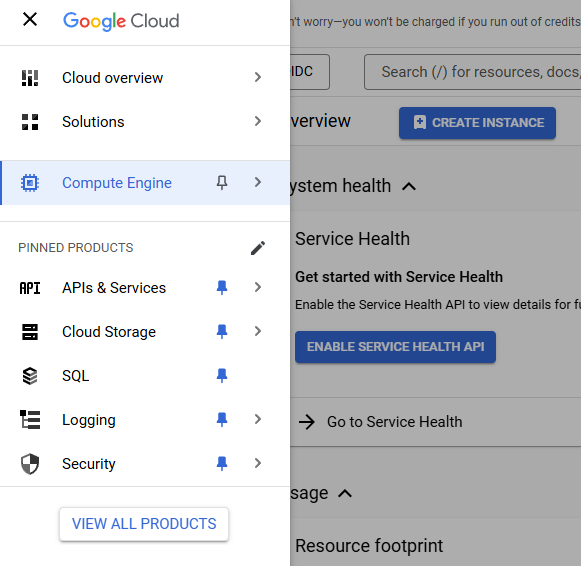
- Select Storage under the Categories menu, then select Cloud Storage.
-
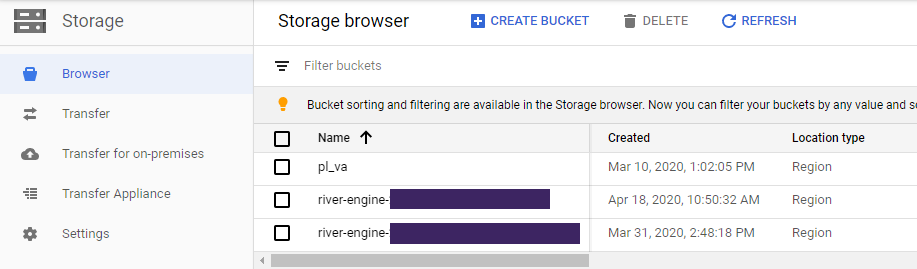
Create a new storage bucket or select from an existing one.
-
With the chosen bucket selected, select Upload Files.
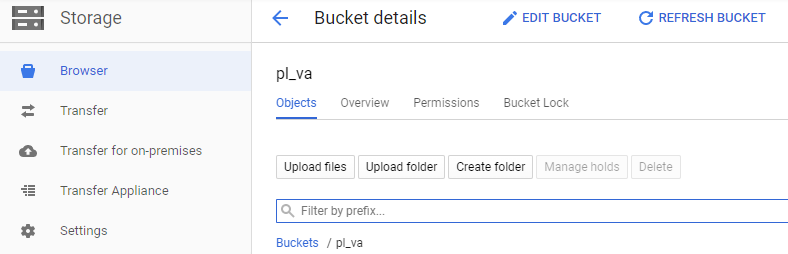
- Upload the previously downloaded VMDK file.
Due to the file size, it is recommended that this step be done from a PC with an internet connection that supports high upload speeds.
2. Create the Image
Due to the file size, creating the image may take up to 40 minutes.
-
In Google, expand the left-side menu and select View All Products.
- Select Compute under the Categories menu, then select Compute Engine.
-
In the new left-side menu, select Images in the Storage section.
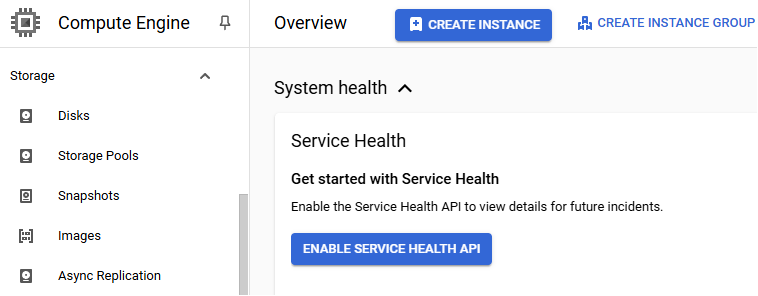
- Select the option for Create Image in the upper-middle.
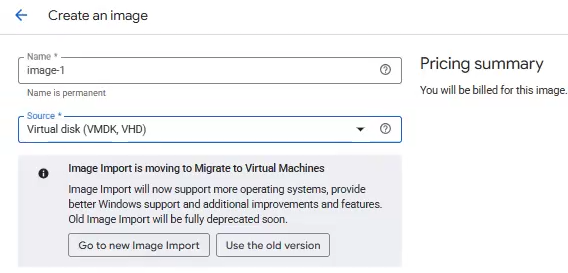
- In the Create an image modal, select Virtual disk (VMDK,VHD) for the Source.
-
Select Go to new Image Import.
- Give the image a unique name.
- In the Source Cloud Storage field:
Select Browse.

- In the right-side modal, select the bucket from the first section.
- Select the Virtual Appliance image file.
- Use the Select button at the bottom of the Select object modal to add the file.
-
In the Create an image modal:
- Set the appropriate Region.
- Ensure the Target Project value matches the project you're in.
- Configure the other options on this page as needed.
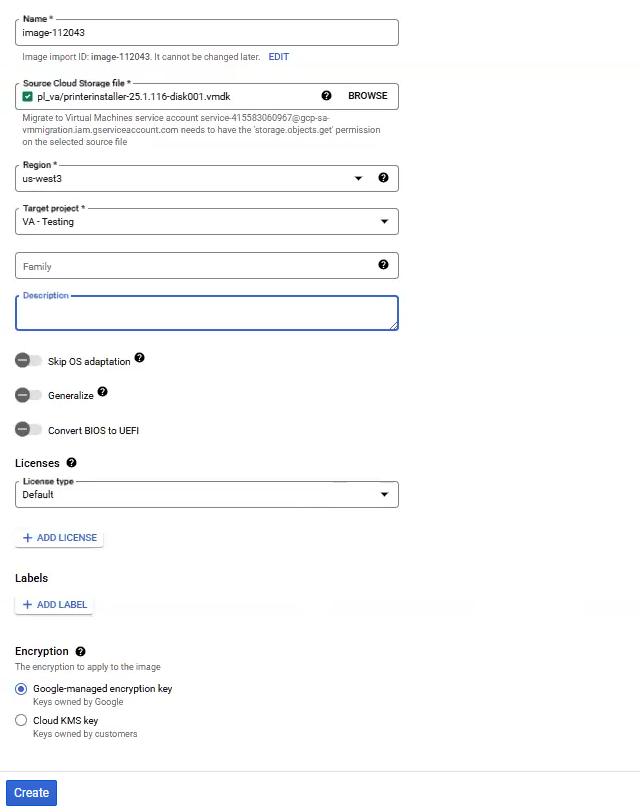
- Select Create.
3. Configure the Image
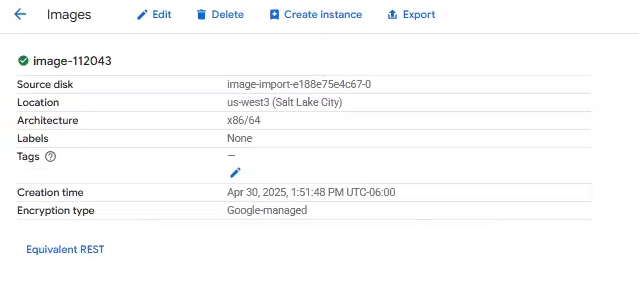
- Once the image creation completes, go to the Images page and select the newly created image.
-
Select the Create Instance option.
-
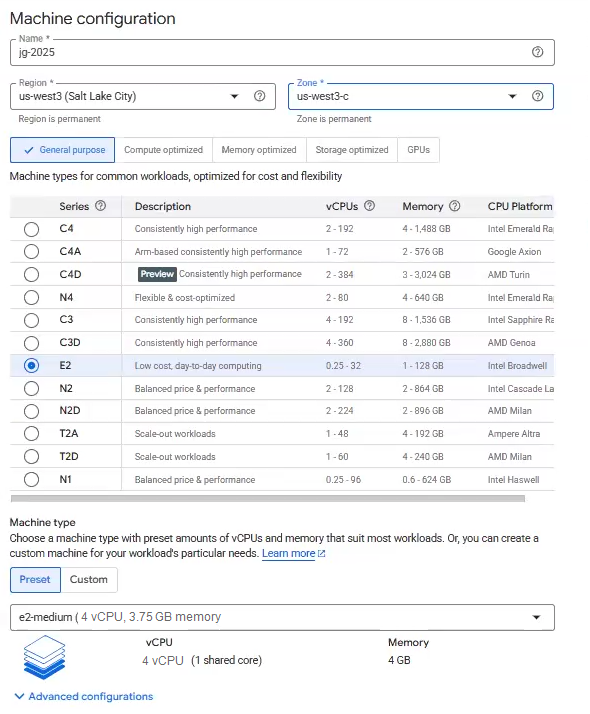
On the Machine configuration page:
- Give the instance a unique name.
- Select the appropriate Region, Zone, and Machine Type that corresponds with at least the minimum system requirements. See Minimum System Requirements and adjust as needed for your environment.
- In the left-side menu, select Networking.
- In the Firewall section, enable the appropriate network traffic type (HTTP / HTTPS) for your environment.
In the Hostname field, enter the Virtual Appliance hostname as it appears on your license file.
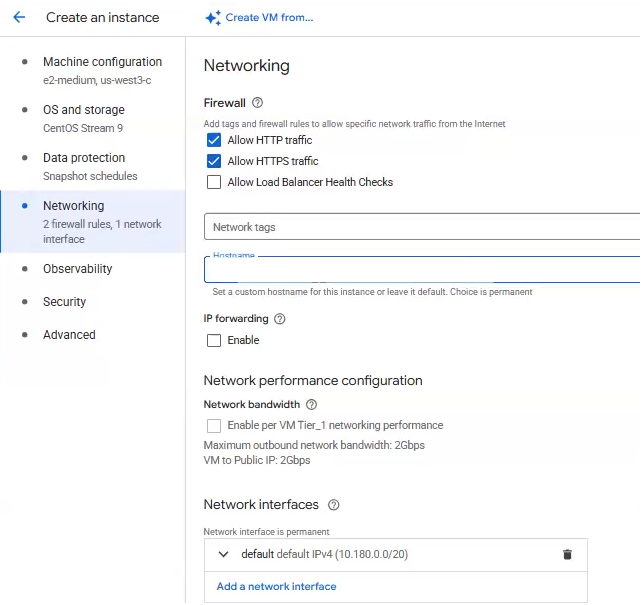
In the Network interfaces section, configure your network interface settings as needed.
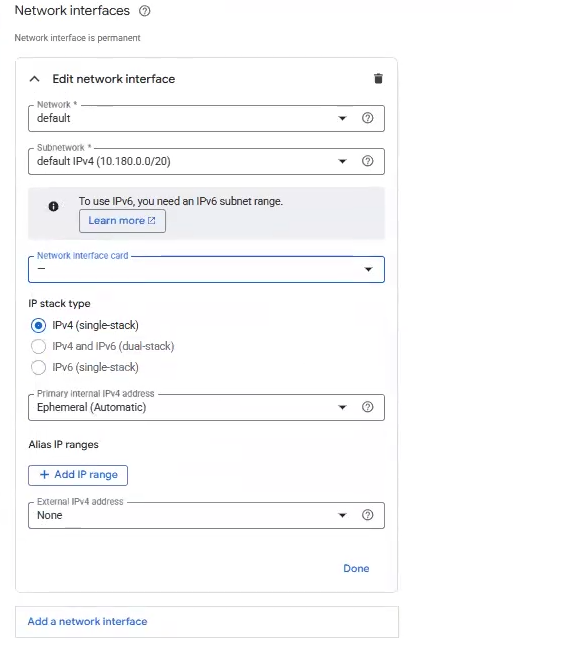
- Select the Data protection option from the left-side menu and configure the desired backup / snapshot settings.
- Select the OS and Storage option from the left-side menu.
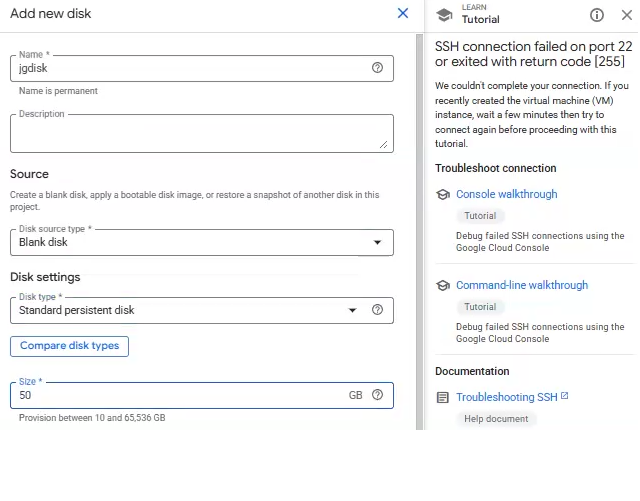
- Select the + Add new disk option.
- Give the disk a unique name.
- Set the Disk source type to Blank disk.
Set the Size to at least the 50 GB minimum. See Minimum System Requirements and adjust as needed for your environment.
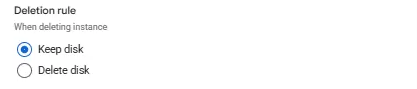
In the Deletion rule section, select Keep disk.
The Delete disk option may cause you to lose all your data during a Host upgrade. Ensure Keep disk stays enabled.
- Configure other settings as needed.
- Select Save at the bottom of the modal.
- Select Create.
- Start the new virtual machine.
- Locate the IP Address of the new virtual machine and copy it.
4. Launch the Virtual Appliance Wizard
The steps below are for creating new Virtual Appliance instances.
- If you are upgrading from an older host build, refer to Host Upgrade.
- If you are configuring a High Availability environment, follow the Virtual Appliance Wizard steps on 2. Launch the Virtual Appliance Wizard HA Setup.
- In your preferred, supported browser, paste or enter the Virtual Appliance IP address including port 8080. Example: 192.168.10.20:8080
-
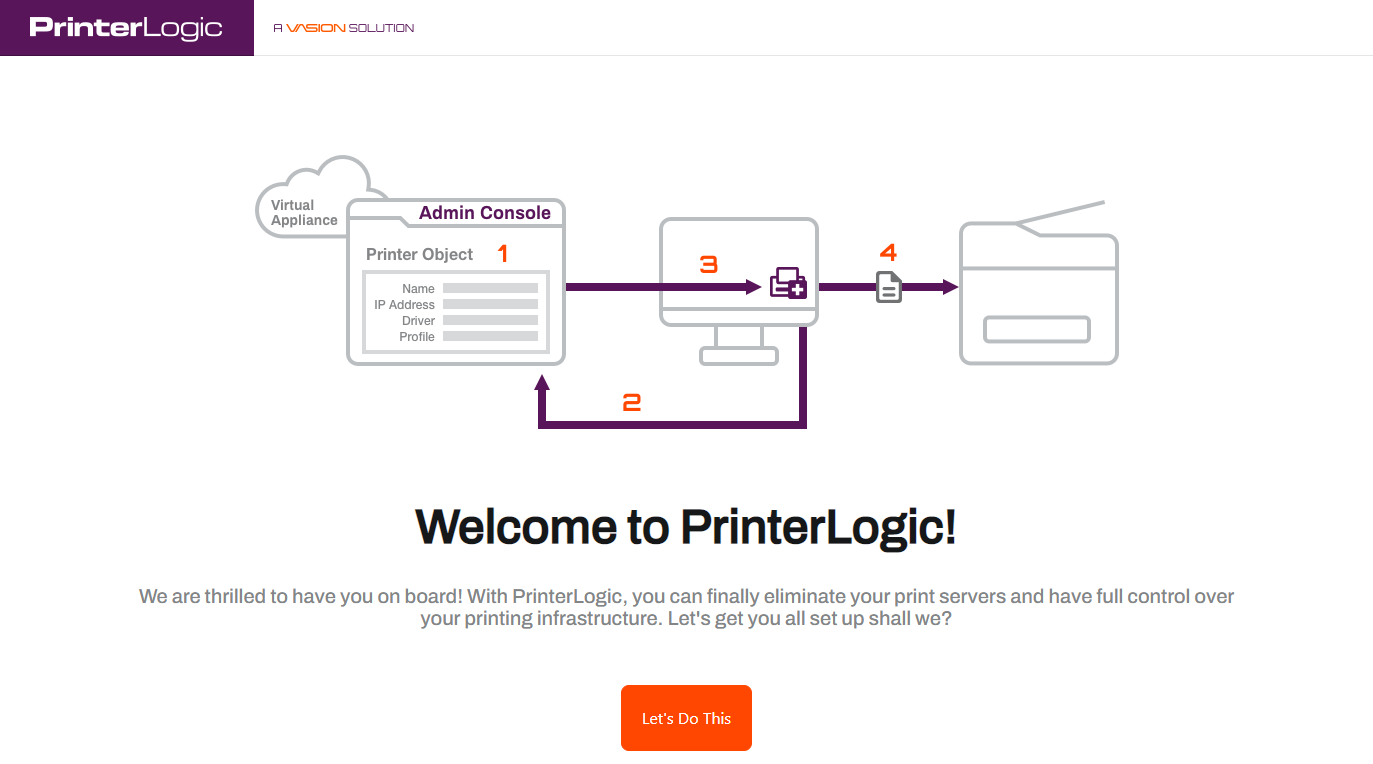
Once the setup wizard displays, select Let's Do This.
-
Select the Storage Type dropdown and select VM-Attached Virtual Disk.

- Select Format Attached Storage. When the attached disk is ready, select Continue.
-
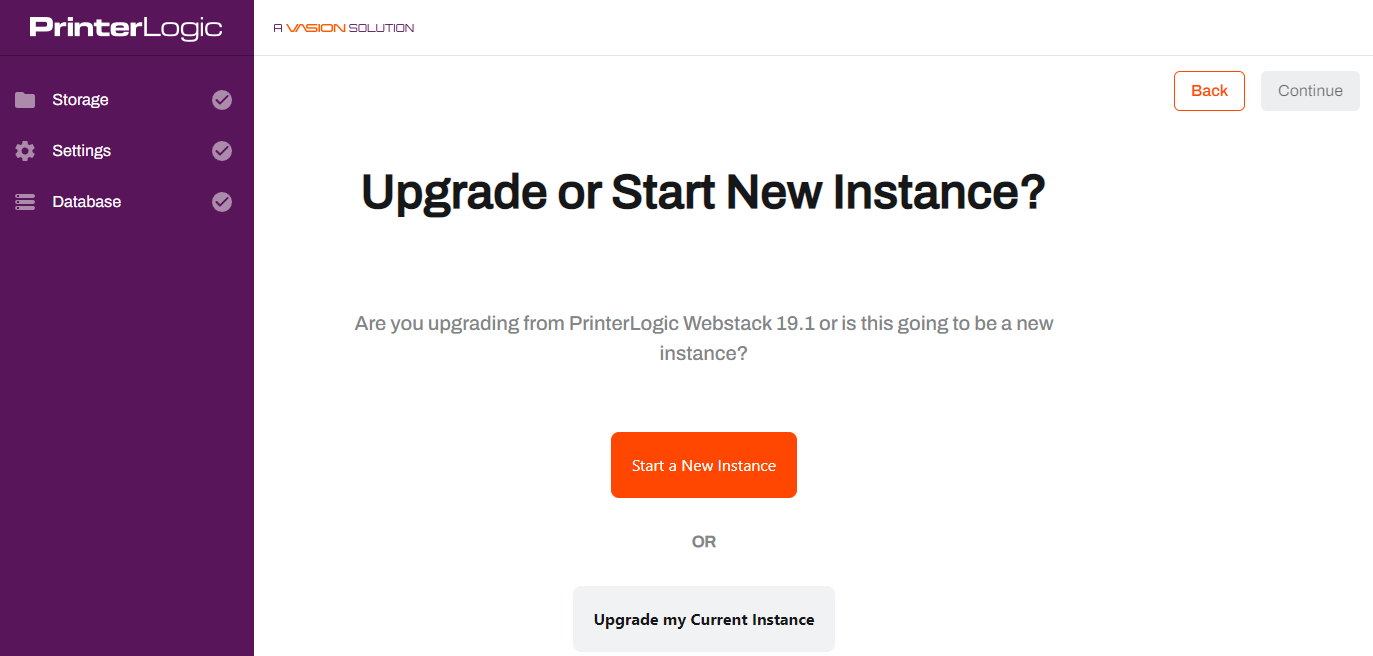
Select Start a New Instance.
-
On the General Settings tab:
- Add the domain name.
-
Enter a Shared Storage Password.
Passwords can contain any alphanumeric character (a-z, A-Z, 0-9), the following special characters (%^()_-+={}[]<>,.;), and up to 128 characters.
- Upload your license file.
- Upload your SSL certificate and key.
Document and save the Shared Storage Password. It is available only during the web portion of the new Host configuration steps.
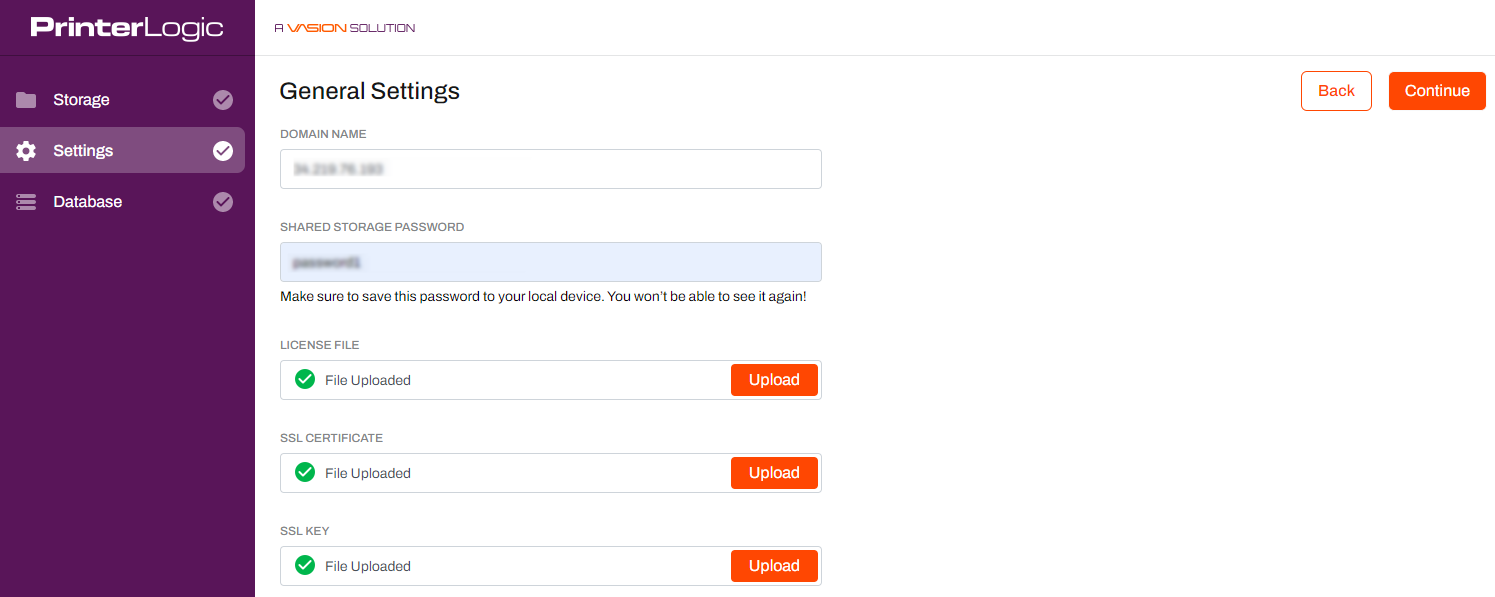
- Select Continue when finished.
-
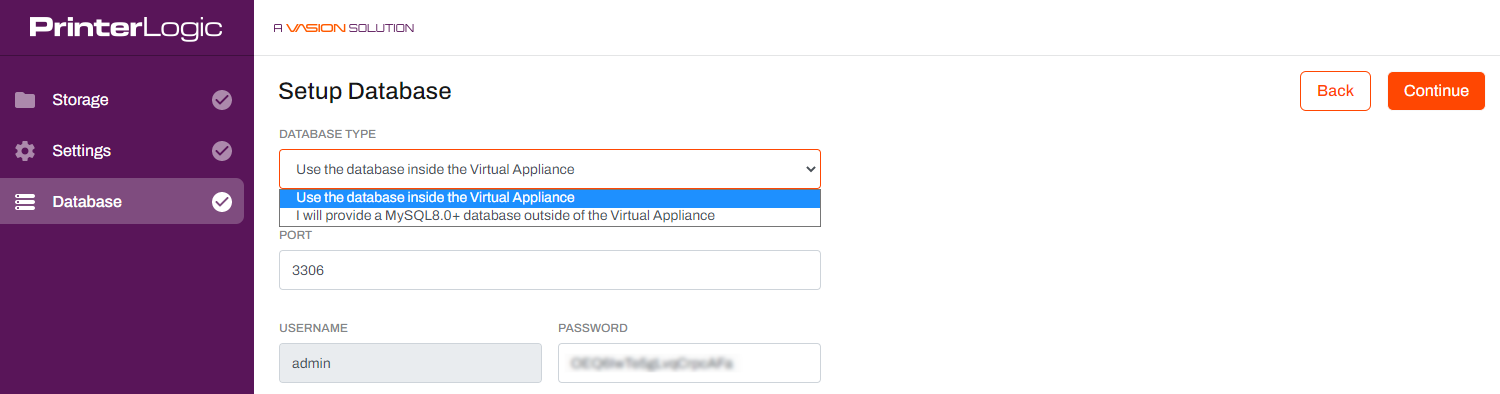
On the Setup Database tab:
- Select the Database Type. The internal database displays by default.
-
Enter a Password.
Passwords can contain any alphanumeric character (a-z, A-Z, 0-9), the following special characters (%^()_-+={}[]<>,.;), and up to 128 characters.
-
Select Continue, then select Finish Setup.
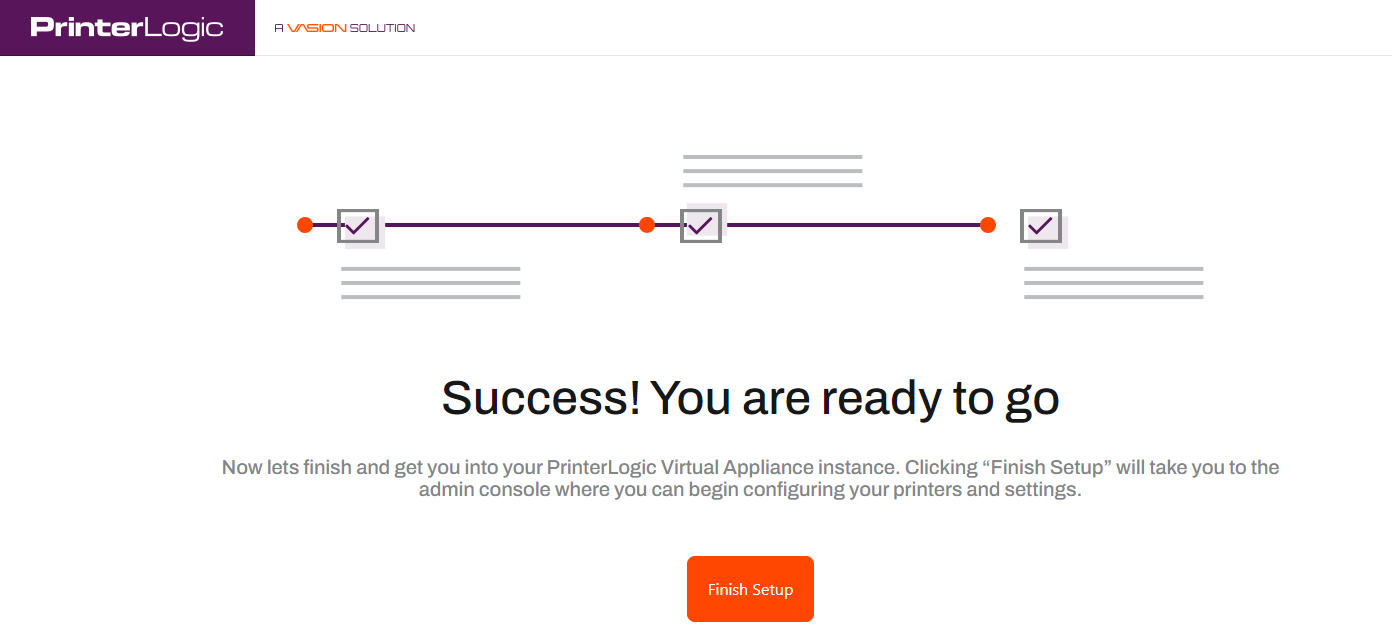
Please do not refresh the page during the installation procedure.
- A new "Thank You" browser window will open when the installation is complete. This window can be closed as needed.
5. Initial Access & Root Account
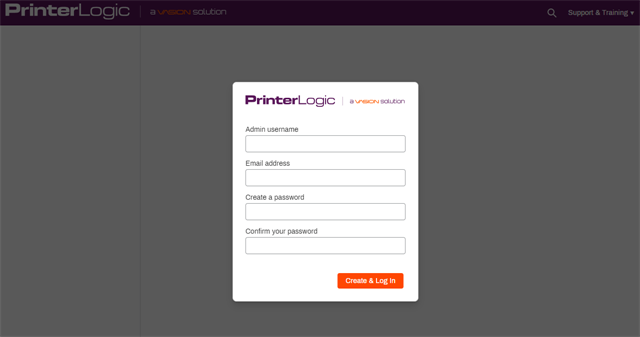
After the installation completes, the Admin Console opens automatically in the browser. A root account user must be created to access the instance.
- When the Admin Console login screen displays, enter the desired credentials for the root account.
- Once logged in, review and accept the License Agreement.
- At this point the instance creation and initial access are complete, and you are ready to set up printers, folders, and other features.
In this topic: