AWS New Install
Last Updated: August 19, 2026
This topic provides the requirements and steps to create your Virtual Appliance using an AMI in Amazon Web Services (AWS).
Requirements
Ensure the installation requirements are completed before spinning up your Virtual Appliance. For more details refer to Virtual Appliance Installation.
- Contact your Vasion representative for access to the Virtual Appliance AMI.
- Access to Amazon Web Services (AWS).
- Knowledge of your AWS account number. (Located in the username dropdown in AWS.)
Create Virtual Appliance
1. Copy the AMI
- Go to the Amazon Elastic Computer Cloud (EC2) dashboard in AWS.
-
In the Images dropdown, select AMIs.
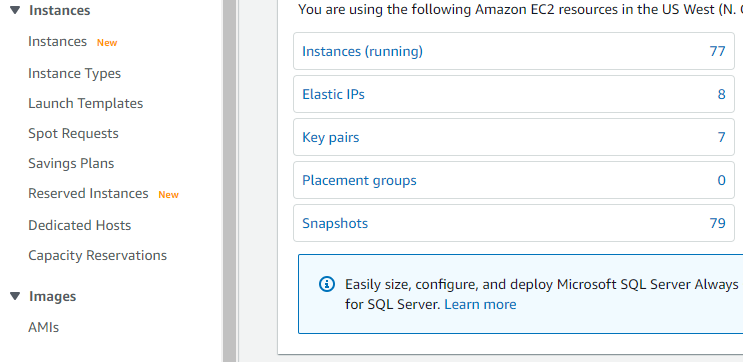
-
Set your AWS region to the one provided by your Vasion representative.

-
Select Private images in the AMI list screen.

- Locate the provided AMI in the list.
- Right-click the image and select Copy AMI.
-
In the Copy AMI modal, select your destination region, then select Copy AMI.
The copy process can take several minutes to complete.
-
Once the copy completes, locate the AMI and rename or tag it as needed.
The copied AMI will display a different AMI ID now that it is in your region. However, the AMI name will stay the same.
2. Configure AMI Network Settings
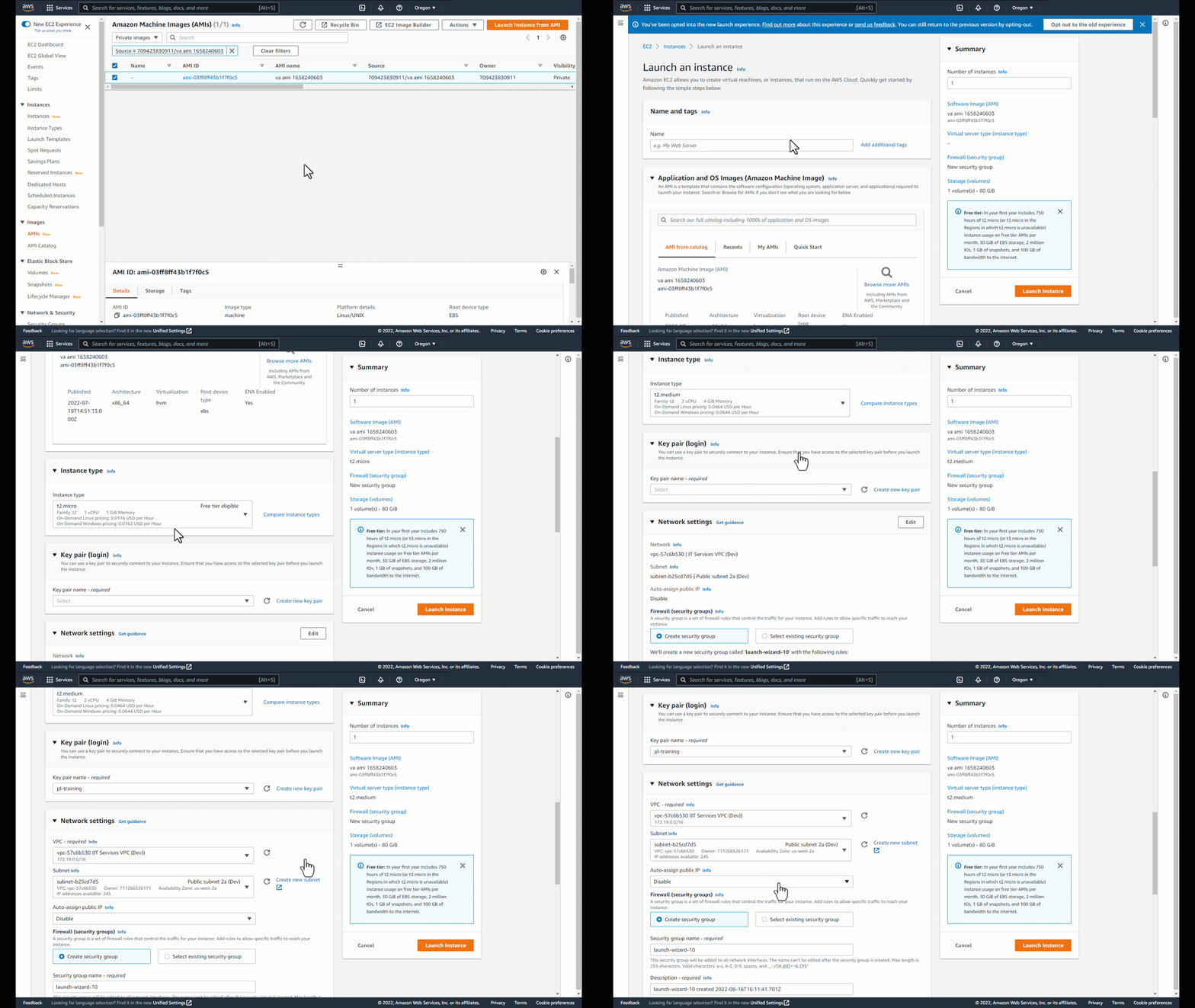
- Right-click the AMI and select Launch Instance from AMI.
- Give the instance a unique name.
- In the Instance Type section select from the available options that meet at least the minimum requirements. See Minimum System Requirements.
- In the Key pair (login) section select the desired option from the dropdown.
- In the Network settings section select Edit and choose the desired Virtual Private Cloud (VPC) and subnet deployments.
- In the Firewall (security groups) section select + Create security group.
- Enter a Security group name and description.
- Enter the following security group rules.
- Type: MySQL/Aurora, Protocol: TCP, Port: 3306, Source: Anywhere.
- Type: HTTP, Protocol: TCP, Port: 80, Source: Anywhere.
- Type: HTTPS, Protocol: TCP, Port: 443, Source: Anywhere.
- Type: Custom TCP, Protocol: TCP, Port: 8000, Source: Anywhere.
- Type: Custom TCP, Protocol: TCP, Port: 8080, Source: Anywhere.
- Type: SMB, Protocol: TCP, Port: 445, Source: Anywhere.
- Type: Custom ICMP - IPV4, Protocol: Echo Request, Port: 8, Source: Anywhere.
- The Advanced Network Configuration section is optional.
- Dynamic Host Configuration Protocol (DHCP) environments can skip to the next step.
- If configuring the Virtual Appliance using a static IP address:
- Create a network interface and assign the desired IP address.
- Attach the network interface.
3. Launch the AMI
-
Scroll to the Configure Storage section and ensure there's a minimum of 80 GB. We recommend using an solid state drive (SSD gp3) volume which allows input / output operations per second (IOPS) for the volume.
Do not add the additional data volume at this time. You will add that in a later step.. - Scroll to the Advanced Details section and expand it.
-
Paste the following code into the bottom of the User Data field.
Set the DOCKER_NETWORK IP address to the desired private TCP/IP network with a /20 or lower.
Copy Code#!/bin/bash -x
DOCKER_NETWORK="172.16.0.0/16"
echo "*** cloud-init script begin ***"
# Wait for Docker to become available
until systemctl is-active docker >/dev/null 2>&1
do
echo "Waiting for Docker to become available..."
sleep 5
done
echo "Setting Docker network to $DOCKER_NETWORK..."
set-network "$DOCKER_NETWORK"
echo "*** cloud-init script end ***" - Select Launch Instance.
- Select View All Instances.
- Wait for the Virtual Appliance to finish launching.
4. Create the Data Volume
-
In the left-side menu expand Elastic Block Store and select the Volumes option.

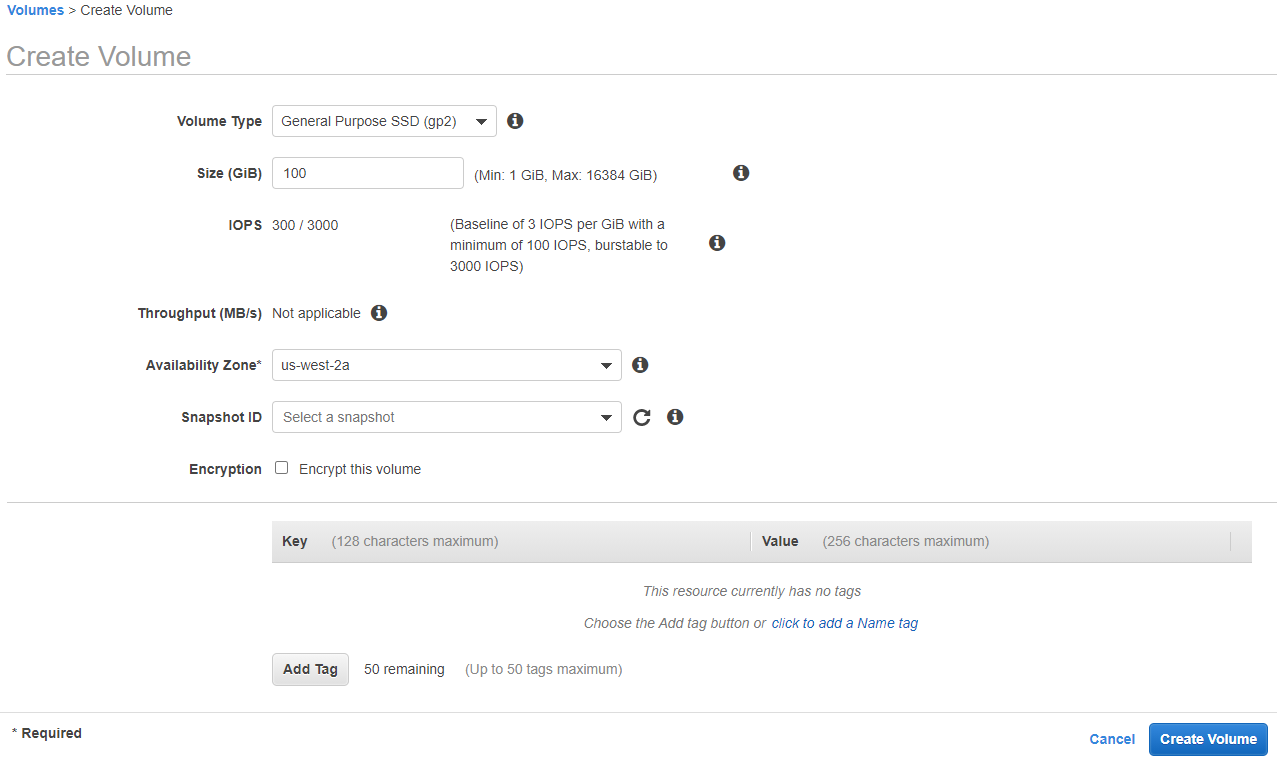
- Select Create Volume.
- Select the Volume Type. We recommend using an solid state drive (SSD gp3) volume which allows input / output operations per second (IOPS) for the volume.
- Set the Volume Size to at least the 50 GB minimum. See Minimum System Requirements and adjust as needed for your environment.
- Set the Availability Zone to the same zone as your Virtual Appliance instance.
- Optional: Enable Encryption and add your desired master key.
- Select click to add a Name tag and give your volume a name.
- Select Create Volume.
- Select Close after the Volume Created Successfully message displays.
5. Attach the Data Volume
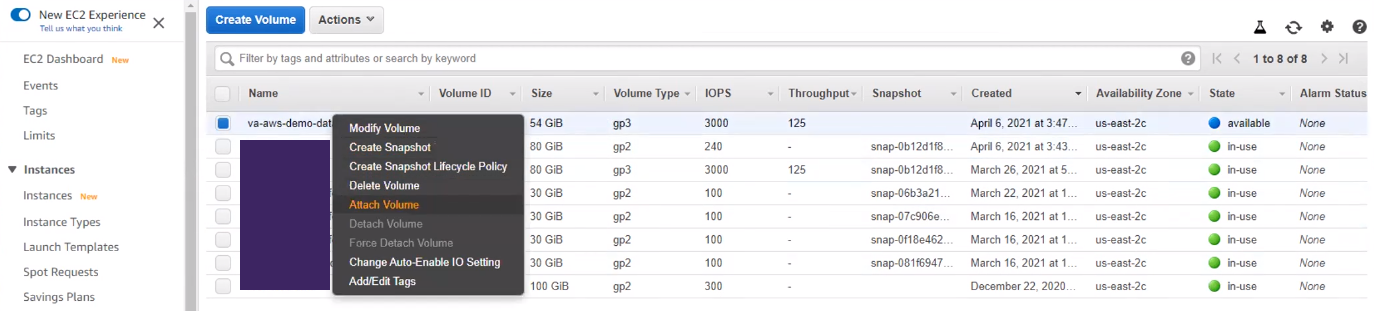
- Locate the newly created volume in the list.
-
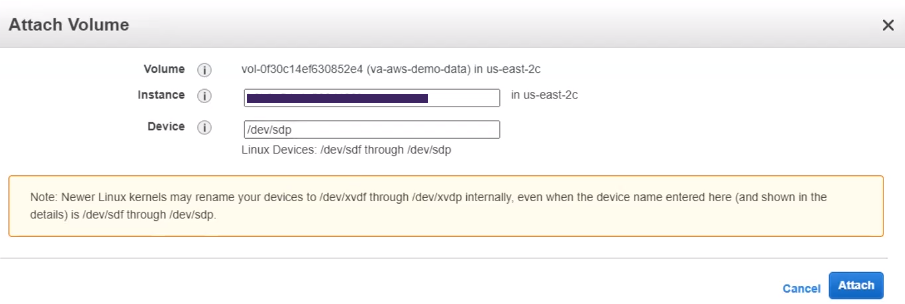
Right-click the volume and select Attach Volume.
- In the Instance field, enter the instance ID for the Virtual Appliance you just created.
-
Enter /dev/sdp in the Device field.
- Select Attach.
- Select Instances and return to the Virtual Appliance instance.
- Select the instance Details tab and copy the Private IPV4 address.
6. Launch the Virtual Appliance Wizard
The steps below are for creating new Virtual Appliance instances.
- If you are upgrading from an older host build, refer to Host Upgrade.
- If you are configuring a High Availability environment, follow the Virtual Appliance Wizard steps on 2. Launch the Virtual Appliance Wizard HA Setup.
- In your preferred, supported browser, paste or enter the Virtual Appliance IP address including port 8080. Example: 192.168.10.20:8080
-
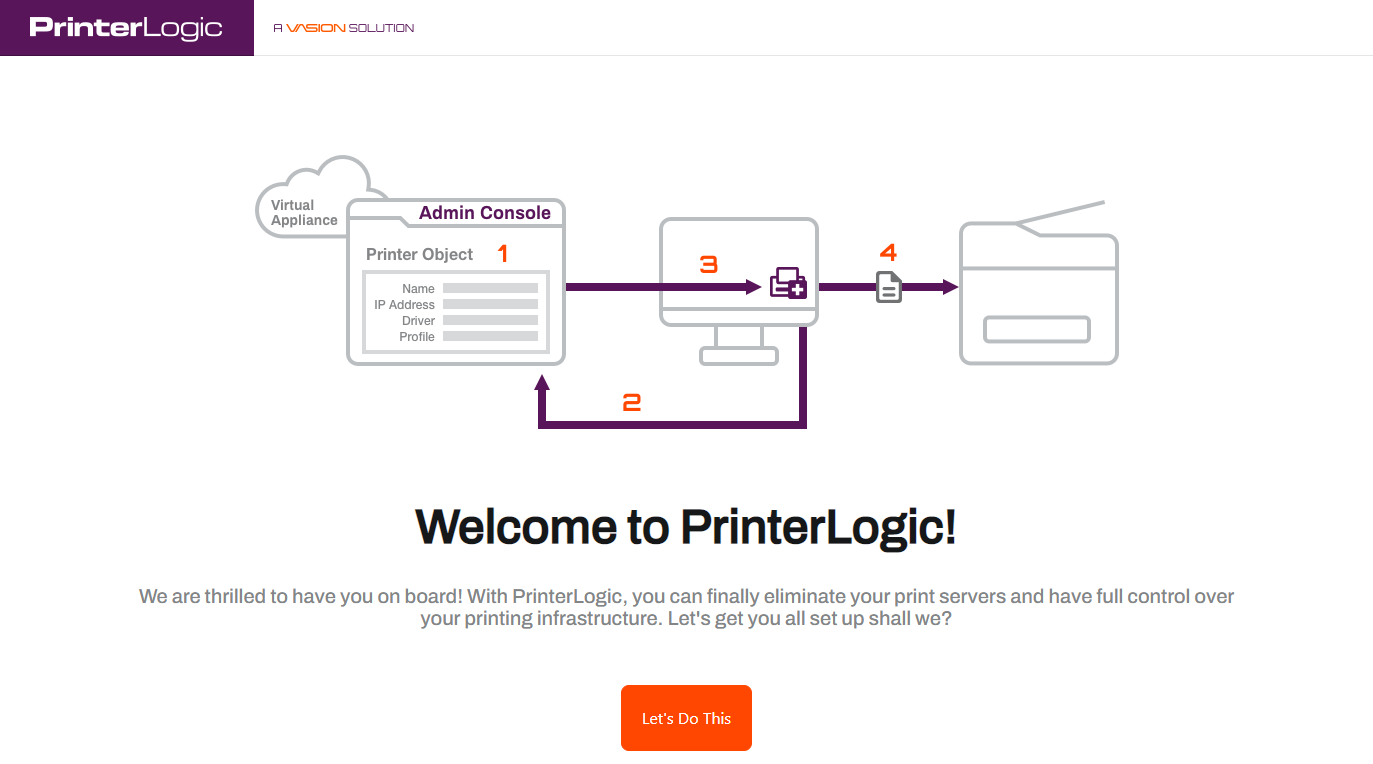
Once the setup wizard displays, select Let's Do This.
-
Select the Storage Type dropdown and select VM-Attached Virtual Disk.

- Select Format Attached Storage. When the attached disk is ready, select Continue.
-
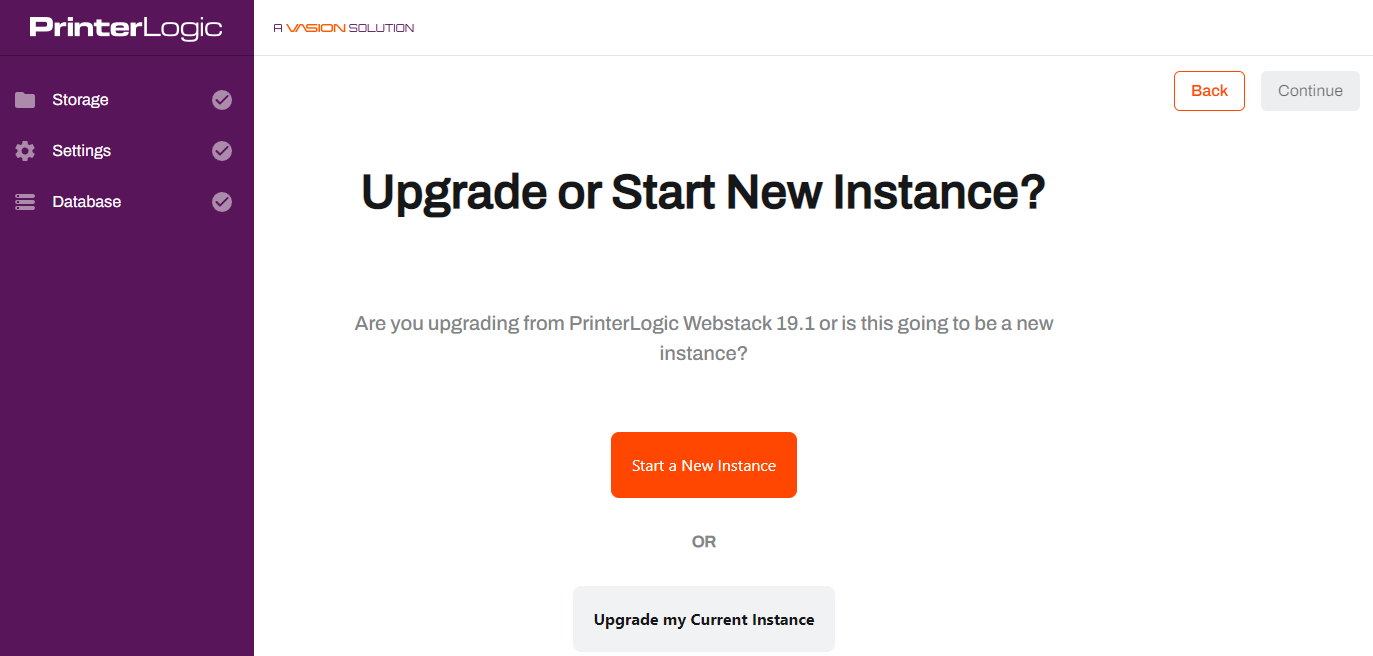
Select Start a New Instance.
-
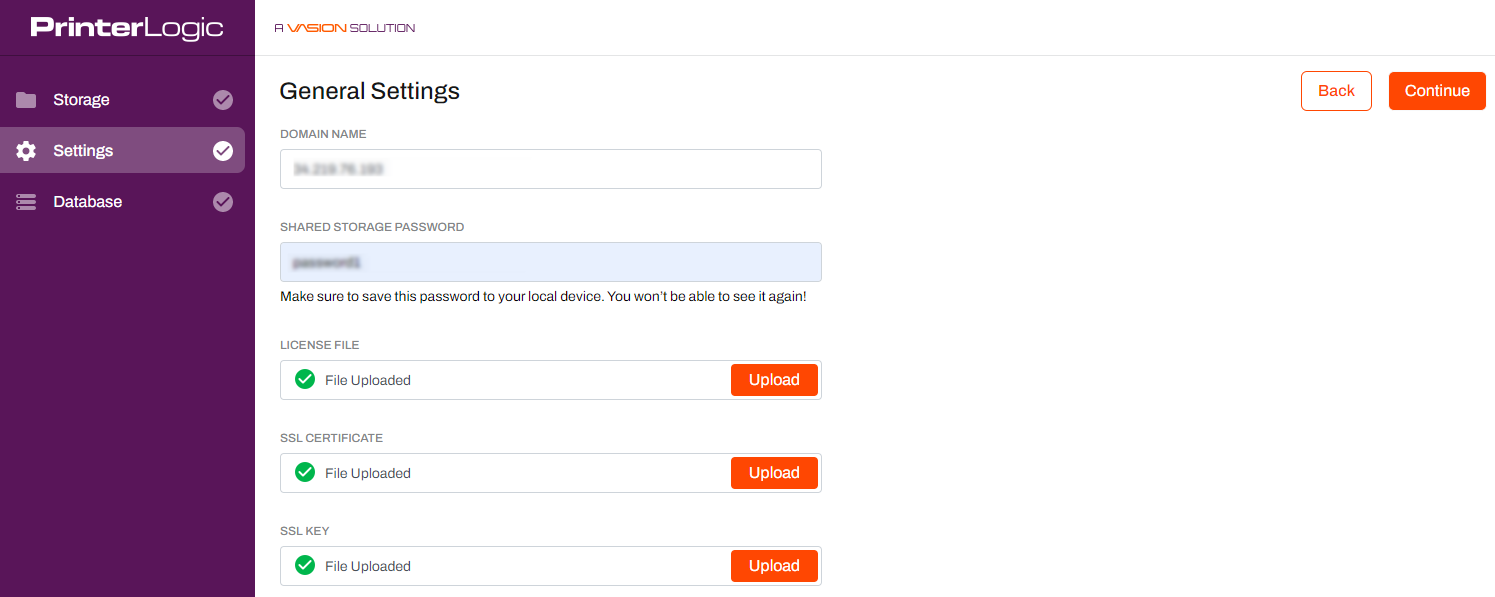
On the General Settings tab:
- Add the domain name.
-
Enter a Shared Storage Password.
Passwords can contain any alphanumeric character (a-z, A-Z, 0-9), the following special characters (%^()_-+={}[]<>,.;), and up to 128 characters.
- Upload your license file.
- Upload your SSL certificate and key.
Document and save the Shared Storage Password. It is available only during the web portion of the new Host configuration steps.
- Select Continue when finished.
-
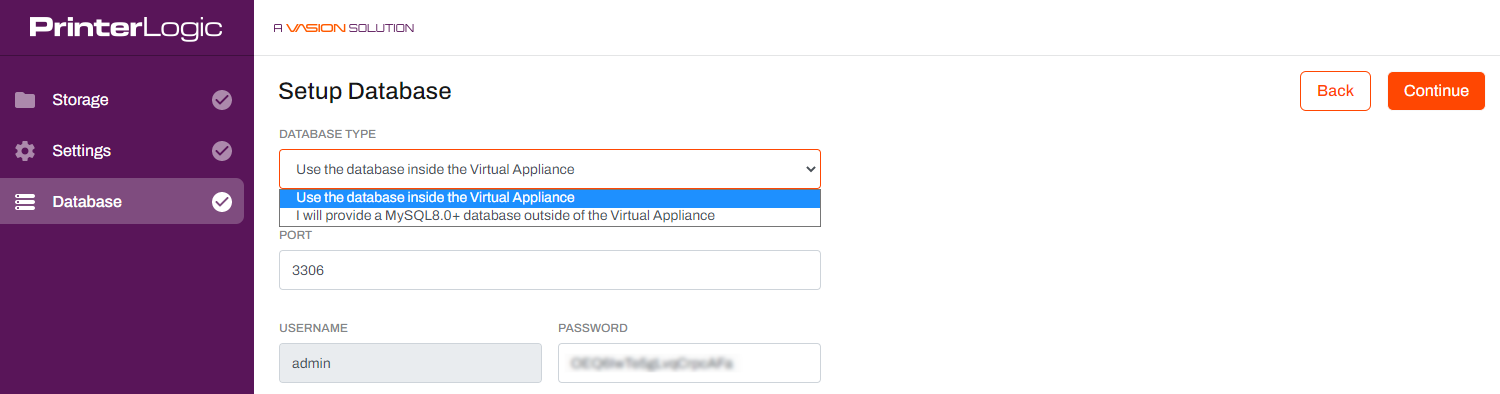
On the Setup Database tab:
- Select the Database Type. The internal database displays by default.
-
Enter a Password.
Passwords can contain any alphanumeric character (a-z, A-Z, 0-9), the following special characters (%^()_-+={}[]<>,.;), and up to 128 characters.
-
Select Continue, then select Finish Setup.
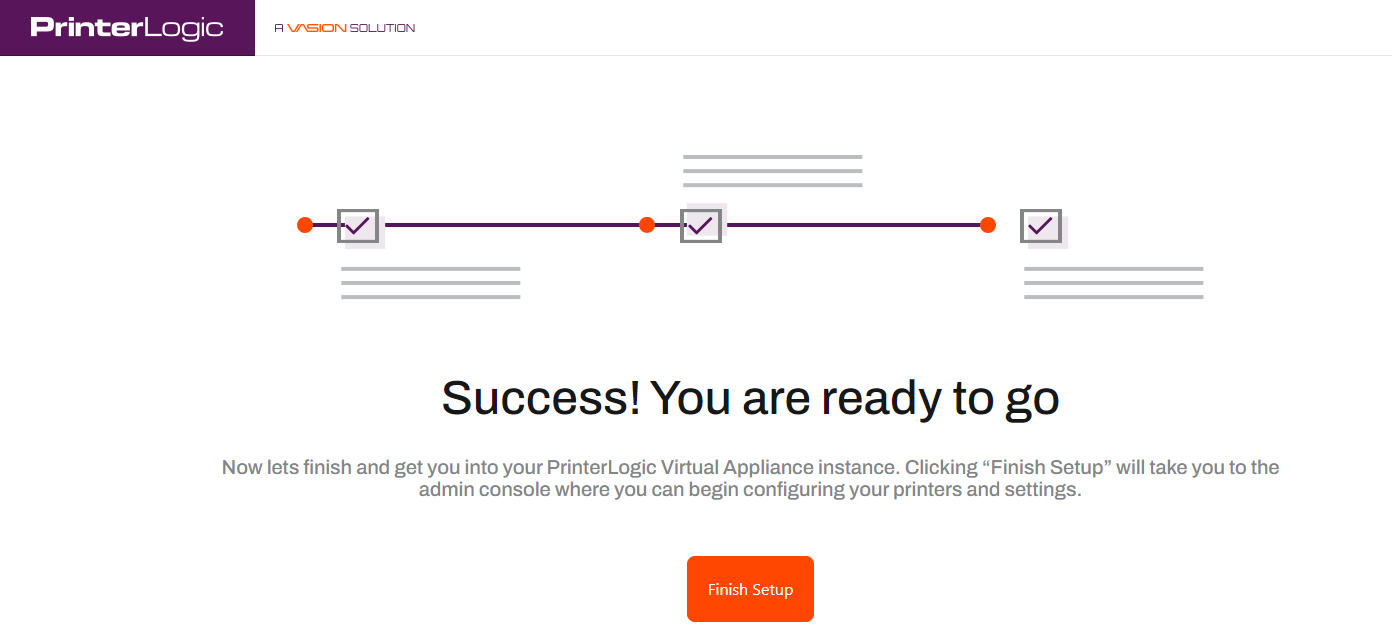
Please do not refresh the page during the installation procedure.
- A new "Thank You" browser window will open when the installation is complete. This window can be closed as needed.
7. Initial Access & Root Account
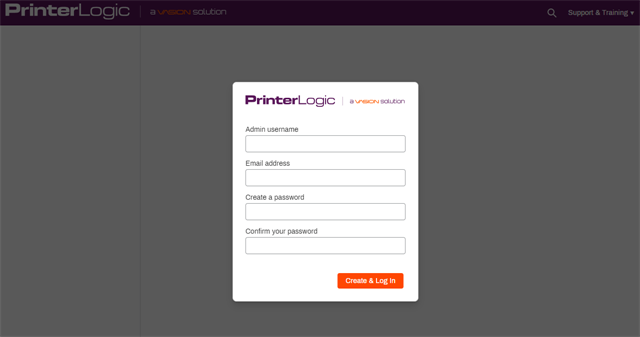
After the installation completes, the Admin Console opens automatically in the browser. A root account user must be created to access the instance.
- When the Admin Console login screen displays, enter the desired credentials for the root account.
- Once logged in, review and accept the License Agreement.
- At this point the instance creation and initial access are complete, and you are ready to set up printers, folders, and other features.
In this topic: