Install the Client & Web Extension
Last Updated: April 07, 2026
The Virtual Appliance Client is a software agent that deploys to the end user's Windows, Mac, or Linux device. The Client runs in the background as a service. For more details refer to Virtual Appliance Client.
The browser extension ensures proper communication between the browser and your Virtual Appliance instance An instance is a collection of services and service groups that is associated with a customer. A customer's instance is created from an app template and is then deployed to a cloud or virtual server.. If you use a Chromebook, you always need the ChromeOS extension.
Key Points
Review the following key points:
- The instructions below explain how to install the Client and web extension on your device to begin setting up your instance. For details on how to deploy and manage the Client on other devices, refer to Deploy the Client.
- Client installation requires an operating system (OS) with a minimum of 300MB of free hard disk space. Printer drivers may require additional space.
- macOS devices using ARM processors may experience issues with some print drivers that lack native ARM support. Install Rosetta 2 for these print drivers to function correctly.
- Windows devices using ARM processors are supported as of Windows Client version 25.1.0.
- C++ ARM64 must be installed on the ARM devices for the Client to function correctly.
- Currently, advanced features like Off-Network Print, Off-Network Cloud Print, Offline Secure Release Print, and Quota Management are not supported on ARM devices.
- Core features like Pull Print and Direct Secure Release are supported.
OS Installation
- Windows
- macOS
- ChromeOS
- Ubuntu Linux
- Red Hat
There are several methods for installing the Virtual Appliance Client on your device. The steps below guide you through the process on the Admin Console. Alternatively, you can visit your Self-service Portal, follow the prompts to install the extension, and then download and install the Client.
1. Generate an Authorization Code
You must use an authorization code to authorize the installed Client to communicate with your Virtual Appliance instance. You can use an existing code or generate a new one.
For more details refer to Device Authorization.
- Open a web browser, and log in to the Admin Console.
- Navigate to Tools
 Tokens Authorized Devices or Tools Authorized Devices, depending on your permissions.
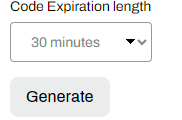
 - From the Code Expiration length dropdown menu, select the expiration length.
-
Select Generate.
2. Download the Client
For these steps, use the Windows Client MSI file.
- In the Admin Console, go to Tools
 Settings Client.
 - Scroll down to the Deployable Client Packages section.
-
Select the file type for the desired package.

3. Install the Client
- After downloading the file, open a terminal window and navigate to the downloaded file.
-
Run the following command:
Copy Codemsiexec /i PrinterInstallerClient.msi /qn HOMEURL=https://<HOME_URL_HERE> AUTHORIZATION_CODE=<AUTH_CODE_HERE>Replace
<HOME_URL_HERE>with your instance's URL, and replace<AUTH_CODE_HERE>with your authorization code. - After the installation completes, use the system tray (if enabled) or visit your Self-service Portal to confirm that the Client is installed and authorized.
- To access your Self-service Portal, you can enter the URL in a new browser tab or, in the Admin Console, select Tools PrinterLogic Portal.
- To access your Self-service Portal, you can enter the URL in a new browser tab or, in the Admin Console, select Tools
4. General Commands & Overrides
You can add the following parameter to control whether to install the PrinterLogic Extension with the Client. You can use the following options:
NOEXTENSION=0This parameter overrides any previous setting and includes the extension.NOEXTENSION=1This parameter overrides any previous setting and excludes the extension.
By default, without the extension parameter, the command includes the Client extension.
On devices that previously had the Client installed without the extension parameter, the command performs the same action as the last time the installer or uninstaller ran or whatever is already in the registry overrides.
Refer to Client Commands and Override Options for Windows for scripts and variables to further adjust the Client to better suit your environment.
There are several methods for installing the Virtual Appliance Client on your device. The steps below guide you through the process on the Admin Console. Alternatively, you can visit your Self-service Portal, follow the prompts to install the extension, and then download and install the Client.
1. Generate an Authorization Code
You must use an authorization code to authorize the installed Client to communicate with your Virtual Appliance instance. You can use an existing code or generate a new one.
For more details refer to Device Authorization.
- Open a web browser, and log in to the Admin Console.
- Navigate to Tools Tokens Authorized Devices or Tools Authorized Devices, depending on your permissions.
- From the Code Expiration length dropdown menu, select the expiration length.
-
Select Generate.
2. Download the Client
- In the Admin Console, go to Tools Settings Client.
- Scroll down to the Deployable Client Packages section.
-
Select the file type for the desired package.
- Save the .pkg file in the /tmp file directory. You can use the following command to download the file and place it in the /tmp file directory:
PIC="PrinterInstallerClientSetup.pkg"
if [[ $(uname -m) == 'arm64' ]]; then
PIC="PrinterInstallerClientSetup_arm64.pkg"
fi
curl -o /tmp/PrinterInstallerClientSetup.pkg <HOME_URL_HERE>/client/setup/$PIC
Replace <HOME_URL_HERE> with your instance's URL.
3. Install the Client
- After downloading the file, open a terminal window and navigate to the downloaded file.
-
Run the following command:
Copy Codesudo installer -allowUntrusted -pkg /tmp/PrinterInstallerClientSetup.pkg -target / && sudo /opt/PrinterInstallerClient/bin/set_home_url.sh https <HOME_URL_HERE> && sudo /opt/PrinterInstallerClient/bin/use_authorization_code.sh <AUTH_CODE_HERE>Replace
<HOME_URL_HERE>with your instance's URL, and replace<AUTH_CODE_HERE>with your authorization code. - After the installation completes, use the status menu (if enabled) or visit your Self-service Portal to confirm that the Client is installed and authorized.
- To access your Self-service Portal, you can enter the URL in a new browser tab or, in the Admin Console, select Tools PrinterLogic Portal.
- To access your Self-service Portal, you can enter the URL in a new browser tab or, in the Admin Console, select Tools
4. Initialize the Safari Extension
If you are using Safari for macOS, you must enable the browser extension using the steps below before visiting the Self-service Portal.
-
Run the following command to initialize the PrinterLogic Extension, and then press Enter:
Copy Codeopen -gn /opt/PrinterInstallerClient/service_interface/PrinterInstallerClient.app
- Open Safari again.
-
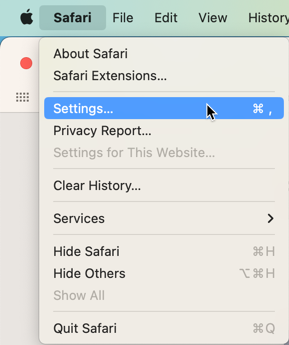
From the Safari menu, select Settings.
-
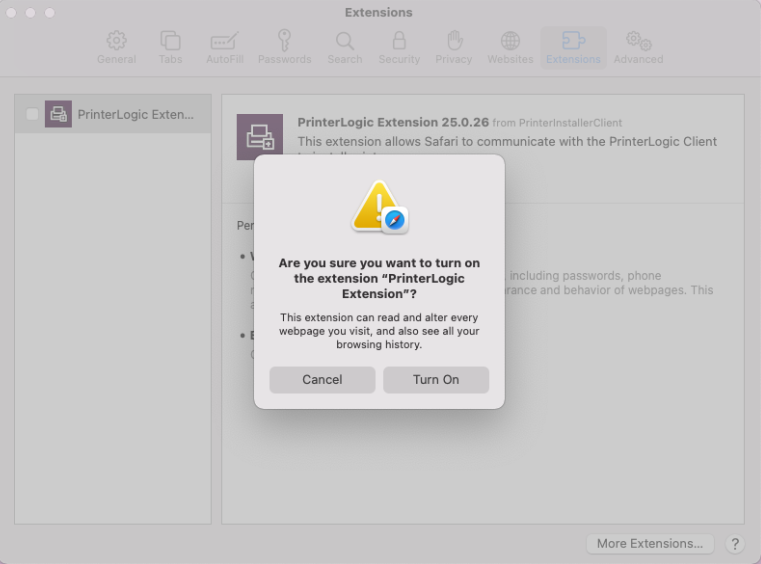
Select the PrinterLogic Extension, and then select Turn On.
- In the Admin Console, navigate to Tools PrinterLogic Portal.
- Log in to your Self-service Portal, and confirm that the Client and extension are installed and enabled.
The browser extension only ensures full functionality of Virtual Appliance while using the browser. Clicking the extension does not provide any additional options. Virtual Appliance features are only available through the Client in the status menu.

5. General Commands & Overrides
Refer to Client Commands and Override Options for Mac & Linux for scripts and variables to further adjust the Client to better suit your environment.
The following are required to install the Virtual Appliance Client:
- A Google admin account for a managed service.
- A Virtual Appliance authorization code.
- ChromeOS Client installation.
The ChromeOS Client is only compatible with the Google Identity service; it does not work with other Identity Providers (IdPs) An identity provider (IdP) is a system entity that creates and manages identity information for an organization and can be authenticated by a computer system or network. An IdP is referred to as a security principal in Java and Microsoft documentation. An IdP also provides authentication services to relying apps in a federation or distributed network..
1. Generate an Authorization Code
You must use an authorization code to authorize the installed Client to communicate with your Virtual Appliance instance. You can use an existing code or generate a new one.
For more details refer to Device Authorization.
- Open a web browser, and log in to the Admin Console.
- Navigate to Tools Tokens Authorized Devices or Tools Authorized Devices, depending on your permissions.
- From the Code Expiration length dropdown menu, select the expiration length.
-
Select Generate.
2. Create the Client
- Open a new browser tab.
- Navigate to admin.google.com, and log in to your admin account.
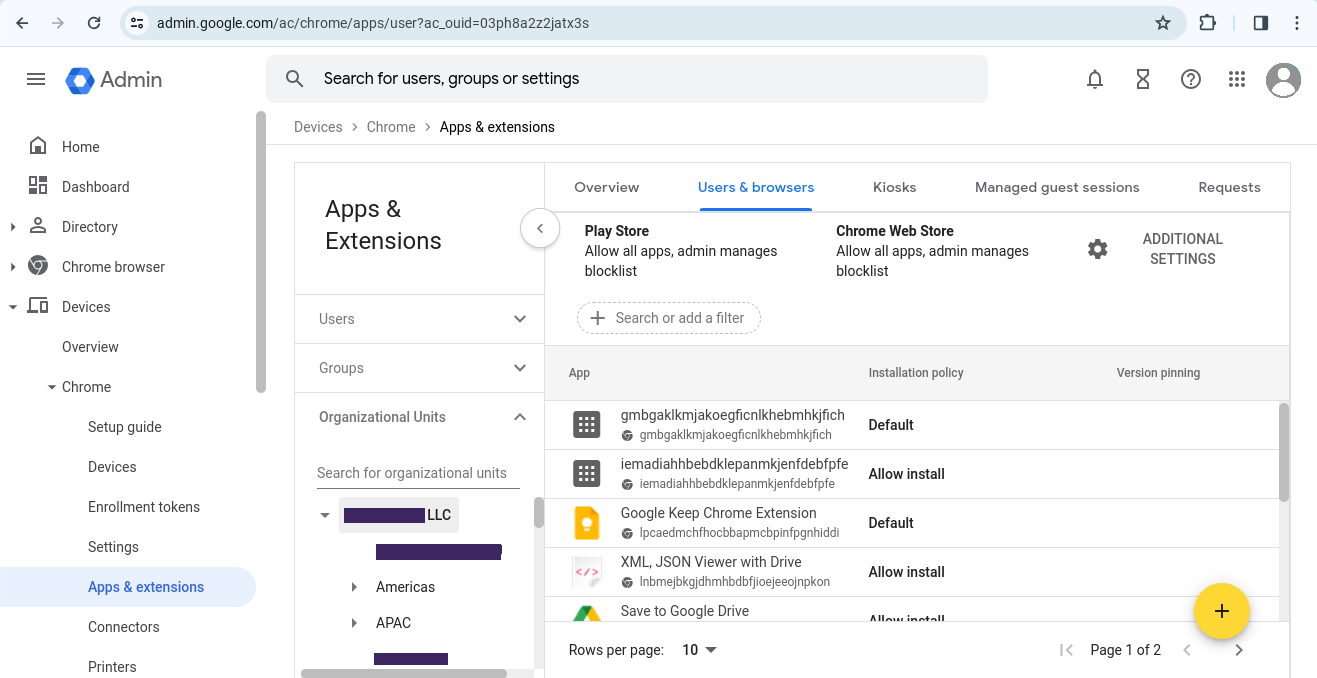
- From the left-side menu, select Devices Chrome Apps & extensions.
-
Select the Users & browsers tab.
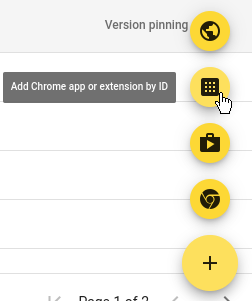
- Select the + (plus) icon in the lower-right corner.
-
Select the second button from the top: Add Chrome app or extension by ID.
- Copy the following code, and paste it in the Add Chrome app or extension by ID modal.
Copy Code
llhfdhidddepenjnklbngmapjohlbekh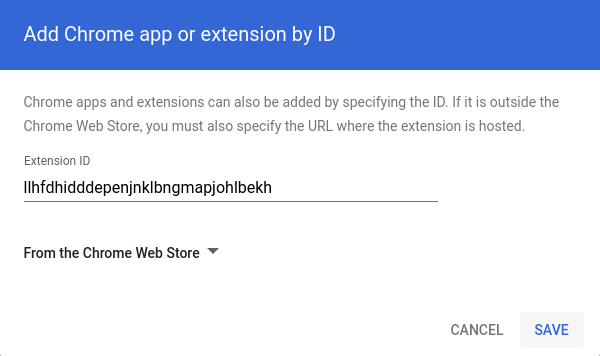
-
Select Save.
3. Configure the Client
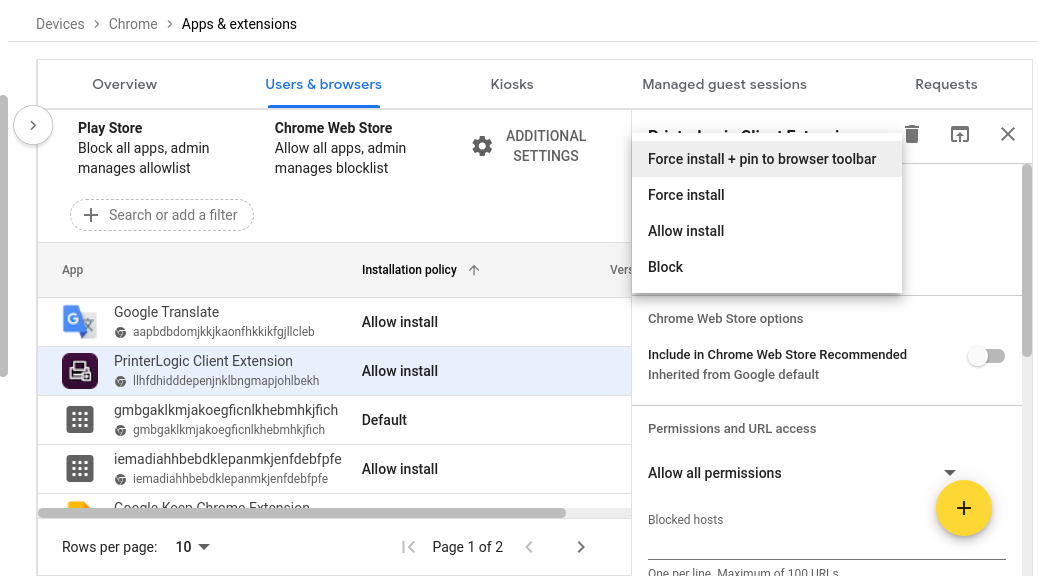
- Select the PrinterLogic Client Extension.
-
On the right side, select Allow install and select Force install + pin to browser toolbar from the dropdown menu.
-
Copy the following code:
Copy Code{
"pi url": {"Value":"<ENTER_URL_HERE>"},
"auth_code": {"Value":"ENTER_CODE HERE"}
} - On the right-side panel, scroll down to the Policy for extensions section and paste the code. By default, this section displays Enter a JSON value.
-
After you paste the code, you can edit it directly in the browser.
Replace
<ENTER_URL_HERE>with your instance URL, and replaceENTER_CODE HEREwith your authorization code.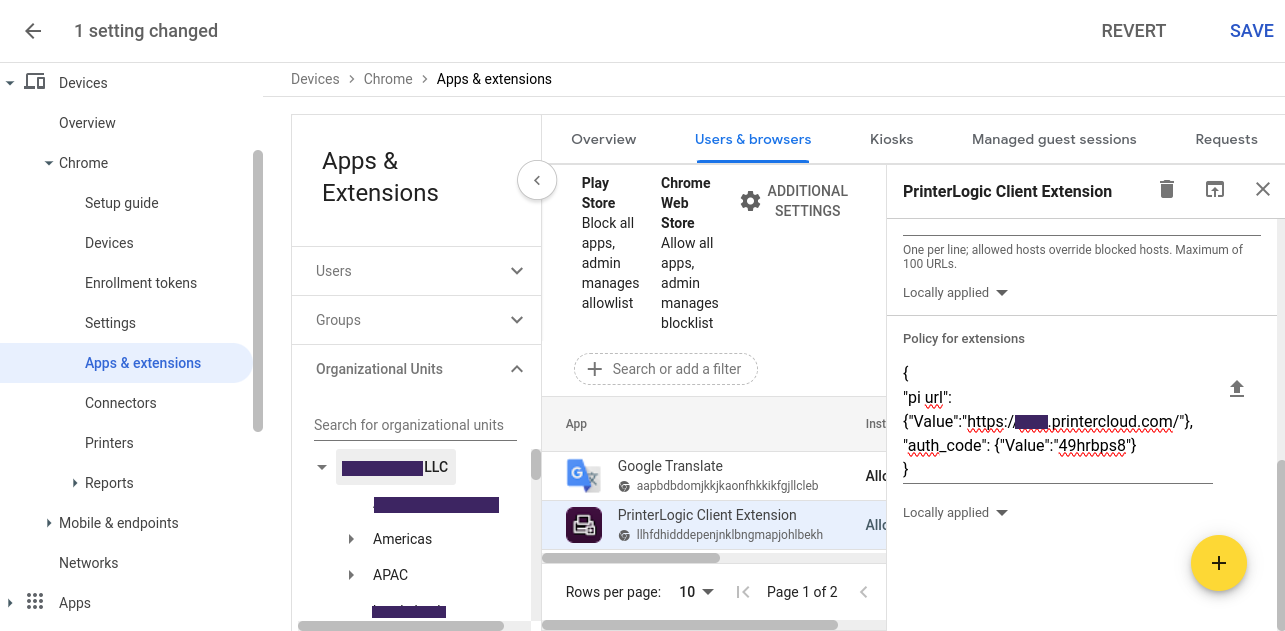
- Select Save in the upper-right corner.
The ChromeOS Client includes features designed specifically for ChromeOS, such as spooling print jobs. The extension appears after the policy updates on the device.
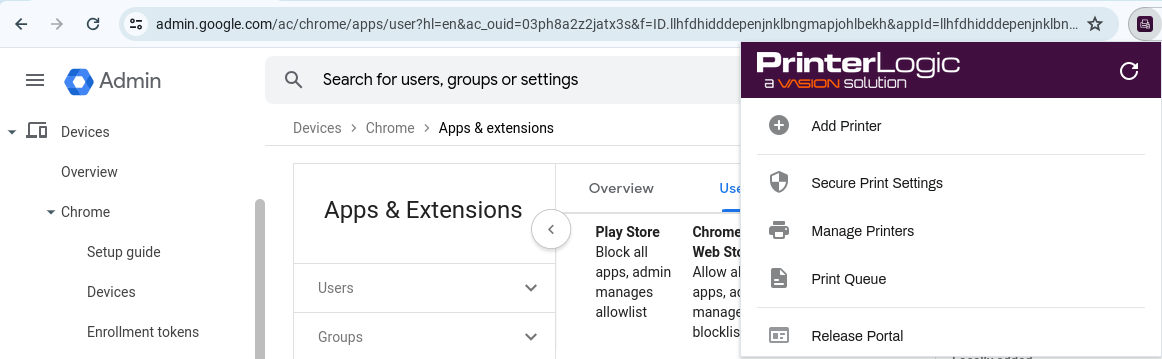
The PrinterLogic Client extension policy applies to all users in the selected organizational group. You can skip the remaining sections in this topic.
We recommend using the latest version of Common UNIX Printing System (CUPS) printer to successfully install the Client.
1. Generate an Authorization Code
You must use an authorization code to authorize the installed Client to communicate with your Virtual Appliance instance. You can use an existing code or generate a new one.
For more details refer to Device Authorization.
- Open a web browser, and log in to the Admin Console.
- Navigate to Tools Tokens Authorized Devices or Tools Authorized Devices, depending on your permissions.
- From the Code Expiration length dropdown menu, select the expiration length.
-
Select Generate.
2. Installation Instructions
The installation commands below support Ubuntu (LTS) 22.04 and 24.04.
-
Get the Client install .deb file from the server:
Replace
<HOME_URL_HERE>with your instance's URL. -
Install the Client, set the home URL, and authorize the Client with the following command:
Copy Code64 bitsudo apt update && sudo apt install -y ./printerinstallerclient_amd64.deb
sudo /opt/PrinterInstallerClient/bin/set_home_url.sh https <HOME_URL_HERE> && sudo /opt/PrinterInstallerClient/bin/use_authorization_code.sh <AUTH_CODE_HERE>Replace
<HOME_URL_HERE>with your instance's URL, and replace<AUTH_CODE_HERE>with your authorization code.
3. General Commands & Overrides
Refer to Client Commands and Override Options for Mac & Linux for scripts and variables to further adjust the Client to better suit your environment.
1. Generate an Authorization Code
You must use an authorization code to authorize the installed Client to communicate with your Virtual Appliance instance. You can use an existing code or generate a new one.
For more details refer to Device Authorization.
- Open a web browser, and log in to the Admin Console.
- Navigate to Tools Tokens Authorized Devices or Tools Authorized Devices, depending on your permissions.
- From the Code Expiration length dropdown menu, select the expiration length.
-
Select Generate.
2. Installation Instructions
Red Hat 8
-
Get the Client install RPM file from the server:
Copy Codewget https://<HOME_URL_HERE>/client/setup/printerinstallerclient_rhel8.rpmReplace
<HOME_URL_HERE>with your instance's URL. -
Install the Client, set the home URL, and authorize the Client with the following command:
Copy Code64 bitsudo yum localinstall -y printerinstallerclient_rhel8.rpm && sudo /opt/PrinterInstallerClient/bin/set_home_url.sh https <HOME_URL_HERE> && sudo /opt/PrinterInstallerClient/bin/use_authorization_code.sh <AUTH_CODE_HERE>Replace
<HOME_URL_HERE>with your instance's URL, and replace<AUTH_CODE_HERE>with your authorization code.
Red Hat 9
-
Get the Client install .rpm file from the server:
Copy Codewget https://<HOME_URL_HERE>/client/setup/printerinstallerclient_x86_64.rpmReplace
<HOME_URL_HERE>with your instance's URL. -
Install the Client, set the home URL, and authorize the Client with the following command:
Copy Code64 bitsudo dnf install -y printerinstallerclient_x86_64.rpm && sudo /opt/PrinterInstallerClient/bin/set_home_url.sh https <HOME_URL_HERE> && sudo /opt/PrinterInstallerClient/bin/use_authorization_code.sh <AUTH_CODE_HERE>Replace
<HOME_URL_HERE>with your instance's URL, and replace<AUTH_CODE_HERE>with your authorization code.
3. General Commands & Overrides
Refer to Client Commands and Override Options for Mac & Linux for scripts and variables to further adjust the Client to better suit your environment.
Install & Enable Browser Extensions
The Windows Client automatically installs the Chrome and Microsoft Edge browser extensions during Client installation and displays a prompt to enable the extension in the browser. On Mac, the Safari browser extension installs with the Client, but you need to initialize and enable it.
Below are the steps to manually install, initialize, and enable browser extensions.
- Navigate to your Self-service Portal. If the extension is not installed or enabled, a prompt appears that guides you through the process.
-
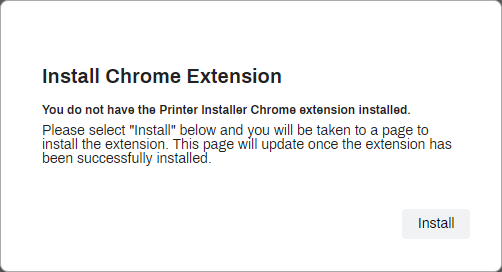
In the Install Chrome Extension modal, select Install.
-
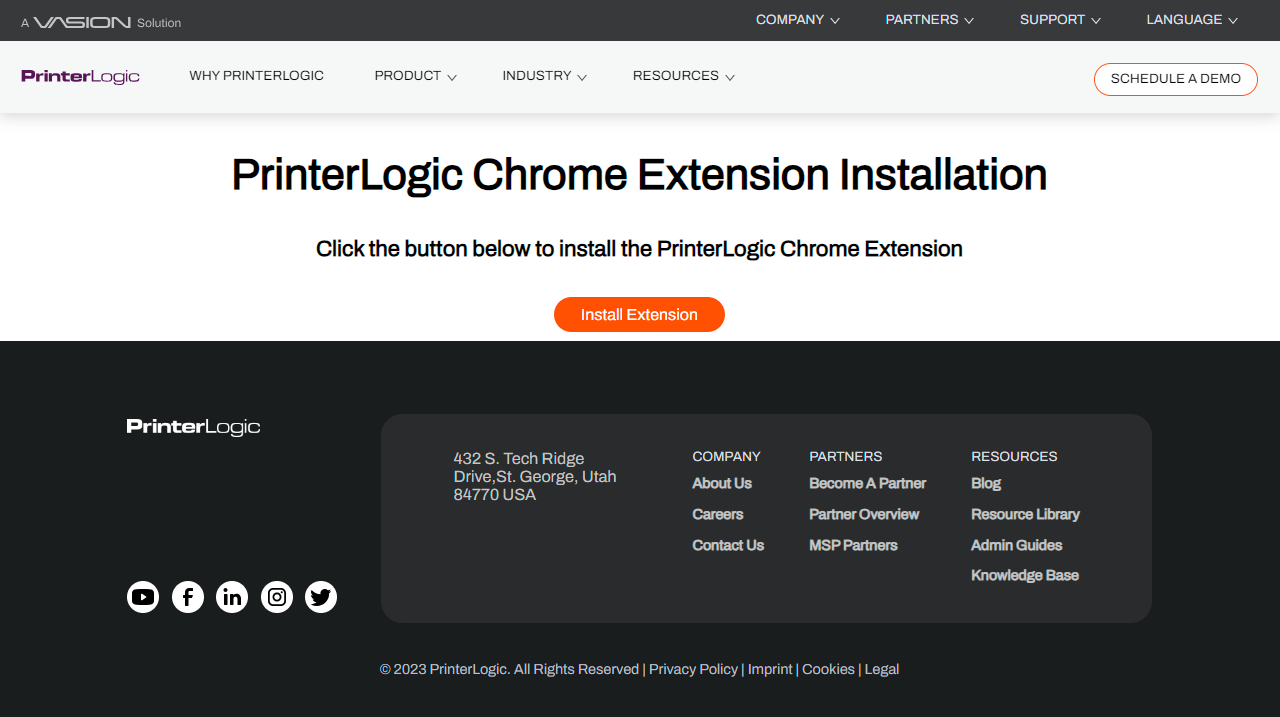
On the PrinterLogic website, select the Install Extension button.
-
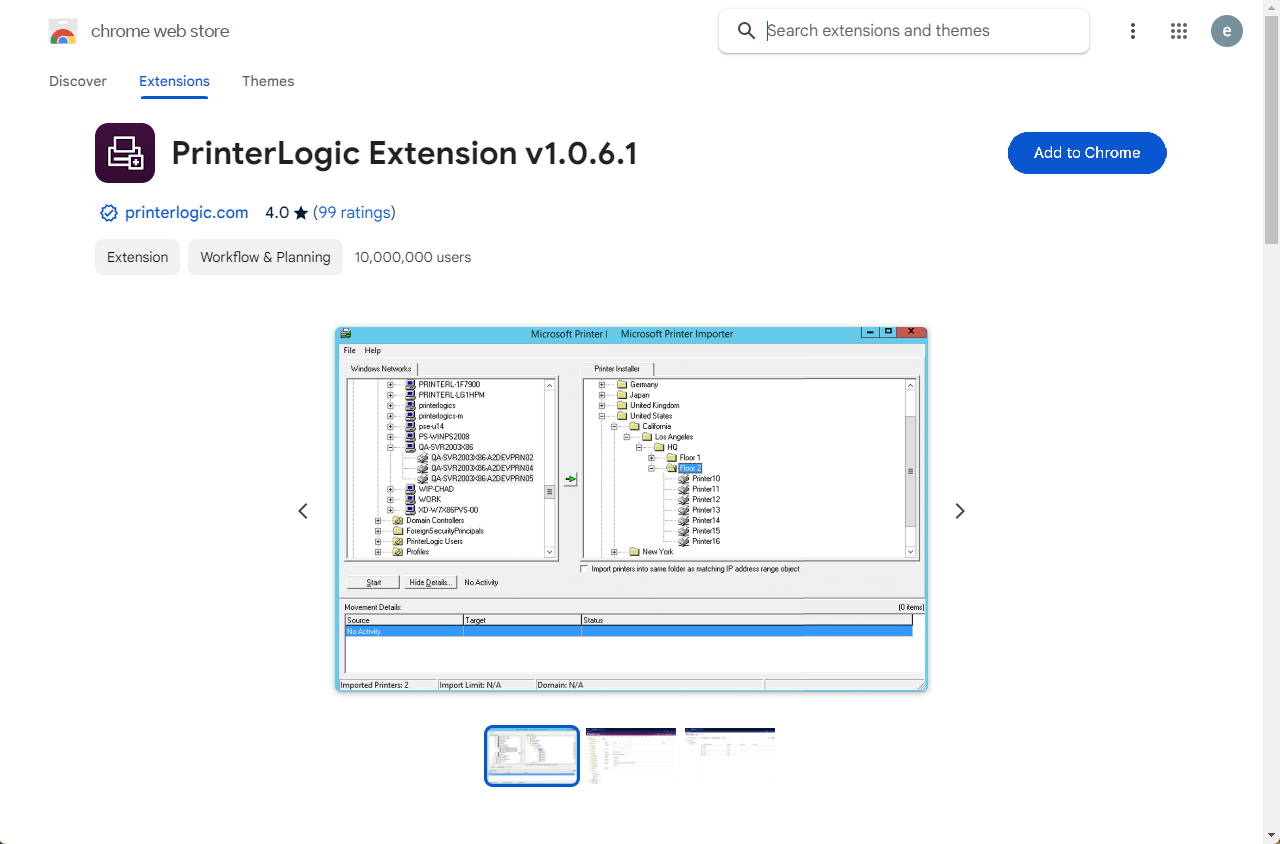
From the Extensions tab in the Chrome Web Store, select Add to Chrome.
-
In the modal, select Add extension.
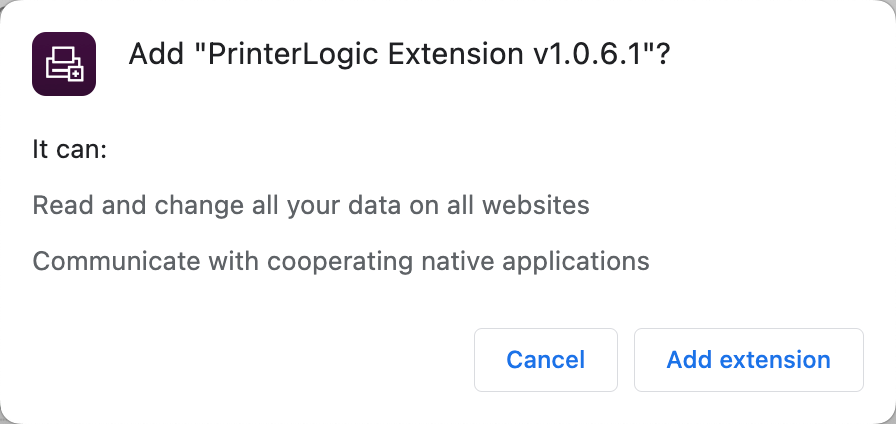
The browser extension only ensures full functionality of Virtual Appliance while using the browser. Clicking the extension does not provide any additional options.Virtual Appliance features are only available through the Client in the system tray or the Start menu.
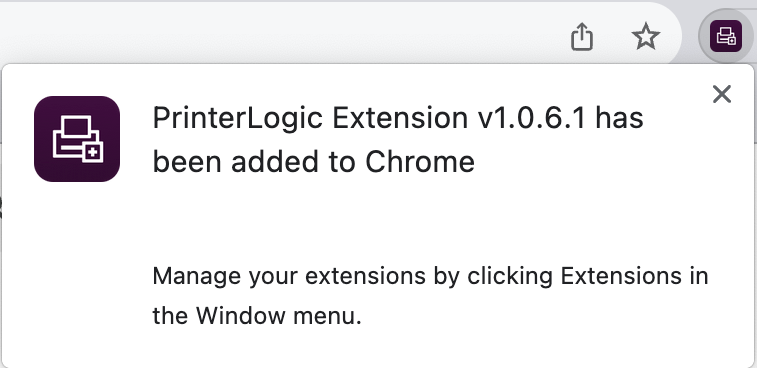
- Navigate to your Self-service Portal. If the extension is not installed or enabled, a prompt appears that guides you through the process.
-
In the Install Edge-Chromium Extension modal, select Install.
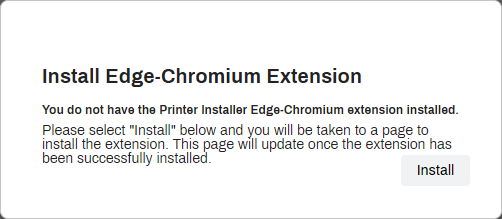
-
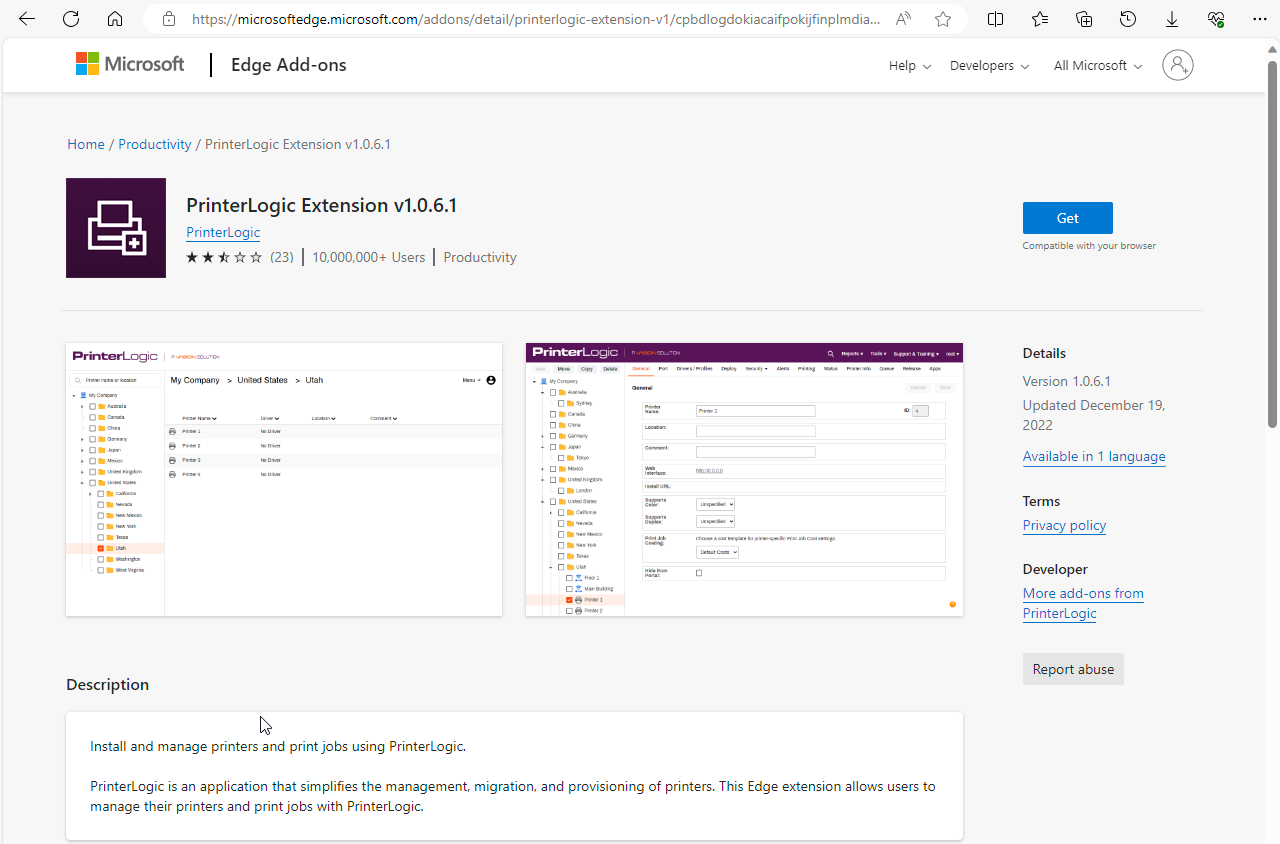
On the PrinterLogic website, select the Edge Extension button.
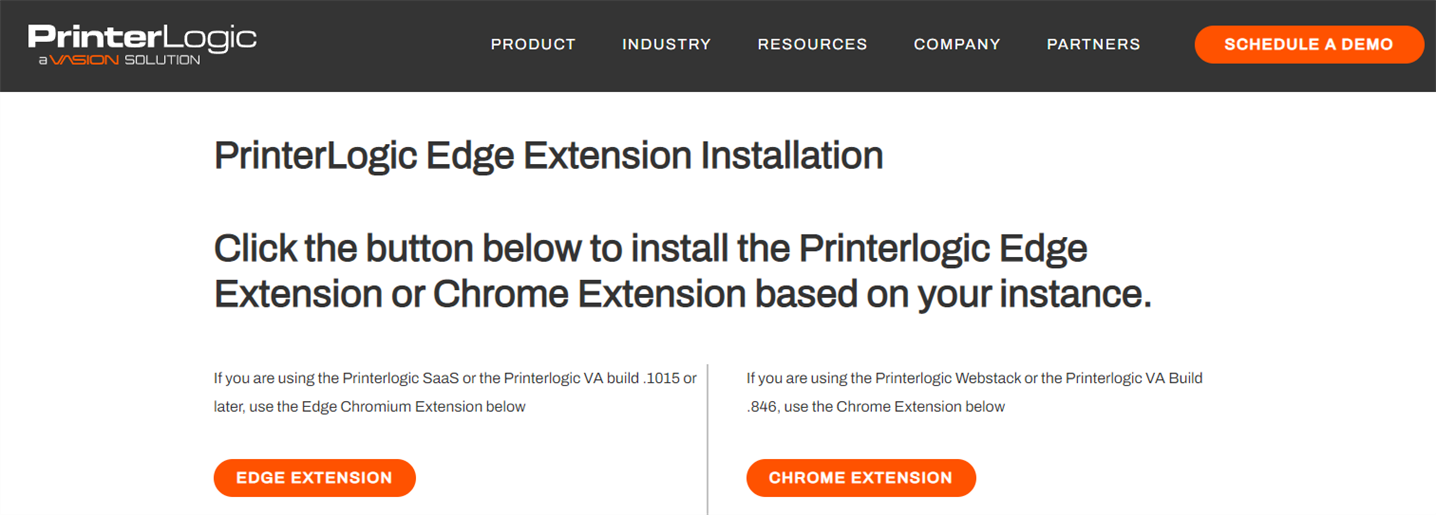
-
In the Edge Add-ons section of the Microsoft Store, select Get.
-
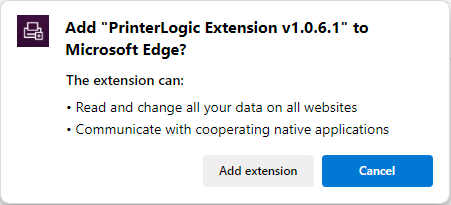
In the modal, select Add extension.
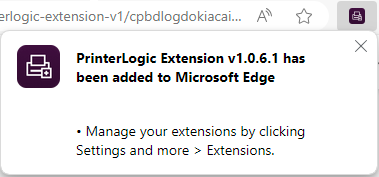
The browser extension only ensures full functionality of Virtual Appliance while using the browser. Clicking the extension does not provide any additional options.Virtual Appliance features are only available through the Client in the system tray or the Start menu.
Firefox Extension
- Navigate to your Self-service Portal. If the extension is not installed or enabled, a prompt appears that guides you through the process.
-
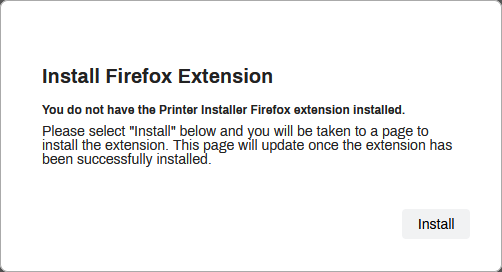
In the Install Firefox Extension modal, select Install.
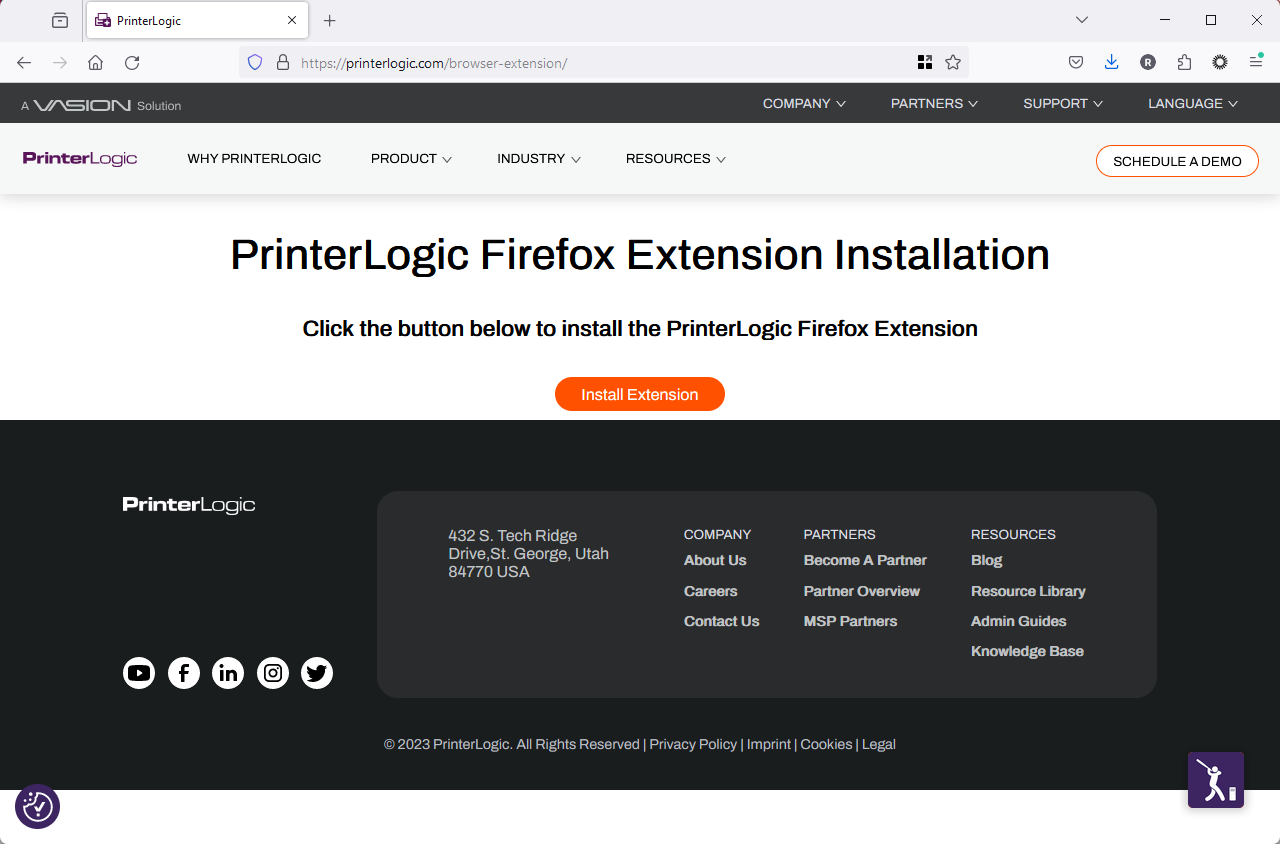
-
On the PrinterLogic website, select the Install Extension button.
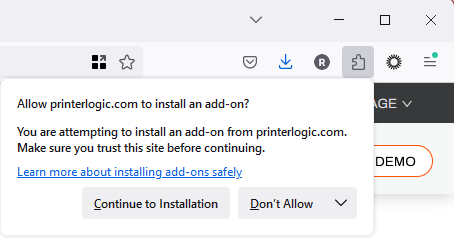
-
In the modal, select Continue to Installation.
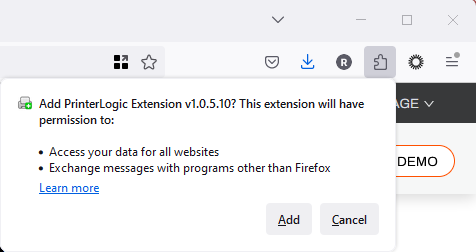
-
In the modal, select Add.
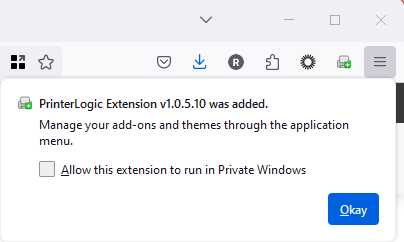
The browser extension only ensures full functionality of Virtual Appliance while using the browser. Clicking the extension does not provide any additional options.Virtual Appliance features are only available through the Client in the system tray or the Start menu.
Safari Extension
The PrinterLogic Safari extension installs with the Client and is not available in the App Store.
-
After you install the Virtual Appliance Client, open a terminal window.
-
Run the following command to initialize the PrinterLogic extension, and then press Enter:
Copy Codeopen -gn /opt/PrinterInstallerClient/service_interface/PrinterInstallerClient.app
- Open Safari again.
-
From the Safari menu, select Settings.
-
Select the PrinterLogic Extension, and then select Turn On.
- In the Admin Console, navigate to Tools PrinterLogic Portal.
- Log in to your Self-service Portal, and confirm that the Client and extension are installed and enabled.
The browser extension only ensures full functionality of Virtual Appliance while using the browser. Clicking the extension does not provide any additional options.Virtual Appliance features are only available through the Client in the status menu.
Adjust Extension Permissions
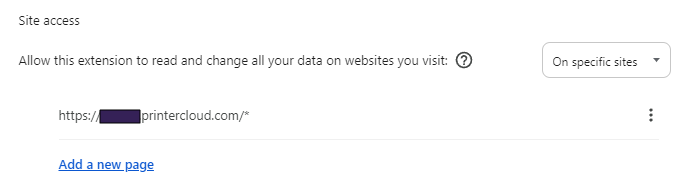
Due to varying security measures among different browsers and unique URLs for your instance, the browser extensions install with the Read and change site data setting set to All sites. Some browsers allow you to change this setting after installation in the Site access section of the browser's Manage Extensions screen.
- In a browser tab, navigate to your installed browser extensions.
- Select the PrinterLogic Extension.
- In the Site access section, change the option to On specific sites.
- Enter your instance URL.
- Select Add or Save.
Troubleshooting Help
This error was seen on macOS ARM devices that were using a printer with an Intel driver attached.
To resolve this error:
-
Install Rosetta on the macOS device.
- Or re-upload the macOS drivers from a device using an ARM processor.