Print Agent Prompts
Last Updated: August 14, 2026
Vasion Artificial Intelligence (VAI) Print Agent prompts are natural language instructions that help administrators manage PrinterLogic resources efficiently through conversational interactions.
VAI agents always operate within the permissions of the signed-in user, ensuring that only authorized individuals can perform actions like bulk updates or deletions.
Supported Resources
|
Resource Type |
Description |
|---|---|
|
Deployments |
Printer deployment configurations to users and devices. |
|
Folders |
Organizational structures for resources. |
|
IP Address Ranges |
Network ranges for printer deployment. |
|
Printers |
Print device configurations. |
|
Service Hosts |
Print service management systems. |
Operation Prompts
While VAI is designed to interpret natural language, the following operations, syntax patterns, and examples are provided for reference. You do not need to memorize the prompts. Use conversational language, and review these formats to help ensure successful results.
Create Operations
Used to add new resources to your PrinterLogic environment.
- Syntax Pattern
-
"Create [resource] named [name] in [location] with [parameters]"
-
For example, create a printer called 'Marketing-ColorPrinter' in the folder 'Marketing/Printers' with the hostname 'marketing-printer.local'
Delete Operations
Used to remove existing resources from your environment.
- Syntax Pattern
-
"Delete [resource] [identifier]"
-
Delete the deployment for the printer 'Accounting-hp-110' from the system
Export Operations
Used to extract resource information from your environment.
- Syntax Pattern
-
"Export [resource] where [conditions] include [fields]"
-
Export all printers where color support is enabled. Include name, is_color, and location
Update Operations
Used to modify existing resources in your environment.
- Syntax Pattern
-
"Update/Change/Move [resource] [identifier] to/with [new values]"
-
Move the folder 'Shared/HR' to 'Shared/Departments/HR'
Prompt Parameters
For best results when interacting with the agent, use clear and specific language, and consider the following parameters that help define your request:
- Name: Identifier for the resource.
- Location: Folder path or network address.
- Properties: Resource-specific attributes.
- Conditions: Filters for operations.
- Fields: Specific data points to include in exports.
Recommendations
Following these practices helps VAI understand your intent more accurately and reduce the chance of errors, especially during such critical actions as deletions:
- Use specific, unique identifiers when referencing resources.
- Include all required parameters in your command.
- Verify folder paths before executing commands.
- Use consistent naming conventions across your environment.
- Double-check resource names and locations before deletion operations.
Chat Behavior and Memory
- Limited chat persistence: VAI maintains chat context while you navigate within the same product area (Print or Automate). Chat does not persist when switching between products, logging out due to inactivity, or starting a new session.
-
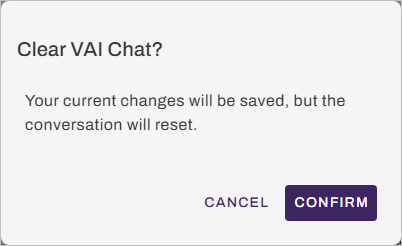
Clearing the session: Select the Clear Chat button at the bottom of the panel to reset the conversation and start fresh without needing to reload the page. Select Confirm on the Clear VAI Chat modal.
Next Steps
Refer to the following:
In this topic:
Yes. The agent is restricted by the permissions assigned to the user who is signed in. If the user has access to use the Data Manager, the agent can perform bulk tasks associated with the user permissions.