Get Started with VAI
Last Updated: August 18, 2026
VAI (Vasion Automation Intelligence) uses AI agents to automate complex, repetitive tasks across your enterprise workflows. VAI includes the Print Agent for managing printer infrastructure at scale and the Forms Agent for creating forms through natural language prompts. This topic walks you through enabling VAI and getting started with either agent.
Requirements
To enable VAI for your environment, the following is required:
- Enroll in our Beta Pilot program: Become a Beta Pilot.
-
This feature is available in the APAC, EMEA, and US regions.
Once enabled, you can access VAI using the button on the left-side navigation in Vasion Automate, or next to the Reports option if you are using the legacy interface.
VAI agents always operate within the permissions of the signed-in user, ensuring that only authorized individuals can perform actions like bulk updates or deletions.
VAI Agents Overview
VAI provides specialized agents for different workflows:
- Print Agent: Available in both Vasion Automate and legacy interfaces.
- Bulk printer management and deployment automation.
- Fleet configuration and naming convention enforcement.
- Available to all VAI-enabled environments.
- Forms Agent: Available to customers who have migrated to Vasion Automate.
- Natural language form creation and editing in Vasion Automate.
- Automation without technical expertise.
Access VAI
-
From the left-side navigation, select VAI
 .
.If you are using the legacy interface, the Ask VAI button is next to the Reports option.
- In the VAI panel, enter a prompt for the action you would like VAI to perform using natural language.VAI automatically determines which agent can best handle your request.
- Review the suggested actions and choose from the options:
- Cancel: Cancels the request and prompts you for the next task.
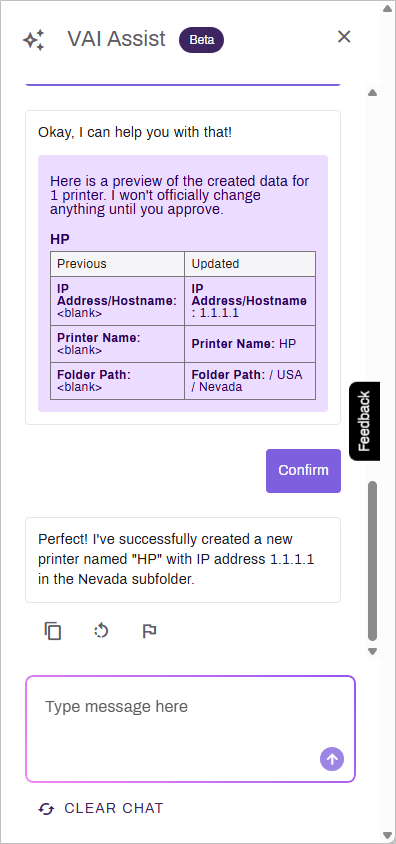
- Confirm: Applies the changes across your environment in real time. Where applicable you may also get a link to download a CSV file with action details.
Provide Feedback or Suggestions
You have two options to provide feedback.
- You can use the feedback or suggestions link at the top of the panel. This opens a form where you can enter detailed information and upload files or screenshots.
- Use the Flag button to submit a quick feedback report. You can select one of the options displayed, and it will immediately submit the feedback to the team. You cannot enter any comments or other details.
Chat Behavior and Memory
- Limited chat persistence: VAI maintains chat context while you navigate within the same product area (Print or Automate). Chat does not persist when switching between products, logging out due to inactivity, or starting a new session.
-
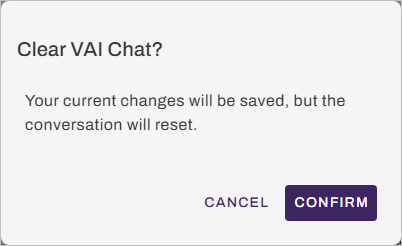
Clearing the session: Select the Clear Chat button at the bottom of the panel to reset the conversation and start fresh without needing to reload the page. Select Confirm on the Clear VAI Chat modal.
Next Steps
Refer to the following:
In this topic:
Yes. The agent is restricted by the permissions assigned to the user who is signed in. If the user has access to use the Data Manager, the agent can perform bulk tasks associated with the user permissions.