Last Updated: June 24, 2024
Content Move
Use the Content Move to automatically move stored documents within your file structure based on select objects, index fields and other specified criteria. You can specify the new storage location and dynamically create subfolders based on index field criteria.
To create a new Content Move automation you must configure:
- General Settings
- Build Content Move
- Object Field Comparisons
Requirements
Before you create the Content Move automation, you must already have a Parent Folder created in the storage location. For details, see Parent Folders.
If the documents you want to move with the Content Move automation includes OCR Optical Character Recognition (OCR) is the electronic conversion of images of typed or printed text into machine-encoded text. This allows for easier reading and searching of content., ensure the document has already been processed by one of the following:
- Manual OCR; for more details see OCR, or
- Scheduled OCR automation; for more details see Schedule OCR.
1. General Settings
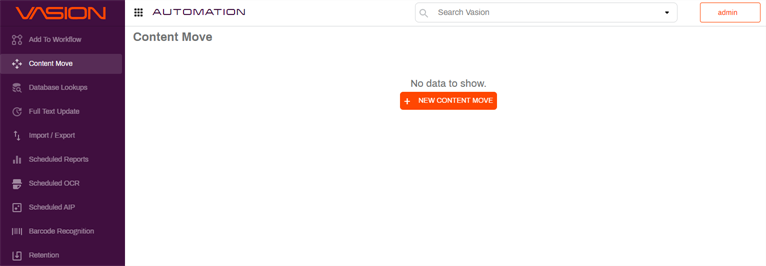
- In the Automation app click on Content Move in the side navigation.
-
Click on the New Content Move button.
- In theGeneraltab, enter the name for the new Content Move automation in the Content Move field.
-
If you have an on-premises instance of Vasion, you may enter a value on the Run On Machine filed otherwise leave blank.
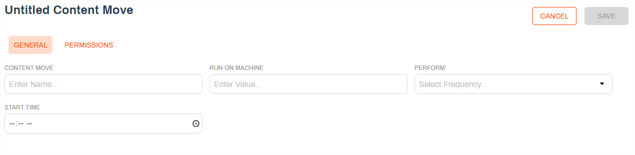
The value in this field determines the server used to run the automation and is only required where there are multiple Vasion clients and / or client services running for the environment.
- Use the Perform drop-down to select the frequency you want the automation to run. The next fields that display depend on what you select here.
- Once — use this option to only run the automation once. The next field display updates to Start Date, and you can type the date in the format shown or click on the Calendar icon
 to pick the date.
 - Daily — use this option to run the automation every day. The only remaining option is the Start Time.
- Weekly — use this option to run the automation once a week. The next field updates to Weekdays and you can use the drop-down to select one or more days of the week by checking the appropriate box.
- Monthly — use this option to run the automation once a month. The next field updates to Months and you can use the drop-down to select one or more months by checking the appropriate box.
- Frequency — use this option to run the automation at a specified time interval in minutes. In the next field, type in the number of minutes for the time interval.
- Once — use this option to only run the automation once. The next field display updates to Start Date, and you can type the date in the format shown or click on the Calendar icon
- In the Start Time, enter the time of day to run the automation in the format shown or click on the Clock icon
 to pick the time.
 - If the Monthly option is selected, a Day of Month field is shown. Type in the day of the selected month(s) when you would like to run the automation.
2. Build Content Move
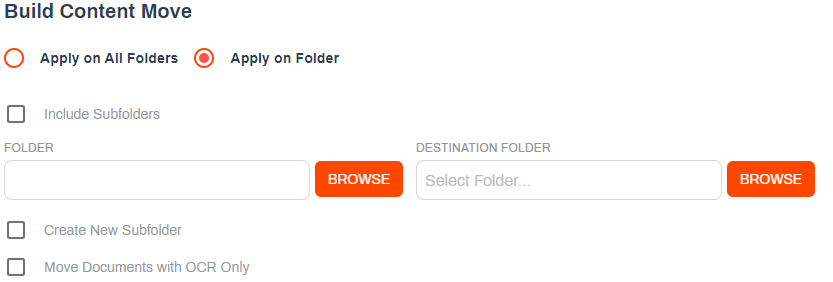
- Click on the radio button next to one of the following:
- Apply on All Folders — select this option if you want this automation to search through all the folders in storage.
- Apply on Folder — select this option if you want this automation to search through the folder you specify.
- Check the Include Subfolders box to search in all the subfolders inside the selected folder.
- Click on the Browse button to select the folder where you want to move the documents. The folder you select displays in the Destination Folder field.
- If you would like Vasion to automatically create a new subfolder within the selected folder to store the documents, check the Create New Subfolder box.
- In the Folder field enter the name for the new subfolder.
- Check the Move Documents with OCR Only box to only move documents that already the OCR process applied, either manually or through a Scheduled OCR automation.
3. Object Field Comparison
You can manage the content move with more granularity by configuring additional criteria required to move the content and you can create dynamic subfolders based on values.
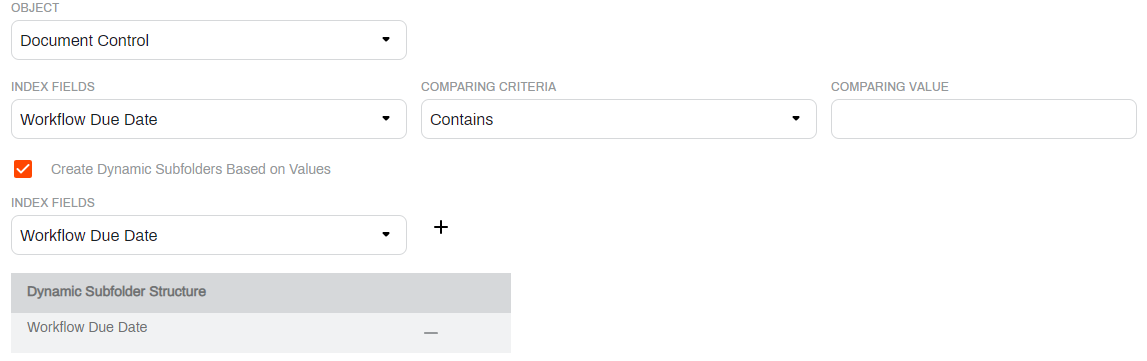
- Use the Object drop-down to select an object from the list.
- Use the Index Fields drop-down to select a field from the list.
- Use the Comparing Criteria drop-down to select how to compare the selected field to the Comparing Value.
- In the Comparing Value field enter a value you would like to use as filter.
- Enter the value for which you would like to search into the Value field.
- Check the Create Subfolders Base on Values box if you would like Vasion to automatically create new subfolders in the destination folder based on an object field.
- Use the Index Fields drop-down to select a field from the list.
- Click the + button to add the field to the Dynamic Subfolder Structure table displayed below.
- To remove a field from the Dynamic Subfolder Structure table, click on the-button.
Permissions
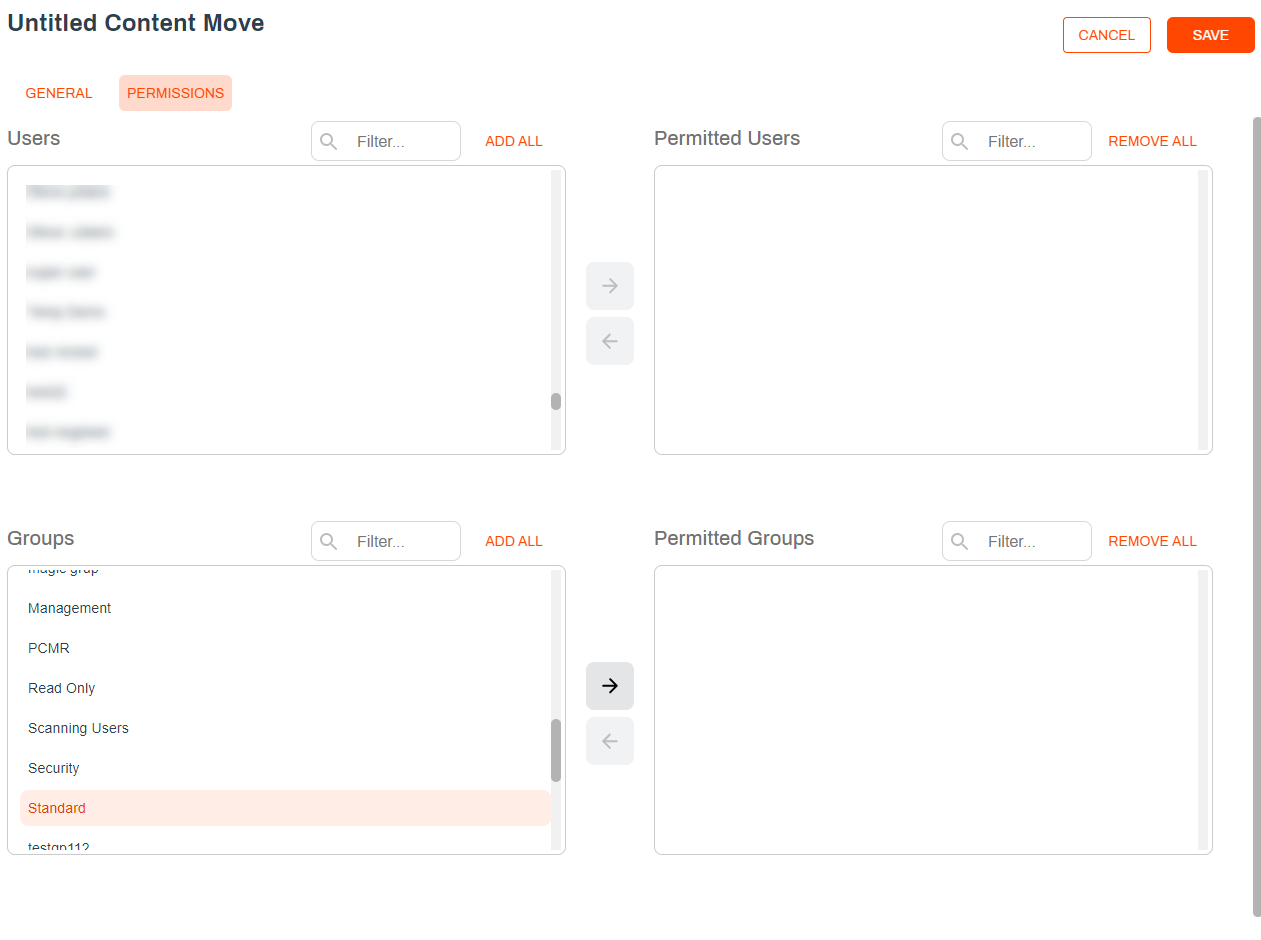
You can change who can see or edit the automation by assigning user or group permissions. If you leave all users and groups in the left column, then the automations can be seen by all users and groups by default.
- Click on the Permissions tab at the top of the screen.
- Select the users and / or groups you would like to have permission to access the folder and click the right arrow button
 .
. - You can also add or remove all users or groups by clicking on the Add All or Remove All buttons above each column.
The roles that a user has can also limit which users can see and run this job. See Roles for more information on what roles do and how they may affect what you are trying to do.
When the configuration is complete, click Save at the top of the page to save your automation and run automatically based on the specified settings.