Last Updated: August 05, 2024
Email Settings
The email settings page is where you configure the connection to your email server to define the email address from which to send all emails in Vasion.
Email Setup
- Select System Settings from the side navigation
- Select Email Settings
- Complete the following:
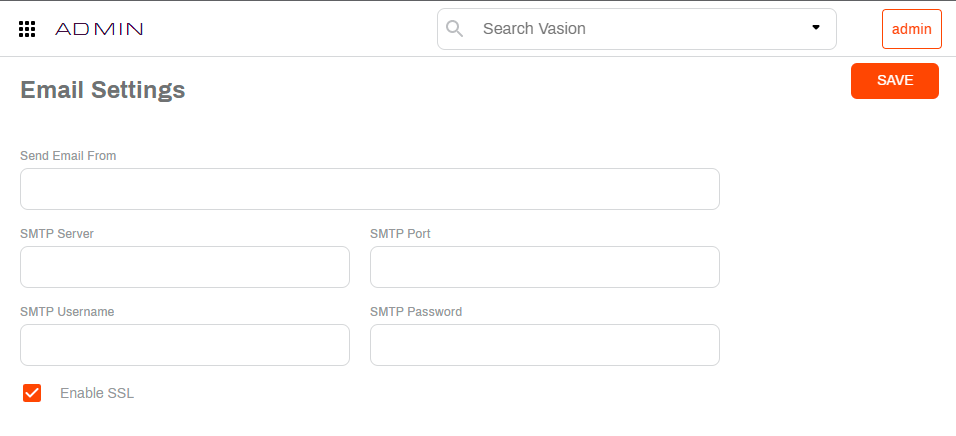
- Send Email From — enter the email address you want to display as the sender (From:)
- SMTP Server — enter the server information
- SMTP Port — enter the number of the port to use for the connection
- SMTP Username — enter the username for the email account
- SMTP Password — enter the email account password
- Send Test Message — click the button to send a test message. The test email is sent to the email of the user who configured the settings.
- Click Save
Optional Settings
The optional settings are not necessary to complete the email configuration but can be configured, if necessary, to accommodate specific business processes
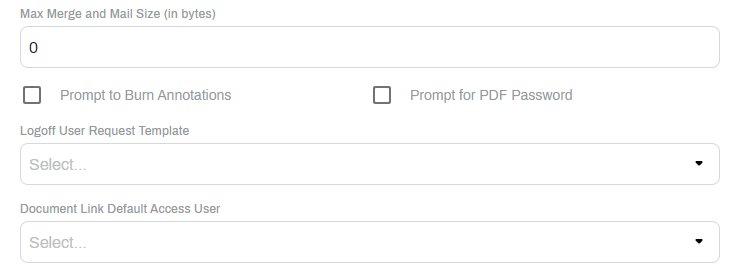
- Max Merge and Mail Size (in bytes) — enter the maximum size of email and attachments that can be sent from Vasion. This is only necessary if any attachments are larger in size than your email service provider's file limits.
- Prompt to Burn Annotations — check this box if you want the user to be prompted to burn any annotations into the document before sending.
- Prompt for PDF Password — check this box if you want the user to be prompted to enter a password to open a password protected PDF.
- Logoff User Request Template — use the drop-down to select a template from the list. This setting only applies to customers currently using the Thick Client and can view users currently logged into Vasion.
- Document Link Default Access User — use the drop-down to select the user profile to apply to the document link in the email notification. This setting is only used if you need external users to access documents stored using Vasion for a limited time.
Test Email
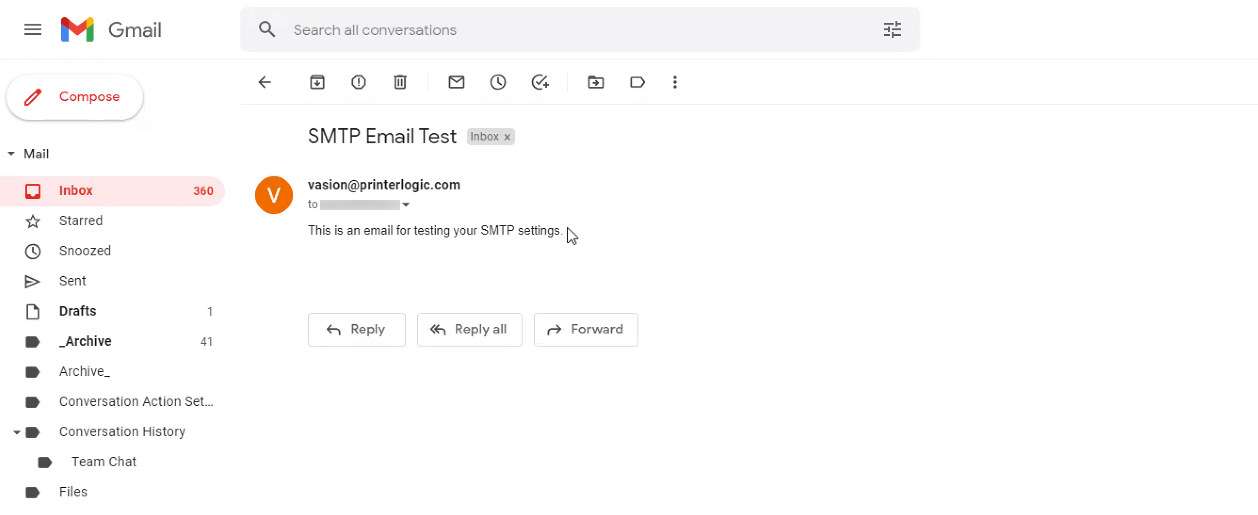
When sending a test message, the email will be sent to the logged in admin user's configured email. The test email should look like this: