Add an SAP Step
Last Updated: October 27, 2026
Add an SAP step to a Business Process workflow to read data from SAP or write supplier invoice data to SAP when the workflow reaches the step.
Requirements
Review these Requirements before you start.
Add an SAP Step
For details on building a workflow, refer to Build a Workflow.
In the Workflow Designer, follow these steps:
- In the Step types panel, expand the Integrations section, and then expand the SAP section.
- Drag the SAP step that you want onto the canvas.
- Drag the previous step connector to the new step.
- In the settings panel on the right, complete the fields for the step. The available fields vary depending on which step you selected and what variables are available from previous steps.
- For each field that needs data from an earlier step, select the variable that the earlier step returns. For a list of variables, refer to SAP Step Variables.
- Add any additional steps.
- Select Save or Publish in the upper-right corner.
The Create Supplier Invoice, Post Supplier Invoice, and Link Source Document steps create or change records in SAP when the workflow runs.
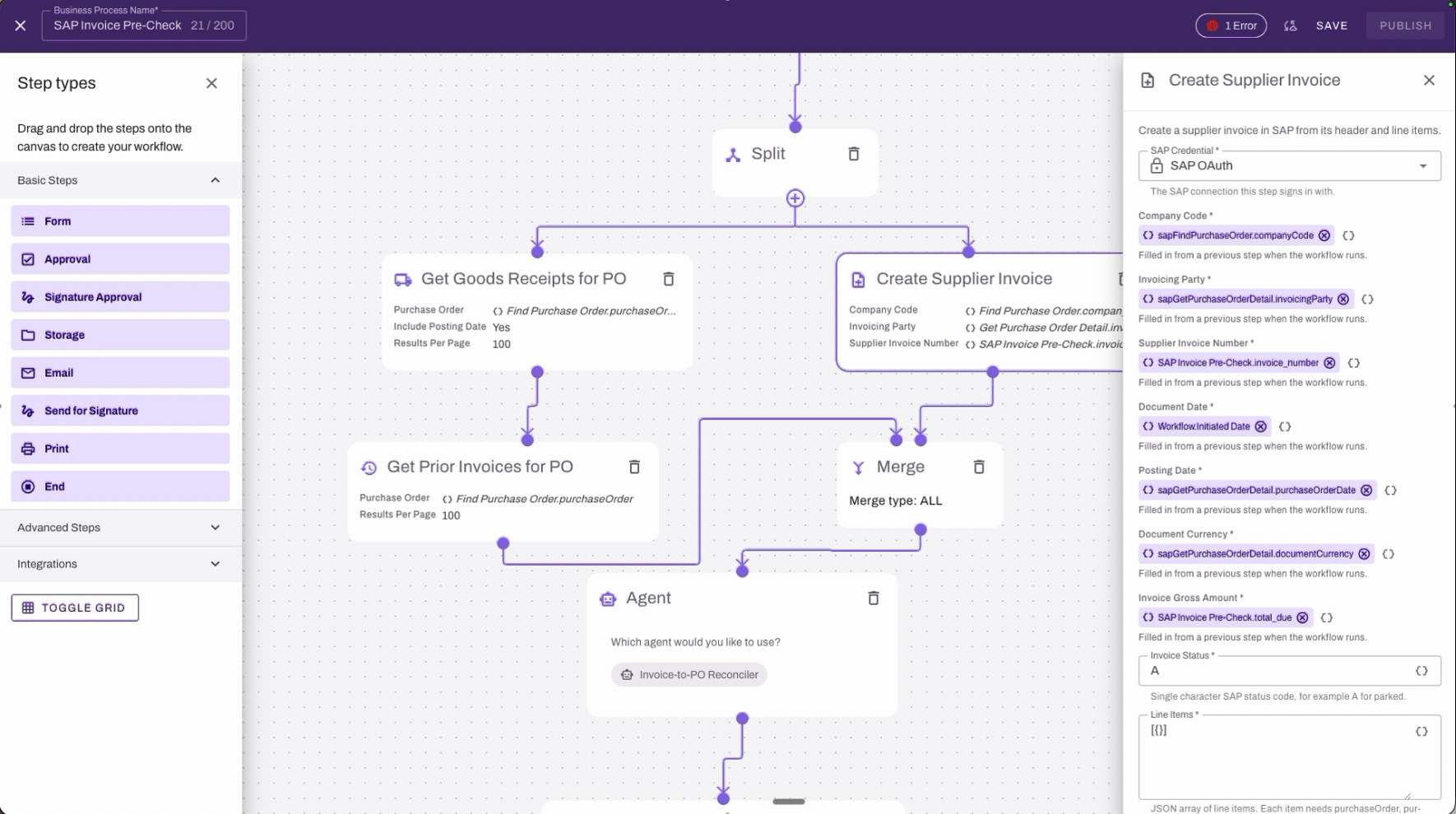
When the workflow reaches the step, the workflow runs the action in SAP and continues to the next step.
To route work based on a result, such as the number of matches that Find Purchase Order returns, add a Conditional Logic step and use the variable in the condition.
Next Steps
Refer to the following:
In this topic: