Add a Business Rule Step
Last Updated: October 02, 2026
You configure a Business Rule step to output a value based on rules that you define. You add one or more rules, set the conditions and output value for each rule, choose the output type, and set a fallback value for when no rule matches.
Requirements
Review these Requirements before you start.
Edit a Workflow
You cannot edit a workflow that has the Published status.
Do the following to unpublish a workflow:
- In Vasion Automate select Workflow from the left-side navigation.
- Select Business Process.
-
Select the More menu
 to the right of the workflow.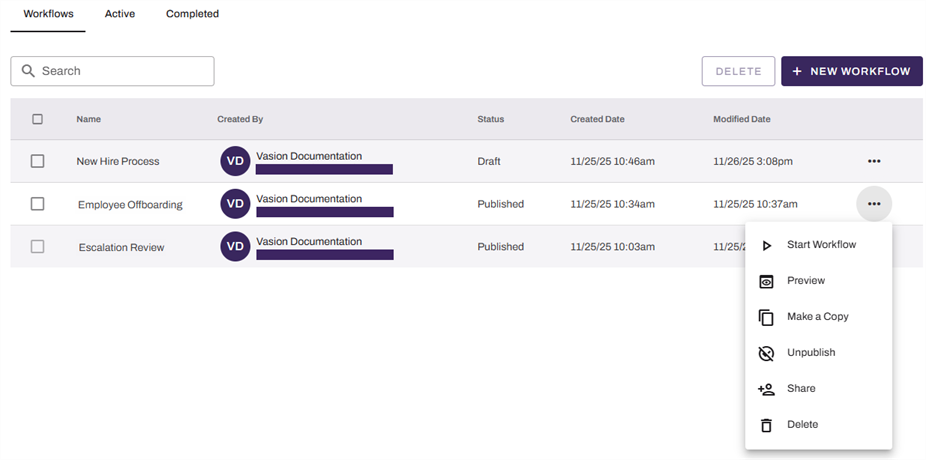
- Select Unpublish.
- Select Unpublish in the Unpublish Workflow modal.
The status changes to Draft, and you can now edit the workflow.
Process Overview
You perform these high-level procedures:
- Add a Business Rule Step.
- Configure a Rule.
- Set the Fallback.
1. Add a Business Rule Step
Follow these steps:
- In Vasion Automate select Workflow, and then select Business Process.
-
Select the draft workflow to open it, or select the More menu
to the right of the workflow and select Edit.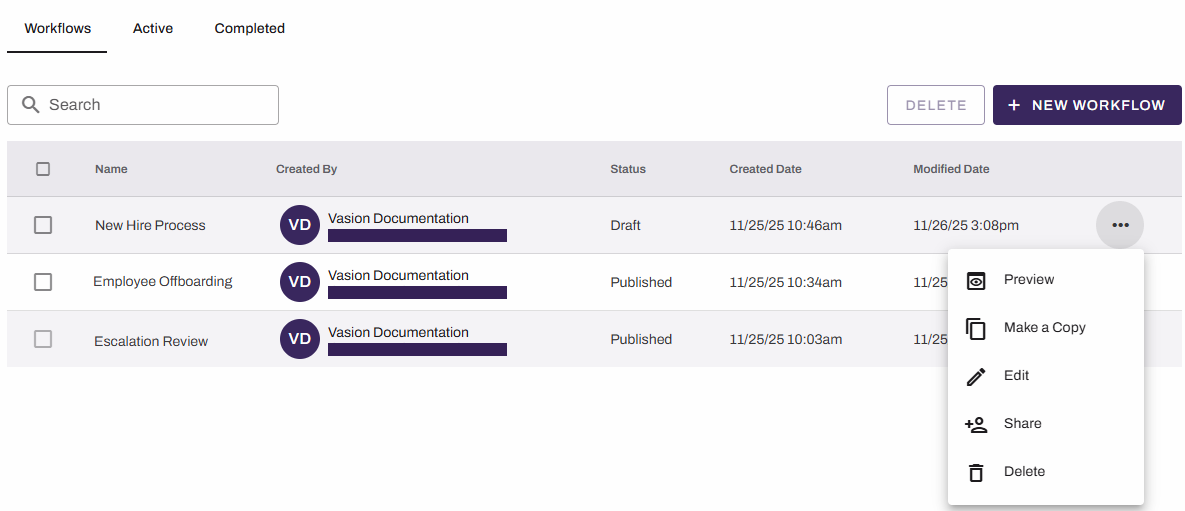
-
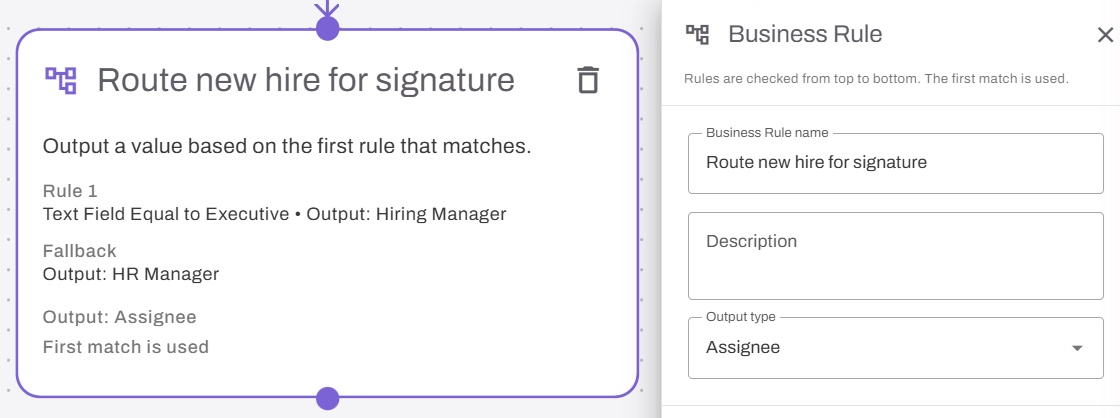
From the Advanced Steps section, drag the Business Rule step onto the canvas.
A configuration panel appears on the right.
- Drag the previous step connector to the new step.
- In the panel enter a name for the step in the Business Rule name field.
- (Optional) In the Description field, enter a description.
- From the Output type menu, select the type of value the step outputs: Text, Number, Yes / No, or Assignee.
- Configure at least one rule. For details refer to the 2. Configure a Rule section.
- Set the fallback output. For details refer to the 3. Set the Fallback section.
- Drag the connector at the bottom of the Business Rule step to the next step in the workflow.
2. Configure a Rule
A rule outputs a value when its conditions are met. Follow these steps to define each rule:
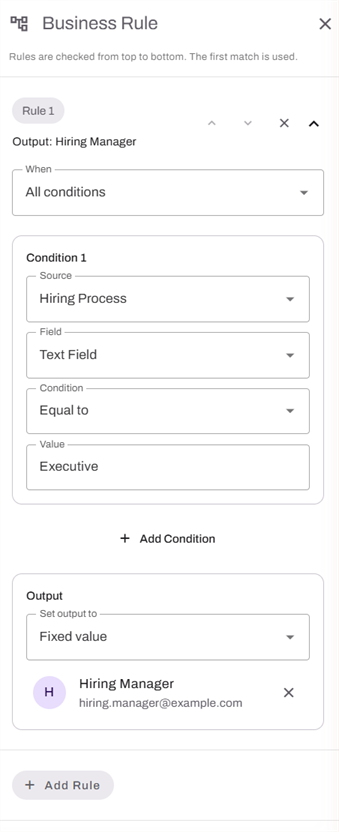
- From the When menu, select one of the following:
- All conditions: All conditions must be met.
- Any condition: Any one condition must be met.
-
Define a condition:
- From the Source menu, select the previous step that provides the data, such as a form or an Intelligent Document Processing step.
- From the Field menu, select the field to evaluate.
- From the Condition menu, select the comparison to apply to the field:
- Equal to.
- Not equal to.
- Includes.
- Does not include.
- Starts with.
- Does not start with.
- Ends with.
- Does not end with.
- In the Value field, enter or select the value to compare against.
- (Optional) To evaluate more than one field, select + Add Condition, and define the additional condition. The When setting determines whether all or any of the conditions must be met.
- Set the rule Output, which is the value the rule returns when its conditions are met. From the Set output to menu, select one of the following:
- Another step: Use a value from an earlier step. From the Source menu, select the earlier step. From the Field menu, select the field that provides the value.
- Fixed value: Enter the value directly.
- (Optional) Select + Add Rule, and repeat these steps to configure another rule.
The step checks rules from top to bottom and outputs the value from the first rule that matches. Order your rules so that the highest-priority rule appears first.
3. Set the Fallback
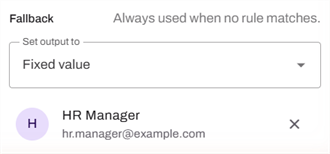
The fallback determines the value the step outputs when no rule matches. From the Set output to menu, select one of the following:
- Another step: Use a value from an earlier step. From the Source menu, select the earlier step. From the Field menu, select the field that provides the value.
- Fixed value: Enter the value directly.
Related Topics
Refer to the following:
In this topic: