Add API Connector Step
Last Updated: October 27, 2026
Add the API Connector step to a workflow to send a request to a third-party application programming interface (API). You select the application and credential that authorize the request, configure the request, and test the request before you publish the workflow.
Requirements
Review the general requirements before you start. In addition, this task requires the following:
-
A workflow that you can edit in the workflow builder.
-
The base URL of the third-party API and the path of the endpoint that you want to call.
-
The request details from the third-party API documentation, such as the method, headers, and body.
-
The authentication details for the credential type that the third-party API requires.
Credential Requirements
Gather the following details for the credential type that you plan to use:
-
OAuth 2.0: The client ID, client secret, and authorization endpoint.
-
Bearer: The token.
-
Basic: The user name and password.
-
API key: The API key.
Add API Connector Step
Perform these high-level procedures:
-
Add the API Connector Step.
-
Select or Create an Application.
-
Select or Create a Credential.
-
Configure the Request.
-
Test the Request.
-
Save and Publish the Workflow.
1. Add the API Connector Step
To add the step to your workflow, do the following:
-
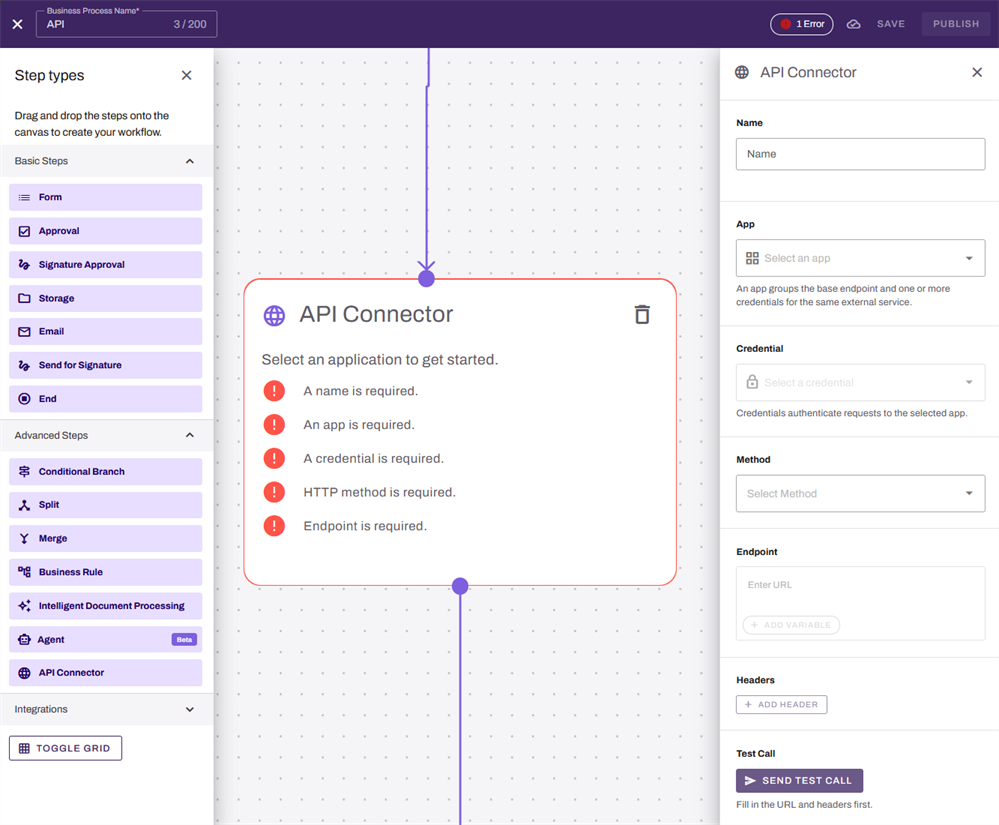
In the Step types panel, expand the Advanced Steps section.
-
Locate the API Connector step and drag the step onto the canvas.
-
Drag the previous step connector to the new step.
-
Select the API Connector step to open its settings.
2. Select or Create an Application
An application groups the base URL of a third-party API with its credentials. The application is the first item that you configure on the step, and the step adds the application base URL to the beginning of the path that you enter later.
Applications that you create are available to other users in your organization. Credentials stay personal to the user who creates them.
Select an Existing Application
-
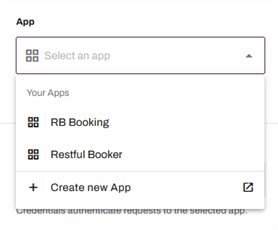
In the App field, select the application for the third-party API.
Create an Application
If the application does not exist, do the following:
-
In the App field, select Create New App.
-
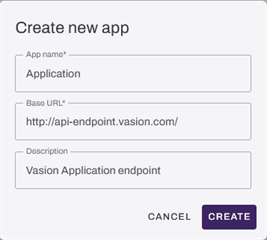
In the Create new app modal, enter a name for the application into the App name field.
-
Enter the base URL of the third-party API into the Base URL field.
-
(Optional) Enter a description into the Description field.
-
Select the Create button.
-
In the App field, select the new application.
3. Select or Create a Credential
The credential authorizes each request to the third-party API. The step stores a reference to the credential, not the secret.
The step requires a credential. If you leave the Credential field empty, the step shows a validation error, and you cannot publish the workflow.
Select an Existing Credential
-
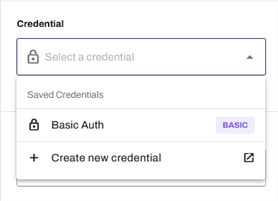
In the Credential field, select a saved credential.
The list shows only your credentials for the application that you select.
Create a Credential
If you do not have a credential for the application, do the following:
-
In the Credential field, select Create new credential.
-
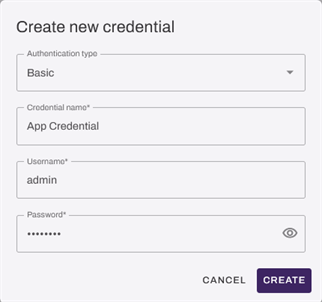
In the Create New Credential modal, select the authentication type from the Authentication type options: OAuth 2.0, Bearer, Basic, or API key.
-
Enter a name for the credential.
-
Enter the details that the authorization type requires. Refer to Credential Requirements.
-
Select Create.
-
In the Credential field, select the new credential.
Credentials are personal and are not shared with a workflow. If another user edits a shared workflow, that user needs their own credential to change the request settings of the API Connector step.
4. Configure the Request
To configure the request that the step sends, do the following:
-
In the Method field, select GET, POST, PUT, PATCH, or DELETE.
-
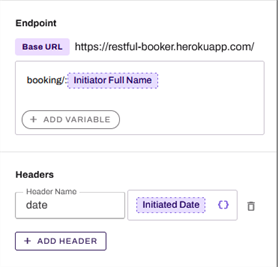
In the Endpoint field, enter the path of the endpoint to call.
The step adds the path to the base URL of the application.
-
(Optional) To use data from an earlier step in the path, select + Add Variable then select the variable from the list.
-
In the Headers section, add the headers to be handed to the API.
-
(Optional) To use data from an earlier step in the headers, select Variable selection button
 , then select the variable from the list.
5. Test the Request
Test the request to confirm that the third-party API accepts it before you publish the workflow.
-
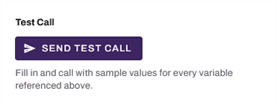
Select Send Test Call.
-
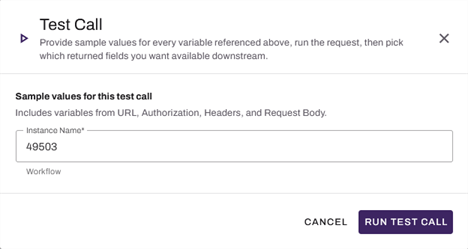
If there are any variables in use, enter test values into the Test Call modal.
-
Select the Run Test Call button.
-
Review the status code and response body that display.
-
If the response is not what you expect, update the request and select Send Test Call again.
-
Select the response fields that you want to use as variables in later steps.
-
Select Save Selection.
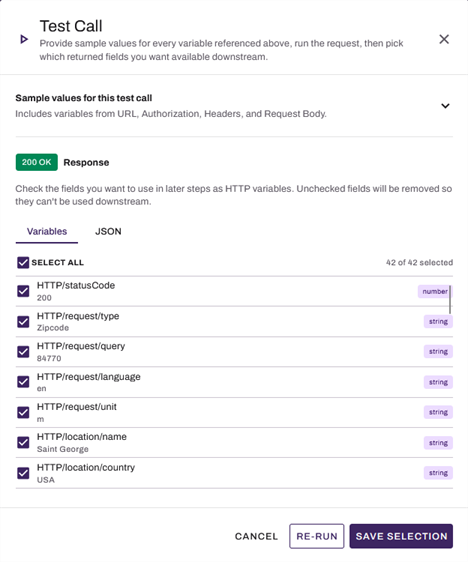
The test call sends a real request to the third-party API, so use test data when possible. A test call does not save the step.
The step is complete only after a successful test call. If you change the request after a test, send another test call.
Next Steps
Refer to the following:
In this topic: