Scan to Personal (Cloud)
Last Updated: September 09, 2026
Scan to Personal (Cloud) lets users securely scan documents directly to their private cloud folders, such as Google Drive, OneDrive, and SharePoint. You control access, and access is secured with Open Authorization (OAuth) authentication. Users can grant access without sharing their passwords, and you can revoke permissions at any time. These controls provide an additional layer of security.
This feature addresses critical compliance risks associated with scanning to shared folders, which can result in unauthorized access and misfiled documents. This feature also provides a seamless scanning experience with comprehensive folder management, saved preferences, and detailed usage tracking.
Key Points
- The Vasion Admin Console has a 15 minute inactivity timeout. Be aware that this timeout applies to the Global Scan Settings.
- Connect Scan to Personal Guide includes instructions for users connecting personal drives at the Control Panel Application (CPA).
- Scan to Storage Guide includes instructions for using this feature on the CPA.
Requirements
Review the following requirements:
- Configure the Storage Default Settings, and review the requirements in Scan to Storage before configuring this feature.
- This feature requires an identity provider (IdP) connection for users to authenticate.
- Turn on the third-party apps option in your storage provider.
- For OneDrive or SharePoint, follow the steps in Microsoft Permissions to grant consent for the Vasion Automate app so that users can connect.
- Connecting to personal drives with Microsoft might require admin approval. With the admin consent workflow turned on in Entra ID (Azure AD), you receive notifications when users attempt to connect and can approve them. For more details refer to Overview of user and admin consent.
-
Scan to Personal (Cloud) requires turning on the Enable higher security option, supported by Printer Apps v25.2.1 and later, in the Control Panel Application (CPA) section, which is located on Tools
 Settings General.
- Simplified Scanning might not function on devices that do not support Transport Layer Security (TLS) 1.2 or later. For more details refer to Transport Layer Security (TLS) Settings.
Process Overview
You perform these high-level procedures:
- Configure the Integration Type.
- Install Scan to Storage.
1. Configure the Integration Type
There are two options to consider when configuring the integration with your storage provider.
- Vasion App (Cloud Hosted): Recommended for most customers. Vasion hosts and manages the app, so admins don't need to manage additional apps and resources.
- Self-Hosted App: For customers who need to own the app themselves (for example, for compliance, IT policy, etc.). Requires managing the integration on the provider side.
Supported Storage Provider Integrations
The steps for both integration options display in the following topics. Complete the integration for your third-party storage provider before continuing to the next step.
2. Install Scan to Storage
The following steps are only for customers using the Scan to Storage feature for the CPA. The printer object's Apps tab allows for single installation. For bulk installation, refer to CPA Manager.
Follow these steps:
- In the Admin Console, go to the printer on which you want to install Scan to Storage.
- Select the Apps tab.
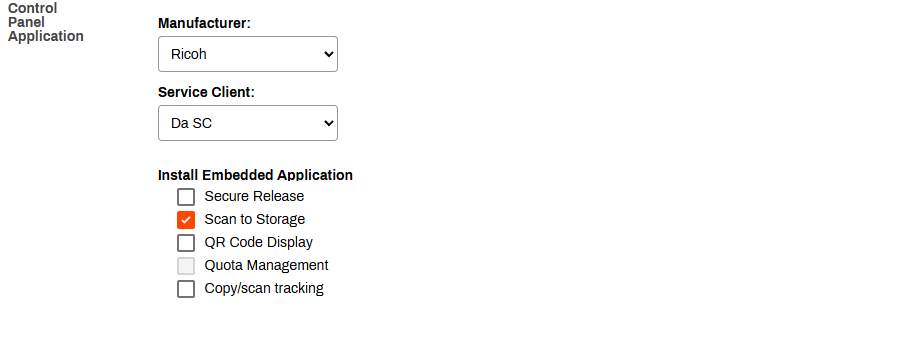
- Ensure that the correct manufacturer, CPA version, and Service Agent are selected.
-
In the Install Embedded Application section, select the Scan to Storage option.
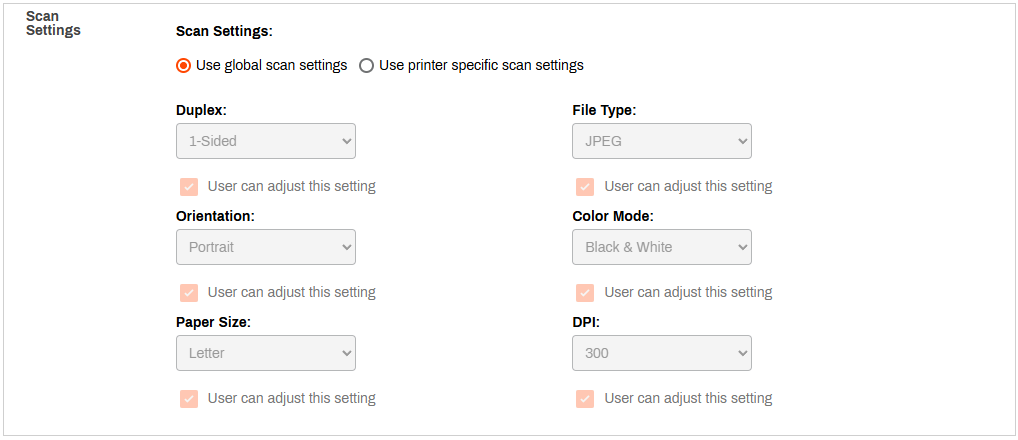
- In the Scan Settings section, select from the following:
- Use global scan settings: This option is the default. You configure these settings in the Global Scan Settings.
- Use printer specific scan settings: This makes the dropdown menus available so that you can adjust the printer-specific settings as needed.
- Select Save in the upper-right corner.
The integration appears in the Added Integrations section and on the CPA for the users and groups defined on the Permissions page.
Related Topics
- Connect Scan to Personal Guide includes instructions for users connecting personal drives at the Control Panel Application (CPA).
- Scan to Storage Guide includes instructions for using this feature on the CPA.
In this topic: