Identity Providers (IdPs)
Last Updated: August 27, 2026
An IdP uses an authentication token to vouch for a person's identity. Virtual Appliance uses IdPs for several tasks, including logging in to the Admin Console and portals, deploying printers, releasing print jobs, and more.
If you use an IdP, the Control Panel Application (CPA) supports only badge and PIN authentication.
Active Directory (AD) (no Lightweight Directory Access Protocol (LDAP) domain connection) provides basic authentication to the Self-service Portal for Active Directory (AD) users on domain-joined devices with the Agent installed. To use Active Directory (AD) or Oracle for identity management in your organization, you need an LDAP Domain connection to enable certain functions, such as authenticating to the Admin Console or Mobile app and Secure Release Print. Environments using LDAP for CPA authentication also require Identity Sync configuration.
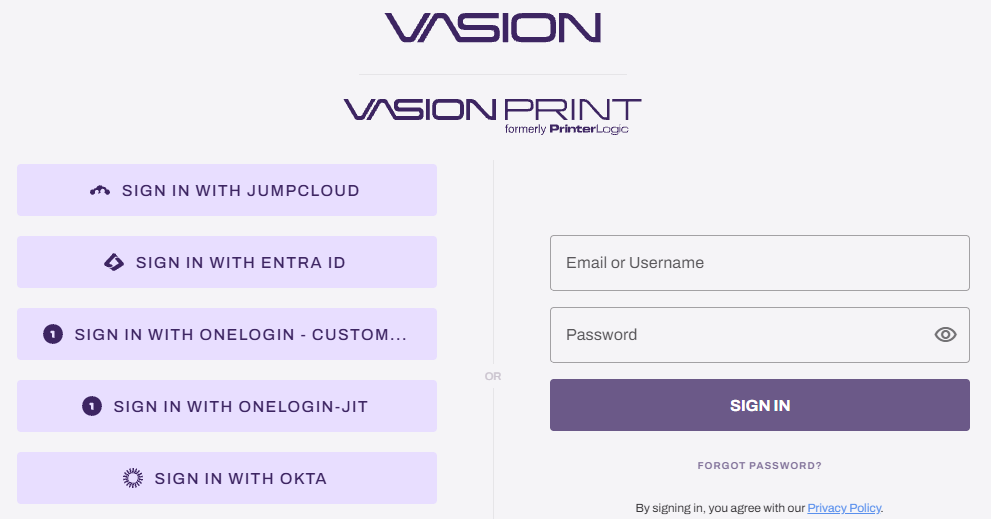
Vasion supports IdPs with a Security Assertion Markup Language (SAML) 2.0 connection, OpenID Connect (OIDC), and Just-in-Time (JIT) provisioning and requires the following:
- Admin or Root Admin role.
- Admin Console access to your Single Sign-On (SSO) provider.
- Full rights to read, add, and register apps with your SSO provider.
Because each provider is different, refer to your provider's documentation for specific configuration details.
Portal Access
To configure an IdP in Virtual Appliance, you need access to the Admin Console and your organization's IdP portal. If you can access both portals, select the desired IdP from the list below to begin.
For environments in which the Virtual Appliance admin is not an IdP admin, you must identify the correct point of contact for assistance. The Virtual Appliance admin starts and saves the IdP Settings in the Admin Console. Then the admin provides the IdP admin with the service provider information from the template and the related configuration link below.
If you are working with an IdP admin, below are the steps to add the IdP Settings so that you can provide the IdP admin with the correct information.
Access Service Provider Information
These steps are only for a Virtual Appliance admin working with an IdP admin. If you have access to the Admin Console and the IdP portal, follow the steps for the IdP in the supported list below.
- Open your Admin Console, and log in.
- Select Tools
 Settings General, and scroll down to the Identity Provider Settings section.
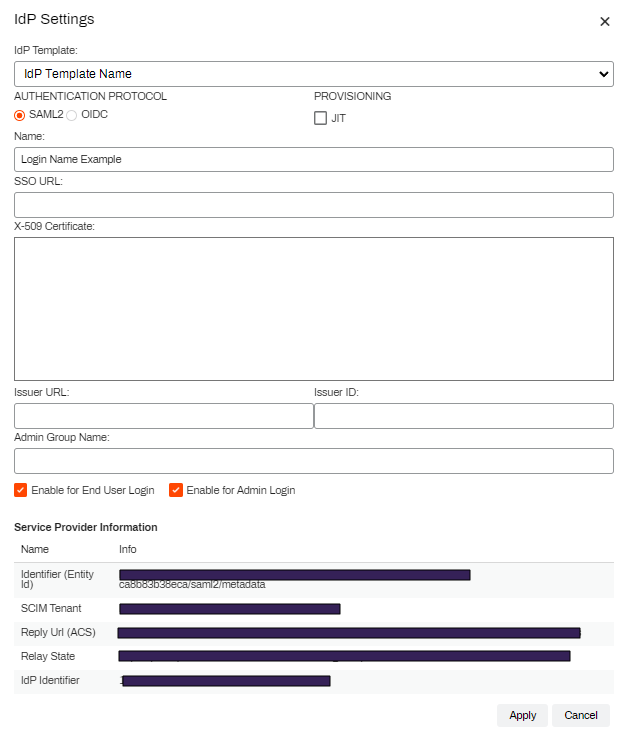
 - Select IdP, and then select Add.
- Select the IdP that you want to configure from the IdP Template dropdown menu.
- In the Name field, enter the name that you want displayed on the login button for users, such as My Company, Login, or Acme Corp.
- Copy the values in the Service Provider Information section, and send them and the related IdP configuration link to your IdP admin.
- Select Apply.
- Select Save in the upper-right corner of the General settings.
When the IdP admin sends you the SSO URL, X-509 certificate, and the issuer URL and ID (if applicable), do the following:
- Open your Admin Console, and log in.
- Select Tools Settings General, and scroll down to the Identity Provider Settings section.
- Select IdP, select the checkbox next to your IdP, and then select Modify.
- Enter the SSO URL in the SSO URL field.
- Press Tab to autopopulate the Issuer URL and Issuer ID fields, or add the information manually.
- Enter the X-509 certificate, including the Begin / End headers, in the X-509 Certificate field.
- Scroll down, and select the desired settings.
- Enable for End User Login: Allows end users to log in using this IdP. (Self-service Portal)
- Enable for Admin Login: Allows admins to log in using this IdP. (Admin Console)
- You can select both checkboxes when you are using a single IdP or the admin and end users use the same IdP to log in.
- Select Apply.
- Select Save in the upper-right corner of the General settings.
For details on assigning users and roles to the Virtual Appliance and Vasion Automate Admin Console, refer to Admin Console Users.
Supported IdPs
Set up your identity provider using the Virtual Appliance or Vasion Automate UI. The topics in this section utilize the Virtual Appliance UI. To configure your identity provider through the Vasion Automate UI, refer to Authentication.
For details on how to configure your supported IdP through the Virtual Appliance UI, select one of the links below:
In this topic: