Configure CAC & PIV
Last Updated: September 08, 2026
Common Access Cards (CAC) and Personal Identity Verification (PIV) cards control access to secure information systems. Government agencies, medical facilities, and others commonly use these cards to restrict access to sensitive information. Virtual Appliance supports authenticating to the Admin Console with these cards.
How It Works
After configuring CAC / PIV, the Admin Console displays an additional login option. When the user selects the CAC / PIV Login button, the browser prompts the user to choose a certificate. With the smart card certificate selected, a prompt for the user's PIN appears. A successful Transport Layer Security (TLS) challenge / response handshake submits the certificate to Virtual Appliance. Virtual Appliance validates the certificate chain against the Certificate Authority (CA) bundle uploaded to the instance. It then performs an identity provider query to match the certificate against the
Successful sign in occurs when the certificate matches a single Active Directory user, or, if the certificate matches multiple Active Directory users, the username provided at login validates them.
Requirements
Review the following requirements:
Environment
- A smart card reader is attached to the workstation, and appropriate drivers are installed.
- A CAC / PIV smart card is available, and appropriate drivers are installed.
- All CAC / PIV root CAs are installed in the workstation's Trusted Root Certification Authorities store.
- All CAC / PIV issuing CAs are installed in the workstation's Intermediate Certification Authorities store.
- The user can authenticate to Windows by inserting the CAC / PIV card into the reader and entering their required credentials.
Virtual Appliance
- An SSL certificate must be installed on the Virtual Appliance, and the root CA and any intermediate CAs must be trusted by all Windows workstations (it is not required to be a publicly trusted certificate).
- Configure an LDAP Domain using a bind username / password on the Tools
 Settings General page.
 - Have a Vasion representative enable using CAC / PIV for your Virtual Appliance instance.
1. Configure DNS
If you configured Virtual Appliance Allow List URLS using a wildcard CNAME entry, continue to the next step. If you used individual CNAME entries for the services, add an entry for the CAC / PIV service.
pivcac.fqdn.of.va CNAME fqdn.of.va2. Prepare CAC / PIV CA Bundle
Create a PEM certificate bundle containing all root and issuing CAs so that Virtual Appliance can validate the CAC / PIV certificate chain.
Option 1
If the agency has a PKCS7 bundle (.p7b) file containing all CA certificates:
-
Use the following command to convert the PKCS7 bundle to PEM format.
Copy Codeopenssl pkcs7 -print_certs -in dod_certs.p7b -out pivcac.crt - Open the resulting pivcac.crt file in your preferred editor.
-
Remove the Subjects and Issuers from before each certificate.
Only the concatenated list of certificates in PEM format, including the Begin headers and End footers, should remain.
- Save the file.
Option 2
If the agency does not have a PKCS7 bundle containing all the CA certificates:
- Manually export each root and intermediate CA in X.509 base-64 encoded PEM format.
- Create a single file containing the concatenated contents, and include the Begin headers and End footers for each.
- Save the file.
3. Upload the CAC / PIV Bundle
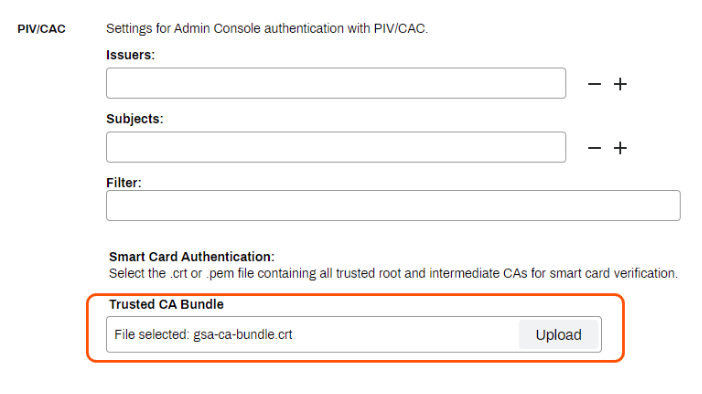
The PIV/CAC section has fields for Issuers, Subjects, and Filter. These fields are from the legacy setup and are not required when configuring CAC / PIV for Virtual Appliance.
- Go to Tools Settings General in the Admin Console.
- In the PIV/CAC section, use the Trusted CA Bundle field to locate the pivcac.crt bundle.
- Select Upload.
- Select Save in the upper-right corner.
- Restart the Virtual Appliance for the changes to take effect.
To verify the success of the upload, go to the shared storage's PI/storage/cert folder. The upload process renames the bundle to pivcac.crt, but the contents remain the same.
Troubleshooting Help
- Open developer tools in the browser and select the Network tab.
- Select the CAC / PIV Login button.
- Watch for red entries, and investigate.
- If the page says "Unable to process CAC Login" look for an error on acquire.php. If you hover over that entry, it should tell you what happened.
- An ERR_NAME_NOT_RESOLVED means that the workstation could not resolve the pivcac CNAME entry.
Federal agencies often have to cycle their service account passwords. Ensure that the service account password is correct by:
- Navigate to the Identity Provider Settings section on ToolsSettingsGeneral.
- Select the domain, then select Modify.
- Select the Test Settings button.
If the Connection with Bind User/Password test fails, the bind username and password require updating.
Verify CAC / PIV Certificate.
- Examine the certificate being used to authenticate to the Admin Console.
- Verify that the certificate has not expired.
- Verify that the certificate is trusted and that all Certificate Authority (CA) in the chain are installed in the respective trusted CA stores for the Local Machine
- Verify the way the certificates are mapped to users
- Are CAC / PIV certificates mapped to multiple AD user accounts through Name Mappings in AD Users and Computers?
- Do the CAC / PIV certificates have a PrincipalName entry inside the subjectAlternativeName extension?
- Does this PrincipalName match the userPrincipalName for the user inside of AD?
In this topic: