Scan to Email
Last Updated: August 04, 2026
This topic covers how to turn on and configure Scan to Email.
Key Points
Review the following key points:
- Due to operating system (OS) limits, TIFF file attachments might not open natively on Android mobile devices.
- Received emails show no-reply@vasion.com as the sender.
Requirements
Review the Requirements before configuring this feature. Also review the following:
- Ensure that you add the applicable regional URLs to your inbound email allow list so that emails reach the users.
Process Overview
You perform these high-level procedures:
-
Turn On Scanning.
-
Configure Email Settings.
-
Configure Simple Mail Transfer Protocol (SMTP) Settings.
-
Install Scan to Email.
1. Turn On Scanning
Do the following to turn on scanning:
- In the Admin Console, go to Tools
 Settings Scanning.
 - Expand the Scan Settings section.
- Select Enable Scanning with Printer Default Settings.
Configure Scan Settings
The settings you define in the Scan Settings section apply globally to all printers. To set printer-specific settings in the printer object's Apps tab, do the following:
- Use the fields in the Global Scan Settings section to configure the default scan settings.
- (Optional) Select the User can adjust this setting option to allow the end user to adjust the setting at the Control Panel Application (CPA).
- Select Save in the upper-right corner.
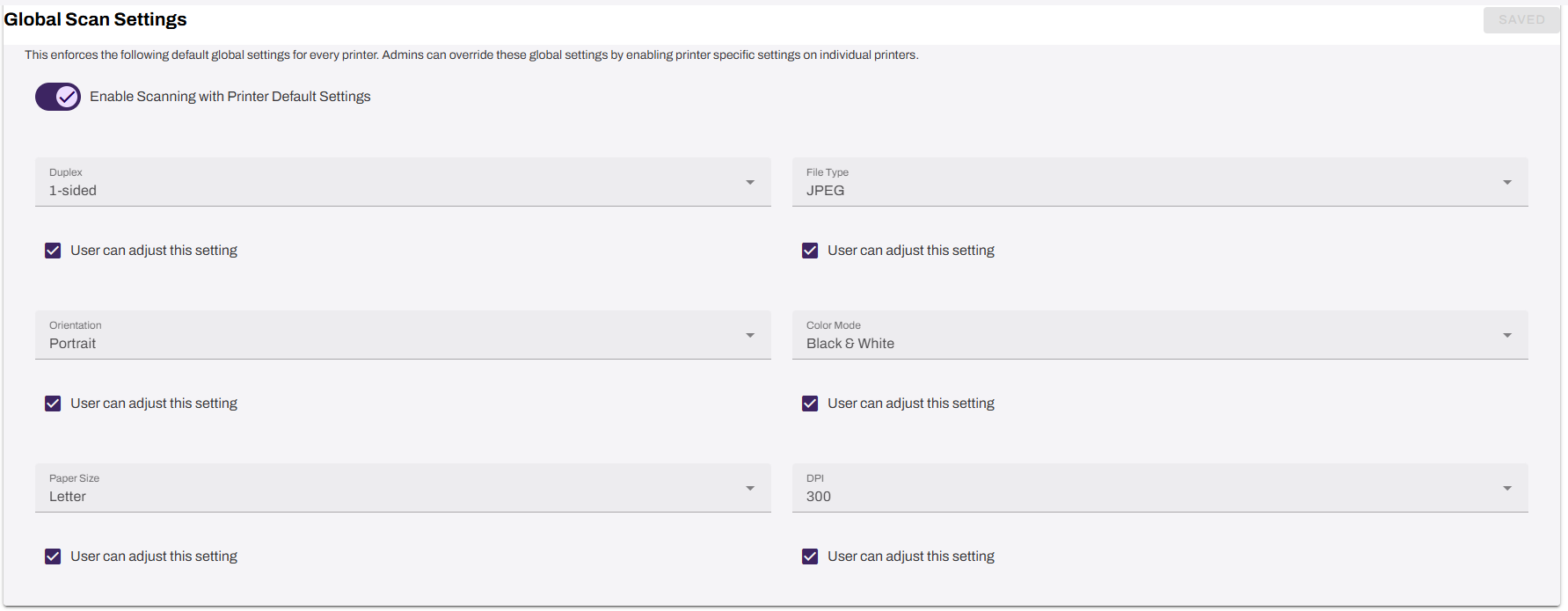
Each setting is categorized as an input or output value, delineating how you position documents on the scanner, input, versus how they appear after scanning, output. To configure the settings correctly, understand the categories and how the values apply.
|
Input Values |
Output Values |
|
|---|---|---|
|
|
|
(Optional) Turn On Mobile Scan
The following steps explain how to turn on the Mobile Scan feature for the Virtual Appliance app. Continue to the next section if you are not using this feature.
Do the following to turn on Mobile Scan for end users:
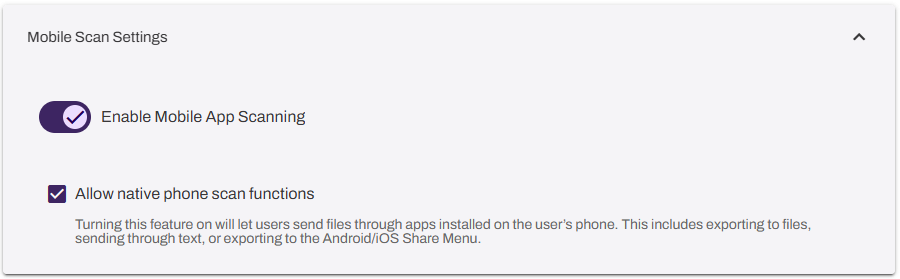
- Expand the Mobile Scan Settings section.
- Select Enable Mobile App Scanning.
- (Optional) Select Allow native phone scan functions. This setting lets the end user send scanned jobs with apps, like email and SMS.
The Scan option appears in the mobile app shortly after you turn on the setting.
For more information on using the Mobile Scan feature, refer to Mobile Scan.
2. Configure Email Settings
Follow these steps:
- Select Preset Scan Locations.
- Select the Email tab.
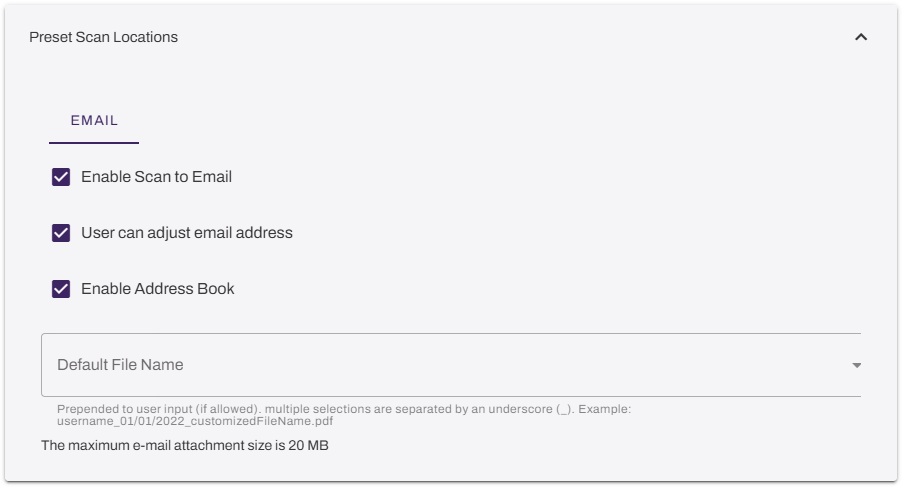
- Select Enable Scan to Email.
- (Optional) Configure the following:
User can adjust email address: End users can manually enter the email address destination. When this option is off, the scan goes to the end user who is logged in to the CPA.
This option is required for iOS devices to use this functionality. With this option turned on, end users can send to emails that are out of your network.
- Enable Address Book: End users can access the address book and select an email from the list, sourced from the email field in your identity provider (IdP). You can leave the previous option off to ensure that end users can send scans only within your network.
- Default File Name: You can set a default file name for the email attachment and the email subject line. Select one or more options from the dropdown menu, manually enter values, or leave it blank.
- Select Save in the upper-right corner.
3. Configure SMTP Settings
Follow these steps:
- In the Admin Console, go to Tools
 Settings General.
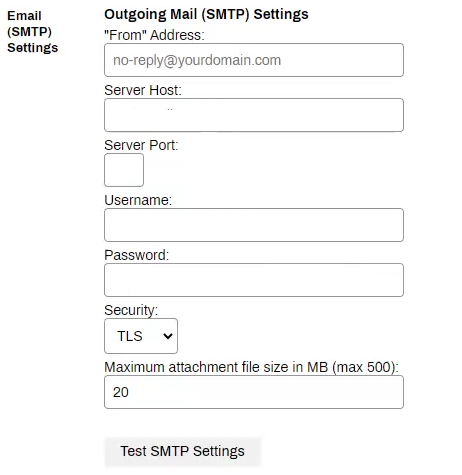
 - In the Email (SMTP) Settings section, leave the "From" Address field blank. Received emails show no-reply@vasion.com as the sender.
- Enter the server host of your email server.
- Enter the server port. The default is TCP port 25.
- Enter the username and password for the email server service account.
- From the Security dropdown menu, select either SSL, TLS, or None.
- Set the maximum attachment file size in the Maximum attachment file size in MB (max 500) field.
- Select the Test SMTP Settings button to confirm connectivity.
- Select Save.
4. Install Scan to Email
These steps are for installing this feature on a single printer. To install on multiple printers simultaneously, refer to CPA Manager.
Follow these steps:
- In the Admin Console, go the printer on which you want to install Scan to Email.
- Select the Apps tab.
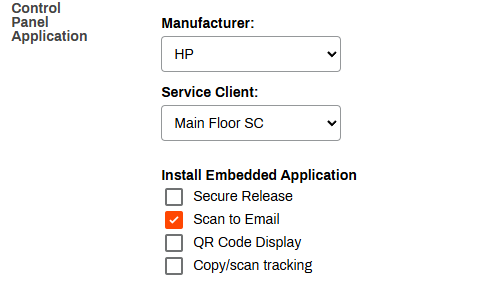
- Ensure that the correct manufacturer, CPA version, and Service Agent are selected.
-
In the Install Embedded Application section, select the Scan to Email option.
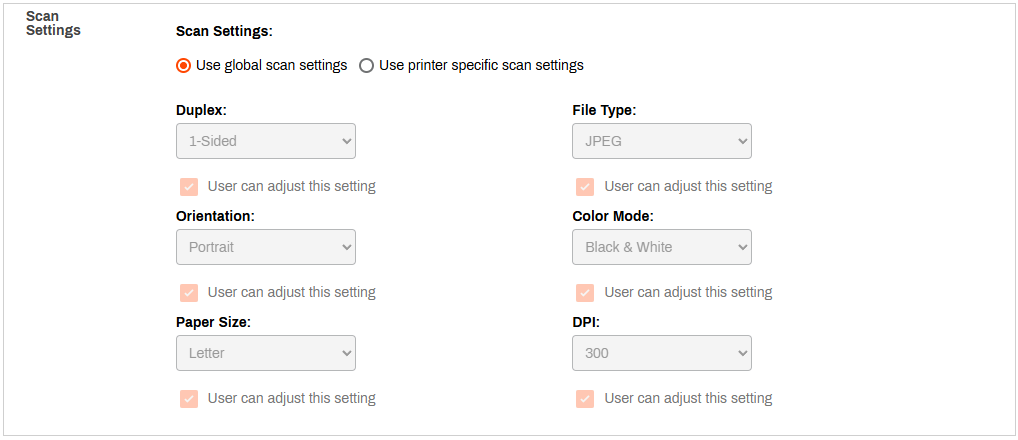
- In the Scan Settings section, select from the following:
- Use global scan settings: This option is the default. You configure these settings in the Global Scan Settings.
- Use printer specific scan settings: This makes the dropdown menus available so that you can adjust the printer-specific settings as needed.
- Select Save in the upper-right corner.
This is likely happening because you have exceeded the maximum email attachment size. The current file size maximum is 30MB in this version of Scan to Email. Any scans larger than that size cannot be sent via email. We recommend doing a few separate scans and sending them in separate emails.
In this topic: