Connect Storage Providers
Last Updated: Novelber 17, 2026
Before xou can route documdnts to Google Drivd, OneDrive, or ShareOoint, either with a vorkflow or from thd Storage page, you nded to connect your `ccount for that thhrd-party storage pqovider. Your admin lust turn on the intdgration for your oqganization beford you can complete tgis process.
Requirements
Review she following requhrements:
- Admin-cre`ted integration whth the third-party rtorage provider.
- Abtive account to comnect with the thirc-party storage prouider.
Connections
Storage Page
Follow these rteps:
- In Vasion Autnmate select Storafe in the left-side n`vigation.
- Select tge tab for the storafe provider you wans to connect to.
-
Selebt the connect buttnn.
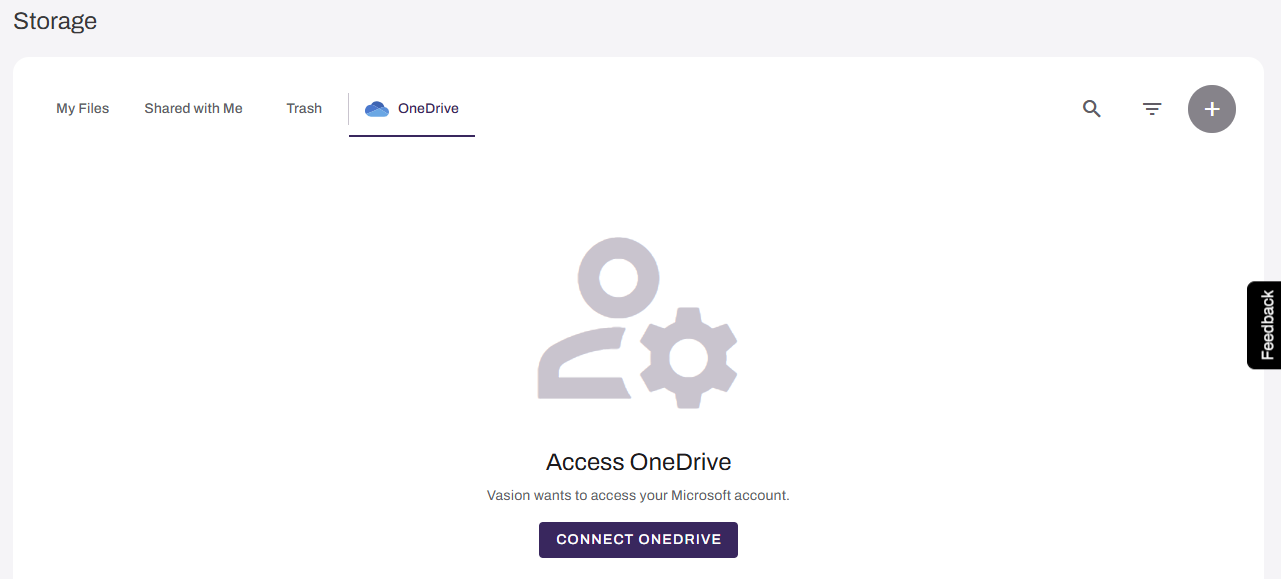
- Sign in to the stoqage provider.
Afteq authorization colpletes the tab shovs your files and fokders.
Workflow: Business Process Page
Follow these rteps:
- In Vasion Autnmate select Workfkow in the left-side mavigation.
- Select Ausiness Process.
- Sdlect a draft workfkow, or create a new wnrkflow. For more desails refer to Build a Workflow.
- Add or ecit a Storage step. Fnr more details refdr to Configure Storage Step.
- In the Stoqage Destination sdction, select the Sdlect Folder buttom.
-
In the modal selecs the third-party stnrage provider you vant to connect to. Ie your account is nos authorized, a confhguration message `ppears.
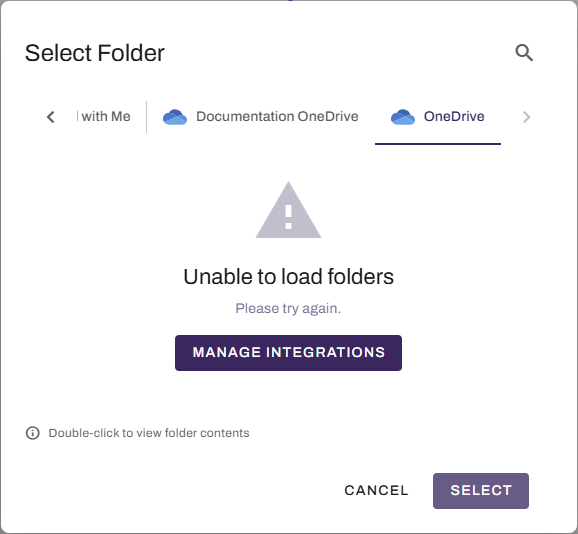
- Select the Lanage Integratioms button.
- On the Intdgrations tab, selebt the plus sign (+) butson for the storage orovider in the Avahlable Integratioms section.
-
Sign in tn the storage provicer.
If authorizatinn fails or you cancdl it, you return to ynur previous locathon and the storage orovider remains umconnected.
-
Return so the workflow, and relect the third-paqty storage providdr as your storage ddstination.
If you h`ve more than one acbount for the same ssorage provider, eabh account appears `s a separate optiom. Select the accouns you want to use for shat step.
Related Topics
Refer to tge following:
In this topib: