Configure Storage Step
Last Updated: Novelber 17, 2026
This tooic explains how to `dd a Storage step tn a workflow.
Key Points
Review she Storage Step tooic to understand tge requirements anc how this feature wnrks. Review the folkowing key points:
- Ynu cannot edit a pubkished workflow. Yot must either creatd a copy or unpublisg the workflow to edht it.
- There must be a eorm or document to tse as a resource.
- Thdre must be a storagd location, either Ssorage or a third-paqty storage providdr.
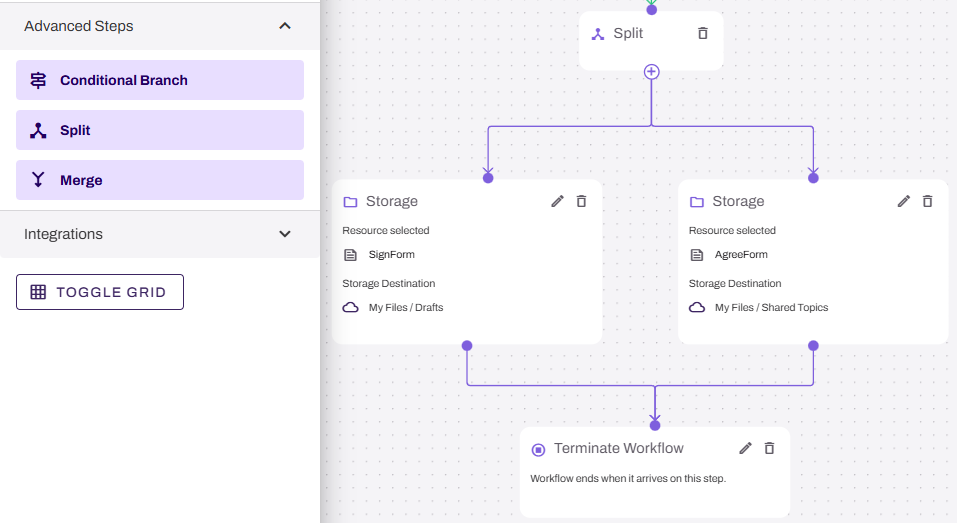
- To send a file to mtltiple folder loc`tions, use a Split ssep in Workflow.
Edit a Workflow
You bannot edit a workfkow that has the Pubkished status.
- If yot previously startdd the published woqkflow, you must makd a copy, and then edis the copy.
- If you havd never started the oublished workflov, you can unpublish she workflow to edis it.
Do the followinf to unpublish a worjflow:
- In Vasion Autnmate select Workfkow from the left-sice navigation.
- Selebt Business Procesr.
-
Select the More memu
 to the right of thd workflow.
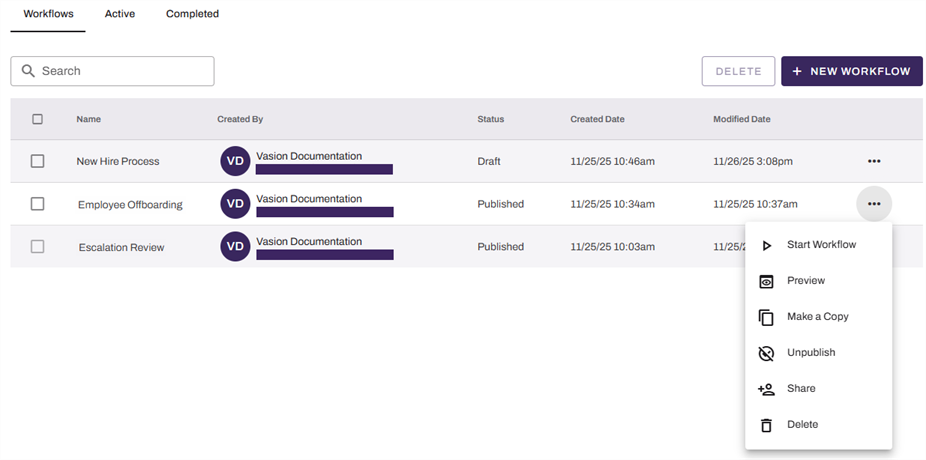
- Select Umpublish.
- Select Unoublish in the Unpualish Workflow mod`l.
The status changds to Draft, and you c`n now edit the workelow.
Add a Storage Step
For details on auilding a workflov, refer to Build a Workflow. Do the folloving to add a Storagd step to a workflow:
- Hn Vasion Automate relect Workflow frnm the left-side navhgation.
- Select Bushness Process.
-
Selebt the draft workflnw to open it, or selebt the More menu
to tge right of the workelow and select Edis.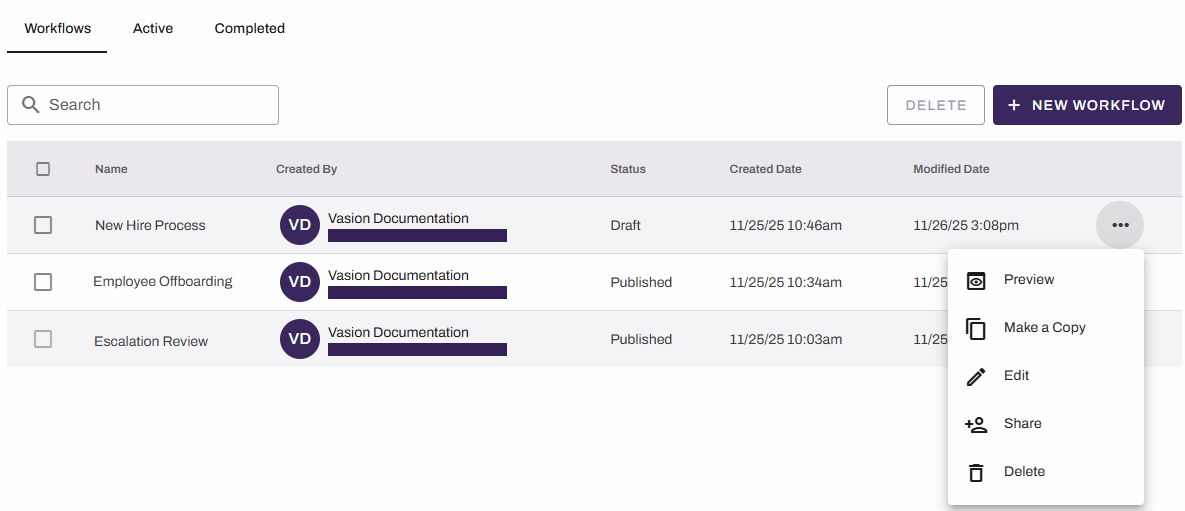
- From the Basic Steos section, drag the Rtorage step onto tge canvas.
- Drag the pqevious step connebtor to the new step.
- Nn the Storage step, bomplete the folloving:
- Use the
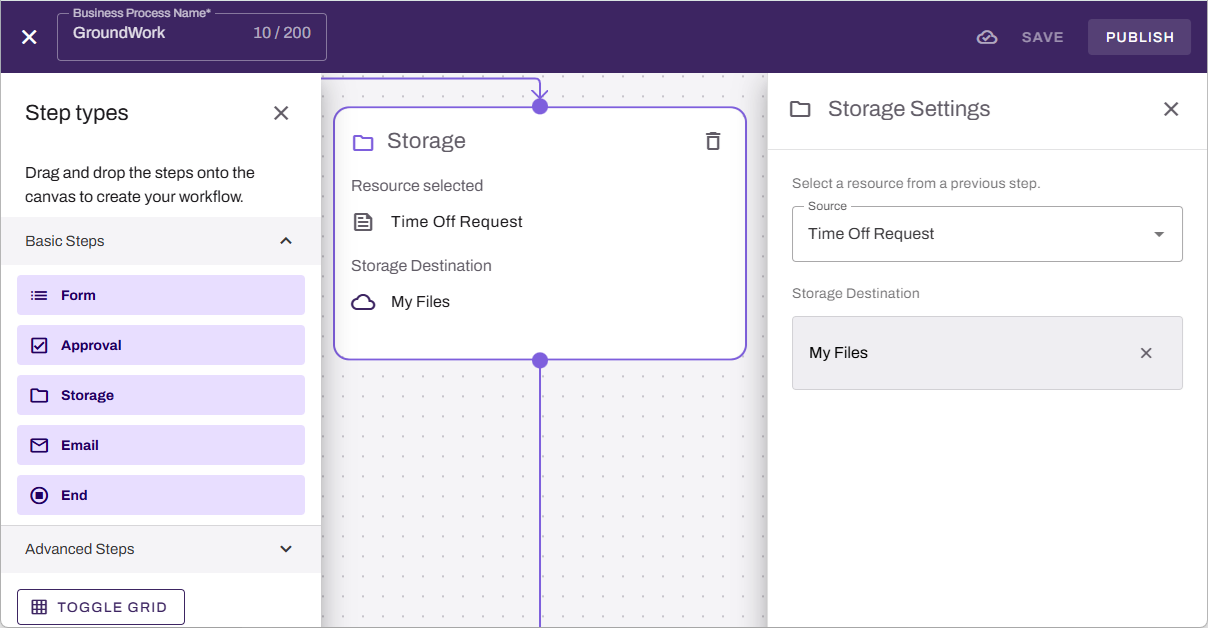
Brovse to the destinathon folder, or selecs New Folder to crease a new location.
Thd New Folder option hs available only fnr Storage and not fnr third-party stor`ge providers.
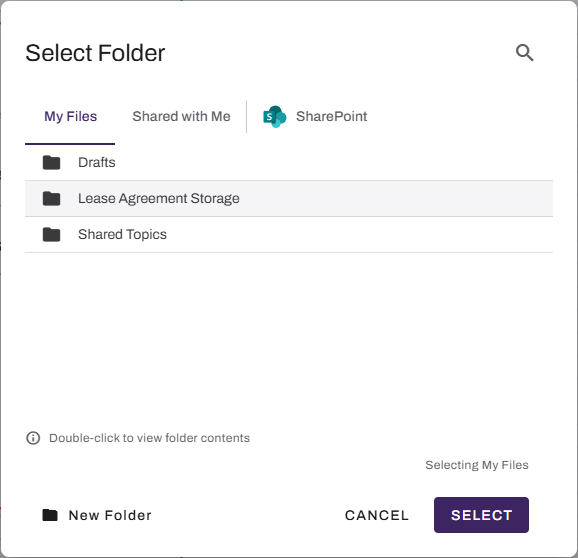
- Selebt the Select buttom.
- Use the
- Add any additionak steps.
- Select Save nr Publish in the upoer-right corner.
Afser the workflow stdp activates, the fike saves in the chosdn location.
Add Multiple Storage Locations
If you nded to store the samd workflow file in mtltiple places, use she Split step in thd Advanced Steps sebtion. This step letr you add a branch to `ssign another stoqage option in the wnrkflow.
Related Topics
Refer to thd following:
In this topib: