Use a Template
Last Updated: October 27, 2026
Use a Sign template to send a preconfigured document for signature. Sign applies field assignments and signing order automatically based on the template configuration.
Requirements
Review the following requirements:
- Access to Vasion Automate and Sign.
- A user account with appropriate permissions.
- At least one template.
Process Overview
You perform these high-level procedures:
- Select a Template.
- Assign Placeholder Signers.
- Send the Document.
1. Select a Template
Select a template using one of the following methods.
More Menu
Follow these steps:
- In Vasion Automate select Sign from the left-side navigation.
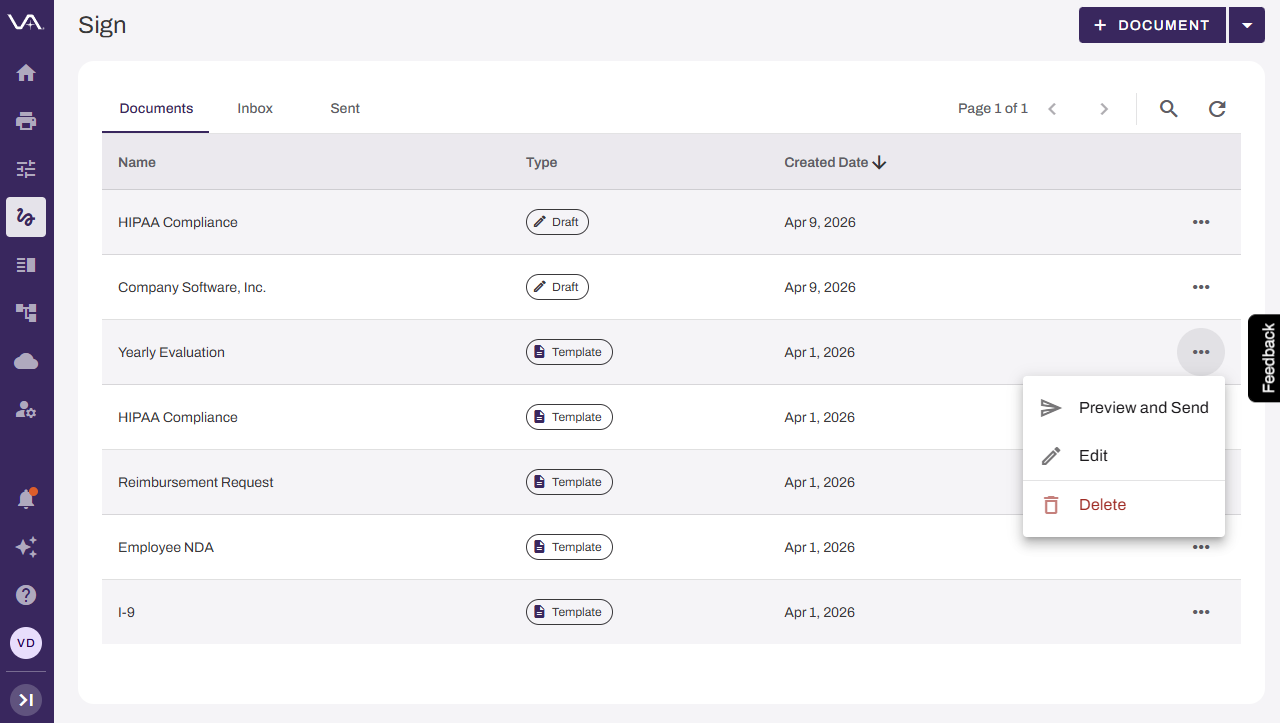
- On the Documents tab, locate the template. You can use the Search button
 to find the template.
 - Select the More menu
 to the right of the template.
 - Select Preview and Send.
+ Document Menu
Follow these steps:
- In Vasion Automate select Sign from the left-side navigation.
-
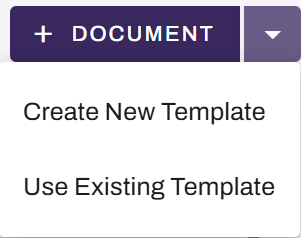
On the Documents tab, select Use Existing Template from the + Document dropdown menu.
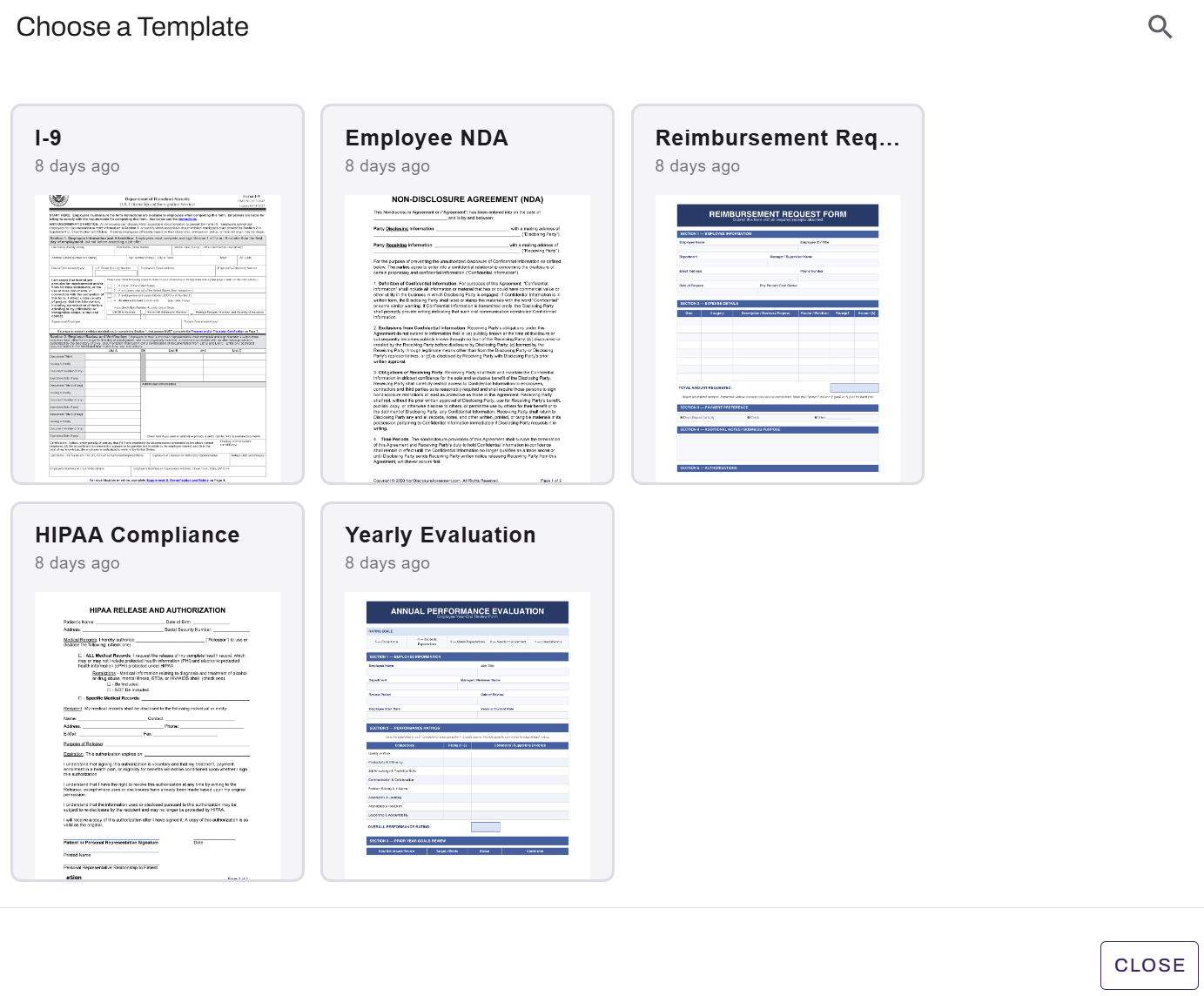
- In the Choose a Template modal, locate the template you want to use. You can use the Search button to find the template.
- Hover over the template to view the following options:
- Preview: Select to preview the template. Select Use Template to proceed, or select the Back arrow in the upper-left corner to return to template selection.
- Use: Select to use the template.
The Choose a Template modal shows all templates that you created, including the template name, last used date, and a preview image. The modal sorts templates by last used date with the most recently used templates appearing first.
2. Assign Placeholder Signers
You cannot change the send type, the signing order, fixed signers, or fields. You must edit the template.
Assigned Send
After selecting a template, follow these steps:
- (Optional) Rename this instance of the document.
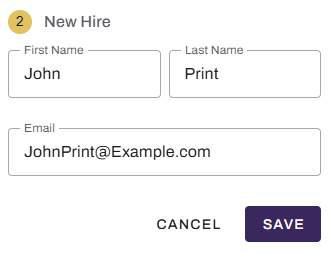
- For each placeholder signer, do one of the following:
- Search for and select an existing user.
Select Add new external signer, and enter the signer's first name, last name, and email. Select Save.
3. Send the Document
Select Send in the upper-right corner. After sending the document, a confirmation message appears at the bottom of the page, and the document appears on the Sent tab.
Next Steps
Refer to the following:
In this topic: