Manage Shared Templates
Last Updated: October 22, 2026
You can share Sign templates with other Vasion Automate users.
Share a Template with Specific Users
To share a template with specific users, do the following:
- Do one of the following:
- On the Sign window, select the More
 button, and then select Share.
 - If you are modifying a template, select the Share button at the top of the screen.
- On the Sign window, select the More
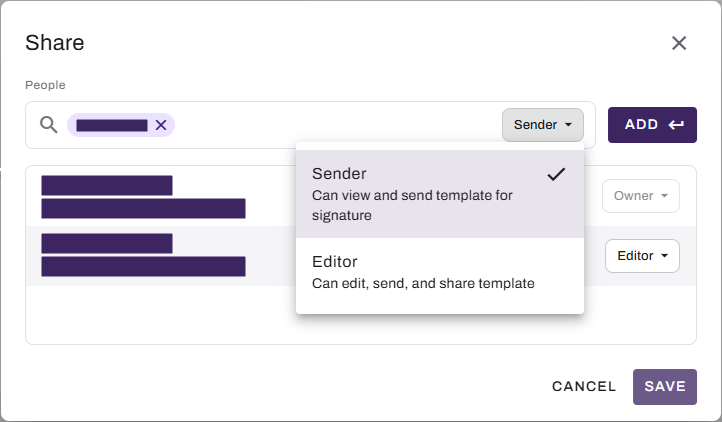
- In the Share modal, begin typing in the People field to search for a user.
- If there are multiple results, select the appropriate user from the list.
- Repeat for additional users, if necessary.
- Select the permission button next to the user's name, and select one of the following: Sender or Editor.
- Select Save.
Modify a user's permission
Do the following:
- Do one of the following:
- On the Sign window, select the More button , and then select Share.
- If you are modifying a template, select the Share button at the top of the screen.
- On the Sign window, select the More button
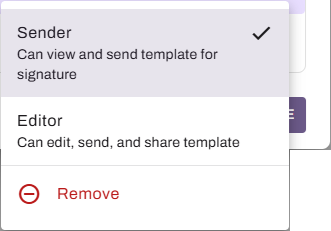
- In the Share modal, select the permission button next to the user's name, and select one of the following: Sender or Editor.
Remove a user's permission
Do the following:
- Do one of the following:
- On the Sign window, select the More button , and then select Share.
- If you are modifying a template, select the Share button at the top of the screen.
- On the Sign window, select the More button
- Select the permission button next to a user's name, and select Remove.
Next Steps
Refer to the following:
In this topic: