Sign a Document
Last Updated: October 26, 2026
Use Sign to sign documents and submit approvals.
Process Overview
You perform these high-level procedures:
-
Access the Document.
-
Complete Assigned Fields.
-
Complete the Document.
1. Access the Document
From the Sign Page
Follow these steps to open a document from the Sign page:
-
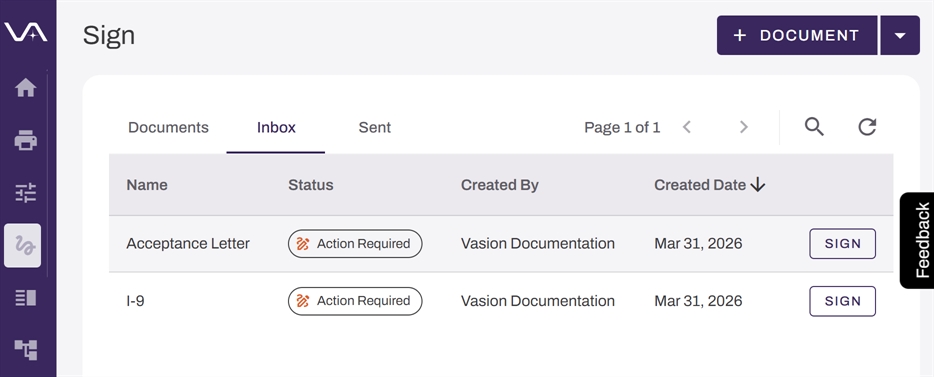
In Vasion Automate select Sign from the left-side navigation.
-
Select the Inbox tab.
-
Select the document line item or the Sign button.
From Email
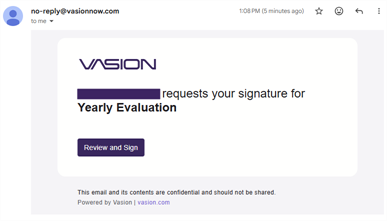
Follow these steps to open a document from an email notification:
- Select the Review and Sign button in the notification email.
- If prompted authenticate to access the document.
For more information about authenticating in Vasion Automate, refer to Sign In.
2. Complete Assigned Fields
Signature Field
Follow these steps:
- Select the field.
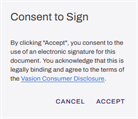
- Follow these steps in the Consent to Sign modal:
- Select the Vasion Consumer Disclosure link to view the agreement details.
Select the Accept button to agree to the Vasion Consumer Disclosure.
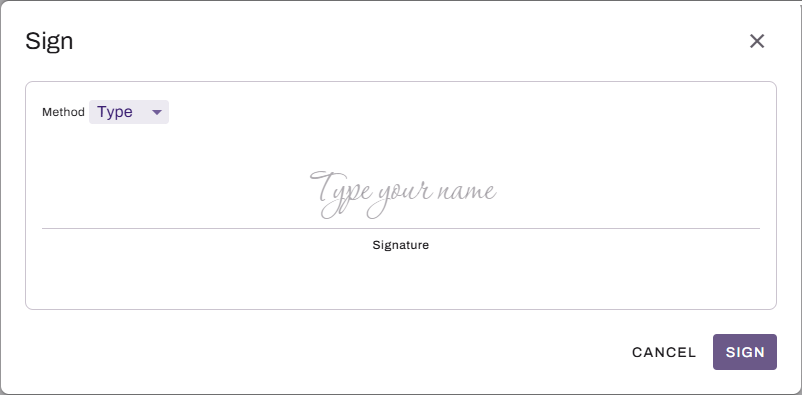
- Follow these steps in the Sign modal:
- Select one of the following tabs:
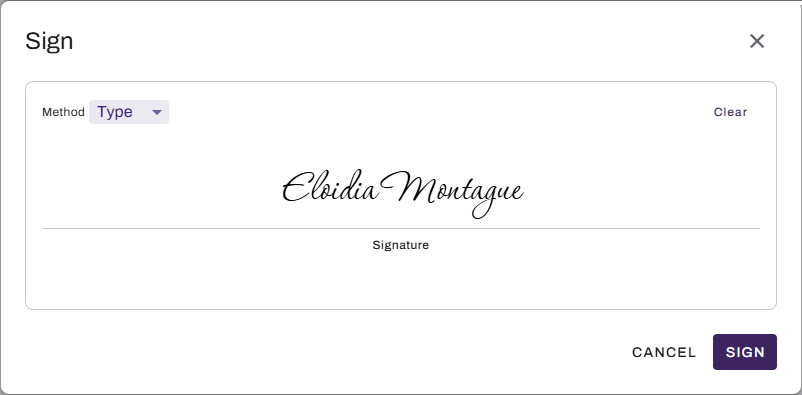
Type: Enter your name in the Type your name field.
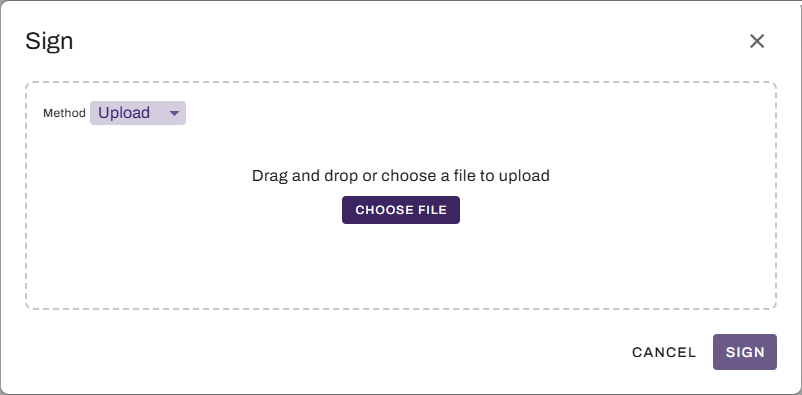
Upload: Drag a file onto the modal, or select the Upload File button and select a file.
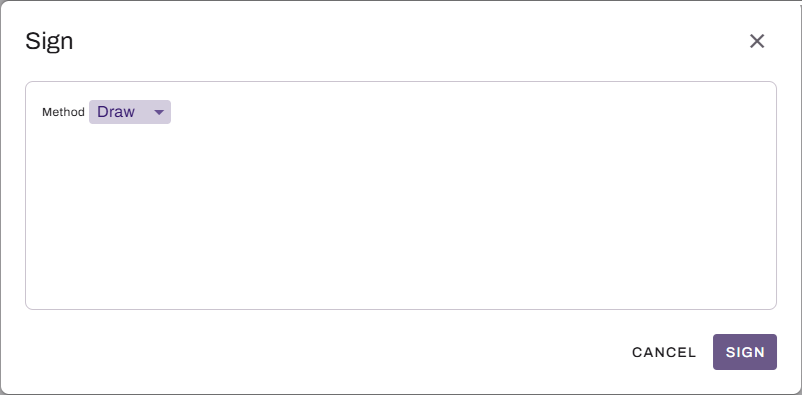
Draw: Draw your signature using your preferred method.
If you need to start over, select the Clear button to reset the modal.
- Select the Sign button.
- Select one of the following tabs:
Initials Field
Follow these steps:
- Select the field.
- Follow these steps in the Consent to Sign modal:
- Select the Vasion Consumer Disclosure link to view the agreement details.
Select the Accept button to agree to the Vasion Consumer Disclosure.
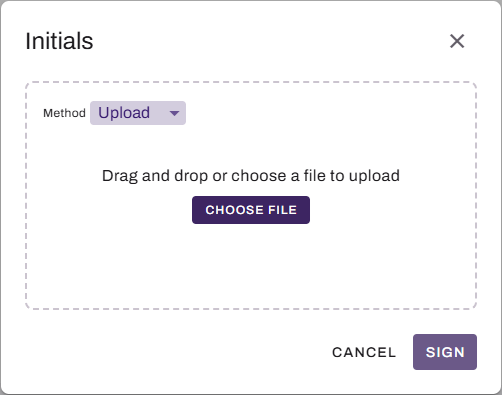
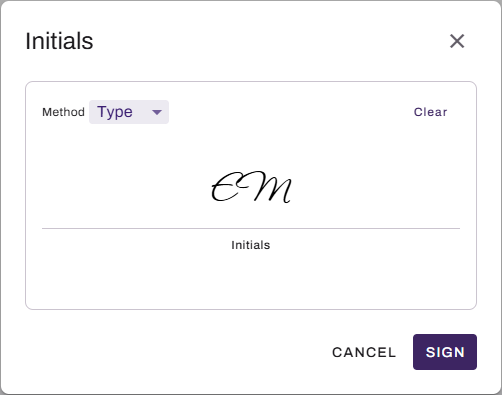
- Follow these steps in the Initials modal:
- Select one of the following tabs:
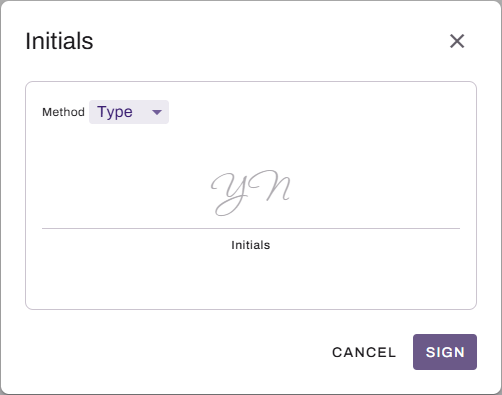
Type: Enter your initials in the Initials field.
Upload: Drag a file onto the modal, or select the Upload File button and select a file.
Draw: Draw your initials using your preferred method.
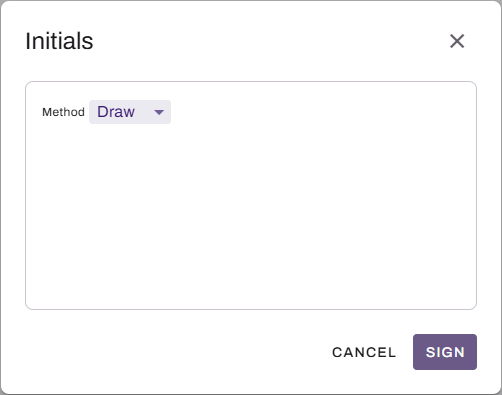
If you need to start over, select the Clear button to reset the modal.
- Select the Sign button.
- Select one of the following tabs:
Text Field
Follow these steps:
- Select the field.
- Enter text in the field.
Date Field
Follow these steps:
- Select the field.
- Follow these steps in the Select Date modal:
- Select the date. Today's date is autoselected.
- Select the Save button.

3. Complete the Document
Submit the Document
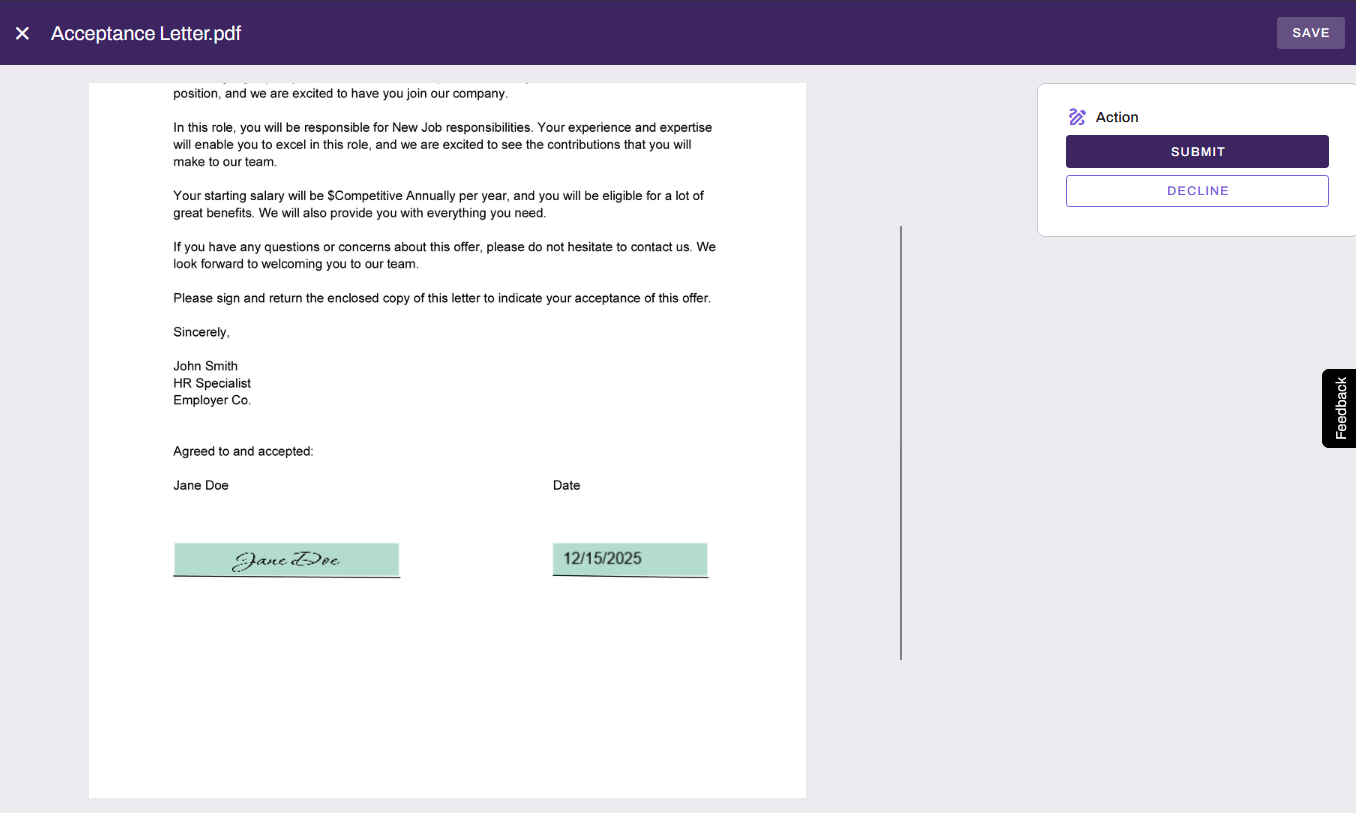
After you complete all fields that are assigned to you, select the Submit button to complete the document.
Decline the Document
If you do not want to sign the document, follow these steps:
- Select the Decline button.
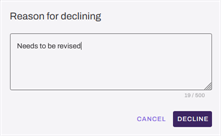
- Follow these steps in the Reason for declining modal:
- Enter a comment in the Comments field.
- Select Decline.
Save a Draft
To save the document as a draft, select the Save button.
In this topic: