Configure Background Workflow Trigger
Last Updated: October 22, 2026
Configure a background workflow trigger to automatically process print jobs after they complete. This topic explains how to create the workflow trigger and activate it in the Admin Console.
Requirements
Review these Requirements before you start.
In addition to the general requirements, a background workflow trigger requires the following:
- The Background Workflow Trigger option must be turned on in the Admin Console.
Create a Background Workflow Trigger
Follow these steps:
- In Vasion Automate select Workflow and then Business Process.
- Select + New Workflow.
- On the Let's get started modal, enter a name for the new workflow, and select Continue.
- Select Background Workflow.
- Select one of the following options:
- Add additional workflow steps.
- Select Publish.
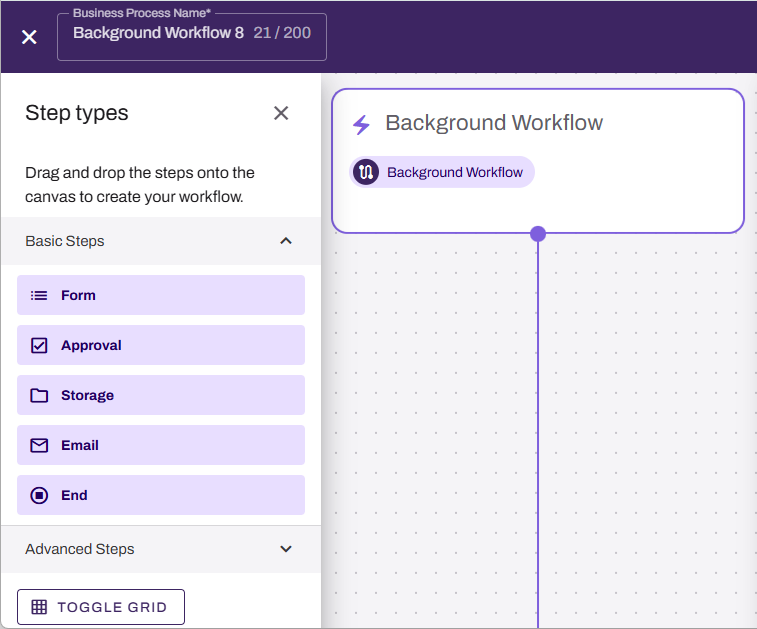
Activate the Background Workflow Trigger
Follow these steps to assign the workflow to your printer fleet:
- In the Admin Console, select Print from the left-side navigation.
- Go to Tools
 Settings Printing.
 - In the Automation section, select Enable Background Workflow.
- From the Workflow menu, select the workflow you created.
- Select Save.
The background workflow triggers automatically when a print job completes on any assigned printer.
Printer-Specific Settings
Override
Follow these steps to configure a background workflow trigger for a specific printer:
- Select a printer object in the tree structure.
- Select the Printing tab.
- In the Background Workflow section, select Use printer-specific setting.
- Select Enable Background Workflow.
- Select a workflow from the Workflow menu.
- Select Save.
Exclude
Follow these steps to turn off background workflow triggers for a specific printer:
- Select a printer object in the tree structure.
- Select the Printing tab.
-
In the Background Workflow section, select Use printer-specific setting.
Make sure Enable Background Workflow is deselected.
- Select Save.
Troubleshooting
If the workflow does not trigger after a print job completes, confirm the following:
- The workflow is assigned in the Admin Console in Tools Settings Printing.
- The print job meets any conditions you configured in the workflow.
- The printer is not excluded from the fleet-level assignment.
Next Steps
Refer to the following:
In this topic: