Add Document Event Trigger
Last Updated: September 08, 2026
Add a document event trigger to your workflow so it starts automatically when a user scans, prints, or routes documents through Output Rules.
Add an Event Trigger
Follow these steps:
- In Vasion Automate select Workflow and then Business Process.
- Select + New Workflow.
-
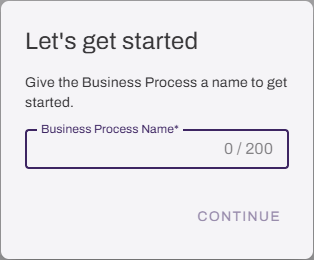
On the Let's get started modal, enter a name for the new workflow, and select Continue.
-
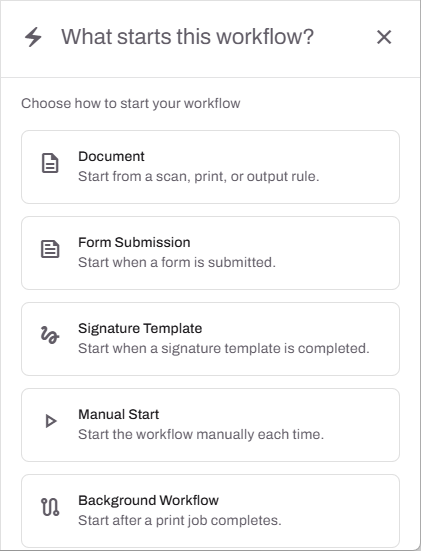
Select Document event.
-
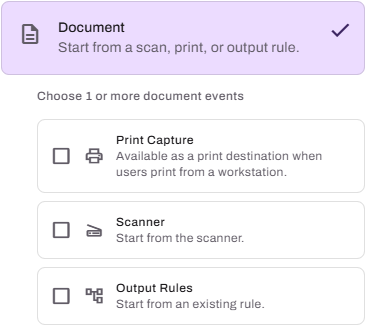
Select triggers:
- Document scan: Trigger the workflow when an assigned user scans.
- Print Capture: Trigger the workflow when an assigned user prints.
- Output Rules: Trigger the workflow when an existing rule is triggered.
- Select Continue.
- Add additional workflow steps.
Next Steps
Refer to the following:
In this topic: