Print With the App
Last Updated: October 08, 2026
You can print immediately to your installed printers using the device's native functions. Print jobs sent to pull or secure release printers are held and released by the user using the PrinterLogic mobile app or another release mechanism.
The mobile app feeds metadata from the print jobs into the Admin Console to include in the applicable reports.
Basic Printing
Depending on the app and operating system, there might be different ways to access the print function on your device. This topic provides an overview of the print process on each supported operating system.
Android Devices
The options available when printing with an Android device will depend on the device and app version. Some options are:
- Option to select Print or an associated print icon
 .
. - Option to select Share or an associated share icon
 .
. - To find these options you might need to use More button
 .
.
Basic Printing
On the document or screen to be printed, locate the appropriate printing option as described in the note above. Printers managed by Virtual Appliance display the PrinterLogic mobile app icon  .
.
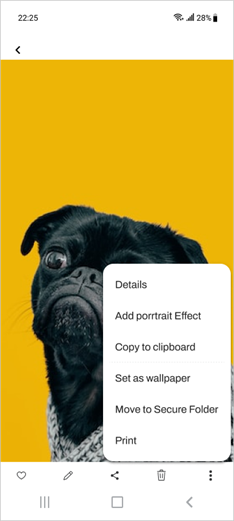
1. Select the Print option.
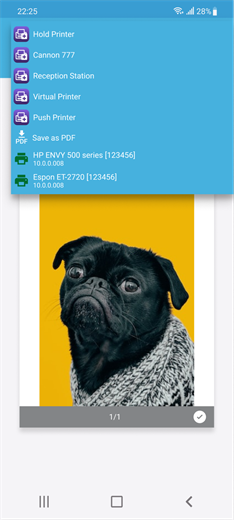
2. Select a printer.
3. Select the Print button  to send the print job.
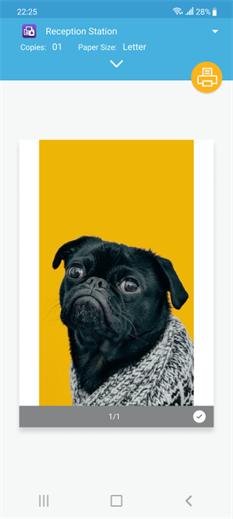
If you select a printer with a different icon, such as , then it is more than likely that printer that was not installed or deployed by Virtual Appliance.
iOS Devices
The options available when printing with iOS will depend on the device and app version. Some options are:
- More button
 option.
 - Share & Export option.
- Send a Copy option.
- Share button
 .
.
1. Select the Share button .
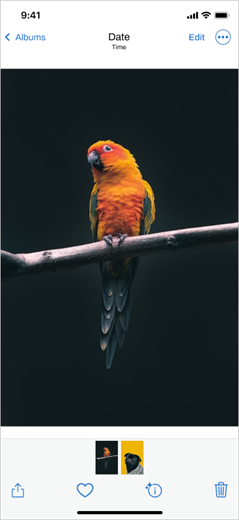
2. Select PrinterLogic from the share options.
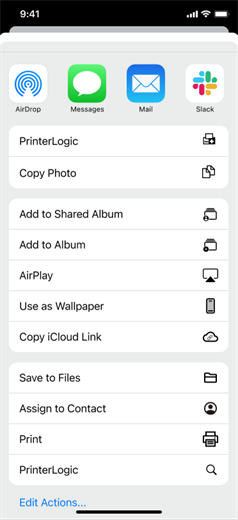
3. Select the Printer field to select the printer, if necessary.
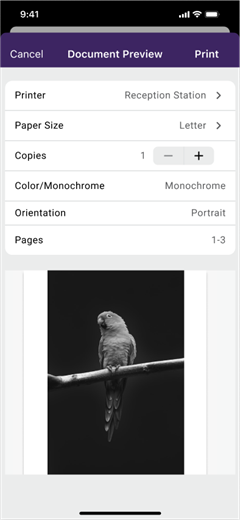
4. Select the printer you want.
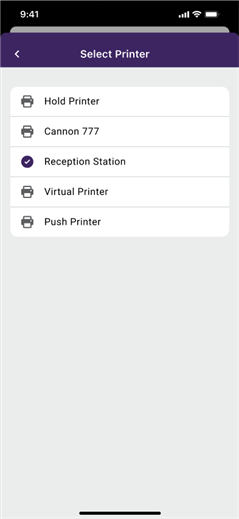
5. Select Print.
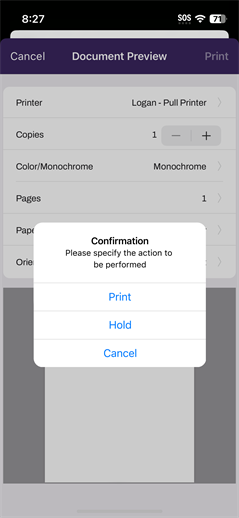
6. Select Print or Hold.
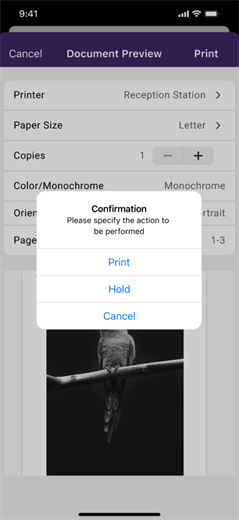
Confirmation modal options:
- Print: Immediately prints the document to the specified printer.
- Hold: Holds the document in the queue until a release action is taken at the printer.
- Cancel: Discards the print job.
Print from the iOS Mail App
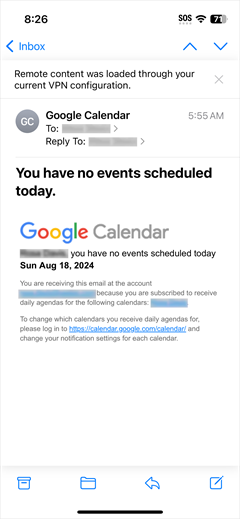
To print from the iOS Mail app, first select the email you want to print and then do the following:
- Select the Reply button
 .
.
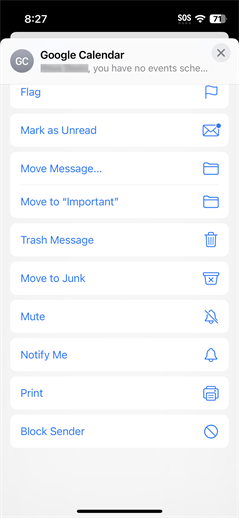
- Scroll down and select the Print option.
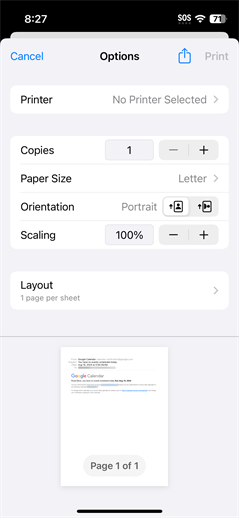
- Select Share .
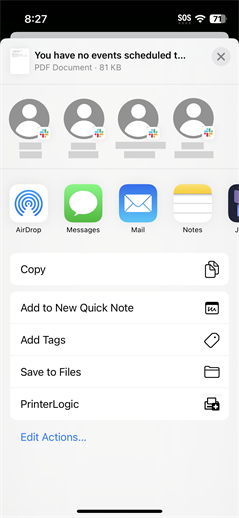
4. Select PrinterLogic.
5. Select Print.
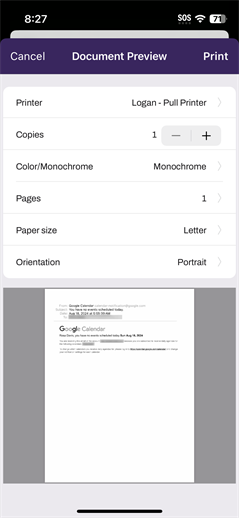
6. Select Print or Hold.
Troubleshooting Help
If held print jobs are not visible in the mobile app, make sure the end users are logged into the client on the workstation and the same user credentials are being used to log into the mobile app.
If your environment uses complex FDQNThe complete domain name for a specific device or host on a network, consisting of the hostname, the domain name, and the top-level domain. names on your printers, iOS considers having the complex names with a self-signed certificate an unsafe connection for IPP / IPPS requests. To confirm this is the issue, check your logs for the following error from the printer or server: "Error Domain=NSURLErrorDomain Code=-1200".
The solution is to install the root certificate for the used domain on the device. Refer to iOS Printing Fails with -1200 Error..
Most commonly this is because when you printed from your workstation, you selected a specific printer to print to. Depending on how your environment is configured, it is assumed you are performing a secure print function, and want to print to that specific printer. If this is the case, go to the selected printer and either select the Print Release option, or if configured, scan the QR code
 option.
Although held print jobs generally show up on the app very quickly, depending on your network, a print job may take a short period of time to show in the app. Sometimes you may need swipe down on the print release screen to refresh.
Another consideration is how long it has been since you printed the job. As a default, held print jobs are kept for only 12 hours before being purged. This setting can be modified to be shorter or longer by the application administrator. Confirm with them on what this time is set to.
- Open the PrinterLogic mobile app on the device that needs log information.
- Select the App icon
 from the app header.
 - Select the Settings button
 .
. -
Select the toggle to turn on event logging.

-
On the Enable Logging modal select Start.
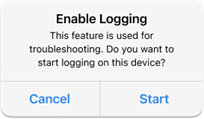
Turn on Event Logging for print release to assist you with troubleshooting efforts. Only the app details are logged and should be turned only on for the time necessary to gather the needed information, since the log data is stored on the device.
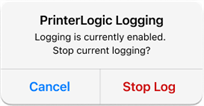
Only one log is stored on the device at a time. So when logging is enabled again, the previous log information is replaced with the new log.
You will receive a notification after 4 hours if logging is still turned on. Select Stop Log to turn off Event Logging.
In this topic:

When the user launches the app and selects a print job, printers that are available for that job appear automatically. They are determined by IT or were added by the user. For Secure Printing, if the job is assigned to a specific printer then only that printer will appear. For pull printing, users see all the pull print enabled printers they have access to.
Unlike the traditional Virtual ApplianceAgent found on end user workstations, the mobile app does not automatically update itself. To see new changes to configurations or deployments, you must open the app to the Printers screen, and pull down to refresh it.
Yes, the mobile app does feed metadata into the Admin Console that can be viewed in the various applicable reports.