Quota Management
Last Updated: September 11, 2026
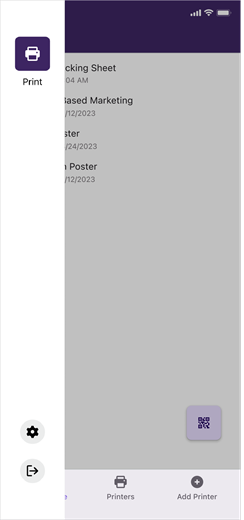
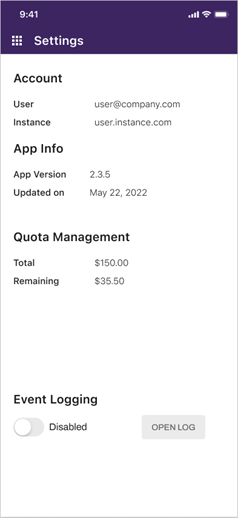
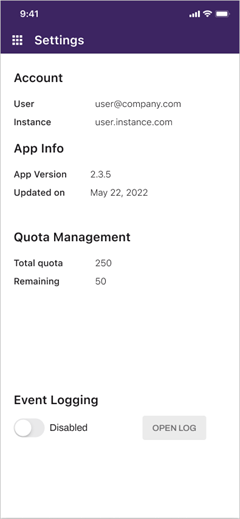
Quota Management sets printing quotas for groups and individual users to reduce wasteful printing and, in some cases, supplement print costs. Your system administrator sets these quotas as a volume, defined as the total number of allowed print jobs, or cost, expressed as a dollar amount available to use on print jobs. You can view you assigned quota and remaining value in the Settings screen of the PrinterLogic mobile app.
Check Available Quota
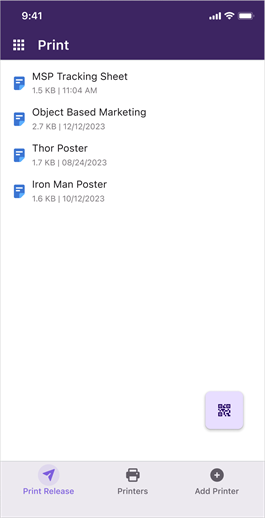
1. Select the App icon  .
.
2. Select the Settings icon  .
.
Cost Quota
Volume Quota
Quota Management Messages
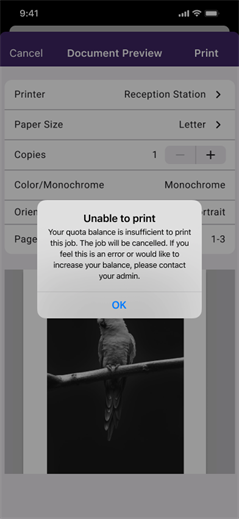
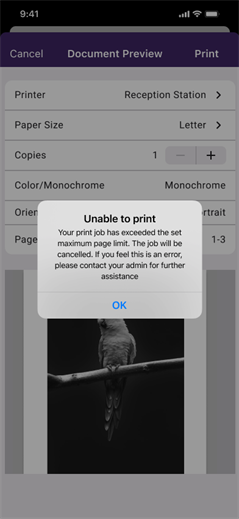
The message displayed when you exceed your quota depends on how your system administrator set up the quotas.
Insufficient balance
Exceeded page limit
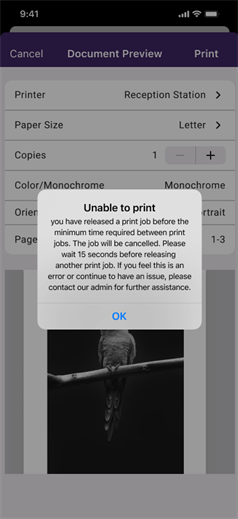
Minimum time not met