Last Updated: June 23, 2026
Retention
Use the Retention Automation to automatically move stored documents within your file structure based on a date field or document created date and other specified criteria. You can specify the new storage location or delete the documents permanently.
To create a new Retention automation you must configure:
- General Settings
- Build Retention
- Comparing Criteria
- String Field Comparison
1. General Settings
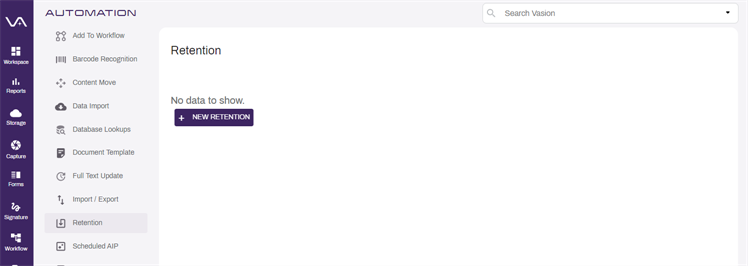
- In the Automation app, select Retention in the side navigation.
-
Select the + New Retention button.
- In the General tab, enter the name for the new Retention automation in the Retention Name field.
-
If you have an on-premises instance of Vasion, you may enter a value on the Run On Machine filed otherwise leave blank.
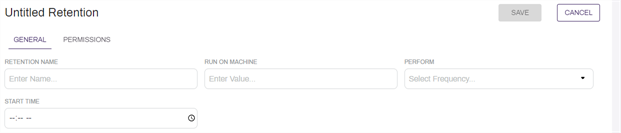
The value in this field determines the server used to run the automation and is only required where there are multiple Vasion clients and/or client services running for the environment.
- Use the Perform drop-down to select the frequency you want the automation to run. The next fields that display depend on what you select here.
- Once — select this option to only run the automation once. The next field display updates to Start Date. Enter the date in the format shown or select the Calendar icon
 to pick the date.
 - Daily — select this option to run the automation every day. The only remaining option is the Start Time.
- Weekly — select this option to run the automation once a week. The next field updates to Weekdays. Use the drop-down to select one or more days of the week by selecting the appropriate box.
- Monthly — select this option to run the automation once a month. The next field updates to Months. Use the drop-down to select one or more months by selecting the appropriate box.
- Frequency — select this option to run the automation at a specified time interval in minutes.
- In the next field, enter the number of minutes for the time interval.
- Once — select this option to only run the automation once. The next field display updates to Start Date. Enter the date in the format shown or select the Calendar icon
- In the Start Time, enter the time of day to run the automation in the format shown or select the Clock icon
 to pick the time.
 - If the Monthly option is selected, a Day of Month field is shown. Enter the day of the selected month(s) when you would like to run the automation.
2. Build Retention
-
Select the arrow button next to Build Retention to expand the section.
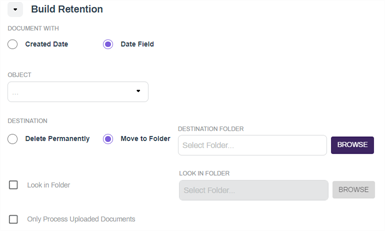
- In Document With, select the option you would like to use as the parameter for the document search:
- Created Date — select this option to use the date the document was created.
- Date Field — select this option to use the date of the workflow
- In Destination, select the action you want to apply to the automation.
- Delete Permanently — select this option to permanently delete the documents.
When selecting this option, please ensure your settings are accurate. The recommended best practice is to run a test with the Move to Folder option first to understand the date comparison before you initiate this process. Remember, deleted documents are not always recoverable.
- Move to Folder — select this option to move the documents to a specified folder. If you select this option, complete the following:
Select the Browse button to select the folder where you want to move the documents. The folder you select displays in the Destination Folderfield.

- Delete Permanently — select this option to permanently delete the documents.
- If you would like to apply the automation to only a specific folder location, check the Look In Folder box. If you select this option, complete the following:
Select the Browse button to select the folder where you want to move the documents. The folder you select displays in the Look In Folder field.
Select the Include Subfolders option to include any documents in folders below this level in the file tree.
- Check the Only Process Uploaded Documents box to only scan documents that have been uploaded for barcode recognition.

3. Comparing Criteria
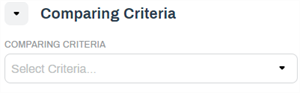
You can manage the retention with more granularity by configuring additional criteria required to move or delete the content based on date values.
- Use the Comparing Criteria drop-down to select a comparison.
- Equal
- Greater than
- Greater than or equal
- Less than
- Less than or equal
Not equal
- Select basis for the comparison parameter:
Period Date — select this option to select documents based on a date variable.
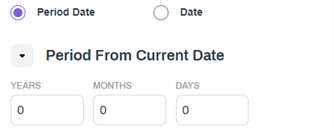
You can enter negative and positive numbers into these fields. For example, you can enter "-1" in the Years and "2" In the Months field and if the current date is 4/13/2021, the calculated date result would be 6/13/2020. It subtracted 1 year added 2 months.
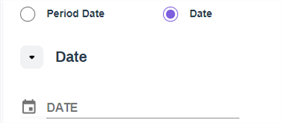
Date — select this option to choose a specific date
4. String Field Comparison
You can use object field values to configuring additional criteria required to move or delete the content.
- Use the Object drop-down to select an object.
- Use the Field drop-down to select an object field from the selected object.
- Use the Comparison drop-down to select a comparison.
- Equals
- Contains
- Starts With
- Ends With
- In the Value field enter a comparison value.

Permissions
You can change who can see or edit the
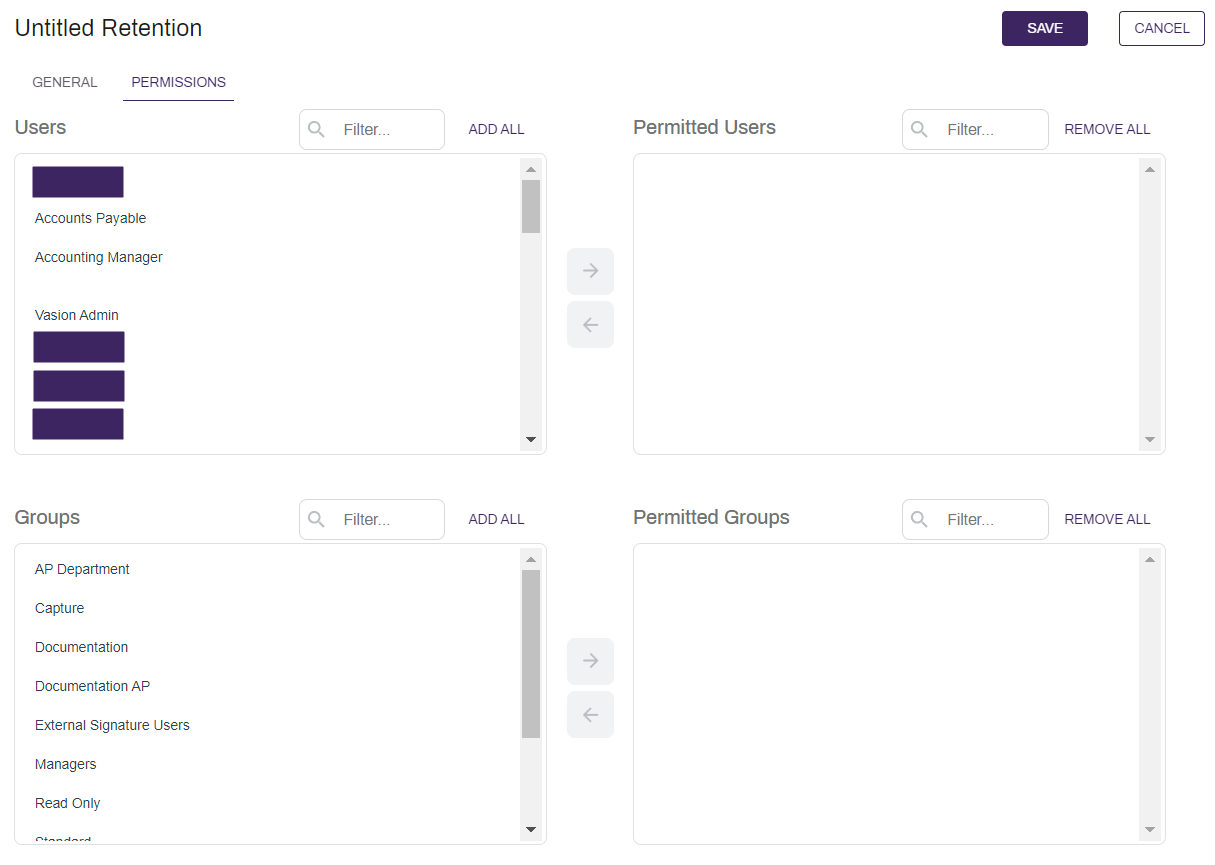
- Select the Permissions tab at the top of the screen.
- Select the users and / or groups you would like to have permission to access the
 .
. - Add or remove all users or groups by selecting on the Add All or Remove All buttons above each column.
- Select Save.
The roles that a user has can also limit which users can see and run this job. See Roles for more information on what roles do and how they may affect what you are trying to do.
When the configuration is complete, select Save at the top of the page to save your automation and run automatically based on the specified settings.